1. Introduction
This manual provides detailed instructions for the setup, operation, and maintenance of your Futuzen Mini Projector P10 Pro. Designed for versatility, this portable projector supports 4K content, features 180-degree rotation, a built-in speaker, and offers seamless connectivity via Wi-Fi and Bluetooth. Please read this manual thoroughly to ensure proper use and to maximize your viewing experience.
2. Product Overview
The Futuzen Mini Projector P10 Pro is a compact and versatile projection device. Its design allows for flexible placement and projection onto various surfaces, including walls and ceilings. It integrates essential features for a convenient home theater or portable entertainment setup.
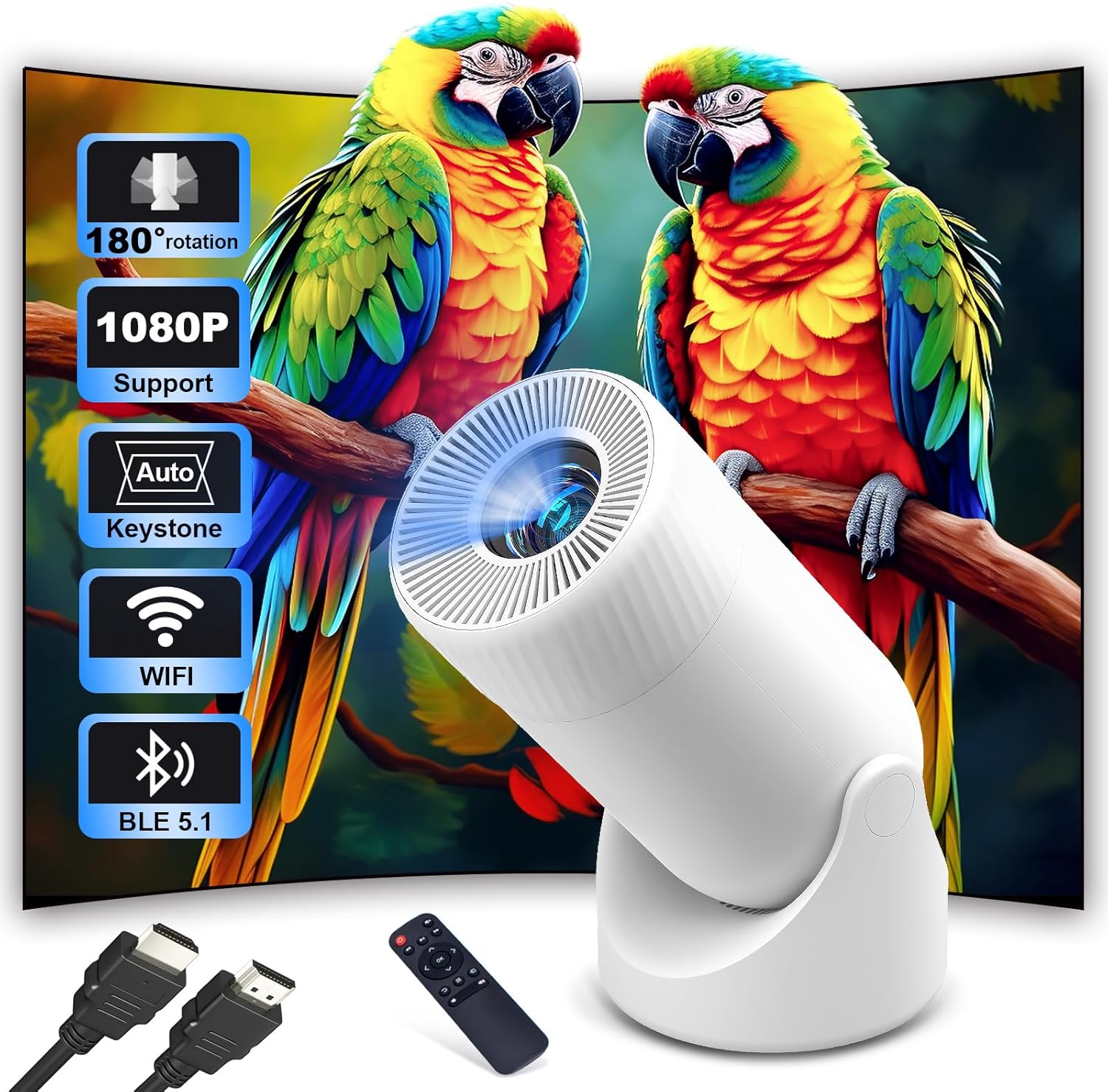
Image 2.1: Futuzen Mini Projector P10 Pro and accessories.
2.1 Key Features
- 180-Degree Rotation: Project images onto walls, ceilings, or floors with ease.
- Automatic Keystone Correction: Ensures a perfectly rectangular image even when the projector is tilted.
- Dual-Band Wi-Fi: Supports 2.4G and 5G networks for stable and fast screen mirroring.
- Bluetooth 5.2: Connects to external audio devices for enhanced sound.
- Built-in Speaker: Integrated 3W stereo speaker for immediate audio playback.
- Compact and Portable: Weighs approximately 1.8 lbs, making it easy to transport.
- Fire-Resistant Material: Constructed with V0-grade flame-retardant materials for safety.
2.2 Components and Ports
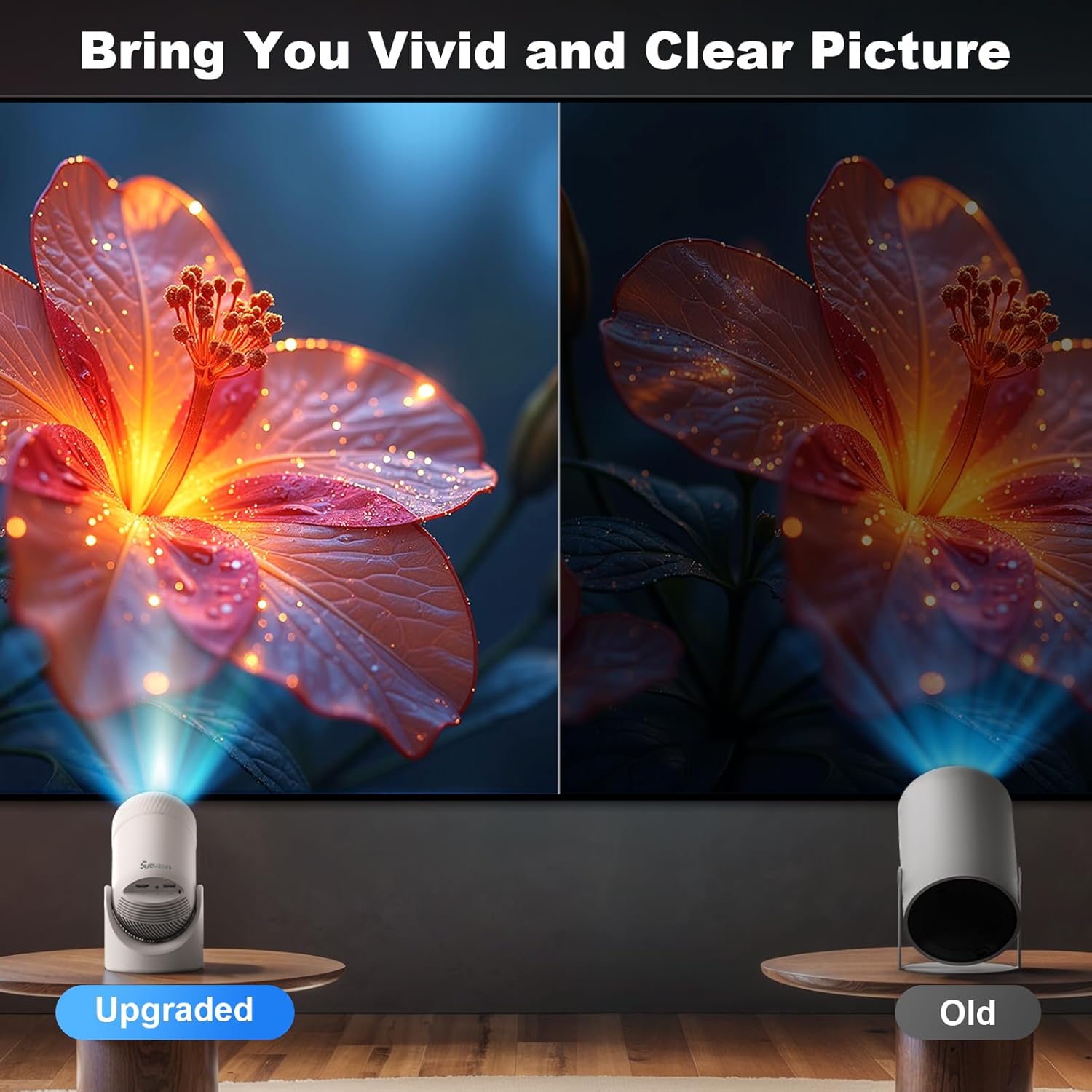
Image 2.2: Side view of the projector highlighting connectivity ports.
The projector features the following ports and controls:
- HDMI Port: For connecting external devices such as laptops, gaming consoles, or TV sticks.
- USB Port: For connecting USB drives or charging compatible devices.
- Audio Jack (3.5mm): For connecting external headphones or speakers.
- Power Input: For connecting the power adapter.
- Focus Ring: Manual adjustment for image clarity.
- Power Button: To turn the projector on or off.
3. Setup
3.1 Unboxing and Contents
Upon opening the package, ensure all the following items are present:
- Futuzen Mini Projector P10 Pro
- HDMI Cable
- Remote Control
- Power Adapter
3.2 Power Connection
- Connect the power adapter to the projector's power input port.
- Plug the power adapter into a wall outlet.
- Press the power button on the projector or the remote control to turn it on.
3.3 Placement and Projection
The projector's 180-degree rotatable design offers significant flexibility for placement.

Image 3.1: Projector demonstrating 180-degree rotation for flexible projection.
- Place the projector on a stable surface.
- Adjust the projector's angle to project onto your desired surface (wall, ceiling, or screen).
- The optimal projection distance will vary based on the desired screen size, which can be up to 200 inches.
3.4 Focus and Keystone Correction
Achieve a clear and rectangular image using the following adjustments:

Image 3.2: Manual focus adjustment using the focus ring.
- Focus Adjustment: Rotate the focus ring on the projector lens until the image appears sharp and clear.

Image 3.3: Automatic keystone correction in action.
- Automatic Keystone Correction: The projector features automatic keystone correction to adjust the image shape into a perfect rectangle, even if the projector is placed at an angle.
4. Operating Instructions
4.1 Power On/Off
Press the power button on the projector or the remote control to turn the device on or off.
4.2 Connectivity
The Futuzen Mini Projector P10 Pro offers multiple ways to connect your devices.

Image 4.1: Dual-band Wi-Fi connectivity.
- Wi-Fi Connection: The projector supports dual-band 2.4G and 5G Wi-Fi for stable wireless connections. Navigate to the Wi-Fi settings in the projector's menu to connect to your network.
- Screen Mirroring: Wirelessly mirror content from your iOS or Android smartphone/tablet directly to the projector via Wi-Fi. No additional apps are required for basic screen mirroring.
- Bluetooth 5.2: Connect external Bluetooth audio devices like speakers or headphones for an enhanced sound experience. Note: The Bluetooth function is for audio transfer only and does not support video synchronization with smartphones or tablets.
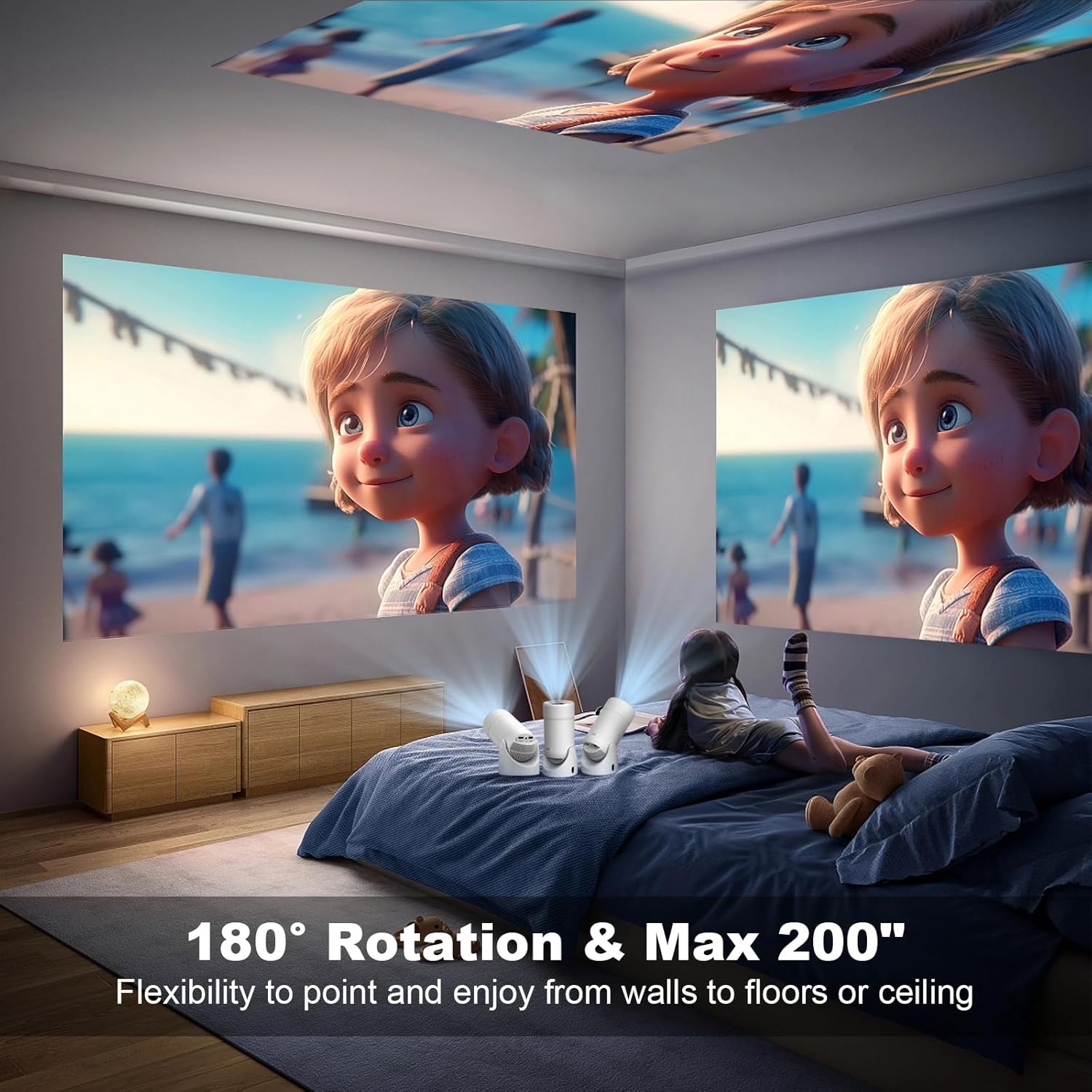
Image 4.2: Wide compatibility with various input sources.
- HDMI Connection: Use the included HDMI cable to connect devices such as laptops, desktop PCs, gaming consoles (Xbox, PS5, Nintendo Switch), or TV streaming sticks (e.g., Roku, Fire TV Stick).
- USB Connection: Insert a USB drive to play media files directly. The USB port can also be used for connecting compatible smartphones or other devices.
4.3 Audio Output
The projector includes a built-in 3W stereo speaker. For a more immersive audio experience, you can connect external speakers or headphones via Bluetooth or the 3.5mm audio jack.
4.4 Important Note on Streaming Applications
Due to copyright restrictions, this mini portable projector does not support wireless mirroring of certain streaming applications like Netflix or Disney+ directly from your phone. Attempting to do so may result in a black screen while audio continues. This restriction applies to all projectors without a built-in Android TV system.
For the best experience with streaming apps, it is recommended to use a TV stick (not included, purchase separately) connected to the projector via the HDMI port.
5. Maintenance
5.1 Cleaning
- Lens: Use a soft, lint-free cloth specifically designed for optical lenses to gently wipe the projector lens. Avoid abrasive materials or harsh chemicals.
- Casing: Wipe the projector's exterior with a soft, dry cloth. Do not use liquid cleaners directly on the device.
- Ventilation: Ensure the ventilation openings are clear of dust and obstructions to prevent overheating.
5.2 Initial Odor
When first operating the projector, you may notice a slight odor. This is normal and originates from the fire-resistant materials used in its construction. The odor is non-toxic and will typically dissipate after approximately 24 hours of use.
6. Troubleshooting
If you encounter issues with your Futuzen Mini Projector P10 Pro, please refer to the following common problems and solutions:
| Problem | Possible Cause | Solution |
|---|---|---|
| No image or "No Signal" via HDMI | Loose HDMI cable, incorrect input source, incompatible device. | Ensure HDMI cable is securely connected to both projector and source device. Select the correct HDMI input on the projector. Try a different HDMI cable or source device. |
| Projector locks up or reboots during USB video playback | Incompatible video file format, corrupted file, or large file size. | Try playing different video files. Ensure files are in commonly supported formats. Reduce video resolution or bitrate if possible. |
| Low sound volume or poor audio quality | Projector volume too low, source device volume too low, or internal speaker limitations. | Increase volume on both the projector and the source device. Connect external Bluetooth speakers or headphones for improved audio. |
| iPhone/Android screen mirroring video not playing (black screen) | Copyright restrictions on streaming apps (e.g., Netflix, Disney+). | For protected content, use a TV stick (e.g., Roku, Fire TV Stick) connected via HDMI. For general mirroring issues, ensure both devices are on the same Wi-Fi network. For iPhones, a USB-C to HDMI converter may be required for some applications. |
| Image appears blurry | Incorrect focus adjustment. | Rotate the focus ring on the projector lens until the image is sharp. |
| Image is trapezoidal or distorted | Projector is not perpendicular to the screen. | The projector features automatic keystone correction. Ensure the projector is placed on a stable surface and allow the auto-correction to function. |
7. Specifications
| Feature | Detail |
|---|---|
| Brand | Futuzen |
| Model Number | P10 Pro |
| Item Weight | 1.82 pounds |
| Product Dimensions | 4.33 x 4.33 x 8.66 inches |
| Color | White |
| Display Resolution | 1280 x 720 (Supports 4K input) |
| Connectivity Technology | 3.5mm Jack, Bluetooth 5.2, HDMI, USB, Wi-Fi (2.4G/5G) |
| Special Features | Auto Keystone, 180° Rotating Stand, Fireproof Material, Integrated 3W Speaker, 2S Quick Focus, Max 200" Screen, Zoom 75%-100% |
| Recommended Uses | Home Cinema, Gaming, Education, Business |
8. Warranty and Support
For warranty information or technical support, please refer to the documentation included with your purchase or contact Futuzen customer service directly through their official website or the retailer where the product was purchased. Please have your model number (P10 Pro) and purchase details ready when contacting support.