
Luqeeg Luqeegq14gpecrfn-13
Contents
Luqeeg 50MP Compact Video Camera User Manual
Model: Luqeegq14gpecrfn-13
Introduction
This manual provides detailed instructions for the proper use, setup, and maintenance of your Luqeeg 50MP Compact Video Camera. Please read this manual thoroughly before operating the camera to ensure optimal performance and longevity.
Package Contents
Verify that all items listed below are included in your package. If any items are missing or damaged, please contact customer support.

Image: The Luqeeg 50MP Compact Video Camera shown alongside its included accessories: a lanyard, a USB charging cable, and a storage bag.
- 1 x Luqeeg 4K Digital Camera
- 1 x Lanyard
- 1 x Instruction Manual (this document)
- 1 x USB Charging Cable
- 1 x Storage Bag
Product Overview
The Luqeeg 50MP Compact Video Camera is designed for ease of use, offering high-resolution photo and video capabilities in a portable form factor. It features a 50MP image sensor for detailed photos and supports 4K UHD video recording. The camera includes a 16x digital zoom, anti-shake technology, and autofocus for clear and stable captures.

Image: A close-up front view of the Luqeeg 50MP Compact Video Camera, highlighting its lens, built-in flash, and the '4K Ultra HD' and '50.0 Mega Pixels' markings.

Image: An infographic illustrating the camera's main features, including 50MP image capture, 4K HD recording, 16x digital zoom, oversized selfie lens, AF autofocus, beauty filter, electronic anti-shake, 2.83-inch HD screen, and a 1000mAh battery.
Key Features:
- 50MP Photo and 4K UHD Video: Capture high-resolution images and smooth, vivid video.
- 16x Digital Zoom: Bring distant subjects closer with clarity.
- Anti-Shake Function: Ensures stable photos and videos, even when zoomed in.
- Autofocus: Automatically adjusts focus for sharp images.
- 2.83 Inch Large Screen: Provides a clear view for framing shots and reviewing content.
- Built-in LED Flash: Illuminates subjects in low-light conditions.
- Rechargeable Battery: Integrated 1000mAh Li-ion battery for extended use.
- TYPE-C Port: Convenient charging via power banks or computers.
Setup
1. Charging the Battery
The camera comes with a built-in rechargeable Li-ion battery. Before first use, ensure the battery is fully charged.
- Connect the included USB charging cable to the camera's TYPE-C port.
- Connect the other end of the USB cable to a USB power adapter (not included), a computer's USB port, or a power bank.
- The charging indicator light on the camera will illuminate during charging and turn off when charging is complete.
2. Inserting a Memory Card
The camera requires a small memory card (up to 128GB, not included) to store photos and videos.
- Locate the memory card slot on the side of the camera.
- Gently insert the memory card into the slot with the metal contacts facing the correct direction (refer to the diagram near the slot).
- Push the card in until it clicks into place. To remove, push the card again until it springs out.
3. Powering On/Off
To power on the camera, press and hold the Power button located on the top of the camera until the screen illuminates. To power off, press and hold the Power button again until the screen turns off.
Operating Instructions
1. Taking Photos and Recording Videos
The camera is ready to use upon power on. You can switch between photo and video modes using the mode button (usually indicated by a camera or video icon).

Image: A hand holding the Luqeeg camera, with the rear display showing a live preview of a person's face, demonstrating the camera's screen functionality.

Image: A user holding the Luqeeg camera, with the back screen displaying a person in motion, illustrating the camera's ability to capture dynamic scenes.
- To take a photo: In photo mode, press the Shutter button (usually on top of the camera) fully to capture an image.
- To record a video: In video mode, press the Record button (often integrated with the Shutter button or a separate button with a red dot) to start recording. Press it again to stop.
2. Using Digital Zoom
The camera features a 16x digital zoom to magnify your subject.
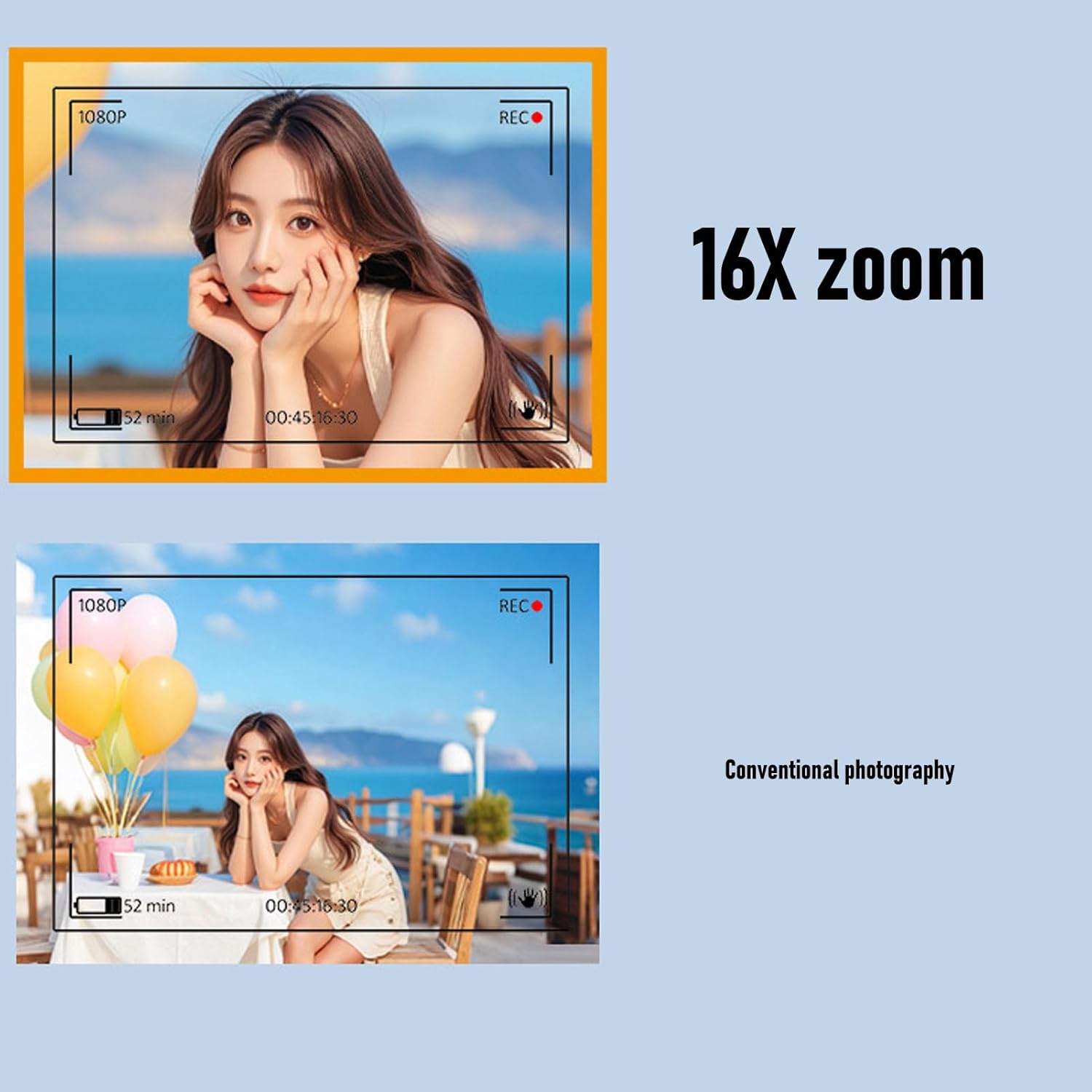
Image: A visual comparison showing the effect of 16x digital zoom on a subject versus a conventional, unzoomed photograph, demonstrating the camera's magnification capability.
- Use the Zoom In (T) and Zoom Out (W) buttons, typically located near the shutter button or on the directional pad, to adjust the zoom level.
3. Autofocus Function
The camera's autofocus system helps ensure your subjects are sharp and clear.

Image: Three examples demonstrating the camera's autofocus capability: a dessert, a cluster of tulips, and text in a book, highlighting how the camera sharpens details.
- The camera will automatically focus when you half-press the Shutter button or when you start recording video.
4. Using the LED Flash
The built-in LED flash provides additional illumination in dark environments.
- Access flash settings through the camera's menu or a dedicated flash button (if available) to select modes like Auto Flash, Fill-in Flash, or Flash Off.
5. Viewing and Transferring Files
You can review your photos and videos directly on the camera's 2.83-inch screen or transfer them to another device.
- On Camera: Use the Playback button (often indicated by a play icon) to enter playback mode. Use the directional buttons to navigate through your files.
- To a Computer: Connect the camera to your computer using the supplied USB cable. The camera should appear as a removable disk, allowing you to copy files.
- To a Phone (via OTG): Insert the memory card into a card reader, then connect the card reader to your phone via an OTG adapter (not included) to export photos.
Maintenance
1. Cleaning the Camera
- Use a soft, lint-free cloth to clean the camera body.
- For the lens and screen, use a specialized lens cleaning cloth and solution. Avoid harsh chemicals.
- Do not use abrasive materials or solvents.
2. Battery Care
- Charge the battery regularly, even if the camera is not in use, to maintain battery health.
- Avoid exposing the camera to extreme temperatures, which can affect battery performance.
3. Storage
- When not in use, store the camera in the provided storage bag to protect it from dust and scratches.
- Store in a cool, dry place away from direct sunlight and high humidity.
Troubleshooting
If you encounter any issues with your camera, please refer to the following common problems and solutions:
| Problem | Possible Cause / Solution |
|---|---|
| Camera does not power on. | Battery may be depleted. Charge the battery fully. Ensure the power button is pressed and held correctly. |
| Cannot take photos/record videos. | Memory card is full or not inserted correctly. Insert a new or empty memory card, or ensure the card is properly seated. Check if the camera is in the correct mode (photo/video). |
| Images are blurry. | Lens may be dirty. Clean the lens with a soft cloth. Ensure autofocus is working correctly; try refocusing. Check lighting conditions. |
| Flash is not working. | Flash setting may be off. Check flash mode settings in the camera menu. |
| Camera freezes or becomes unresponsive. | Try removing and reinserting the memory card. If the issue persists, perform a soft reset by holding the power button until it turns off, then restart. |
Specifications
| Feature | Detail |
|---|---|
| Item Type | 4K Digital Camera |
| Material | ABS |
| Highest Image Resolution | 50MP (maximum) |
| Highest Video Resolution | 4K (maximum) |
| Screen Size | 2.83 inches |
| Digital Zoom | 16x |
| Storage Support | Maximum 128GB Small Memory Card (not included) |
| Battery Type | Li-ion Battery, 1000mAh (built-in) |
| Charging Port | TYPE-C |
| Item Weight | 11.6 ounces |
| Package Dimensions | 4.72 x 4.72 x 2.36 inches |
| Model Number | Luqeegq14gpecrfn-13 |
| Color | Roseate |
Warranty and Support
For any product inquiries, technical support, or warranty claims, please contact Luqeeg customer service through the retailer where you purchased the product. Please retain your proof of purchase for warranty purposes.
Ask a question about this manual
Ask about setup, troubleshooting, compatibility, parts, safety, or missing instructions. Manuals+ will review the question and use this page’s manual context to help answer it.