1. Setup
1.1 Package Contents
Verify that all items are present in your package:
- 1 x Bewinner Smart Watch
- 1 Set x Watch Strap
- 1 x Charging Cable
- 1 x User Manual
1.2 Initial Charging
Before first use, fully charge your smart watch. Connect the provided charging cable to the charging contacts on the back of the watch and to a standard USB power source. The watch display will indicate charging status.

Image: The back of the Bewinner Smart Watch, highlighting the magnetic charging contacts and health sensors.
1.3 Power On/Off
- To Power On: Long press the power button located on the side of the watch until the screen illuminates.
- To Power Off: Long press the power button, then select the 'Power Off' option on the screen.

Image: Side view of the Bewinner Smart Watch, illustrating the physical button (crown) used for power and navigation.
1.4 App Installation and Pairing
To unlock the full functionality of your smart watch, you need to install the companion application on your smartphone.
- Download the App: Scan the QR code provided in the physical user manual or search for 'GloryFit' in your smartphone's app store (compatible with Android 4.4+).
- Open the App: Launch the 'GloryFit' application on your smartphone.
- Pair the Watch: Follow the on-screen instructions within the app to search for and connect to your Bewinner Smart Watch via Bluetooth. Ensure Bluetooth is enabled on your smartphone.
2. Operating Your Smart Watch
2.1 Navigating the Interface
The Bewinner Smart Watch features a 1.43-inch AMOLED HD touch screen. Swipe left, right, up, or down to access different functions and menus. Tap to select items.
2.2 Customizing Watch Faces
Personalize your watch by changing the watch face. You can select from multiple pre-installed watch dials or download more through the 'GloryFit' app. The app also allows you to create custom watch faces using your own photos.

Image: The Bewinner Smart Watch showcasing a selection of digital and analog watch faces, demonstrating customization options.
2.3 Bluetooth Call Functionality
Once paired with your smartphone, the watch supports Bluetooth calling. You can make and receive calls directly from your wrist.
- Making Calls: Access the dial pad or contact list on the watch to initiate a call.
- Receiving Calls: Answer or reject incoming calls directly from the watch screen.

Image: Two Bewinner Smart Watches, one showing an incoming call interface and the other displaying a numeric dial pad for making calls.
2.4 AI Voice Assistant
Utilize the integrated AI voice assistant for hands-free control. Speak commands to your watch to perform various tasks on your connected smartphone.
- Examples: "Call [Contact Name]", "Check the weather", "Play music", "Set an alarm".

Image: A user interacting with the Bewinner Smart Watch's voice assistant while cycling, demonstrating commands for weather and calls.
2.5 Music Control
Control music playback on your smartphone directly from your watch. Play, pause, skip tracks, and adjust volume without needing to take out your phone.
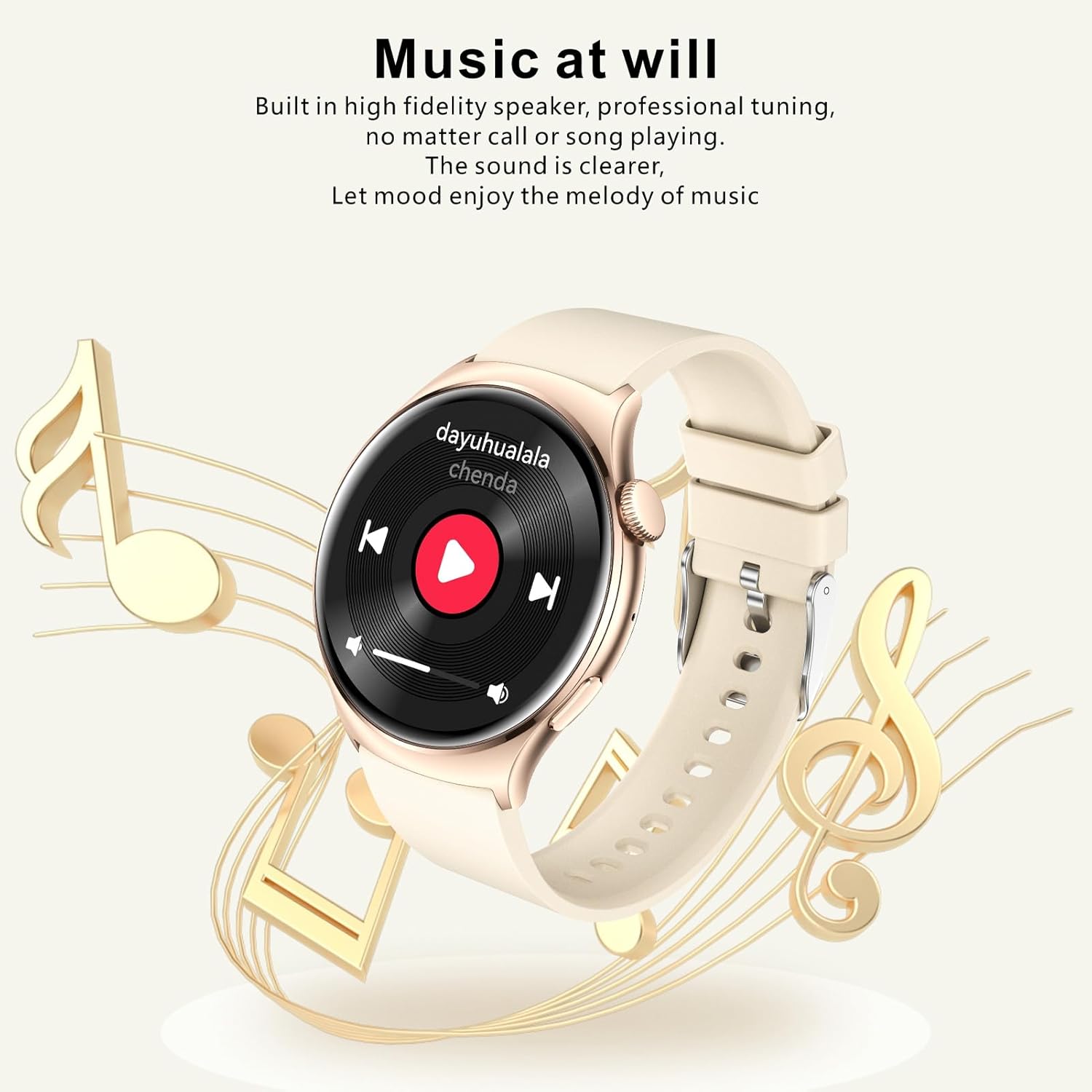
Image: The Bewinner Smart Watch screen showing a music playback interface, allowing control of audio from the wrist.
2.6 Activity Tracking
The watch continuously tracks your daily physical activity. View real-time data for:
- Steps taken
- Distance covered
- Calories burned
- Speed
Set personal exercise goals within the 'GloryFit' app for more effective guidance.
2.7 Sport Modes
The smart watch offers over 100 sport modes to accurately record your performance during various activities, including running, cycling, and fitness courses. Select the appropriate mode before starting your workout.
2.8 Sleep Monitoring
Equipped with a high-accuracy sensor, the watch monitors your sleep patterns. It records data for light sleep and deep sleep, providing insights into your sleep quality through the 'GloryFit' app.
3. Maintenance
3.1 Cleaning
Regularly clean your smart watch and strap to maintain hygiene and performance.
- Wipe the screen and watch body with a soft, damp, lint-free cloth.
- For the silicone strap, wash with mild soap and water, then rinse thoroughly and dry.
- Avoid using harsh chemicals or abrasive materials.
3.2 Water Resistance (IP68)
The Bewinner Smart Watch is IP68 water resistant. This means it is protected against immersion in water up to 1.5 meters for up to 30 minutes. It is suitable for daily use, such as hand washing, rain, and shallow swimming. However, it is not recommended for hot showers, saunas, or diving, as steam and high water pressure can compromise the seal.
3.3 Battery Life
The watch is equipped with a 300mAh Lithium Ion Battery. Typical working time is 10-15 days, and standby time is approximately 75 days. Actual battery life may vary based on usage patterns and settings.
4. Troubleshooting
If you encounter issues with your Bewinner Smart Watch, refer to the following common solutions:
4.1 Watch Not Powering On
- Ensure the watch is fully charged. Connect it to the charging cable for at least 30 minutes.
- Perform a soft reset by long-pressing the power button for about 10-15 seconds.
4.2 Pairing Issues
- Make sure Bluetooth is enabled on your smartphone and the watch is within range.
- Restart both your smartphone and the smart watch.
- Clear the Bluetooth cache on your smartphone or forget the device in Bluetooth settings, then attempt to pair again through the 'GloryFit' app.
- Ensure the 'GloryFit' app has necessary permissions enabled on your smartphone.
4.3 Inaccurate Readings
- Ensure the watch is worn snugly on your wrist, but not too tight, allowing the sensors to make proper contact with your skin.
- Clean the sensor area on the back of the watch.
- Update the 'GloryFit' app and watch firmware to the latest versions.
5. Specifications
| Feature | Detail |
|---|---|
| Model Number | Bewinnerf82k9gwvua-12 |
| Display | 1.43 Inch AMOLED HD (466 x 466 Pixels) |
| Battery | 300mAh Lithium Ion Battery |
| Bluetooth Version | 5.2 |
| Water Resistance | IP68 |
| Working Time | 10-15 Days |
| Standby Time | Approx. 75 Days |
| App Compatibility | GloryFit (Android 4.4+) |
| Product Dimensions | 5.91 x 3.94 x 0.79 inches |
| Item Weight | 4.3 ounces |
| Manufacturer | Bewinner |
6. Warranty and Support
For warranty information and technical support, please refer to the documentation included with your purchase or contact Bewinner customer service directly. Details for contacting support can typically be found on the manufacturer's official website or through your retailer.


