
1. Overview
The Logitech G POWERPLAY 2 is a wireless charging system designed for compatible Logitech G gaming mice. This system provides continuous power to your mouse, ensuring it remains charged during use and at rest, eliminating the need for traditional charging cables during gameplay.
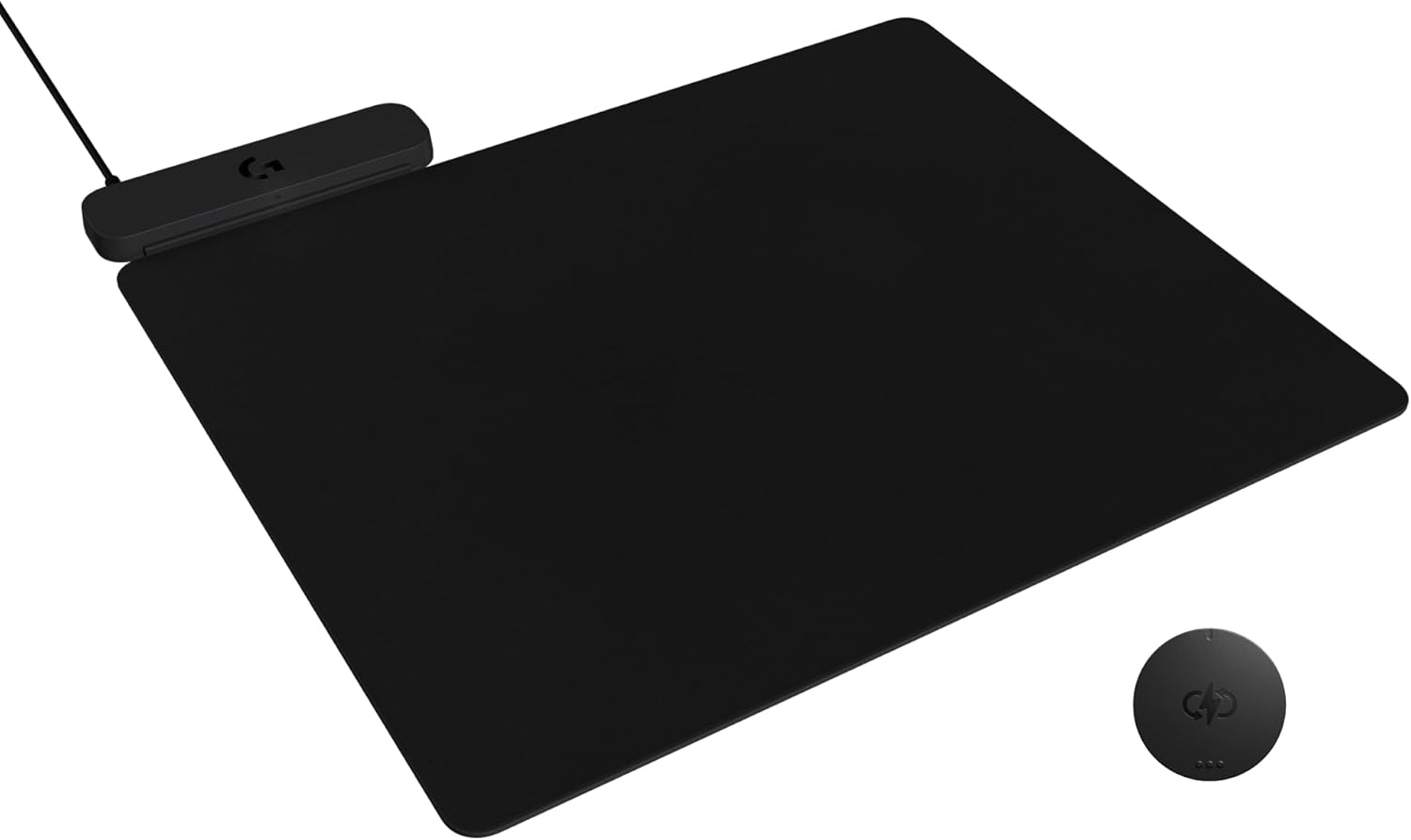
Image: The Logitech G POWERPLAY 2 Wireless Charging Mouse Pad, showing the main pad, the power module, and the POWERPLAY Coin.
Key features include:
- Continuous Wireless Charging: Powers compatible mice while in motion and at rest.
- Broad Compatibility: Works with current and future Logitech G wireless mice, including LIGHTSPEED 4KHz technology.
- Simple Setup: Plug-and-play functionality with no additional software required for basic operation.
- Slim Profile: Features a 3.5 mm total height for enhanced comfort and performance.
2. Package Contents
Verify that all items are present in your package:
- POWERPLAY 2 Base Unit
- Cloth Gaming Pad
- POWERPLAY Coin
- Attached USB-A Cable (1.8 m)
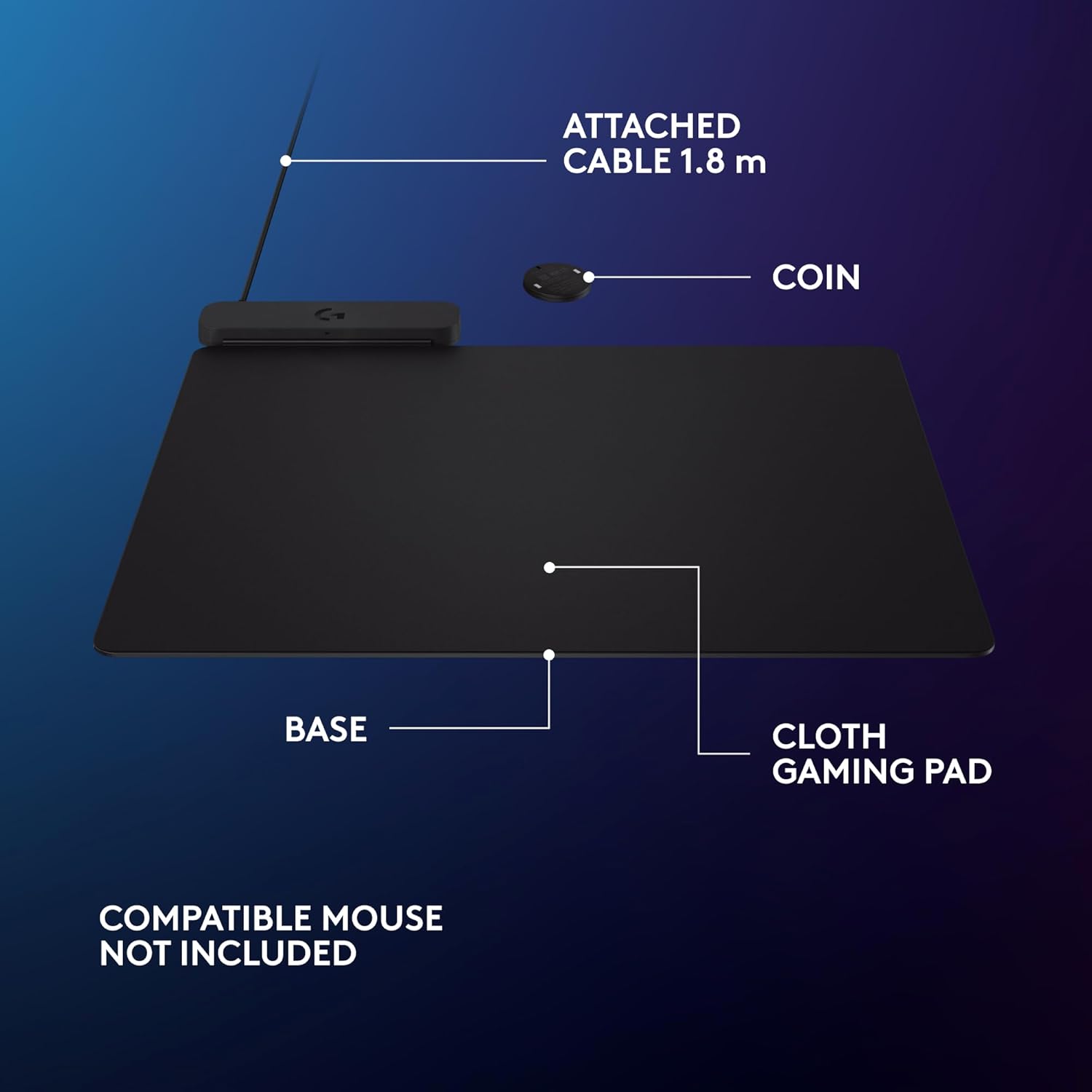
Image: Exploded view of the POWERPLAY 2 components, including the base, cloth pad, POWERPLAY Coin, and attached USB cable.
3. Setup Instructions
- Connect the POWERPLAY 2 Base: Plug the attached USB-A cable from the POWERPLAY 2 Base Unit into an available USB-A port on your PC or a compatible power adapter.
- Place the Cloth Gaming Pad: Position the cloth gaming pad on top of the POWERPLAY 2 Base Unit. The pad is removable and can be adjusted.
- Insert the POWERPLAY Coin: Open the magnetic weight door on the underside of your compatible Logitech G wireless mouse. Remove any existing weight or cover, and insert the POWERPLAY Coin into the designated slot. Ensure it is seated correctly.
- Place Mouse on Pad: Place your compatible Logitech G wireless mouse onto the POWERPLAY 2 pad. The mouse will begin charging automatically.
No additional software is required for the POWERPLAY 2 to function as a charging system. For advanced mouse settings and customization, refer to your specific Logitech G mouse's software (e.g., G HUB).
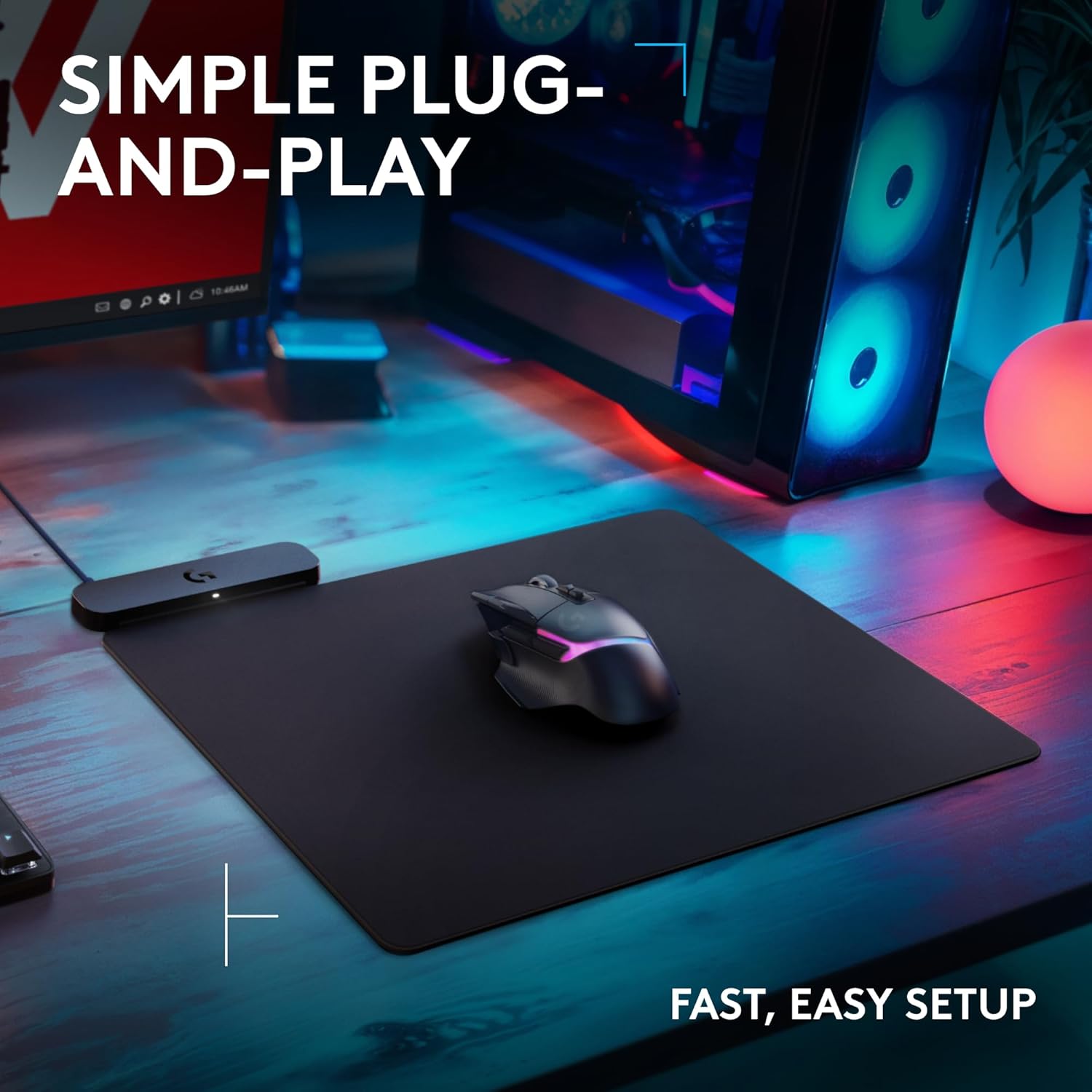
Image: A Logitech G gaming mouse placed on the POWERPLAY 2 pad, illustrating the simple plug-and-play setup.
4. Operating Instructions
Once set up, the POWERPLAY 2 system provides continuous wireless charging to your compatible Logitech G mouse. This means your mouse battery will remain charged whether you are actively using it or it is at rest on the pad.
- Automatic Charging: The system automatically detects and charges your mouse when it is placed on the pad.
- Optimized Battery Life: The POWERPLAY 2 is designed to charge your mouse battery between 80% and 90% to optimize battery longevity. It will not charge a fully depleted mouse battery; in such cases, connect your mouse directly via its USB-C cable.
- Indicator Light: A small indicator light on the POWERPLAY 2 Base Unit confirms it is receiving power. Note that the POWERPLAY 2 does not appear as a device in Logitech G HUB software.
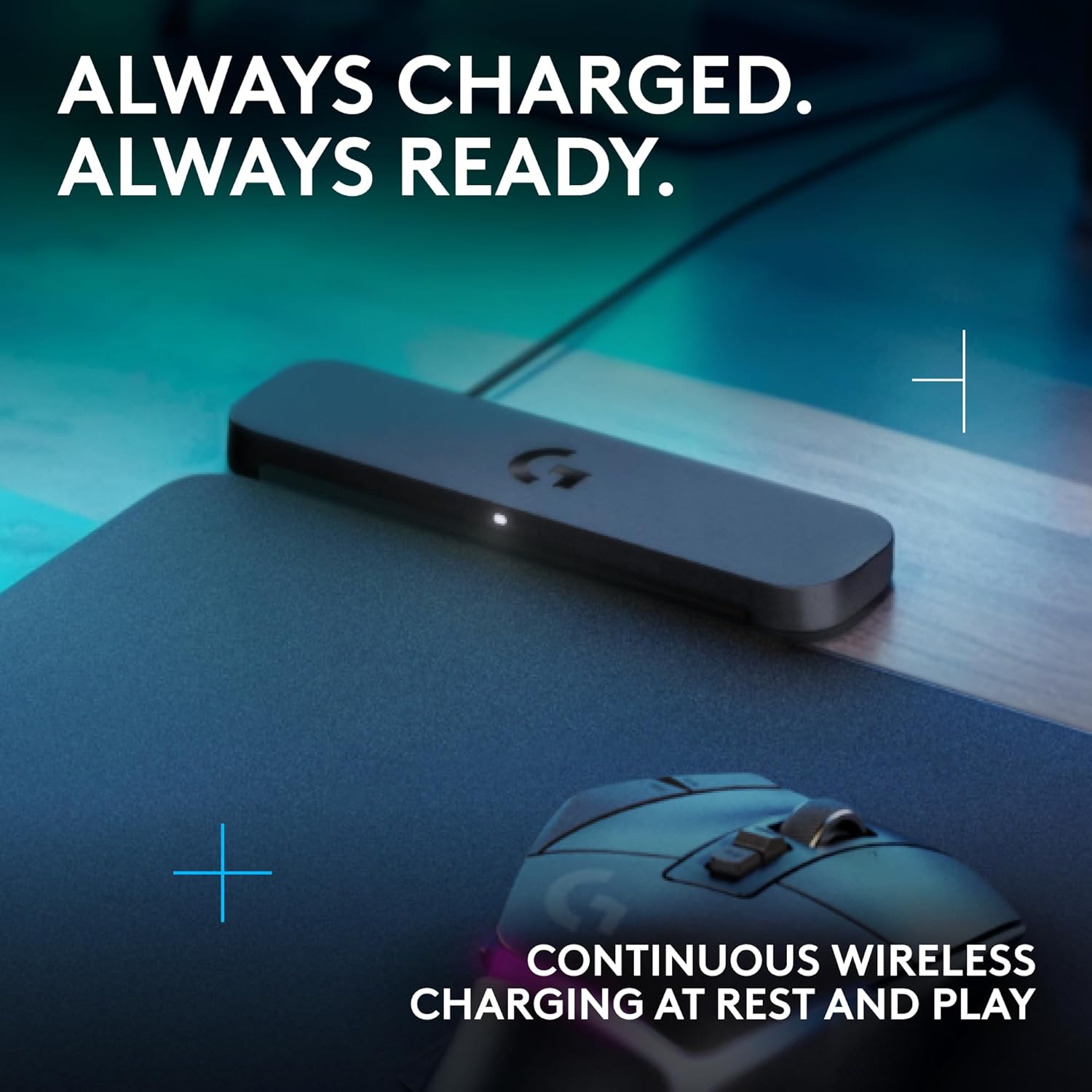
Image: A Logitech G mouse on the POWERPLAY 2 pad, illustrating continuous wireless charging.
5. Compatibility
The POWERPLAY 2 Wireless Charging Mouse Pad is compatible with a wide range of Logitech G wireless gaming mice. This includes mice featuring LIGHTSPEED 4KHz technology and beyond, such as the G502 X Plus and various models from the PRO line.
To ensure compatibility, your mouse must be able to accept the POWERPLAY Coin. The POWERPLAY 2 system does not include a built-in wireless receiver for mouse connectivity; you must use the USB dongle provided with your specific Logitech G wireless mouse for signal transmission.
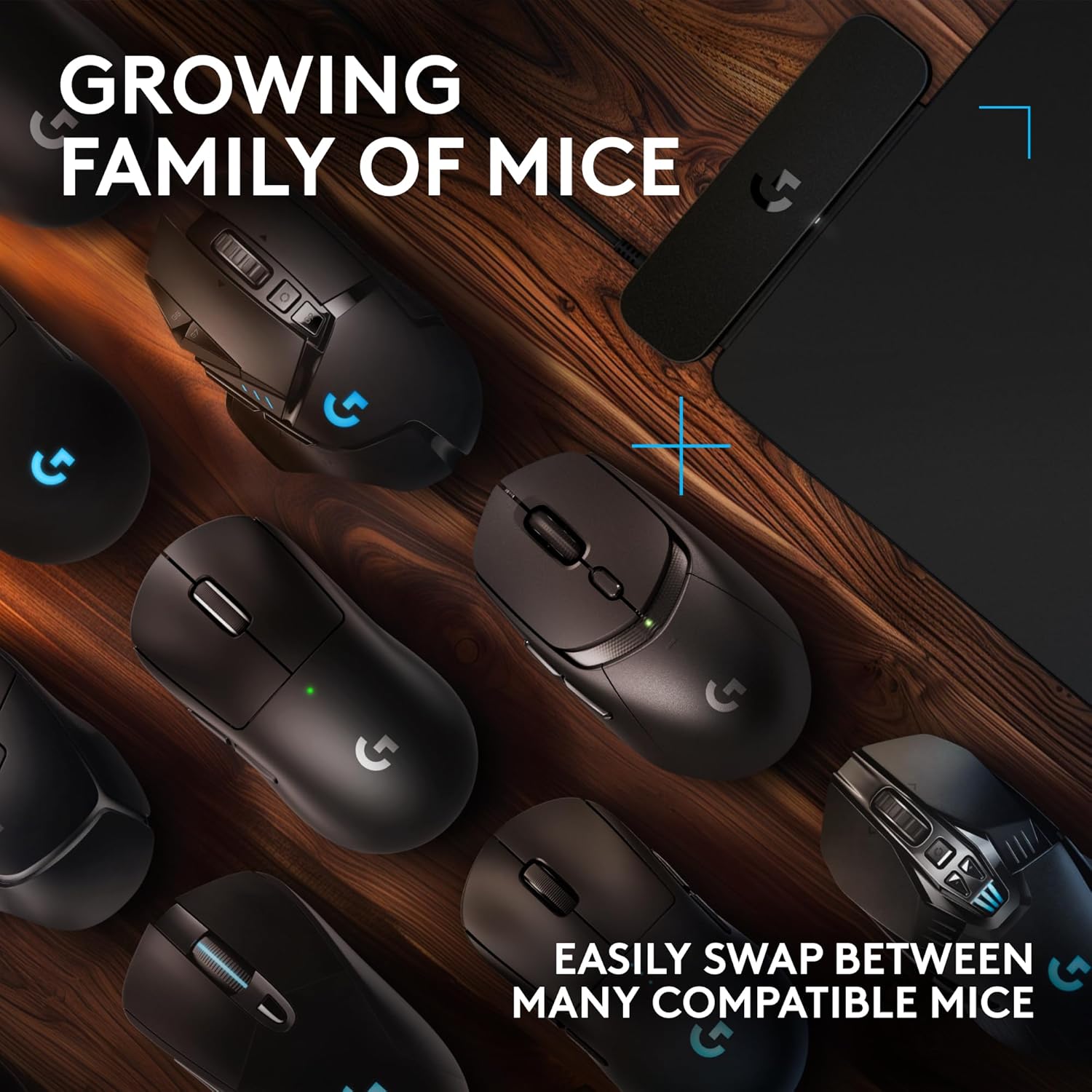
Image: A selection of Logitech G wireless gaming mice, demonstrating the broad compatibility with the POWERPLAY 2 system.
6. Maintenance
Proper maintenance ensures the longevity and optimal performance of your POWERPLAY 2 system.
- Cleaning the Cloth Gaming Pad: The cloth gaming pad can be removed from the base unit for cleaning. Use a soft, damp cloth with mild soap and water. Allow it to air dry completely before reattaching it to the base. Do not machine wash or tumble dry.
- Cleaning the Base Unit: Wipe the POWERPLAY 2 Base Unit with a dry, soft cloth. Avoid using harsh chemicals or abrasive materials.
- Storage: When not in use for extended periods, store the POWERPLAY 2 in a clean, dry environment.
7. Troubleshooting
If you encounter issues with your POWERPLAY 2, refer to the following common solutions:
- No Power/Pulsing Beep: If the POWERPLAY 2 Base Unit emits a pulsing rhythmic beep or shows no indicator light, it may not be receiving sufficient power. Connect it directly to a dedicated USB-A port on your computer or use a powered USB hub.
- Mouse Not Charging:
- Ensure the POWERPLAY Coin is correctly inserted into your compatible mouse.
- Verify that the mouse is placed directly on the POWERPLAY 2 pad.
- Remember that the system charges between 80% and 90% to preserve battery health. If your mouse battery is below 80% or completely depleted, it may require direct USB-C charging initially.
- Mouse Not Connecting: The POWERPLAY 2 does not act as a wireless receiver for your mouse. Ensure your Logitech G wireless mouse's dedicated USB LIGHTSPEED receiver is plugged into your computer.
- POWERPLAY 2 Not Appearing in G HUB: The POWERPLAY 2 Base Unit is a charging device and does not appear as a configurable device within the Logitech G HUB software. This is normal operation.
8. Specifications
| Brand | Logitech G |
| Model Number | 947-000001 |
| Dimensions (L x W x H) | 34.5 x 28.4 x 0.35 cm (13.5 x 11.2 x 0.1 inches) |
| Item Weight | 1.78 pounds |
| Color | Black |
| Material | Plastic (Base), Cloth (Pad) |
| Cable Length | 1.8 meters (Attached) |
| Compatibility | Logitech G LIGHTSPEED wireless mice with POWERPLAY Coin slot |

Image: Side view of the POWERPLAY 2, highlighting its ultra-thin 3.5 mm profile.
9. Warranty and Support
For detailed warranty information, please refer to the warranty card included with your product or visit the official Logitech G website. For technical support, product registration, and frequently asked questions, please visit support.logitech.com/g.

