1. Product Overview
The seenda MOU-302 Ergonomic Wireless Mouse is designed to provide enhanced comfort and efficiency for users. Its vertical design promotes a natural handshake grip, reducing wrist strain during prolonged computer use. This mouse offers versatile connectivity options, including 2.4G USB and dual Bluetooth, allowing seamless switching between up to three devices. Key features include a built-in volume control knob, adjustable DPI settings for precise tracking, and silent click buttons for a quiet working environment.
2. Package Contents
- seenda Ergonomic Wireless Mouse (MOU-302)
- USB-C Charging Cable
- 2.4G USB Receiver (stored in the mouse)
- User Manual
3. Product Features
3.1 Ergonomic Vertical Design
The mouse is shaped to fit the natural contour of your hand, promoting a neutral wrist and forearm posture. This design helps alleviate discomfort and prevent repetitive strain injuries.

Figure 3.1: Ergonomic design promoting a natural hand position to reduce wrist stress.
3.2 Multi-Device Connectivity
Connect to up to three devices simultaneously using the 2.4G USB receiver or two Bluetooth channels (BT1, BT2). Easily switch between connected devices with a dedicated mode button.
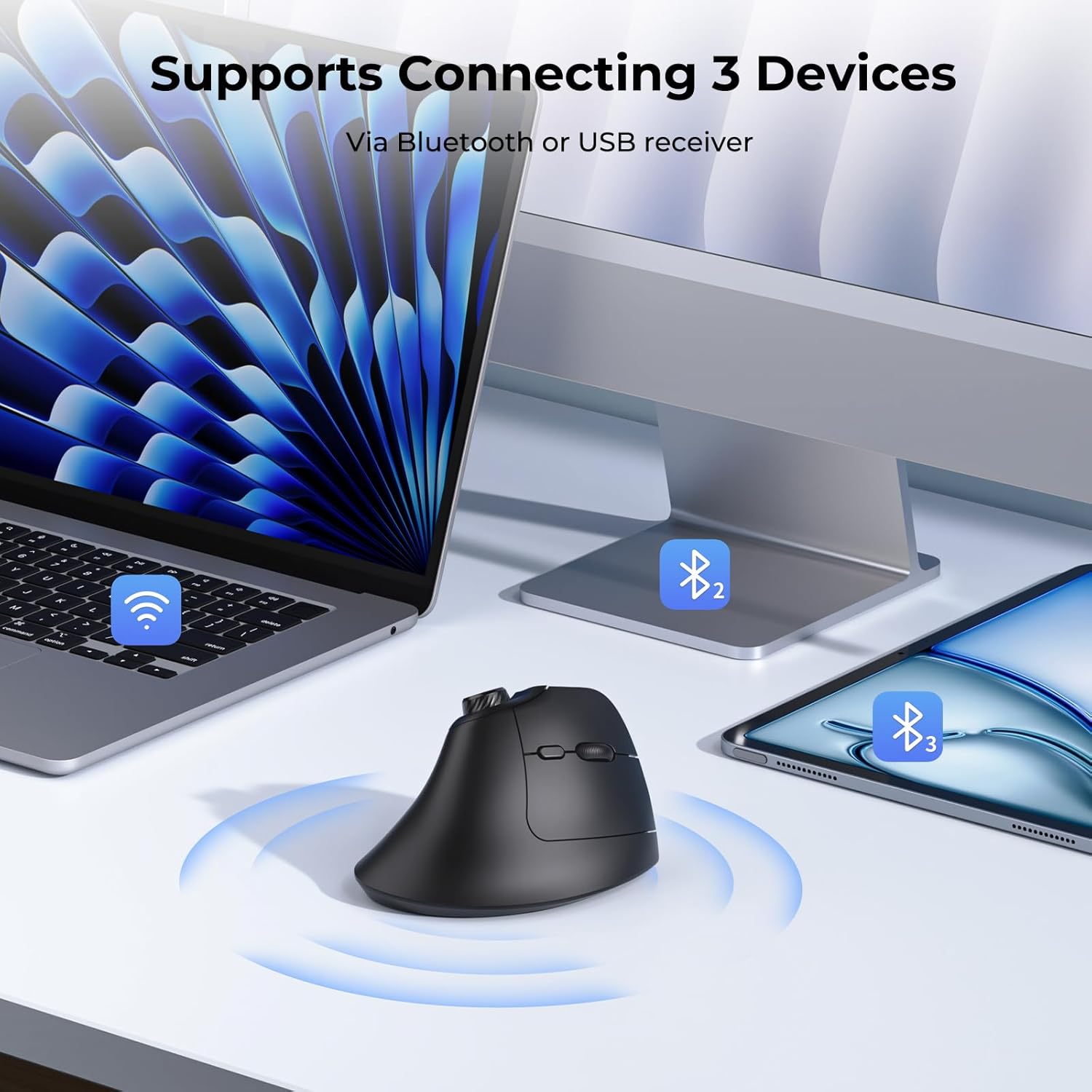
Figure 3.2: Multi-device connectivity with 2.4G USB and two Bluetooth channels.
3.3 Built-in Volume Control Knob
Adjust audio volume, play, and pause media directly from the mouse using the integrated volume knob. This feature enhances convenience for multimedia control.

Figure 3.3: Detailed view of the volume control knob and its functions.
Video 3.3.1: Demonstration of the MOU-302 Vertical Wireless Mouse with Volume Knob and Quiet Clicks.
3.4 Adjustable DPI Settings
Customize cursor sensitivity with adjustable DPI levels (1000/1600/2400) to match your preference and task requirements, ensuring precise and smooth movement.

Figure 3.4: DPI settings and the location of the DPI switch.
3.5 Silent Click Buttons
Enjoy a quiet working environment with noiseless left and right click buttons, minimizing distractions for yourself and others.

Figure 3.5: Silent click feature for a quiet user experience.
3.6 Rechargeable Battery
Equipped with a built-in 500mAh rechargeable battery, providing up to 2 months of usage on a single 2-3 hour charge via USB-C.

Figure 3.6: USB-C charging port and battery specifications.
3.7 Functional Buttons Overview
The mouse features 7 functional buttons: Left Click, Right Click, Scroll Wheel, DPI Switch, Forward Button, Back Button, and Volume Knob. The 2.4G USB receiver is conveniently stored in a slot on the underside of the mouse.

Figure 3.7: Layout of all functional buttons and receiver storage.
4. Setup
4.1 Powering On/Off
Locate the ON/OFF switch on the bottom of the mouse. Slide the switch to 'ON' to power on the mouse. Slide to 'OFF' when not in use to conserve battery.
4.2 Connecting via 2.4G USB Receiver
- Remove the 2.4G USB receiver from its storage slot on the bottom of the mouse.
- Plug the USB receiver into an available USB port on your computer or device.
- Slide the mode switch button on the bottom of the mouse to the 'USB' position. The indicator light will show red.
- The mouse should automatically connect to your device.
4.3 Connecting via Bluetooth (BT1/BT2)
- Ensure the mouse is powered on.
- Slide the mode switch button on the bottom of the mouse to either 'BT1' or 'BT2' position. The corresponding indicator light will blink blue.
- On your device (computer, tablet, smartphone), go to Bluetooth settings.
- Search for new devices and select 'MOU-302' from the list.
- Once paired, the indicator light on the mouse will stop blinking and remain solid blue.
- Repeat steps 2-5 to connect to a second Bluetooth device using the other BT channel.
Video 4.3.1: Demonstration of USB and Dual Bluetooth connectivity for the MOU-302 Vertical Wireless Mouse.
5. Operating Instructions
5.1 DPI Adjustment
Press the DPI switch button (located near the scroll wheel) to cycle through the three DPI settings: 1000, 1600, and 2400. Choose the sensitivity that best suits your task.
5.2 Volume Control Knob
- Rotate the knob clockwise to increase volume.
- Rotate the knob counter-clockwise to decrease volume.
- Press the knob to play or pause media.
5.3 Forward/Back Buttons
Use the dedicated Forward and Back buttons (located on the thumb rest area) for quick navigation in web browsers or file explorers.
5.4 Switching Between Devices
Press the 'MODE' button on the bottom of the mouse to cycle through connected devices (USB, BT1, BT2). The corresponding indicator light will illuminate to show the active connection.
Video 5.4.1: Overview of the MOU-302 Vertical Wireless Mouse features and usage.
6. Charging and Battery
6.1 Charging the Mouse
Connect the provided USB-C charging cable to the charging port on the front of the mouse and to a USB power source (e.g., computer USB port, USB wall adapter). The charging indicator light will show the charging status.
6.2 Battery Life
A full charge typically takes 2-3 hours and provides up to 2 months of usage, depending on usage frequency. The mouse can be used while charging.
7. Compatibility
The seenda MOU-302 mouse is compatible with a wide range of operating systems, including:
- Windows
- macOS
- iOS
- Android
- Chrome OS
8. Maintenance
To ensure optimal performance and longevity of your mouse:
- Clean the mouse regularly with a soft, dry cloth.
- Avoid using harsh chemicals or abrasive materials.
- Keep the mouse away from liquids and extreme temperatures.
- Store the USB receiver in its designated slot when not in use to prevent loss.
9. Troubleshooting
9.1 Mouse Not Responding
- Ensure the mouse is powered on.
- Check battery level and charge if necessary.
- For 2.4G USB connection: Ensure the USB receiver is securely plugged into the device and the mouse is in 'USB' mode. Try a different USB port.
- For Bluetooth connection: Ensure Bluetooth is enabled on your device and the mouse is in the correct 'BT1' or 'BT2' mode. Re-pair the mouse if necessary.
- Try restarting your computer/device.
9.2 Intermittent Connection
- Move the mouse closer to your device to reduce interference.
- Avoid using the mouse on metallic surfaces.
- Ensure no other wireless devices are causing interference.
10. Specifications
| Feature | Detail |
|---|---|
| Model Number | MOU-302 |
| Connectivity Technology | Bluetooth, 2.4G USB |
| Movement Detection Technology | Optical |
| DPI Settings | 1000/1600/2400 |
| Special Features | Ergonomic Design, Volume Control Knob, Silent Click |
| Battery | 1 Lithium Ion battery (included), 500mAh |
| Charging Time | 2-3 hours for full charge |
| Usage Time | Up to 2 months per charge |
| Item Weight | 6.4 ounces |
| Package Dimensions | 5.12 x 3.27 x 3.19 inches |
11. Warranty and Support
The seenda MOU-302 Ergonomic Wireless Mouse comes with a 2-year warranty.
For technical support or warranty claims, please contact seenda customer service at: support@seenda.com


