
Introduction
Thank you for choosing the Phomemo M836 A4 Portable Thermal Printer. This device offers convenient, inkless printing for various document types, making it ideal for business, travel, and personal use. This manual will guide you through the setup, operation, and maintenance of your printer to ensure optimal performance.
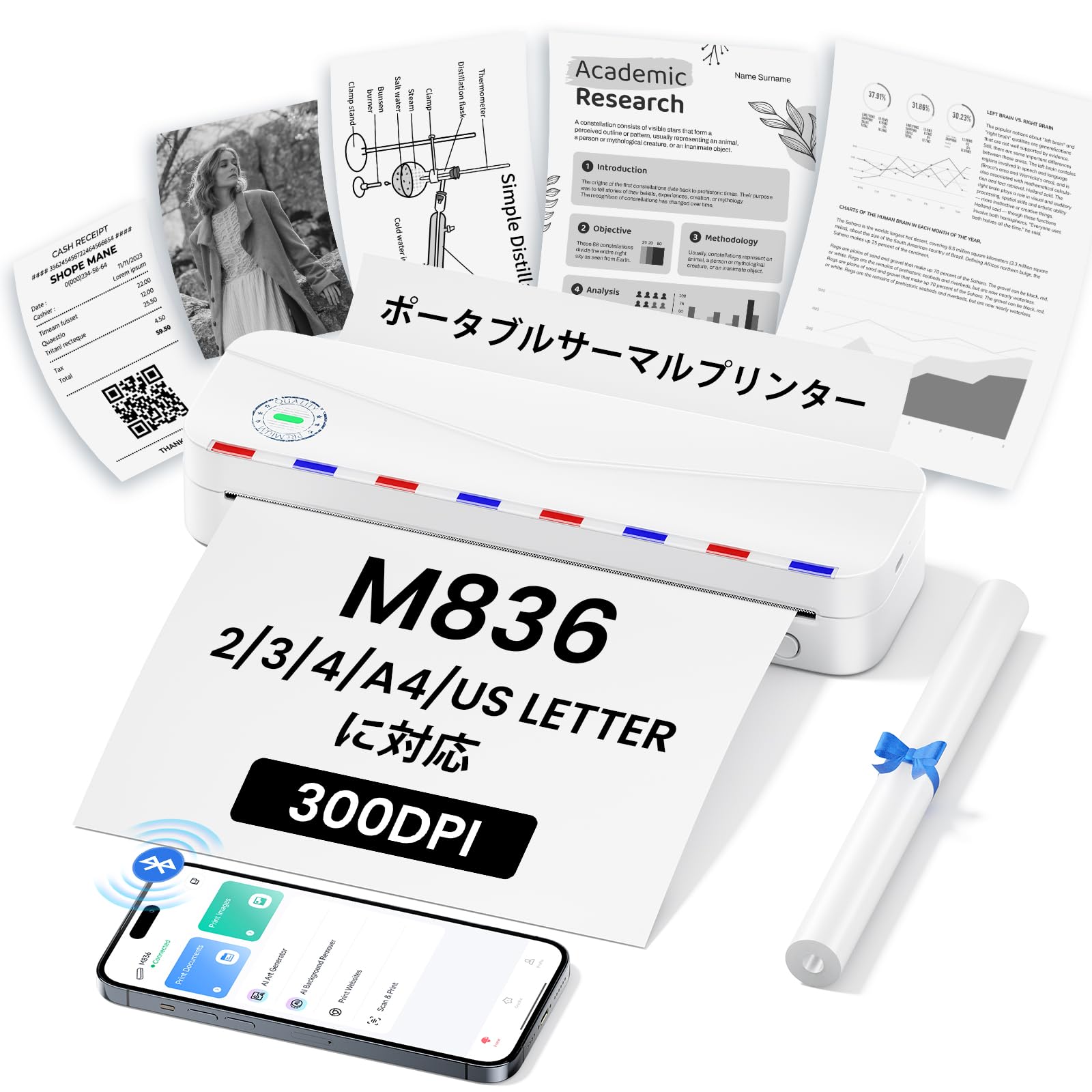
Image: The Phomemo M836 A4 Portable Thermal Printer, showcasing its compact design and portability.
Product Overview
Key Features
- Inkless Thermal Printing: Utilizes advanced thermal printing technology, eliminating the need for ink cartridges or toner.
- Compact and Portable: Weighing approximately 750g, it is designed for easy transport in a bag, perfect for on-the-go printing.
- Multi-Size Paper Support: Compatible with A4 (8.27 x 11.69 inches) and other thermal paper sizes including 53mm, 80mm, and 110mm. Supports standard thermal sheets, roll paper, and fanfold thermal paper.
- High Resolution: Delivers clear and vivid prints at 304dpi resolution.
- Wide Compatibility: Connects via Bluetooth to iPhones, Android phones, and iPads, and via USB cable to laptops and computers (Windows, macOS).
- Long-lasting Battery: Equipped with an upgraded 2600mAh battery, ensuring extended use throughout the day.
- Versatile Printing: Capable of printing PDF, Word, image (JPG), web pages, TXT, office documents, receipts, contracts, resumes, invoices, drawings, and school notes.

Image: The Phomemo M836 printer highlighting its compact dimensions (264mm length, 78mm width, 45mm height) and light weight (715g).

Image: The printer demonstrating compatibility with single sheets, fanfold paper, and roll paper. Note: Only thermal paper is supported, not ordinary copy paper.
Setup Instructions
1. Loading Thermal Paper
- Open the paper cover of the printer.
- Insert the thermal paper with the printable side facing up. Ensure the paper is aligned correctly.
- Close the paper cover. The printer will automatically adjust the paper.

Image: Illustration of how to load thermal paper into the printer, showing the adjustable snaps for different paper widths.
2. Mobile Device Connection (Bluetooth)
- Download the "Phomemo" app from the Apple App Store or Google Play Store.
- Turn on your mobile phone's Bluetooth.
- Press and hold the power button on the M836 printer to turn it on.
- Open the "Phomemo" app and connect to the printer via Bluetooth within the app.

Image: Step-by-step guide for connecting the Phomemo M836 to a smartphone via the Phomemo app and Bluetooth.
3. PC Connection (USB)
- Turn on the printer by pressing and holding the power button. Ensure thermal paper is loaded.
- Connect the printer to your computer using the provided Type-C USB cable.
- Download and install the printer driver from M836.phomemo.com.
- After driver installation, select "[M836] Printer" from your computer's print options to begin printing.

Image: Instructions for connecting the Phomemo M836 to a PC via USB, including driver download and print selection.
Operating Instructions
General Printing Steps
- Ensure the printer is powered on and connected to your device (mobile or PC) as described in the Setup section.
- Open the document or image you wish to print on your device.
- Initiate the print function from your application (e.g., "Print" in the Phomemo app, or "File" > "Print" on PC).
- Select the "M836 Printer" from the list of available printers.
- Adjust print settings such as paper size, orientation, and number of copies as needed.
- Confirm and send the print job to the printer.

Image: The Phomemo app interface, showing options to print various file types like Word, TXT, PDF, Excel, Web pages, and images, along with scanning functionality.
Maintenance
Cleaning the Printer Head
- Turn off the printer and disconnect it from any power source.
- Open the paper cover.
- Gently wipe the thermal print head with a cotton swab lightly dampened with isopropyl alcohol.
- Allow the print head to dry completely before closing the cover and resuming use.
- Do not touch the print head with bare hands to avoid damage or residue transfer.
Battery Care
- Charge the printer regularly, especially if it will not be used for an extended period, to maintain battery health.
- Use the provided Type-C USB cable for charging.
- Avoid exposing the printer to extreme temperatures, which can affect battery life.
Troubleshooting
| Problem | Possible Cause | Solution |
|---|---|---|
| Printer does not turn on. | Low battery or power issue. | Charge the printer using the Type-C USB cable. Ensure the power adapter is working. |
| Cannot connect via Bluetooth. | Bluetooth is off, incorrect pairing, or app issue. | Ensure Bluetooth is enabled on your device. Restart the printer and your device. Try pairing again through the Phomemo app. |
| Poor print quality (faint or blank). | Incorrect paper loading, non-thermal paper, or dirty print head. | Ensure thermal paper is loaded correctly with the printable side up. Verify you are using thermal paper. Clean the print head as described in the Maintenance section. |
| Printer not recognized by PC. | Driver not installed or USB cable issue. | Install the correct driver from M836.phomemo.com. Try a different USB port or cable. |
| Paper jam. | Improper paper loading or foreign object. | Turn off the printer. Carefully open the paper cover and remove any jammed paper or obstructions. Reload paper correctly. |
Specifications
| Feature | Detail |
|---|---|
| Brand | Phomemo |
| Model Name | M836 |
| Connectivity Technology | Bluetooth, USB |
| Printing Technology | Thermal |
| Special Feature | Portable |
| Color | White |
| Printer Output | Monochrome |
| Max Print Speed (Monochrome) | 20 pages/minute |
| Product Dimensions (D x W x H) | 210mm x 47mm x 65mm |
| Max Media (Paper) Size | 8.5 x 11 inches (A4) |
| Print Media Type | Thermal paper |
| Additional Printer Functions | Print only |
| Resolution | 304 dpi |
| Max Input Sheet Capacity | 10 sheets |
| Hardware Interface | USB-C |
| Duplex Printing | No (Simplex) |
| Battery Capacity | 2600mAh |
Warranty and Support
The Phomemo M836 A4 Portable Thermal Printer comes with a 1-year manufacturer's warranty from the date of purchase. This warranty covers defects in materials and workmanship under normal use.
For technical support, warranty claims, or any questions regarding your product, please contact Phomemo customer service through their official website or the retailer where you purchased the product. Please have your model number (M836) and proof of purchase ready when contacting support.


