
Product Overview and Features
The Dhiedas Smart Cabinet Lock (Model A1BFPC-HB) offers multiple unlocking methods for enhanced security and convenience. This lock is designed for cabinets and drawers, providing a robust solution for securing personal items or child-proofing furniture.
- 5-in-1 Unlocking Methods: Unlock using fingerprints (up to 100), passcodes (up to 20), Bluetooth app, RFID (13.56 MHz) cards, and Apple Watch.
- Invisible Mounting: Can be installed inside the cabinet using 3M adhesive tape without drilling, or with screws for a more permanent fixture. The front lock supports remote unlocking and can also be mounted with 3M tape or used without mounting.
- Long Battery Life & Emergency Power: Powered by 2 AA batteries (not included) with an energy-saving design for up to one year of use. Features a USB-C port for emergency power if batteries deplete.
- Durable Construction: Made of robust zinc alloy, offering resistance against breaking and picking.
- Versatile Application: Suitable for various furniture types including double-door cabinets, drawers, wall cabinets, liquor cabinets, pantries, desks, and metal boxes.

Figure 1: Overview of the Dhiedas Smart Cabinet Lock and its multiple unlocking options.
Setup and Installation
The Dhiedas Smart Cabinet Lock offers two primary installation methods: adhesive mounting or screw mounting. Both methods are detailed below.
1. Prepare for Installation
- Ensure the cabinet or drawer surface is clean and dry.
- Insert 2 AA batteries (not included) into the main lock unit.
- Familiarize yourself with the components: main lock unit, keypad, RFID cards, 3M adhesive stickers, and optional screws.

Figure 2: Included components for installation.
2. Adhesive Mounting (No Drilling)
- Attach the 3M adhesive stickers to the back of the main lock unit and the keypad.
- Position the main lock unit inside the cabinet or drawer, ensuring it aligns with the locking mechanism. Press firmly for 30 seconds.
- Position the keypad on the exterior of the cabinet or drawer, aligning it with the main lock unit. Press firmly.
- For double-door cabinets, use the provided double door accessory and 3M adhesive to secure it to the secondary door.
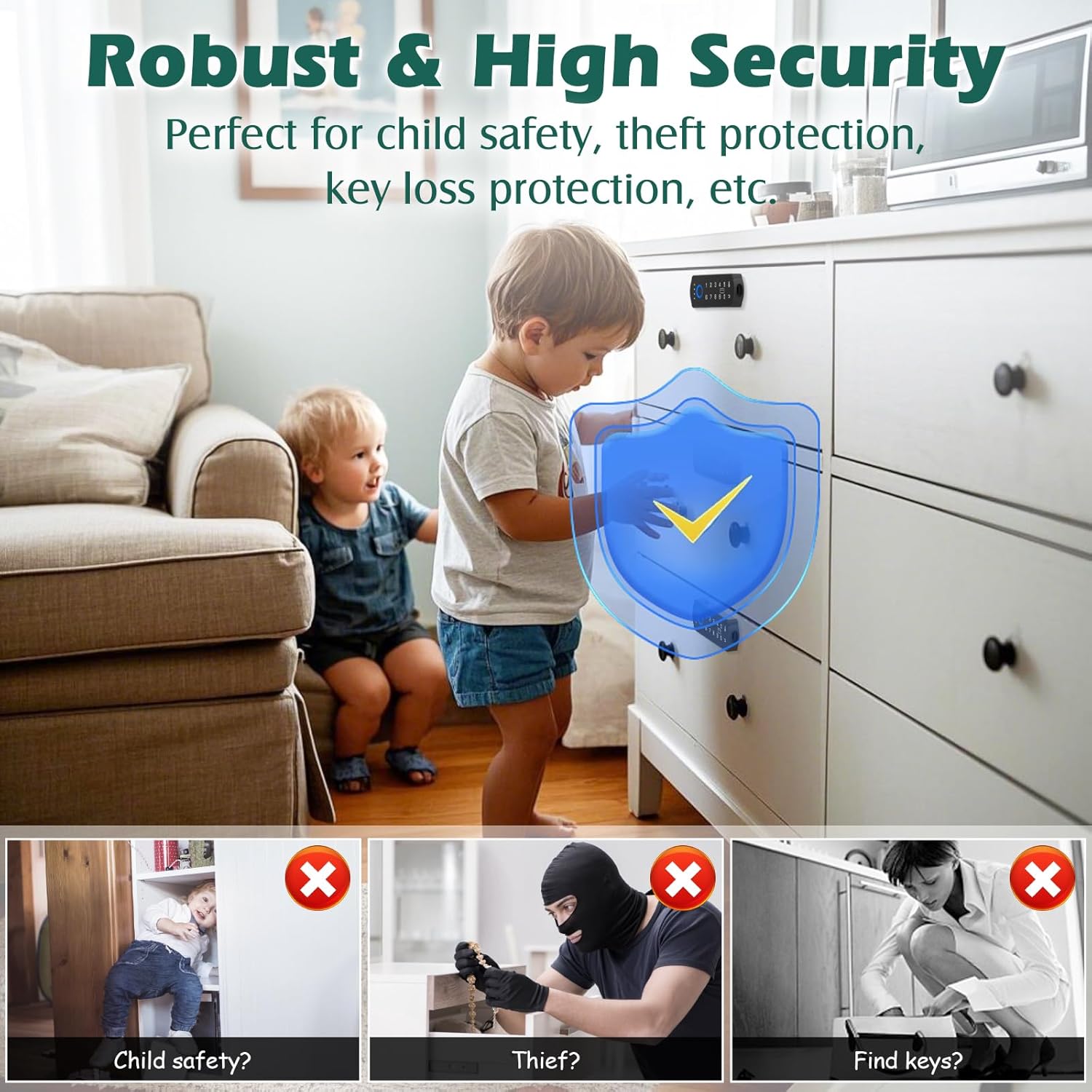
Figure 3: Dimensions and components for installation.

Figure 4: Wireless installation method for the smart cabinet lock.

Figure 5: Installation on a double-door cabinet using the accessory.
3. Screw Mounting (Optional)
- Use the provided positioning card to mark the drilling points for the main lock unit and the keypad.
- Drill pilot holes at the marked positions.
- Secure the main lock unit and keypad using the provided screws.
Video 1: Installation process of the smart cabinet lock using screws. This video demonstrates how to attach the lock components to a drawer.
Operating the Lock
1. Initial Setup and Pairing
- Download the companion Bluetooth app (refer to the user manual for app name and QR code).
- Follow the in-app instructions to pair your smartphone with the lock.
- Register administrator fingerprints and passcodes through the app.
2. Unlocking Methods
- Fingerprint: Place a registered finger on the fingerprint sensor on the keypad. The lock will unlock if the fingerprint is recognized.
- Passcode: Enter a registered passcode on the keypad, then press the unlock button.
- Bluetooth App: Open the app on your paired smartphone and select the unlock option.
- RFID Card: Tap a registered RFID card against the designated area on the keypad.
- Apple Watch: If configured, use your Apple Watch to unlock the cabinet.

Figure 6: Unlocking the cabinet using the fingerprint sensor.

Figure 7: Detailed view of the fingerprint unlocking method.

Figure 8: Unlocking with an RFID card.

Figure 9: Unlocking with an Apple Watch.

Figure 10: Generating a temporary passcode via the app.
3. Remote Unlocking
The front lock allows for remote unlocking via the Bluetooth app within a range of 5-6 meters. This feature provides convenient access without direct interaction with the keypad.

Figure 11: Remote unlocking via Bluetooth app.
Maintenance
- Battery Replacement: The lock is powered by 2 AA batteries. Replace them when the battery indicator shows low power.
- Emergency Power: If batteries die, use a USB-C cable to connect to the emergency power port on the keypad for temporary power to unlock.
- Cleaning: Wipe the keypad and lock surfaces with a soft, dry cloth. Avoid using abrasive cleaners or solvents.
- Firmware Updates: Check the companion app periodically for any available firmware updates to ensure optimal performance and security.

Figure 12: Battery and emergency power features.
Troubleshooting
- Lock not responding: Check battery level. If low, replace batteries or use emergency USB-C power.
- Fingerprint not recognized: Ensure your finger is clean and dry. Re-register your fingerprint if issues persist.
- App connectivity issues: Ensure Bluetooth is enabled on your device and the app is updated. Try restarting the app or your device.
- RFID card not working: Ensure the card is properly registered. Try tapping it firmly against the sensor.
- Lock not securing: Verify that the main lock unit and strike plate are correctly aligned and installed.
Specifications
| Brand | Dhiedas |
| Model Number | A1BFPC-HB |
| Lock Type | Biometric, Keypad, RFID |
| Unlocking Methods | Fingerprint (100), Passcode (20), Bluetooth App, RFID (13.56 MHz), Apple Watch |
| Material | Metal, Zinc Alloy |
| Item Dimensions (L x W x H) | 1.7 x 0.5 x 4.3 inches |
| Item Weight | 0.8 Pounds |
| Power Source | 2 x AA Batteries (not included) |
| Emergency Power | USB-C Port |
| Connectivity | Bluetooth |
| Special Features | Auto-Lock, Battery Indicator, Touchscreen |
| Included Components | 2*RFID cards, 3M adhesive stickers, English manual, RFID Drawer lock full components, double door accessory |
Warranty and Support
Dhiedas offers 12 months of customer support and lifetime technical service for the Smart Cabinet Lock. For any questions or assistance, please contact Dhiedas customer service.
For further information or to visit the Dhiedas store, please refer to the official product page or the included user manual.