
Inateck e6031ea1-8bd1-400a-8d8f-2fa40ca8d925
Inateck Bluetooth Thermal Label Printer User Manual
Model: e6031ea1-8bd1-400a-8d8f-2fa40ca8d925
1. Introduction
Thank you for choosing the Inateck Bluetooth Thermal Label Printer. This printer is designed for efficient and high-quality label printing, compatible with various operating systems and shipping platforms. It utilizes advanced thermal printing technology, eliminating the need for ink or toner. This manual provides detailed instructions for setup, operation, maintenance, and troubleshooting to ensure optimal performance of your device.

Image: The Inateck Bluetooth Thermal Label Printer in white, actively printing a shipping label with a barcode and address details.
2. Package Contents
Please verify that all items listed below are included in your package:
- Inateck Thermal Printer (PR40) x 1
- A to C Adapter x 1
- USB (A to B) Data Cable x 1
- Power Adapter x 1
- 4x6 Label Paper x 50
- User Manual x 1

Image: A flat lay of all items included in the Inateck Thermal Label Printer package, clearly labeled with numbers corresponding to the list.
3. Setup Guide
3.1 Initial Setup
- Connect Power: Plug the power adapter into the printer's power port and then into a wall outlet.
- Load Labels: Open the printer lid by pressing the latches on either side. Load your thermal labels, ensuring they are properly aligned with the label guide. Both fan-fold and roll labels are supported. Close the lid securely.
- Power On: Flip the on/off switch located at the back of the printer. The indicator light on the front will illuminate.
3.2 Connecting Your Printer
The Inateck printer offers both Bluetooth and USB wired connection options.
3.2.1 Bluetooth Connection (iOS/Android)
- Download App: Search for and download the "FlashLabel" app from your device's app store (Apple App Store for iOS, Google Play Store for Android).
- Pair Device: Open the "FlashLabel" app. Important: Do not attempt to pair the printer directly through your phone's system Bluetooth settings. Pairing must be done within the "FlashLabel" app. Follow the in-app instructions to connect to your printer via Bluetooth.
3.2.2 Bluetooth Connection (Windows/MacOS)
- Driver Download: Open Google Chrome and search for "PR40 driver". Download and install the appropriate driver for your operating system.
- Pair Device: Follow the driver installation instructions to enable Bluetooth pairing and wireless label printing.
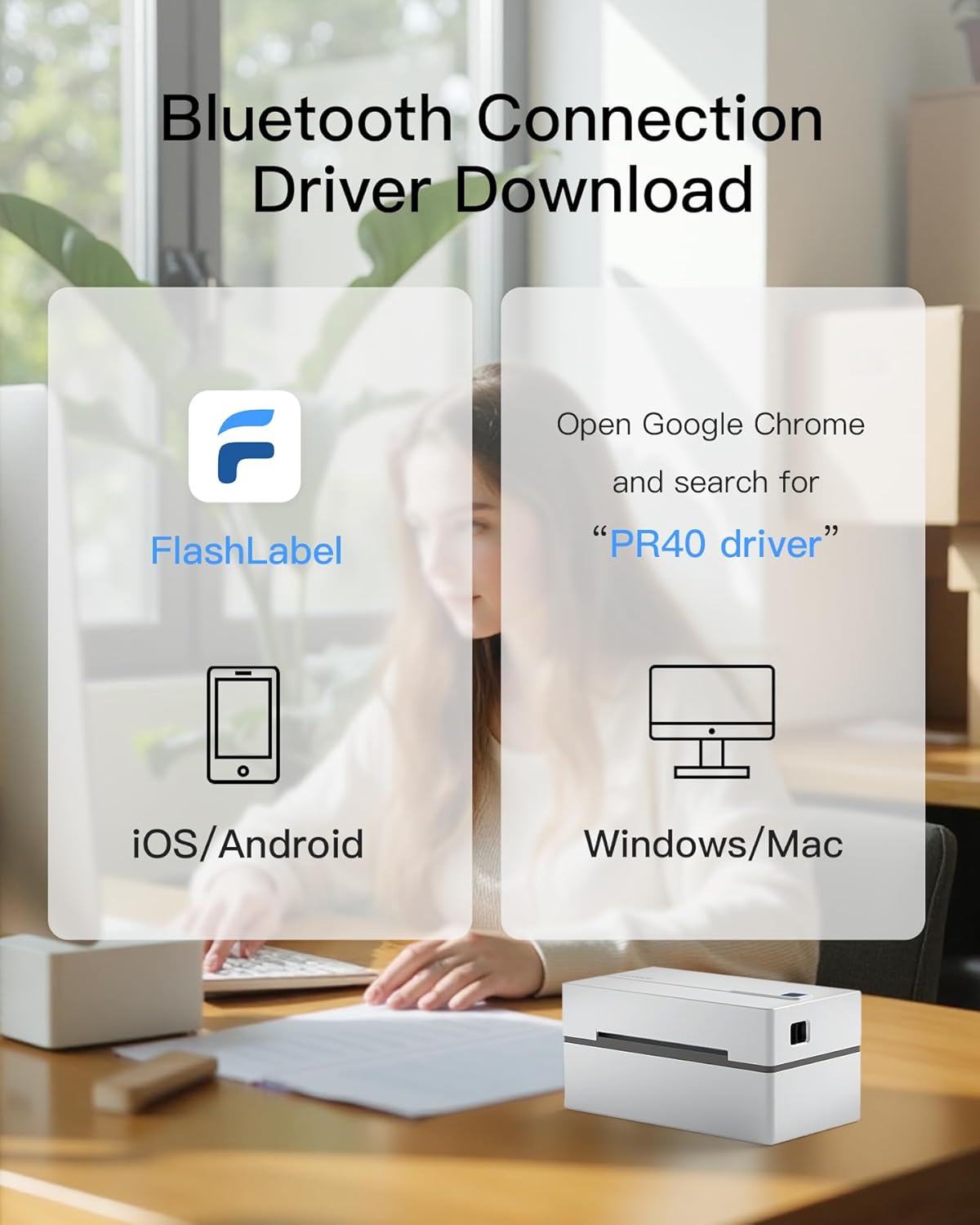
Image: A visual guide showing how to download the "FlashLabel" app for mobile devices and search for "PR40 driver" for Windows/Mac for Bluetooth connectivity.
3.2.3 USB Wired Connection (PC, Windows, MacOS, Chrome OS, Linux)
- Connect USB Cable: Connect one end of the provided USB cable to the printer and the other end to your computer's USB port. An A-C adapter is included for convenience if your computer uses USB-C.
- Driver Installation: For Windows 7 and later, MacOS, and Chrome OS, the printer should be recognized automatically or prompt for driver installation. Follow on-screen instructions. (Note: MacOS only supports USB connection; Bluetooth printing is not available for MacOS).

Image: The Inateck printer demonstrating both Bluetooth connection with a smartphone and USB connection with a laptop, highlighting compatibility with Android, iOS, Windows, Mac, Linux, and Chrome OS.
4. Operating Instructions
4.1 Loading Labels
The printer supports both fan-fold and roll labels with a width range of 40-110 mm (1.57-4.33 inches). Ensure labels are loaded correctly and aligned with the internal guides for optimal printing.
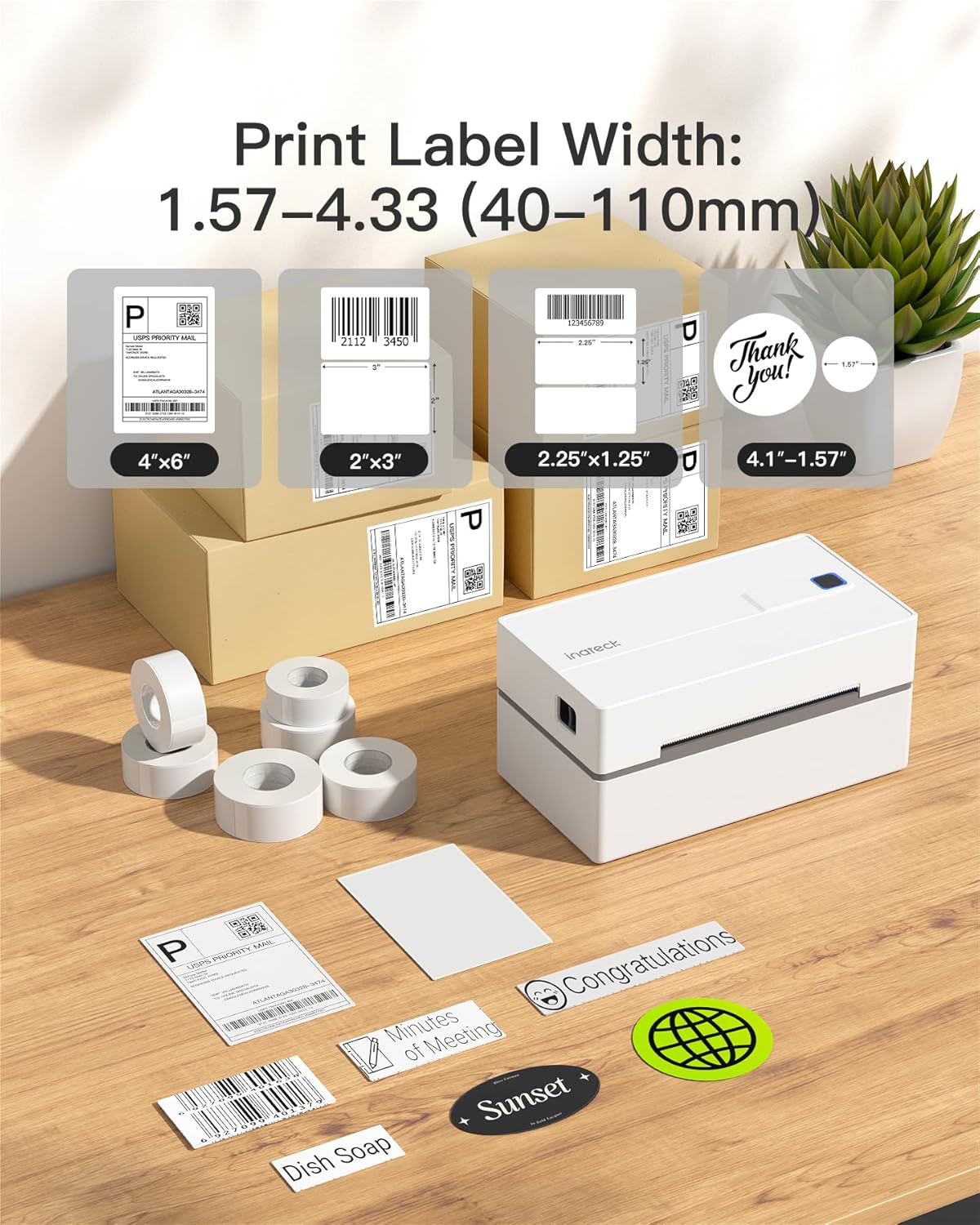
Image: A display of different label sizes (4"x6", 2"x3", 2.25"x1.25", and circular labels) that the Inateck printer can accommodate, ranging from 1.57 to 4.33 inches in width.
4.2 Printing Process
Once connected and labels are loaded, you can print from various applications and platforms. The printer features a speed of 150 mm/s with 203 DPI resolution for clear prints.
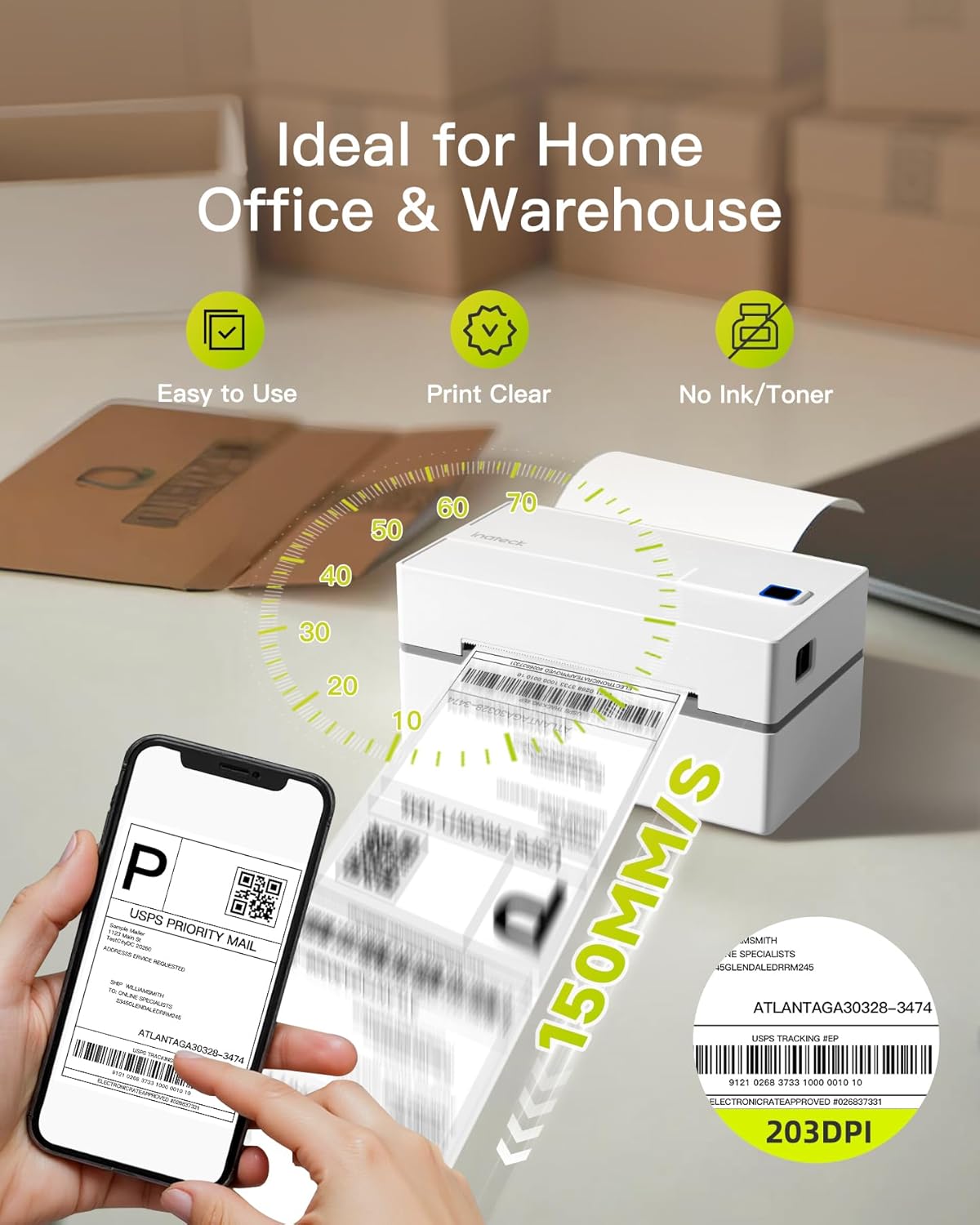
Image: A graphic illustrating the Inateck printer's high-speed capability, printing at 150mm/s with 203 DPI resolution, showing a label being printed from a smartphone.
4.3 Supported Platforms and Applications
The Inateck Thermal Label Printer is compatible with major shipping platforms and marketplaces, ensuring a seamless printing experience for various needs.
- Shipping Platforms: FedEx, UPS, USPS, DHL, J&T Express, Easyship, Kerry, Easypost.
- Marketplaces/E-commerce: Amazon, Shopify, Etsy, eBay, Shopee.
- Other Services: Ordoro, Shippo, PayPal, ShipWorks, Stamps.com, Endicia, Shipwire, FlashLabel, ShipStation, Ninjavan.

Image: A collage of logos representing the wide range of platforms from which the Inateck printer can print, such as Amazon, Shopify, eBay, FedEx, UPS, and USPS.
4.4 Printer Features
- Gap Detection: Automatically detects the gaps between labels for accurate printing.
- Out-of-Paper Detection: Notifies you when the label roll is empty.
- Built-in Cutter: Allows for easy and clean label trimming with a simple pull.
- Integrated Indicator: Displays different operational statuses of the printer.

Image: Four examples demonstrating the versatility of the Inateck printer for various label types: warehouse labels, category labels for pantry items, address labels for mail, and decorative "Thanks" labels for gifts.
5. Maintenance
Regular maintenance ensures the longevity and optimal performance of your thermal label printer.
- Cleaning the Print Head:
The print head is the most critical component. Use a cotton swab lightly dampened with isopropyl alcohol (70% or higher) to gently wipe the print head surface. Allow it to dry completely before use. Clean the print head regularly, especially if print quality degrades.
- Cleaning the Platen Roller:
The platen roller helps feed the labels. Clean it with a lint-free cloth dampened with isopropyl alcohol. Rotate the roller manually to clean the entire surface.
- Exterior Cleaning:
Wipe the exterior of the printer with a soft, dry cloth. Avoid using abrasive cleaners or solvents.
- Label Storage:
Store thermal labels in a cool, dry place away from direct sunlight and heat sources to prevent premature fading or damage to the thermal coating.
6. Troubleshooting
This section addresses common issues you might encounter with your Inateck thermal label printer.
6.1 Common Issues and Solutions
| Problem | Possible Cause | Solution |
|---|---|---|
| Printer not responding / Not printing |
|
|
| Poor print quality / Faded prints |
|
|
| Labels not feeding correctly / Misfeeds |
|
|
| Bluetooth connection unstable (especially with PC) |
|
|
7. Specifications
| Feature | Detail |
|---|---|
| Product Dimensions | 7.17 x 3.9 x 3.43 inches |
| Item Weight | 1.62 pounds |
| Model Number | e6031ea1-8bd1-400a-8d8f-2fa40ca8d925 |
| Printing Technology | Thermal Printing |
| Print Speed | 150 mm/s |
| Resolution | 203 DPI |
| Label Width Range | 40-110 mm (1.57-4.33 inches) |
| Connectivity | Bluetooth, USB |
| Compatibility | iPhone, Android, iPad, Windows, MacOS, Chrome OS, Linux |
| Ink/Toner Required | No |
8. Warranty and Support
Inateck is committed to providing high-quality products and excellent customer service. For any technical assistance, questions, or concerns regarding your Inateck Thermal Label Printer, please contact our dedicated technical support team.
Please refer to the official Inateck Store on Amazon or the contact information provided in your product packaging for the most up-to-date support details.
Ask a question about this manual
Ask about setup, troubleshooting, compatibility, parts, safety, or missing instructions. Manuals+ will review the question and use this page’s manual context to help answer it.