Introduction
This manual provides detailed instructions for the setup, operation, and maintenance of your ASUS VA249QG Eye Care Monitor. The VA249QG features a 23.8-inch IPS panel with Full HD (1920 x 1080) resolution, offering 178° wide viewing angles and vivid image quality. It incorporates a 120Hz refresh rate with Adaptive-Sync technology and 1ms MPRT to ensure a smooth visual experience. Additionally, TÜV Rheinland-certified Flicker-free and Low Blue Light technologies are included for enhanced viewing comfort.
What's in the Box
Verify that all items are present in the package:
- ASUS VA249QG Monitor
- HDMI Cable
- Power Cord
- Quick Start Guide
- Warranty Card

Setup Instructions
1. Monitor Assembly
- Carefully remove the monitor and stand components from the packaging.
- Attach the stand base to the stand neck, securing it with the provided screw.
- Align the assembled stand with the mounting slot on the back of the monitor and push until it clicks into place.
2. Connecting Cables
Connect the necessary cables to the monitor's rear ports:
- Power: Connect the power cord to the monitor's power input and then to a power outlet.
- Video Input: Connect an HDMI, DisplayPort, or VGA cable from your computer's video output to the corresponding port on the monitor.
- Audio Output: If desired, connect headphones or external speakers to the earphone jack.
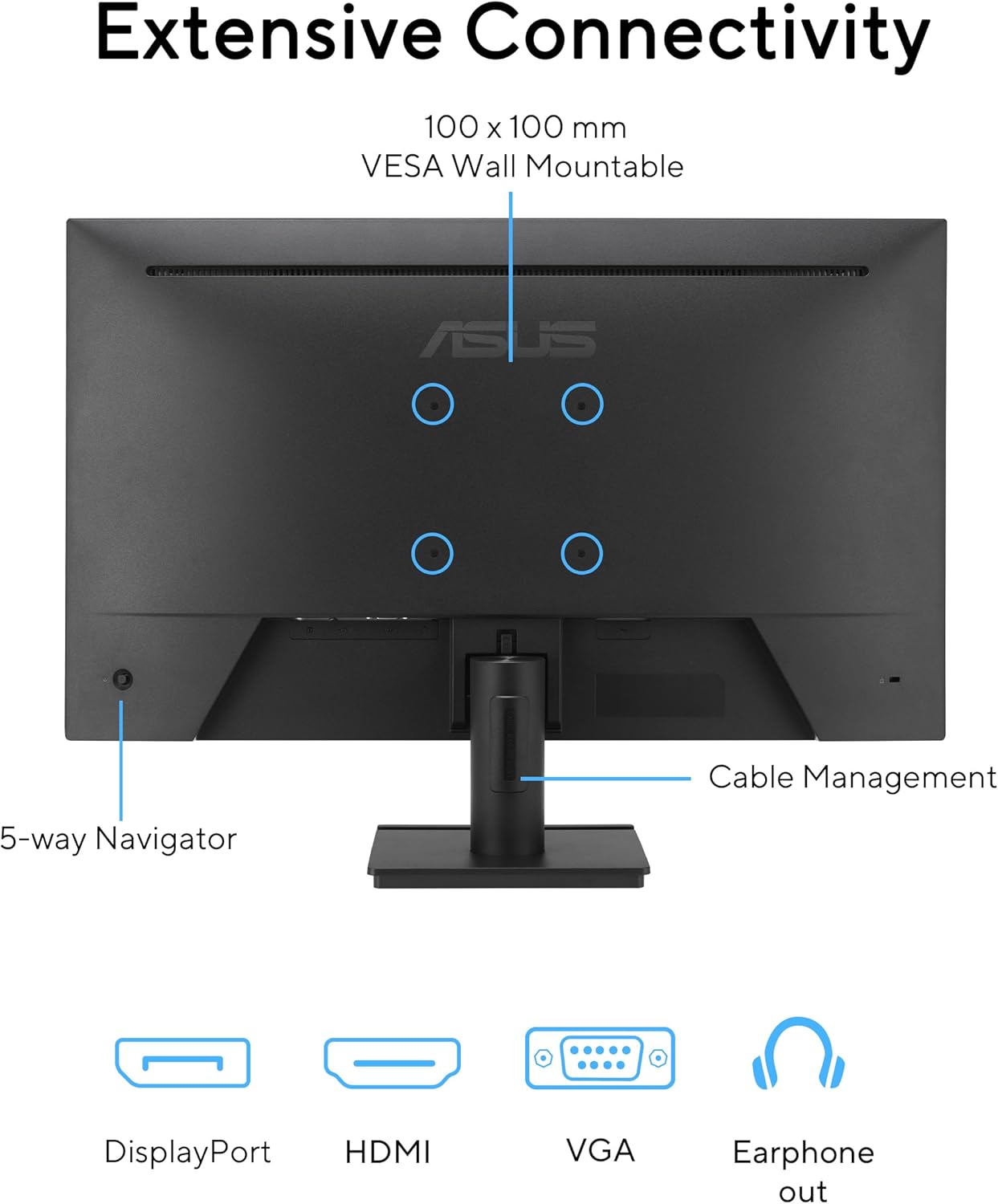
3. Wall Mounting (Optional)
The monitor is VESA wall-mountable (100 x 100 mm). Remove the stand before attaching a VESA-compatible wall mount kit (sold separately).
Operating Instructions
1. Power On/Off
Press the power button, typically located on the bottom right of the monitor, to turn the monitor on or off.
2. On-Screen Display (OSD) Menu
Use the 5-way navigator joystick, located on the rear of the monitor, to access and navigate the OSD menu. This menu allows you to adjust various display settings.
3. Display Settings
- Resolution: The native resolution is 1920x1080 (Full HD). Ensure your computer's display settings match this for optimal clarity.
- Refresh Rate: The monitor supports up to 120Hz refresh rate. Configure your operating system's display settings to utilize this for smoother motion.
- Adaptive-Sync: Enable Adaptive-Sync in the OSD menu and your graphics card settings to synchronize the monitor's refresh rate with your GPU's frame rate, reducing screen tearing.
- Eye Care Features:
- Low Blue Light: Adjust the blue light filter level in the OSD menu to reduce eye strain during prolonged use.
- Flicker-Free: This technology minimizes screen flickering for a more comfortable viewing experience.

4. Audio
The monitor includes built-in speakers. Volume can be adjusted via the OSD menu or your computer's audio settings. For private listening, connect headphones to the earphone jack.
5. Viewing Angles and Convenience


Maintenance
1. Cleaning the Screen
- Turn off the monitor and unplug the power cord.
- Use a soft, lint-free cloth lightly dampened with water or a specialized screen cleaner.
- Gently wipe the screen surface. Avoid applying excessive pressure.
- Do not use alcohol, ammonia-based cleaners, or abrasive materials.
2. Cleaning the Casing
- Use a soft, dry cloth to wipe the monitor casing.
- For stubborn dirt, a lightly dampened cloth can be used, followed by a dry cloth.
- Avoid spraying liquids directly onto the monitor.
3. General Care
- Keep the monitor away from direct sunlight, heat sources, and excessive moisture.
- Ensure proper ventilation around the monitor.
- Avoid placing heavy objects on the monitor or its cables.
Troubleshooting
No Power
- Check if the power cord is securely connected to both the monitor and the power outlet.
- Verify that the power outlet is functional by plugging in another device.
- Ensure the monitor's power button is pressed.
No Signal
- Confirm that the video cable (HDMI, DisplayPort, or VGA) is securely connected to both the monitor and your computer.
- Ensure your computer is powered on and not in sleep mode.
- Use the OSD menu to select the correct input source (e.g., HDMI, DisplayPort).
- Test with a different video cable or port if available.
Image Issues (Flickering, Distorted Colors)
- Check the video cable for damage or loose connections.
- Adjust the monitor's resolution and refresh rate in your computer's display settings to match the monitor's native resolution (1920x1080) and supported refresh rate (up to 120Hz).
- Reset monitor settings to factory defaults via the OSD menu.
- Ensure your graphics card drivers are up to date.
Sound Issues
- Check the volume settings in the OSD menu and on your computer.
- If using the earphone jack, ensure headphones/speakers are properly connected.
- Verify that the correct audio output device is selected in your computer's sound settings.
Specifications
| Feature | Specification |
|---|---|
| Screen Size | 23.8 Inches |
| Panel Type | IPS |
| Resolution | 1920 x 1080 (Full HD) |
| Aspect Ratio | 16:9 |
| Refresh Rate | 120Hz |
| Response Time | 1ms MPRT |
| Viewing Angle | 178° (H)/178° (V) |
| Color Gamut | 99% sRGB |
| Connectivity | 1x HDMI, 1x DisplayPort, 1x VGA, 1x Earphone Jack |
| Speakers | Built-in |
| VESA Wall Mount | 100 x 100 mm |
| Dimensions (LxWxH) | 7.4 x 21.3 x 16 inches (with stand) |
| Weight | 6.7 pounds |
| Eye Care Features | Flicker-Free, Low Blue Light |

Warranty and Support
The ASUS VA249QG monitor typically comes with a 3-year limited warranty. Please refer to the included Warranty Card for specific terms and conditions, including coverage details and duration.
For technical support, driver downloads, or further assistance, please visit the official ASUS support website or contact their customer service department.
Environmental Information
ASUS is committed to environmental sustainability. The VA249QG monitor adheres to stringent environmental certifications and incorporates eco-friendly design principles.
- Environmental Certification: The VA249QG meets requirements for certifications such as EPEAT Silver, Energy Star, and TCO Certified, indicating compliance with environmental performance criteria.
- Eco-friendly Packaging: Packaging is made from at least 80% recycled cardboard, designed to minimize weight and volume, conserving resources and optimizing transport efficiency.
- Energy-Efficient Features: The monitor includes an Eco-mode to minimize power consumption.
- Eco-friendly Materials: Extensive research and development ensure that the VA249QG is made from eco-friendly materials, including 85% post-consumer recycled (PCR) plastics and components free of mercury.


