Download PDFFree PDF. The Save button below keeps a bookmark and private notes in your account.
FOREVER Smart Watch Kids See Me! 3 KW-320
User Manual
Introduction
This manual provides comprehensive instructions for the FOREVER Smart Watch Kids See Me! 3 KW-320. This device is designed to keep children connected and safe, offering communication features, real-time tracking, and engaging activities. Please read this manual thoroughly before using the watch to ensure proper operation and safety.
Key features include:
Communication: Voice and video calls, voice messages, and parent-controlled contacts.
Location Tracking: Precise GPS, LBS, and Wi-Fi tracking with safety zone alerts.
SOS Button: Quick emergency call function.
Customization: Multiple watch faces and trendy colors.
Activity Tracking: Encourages physical activity and learning.
Child-Friendly Technology: Facial recognition for unlocking and secure access.
What's in the Box
Upon unboxing your FOREVER Smart Watch Kids See Me! 3 KW-320, please ensure all the following items are present:
FOREVER Smart Watch Kids See Me! 3 KW-320
User manual
Charger
SIM Card tool
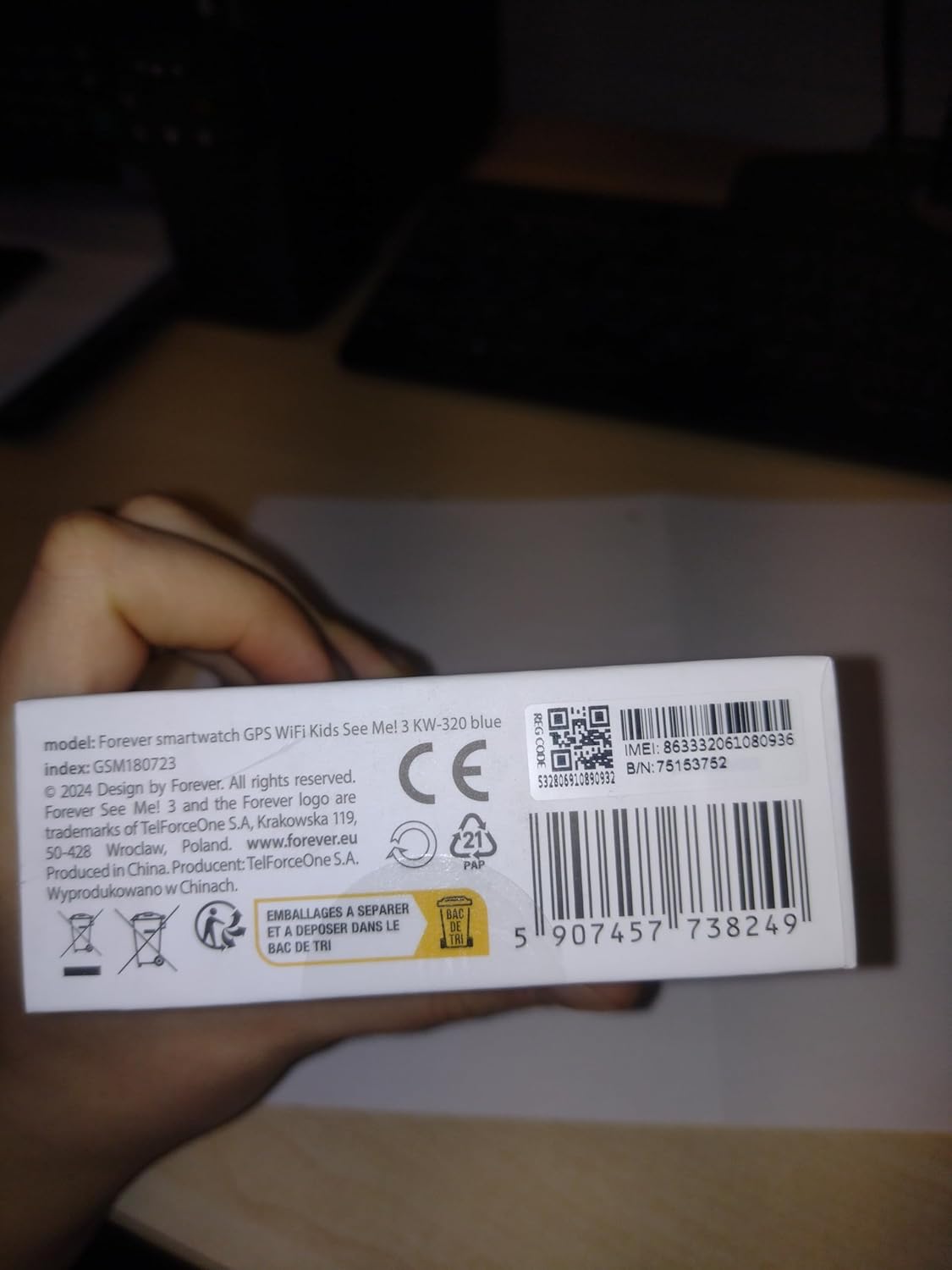
Image: The retail box for the FOREVER Smart Watch Kids See Me! 3 KW-320, indicating the included accessories.
Setup Guide
1. Initial Charging
Before first use, fully charge the watch. Connect the charger to the watch's charging port and plug it into a power source. The watch screen will indicate charging status.
Image: Close-up of the watch's charging contacts on the back.
2. SIM Card Installation
The watch requires a Nano SIM card for communication and GPS features. Use the provided SIM card tool to open the SIM card slot. Insert the Nano SIM card with the gold contacts facing up, ensuring it is correctly seated. Close the slot securely.
Image: The side of the watch with the SIM card slot clearly visible.
3. App Pairing and Configuration
Download the dedicated FOREVER app on your smartphone (compatible with Android and iOS). Register an account and follow the in-app instructions to pair your child's watch. This app allows you to manage contacts, set safety zones, monitor location, and configure watch settings.
Image: A smartphone displaying the companion application for the watch, showing options for activities, chat, map, and settings.
4. Setting Up Contacts and SOS Numbers
Within the app, add trusted contacts that your child can call or receive calls from. Configure up to three SOS numbers. In an emergency, pressing the SOS button on the watch will cycle through these numbers until one is answered.
Image: A child with a minor injury, demonstrating the need for quick communication, alongside a close-up of the watch's contact list.
Operating the Watch
Making and Receiving Calls
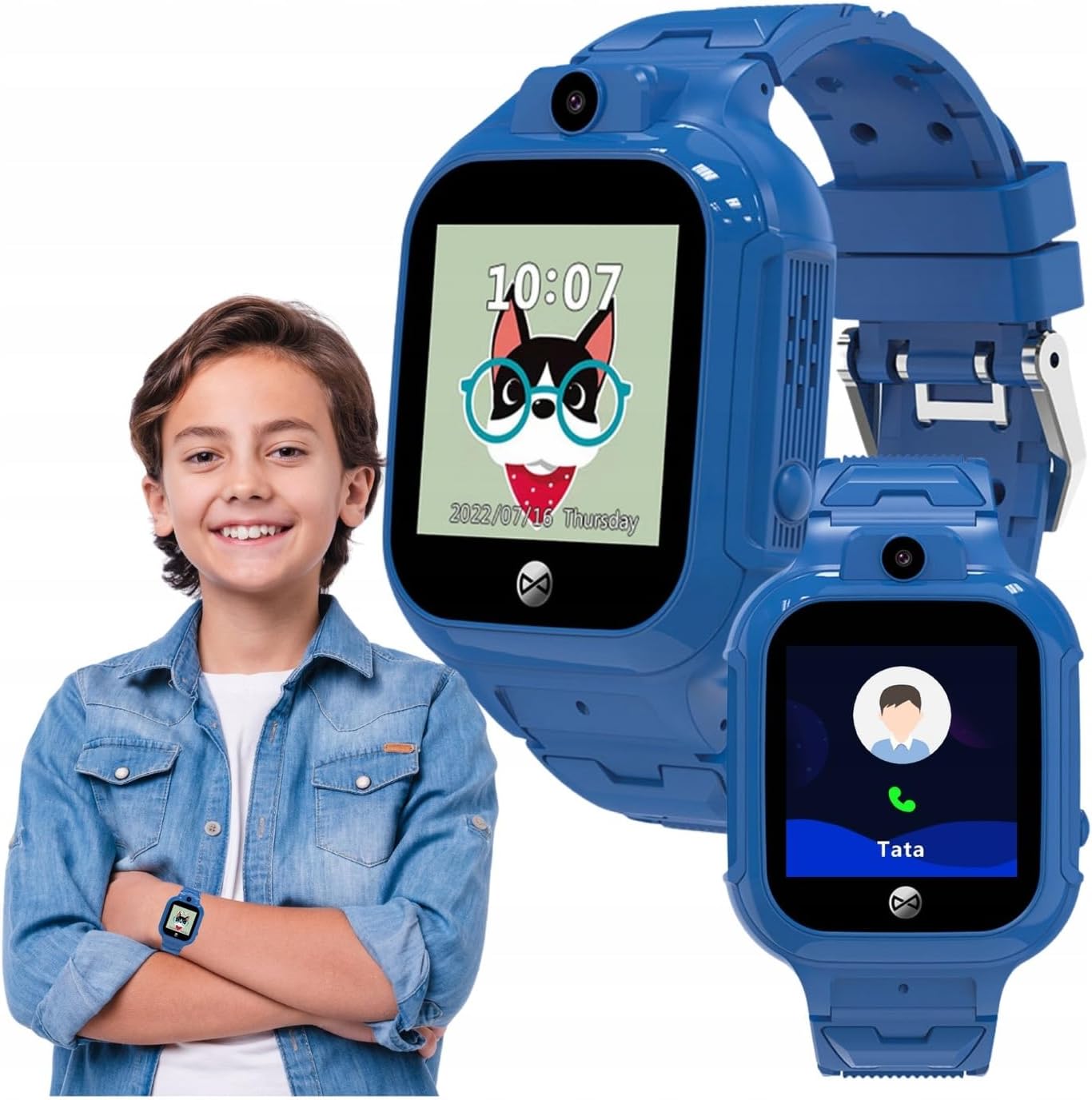
Your child can initiate calls to pre-approved contacts directly from the watch. Incoming calls from approved numbers will be displayed on the watch screen. The watch supports both voice and video calls.
Image: A child wearing the watch, with an inset showing the watch's calling interface.
Using the SOS Function
In an emergency, the child can press and hold the SOS button (usually located on the side of the watch) to activate the emergency call sequence. The watch will automatically dial the pre-set SOS numbers until a connection is made.
Location Tracking (GPS, LBS, Wi-Fi)
Parents can view the child's real-time location through the companion app. The watch uses a combination of GPS, LBS (Location Based Service via cellular towers), and Wi-Fi positioning for accurate tracking. You can also set up safety zones, and receive alerts if the child enters or leaves these designated areas.
Image: Children gathered together, symbolizing the watch's ability to help parents check their child's surroundings.
Camera and Photo Functions
The watch is equipped with a camera, allowing the child to take photos. These photos can often be viewed on the watch or uploaded to the companion app for parents to see.
Image: A child in a classroom, with the watch displaying educational games, highlighting its learning and activity features.
Activity Tracking and Games
The watch includes features to track daily activity, such as steps. It also offers playful and educational games to keep children engaged.
Facial Recognition Unlock
For enhanced security and ease of use, the watch supports facial recognition to unlock the screen, ensuring only the child can access its features.
Maintenance
Cleaning the Watch
Wipe the watch regularly with a soft, dry cloth. For stubborn dirt, a slightly damp cloth can be used. Avoid harsh chemicals or abrasive materials.
Water Resistance (IP65)
The FOREVER Smart Watch KW-320 has an IP65 rating, meaning it is protected against dust ingress and low-pressure water jets from any direction. It is suitable for everyday use and splashes but should not be submerged in water or used for swimming.
Battery Care
To prolong battery life, avoid extreme temperatures. Charge the watch fully when indicated by the low battery warning. Do not leave the watch uncharged for extended periods.
Troubleshooting
Problem
Possible Cause
Solution
Watch not turning on
Low battery; Power button not pressed long enough.
Charge the watch for at least 30 minutes. Press and hold the power button for 5-10 seconds.
Cannot make/receive calls
No SIM card; SIM card not active; Poor network signal; Contacts not set up in app.
Ensure SIM card is correctly inserted and active. Check network coverage. Add contacts via the app.
Inaccurate GPS location
Weak GPS signal (indoors/dense areas); Reliance on LBS/Wi-Fi.
Move to an open area for better GPS signal. Ensure Wi-Fi is enabled on the watch for improved indoor positioning.
App not connecting to watch
Incorrect pairing; Network issues; App outdated.
Re-pair the watch with the app. Check internet connection on both devices. Update the app to the latest version.
Specifications
Feature
Detail
Model Number
KW-320
Screen Size
1.4 Inches
Display Type
LCD
Connectivity Technology
Wi-Fi, Bluetooth
Location Tracking
GPS, LBS, Wi-Fi
SIM Card Slot
Nano SIM
Battery Capacity
800 Milliamp Hours (Lithium Ion)
Water Resistance Rating
IP65
Special Features
Touchscreen, Voice Call, SOS Button, Activity Tracker, GPS, Facial Recognition
Product Dimensions
23 x 15 x 4 cm; 55 g
Warranty and Support
For warranty information and technical support, please refer to the official FOREVER website or contact their customer service. Keep your purchase receipt as proof of purchase.
Ask about setup, troubleshooting, compatibility, parts, safety, or missing instructions. Manuals+ will review the question and use this page’s manual context to help answer it.