
1. Introduction
This manual provides comprehensive instructions for the Effireli EN3G39 replacement remote control. It is designed to operate various Hisense TV models without requiring any programming or setup. This guide covers battery installation, button functions, general operation, maintenance, and troubleshooting.
2. Compatibility
The Effireli EN3G39 remote control is compatible with a wide range of Hisense TV models, including but not limited to:
- H49N5700, H55N5700, H43N5300, H50N5300, H55N5300, H65N5300, H49N5500, H55N5500, H43N5500, H65N5750, H49N6600, H50N5900
- H43A6550, H50A6550, H55A6550, H60NEC5600, A6200, A6250, AE6100, N5700, N5300, N5500, N5750, N6600, N5900, NEC5600, H75U9A
- H43A6200UK, H50A6200UK, H55A6200UK, H65A6200UK, H43A6250UK, H50A6250UK, H55A6250UK, H65A6250UK
- H43AE6100UK, H50AE6100UK, H58AE6100UK, H65AE6100UK, H43N5700UK, H49N5700UK, H55N5700UK
- H43N5300UK, H50N5300UK, H55N5300UK, H65N5300UK, H49N5500UK, H55N5500UK, H43N5500UK
- H65N5750UK, H49N6600UK, H50N5900UK, H43A6550UK, H50A6550UK, H55A6550UK, H60NEC5600UK, H75U9AUK
Note: If your specific TV model number is not listed above, or if your original remote control has a significantly different appearance, please contact customer support to confirm compatibility before use.
3. Setup: Battery Installation
The remote control requires two AAA batteries (not included) for operation. Follow these steps to install them:
- Locate the battery compartment cover on the back of the remote control.
- Press down on the tab and slide the cover downwards to open the compartment.
- Insert two AAA batteries, ensuring the positive (+) and negative (-) terminals align correctly with the markings inside the compartment.
- Slide the battery compartment cover back into place until it clicks securely.
The remote is now ready for use. No programming is required.
4. Button Functions
Below is an image of the Effireli EN3G39 remote control, followed by a detailed description of each button's function.
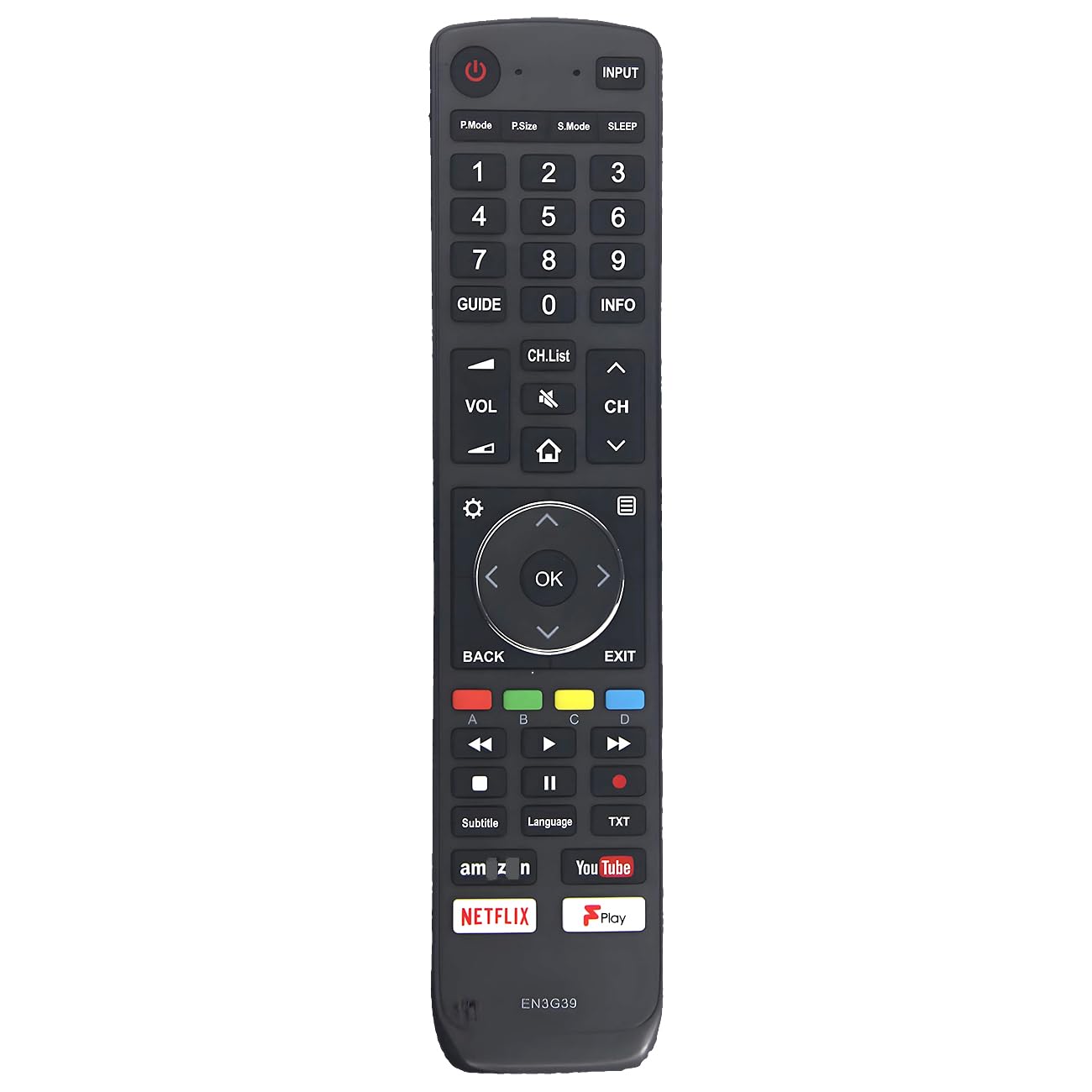
Image: Effireli EN3G39 Replacement Remote Control for Hisense TVs. This black rectangular remote features a standard layout including a red power button, input selection, numeric keypad, channel and volume controls, a central navigation pad with an OK button, media playback buttons, and dedicated quick-access buttons for streaming services like Amazon, YouTube, Netflix, and Google Play.
- Power Button (Red, top left): Turns the connected Hisense TV on or off.
- INPUT Button (Top right): Cycles through available input sources (e.g., HDMI 1, HDMI 2, AV).
- P.Mode (Picture Mode): Adjusts the TV's picture settings (e.g., Standard, Dynamic, Movie).
- P.Size (Picture Size): Changes the aspect ratio of the display (e.g., 16:9, 4:3, Zoom).
- S.Mode (Sound Mode): Adjusts the TV's audio settings (e.g., Standard, Music, Speech).
- SLEEP: Activates or adjusts the sleep timer, which automatically turns off the TV after a set period.
- Number Pad (0-9): Directly enters channel numbers or numerical data in menus.
- GUIDE: Displays the Electronic Program Guide (EPG) for broadcast channels.
- INFO: Shows information about the current program, channel, or input source.
- VOL +/-: Increases or decreases the TV's volume level.
- Mute Button (Speaker with cross): Mutes or unmutes the TV's audio.
- CH +/-: Changes the TV channel up or down sequentially.
- CH.List (Channel List): Displays the list of all available channels.
- Home Button (House icon): Accesses the TV's main menu or smart TV home screen.
- Navigation Pad (Up, Down, Left, Right): Navigates through menus, lists, and options.
- OK Button (Center of navigation pad): Confirms a selection or enters a menu item.
- Settings Button (Gear icon): Opens the TV's settings menu for advanced configurations.
- List/Menu Button (Stacked lines icon): Accesses a context-sensitive list or menu.
- BACK: Returns to the previous screen or menu level.
- EXIT: Exits the current menu, application, or on-screen display.
- Color Buttons (A-Red, B-Green, C-Yellow, D-Blue): Perform specific functions within certain TV menus or applications, as indicated on-screen.
- Media Control Buttons (Rewind, Play/Pause, Fast Forward, Stop, Record): Controls playback of media content (e.g., from USB, streaming apps).
- Subtitle: Toggles subtitles or closed captions on or off.
- Language: Changes the audio language or subtitle language for compatible content.
- TXT (Teletext): Accesses teletext services if supported by the TV and broadcast.
- Amazon Prime Video Button: Provides direct access to the Amazon Prime Video application.
- YouTube Button: Provides direct access to the YouTube application.
- NETFLIX Button: Provides direct access to the Netflix application.
- Google Play Button: Provides direct access to Google Play services or applications.
5. Operating Instructions
To operate your TV with the Effireli EN3G39 remote control:
- Ensure the remote has fresh batteries installed correctly.
- Point the remote control directly at the TV's infrared sensor. Ensure there are no obstructions between the remote and the TV.
- Press the desired button to perform an action. For example, press the Power Button to turn the TV on or off, or use the VOL +/- buttons to adjust the volume.
- For navigating menus, use the Navigation Pad (Up, Down, Left, Right) and confirm selections with the OK Button.
6. Maintenance
Proper care will extend the life of your remote control:
- Cleaning: Wipe the remote control with a soft, dry cloth. Do not use liquid cleaners or abrasive materials.
- Battery Replacement: Replace batteries when the remote's response becomes sluggish or stops working. Always replace both batteries at the same time with new ones. Do not mix old and new batteries or different types of batteries.
- Storage: If the remote will not be used for an extended period, remove the batteries to prevent leakage and potential damage. Store in a cool, dry place.
- Avoid Damage: Do not drop the remote, expose it to extreme temperatures, or immerse it in water.
7. Troubleshooting
If you encounter issues with your remote control, try the following steps:
- Remote Not Responding:
- Check if the batteries are inserted correctly with the correct polarity (+/-).
- Replace the batteries with fresh ones.
- Ensure there is a clear line of sight between the remote control and the TV's infrared sensor. Remove any obstructions.
- Try operating the remote closer to the TV.
- Specific Buttons Not Working:
- This could indicate a faulty button or a specific TV setting. If other buttons work, try resetting the TV (unplug from power for 1 minute).
- TV Not Responding to Any Remote:
- Ensure the TV is powered on and not in standby mode.
- Check the TV's own power button.
If these steps do not resolve the issue, please refer to the Warranty and Support section for further assistance.
8. Specifications
- Model: EN3G39
- Brand: Effireli
- Connectivity Technology: Infrared
- Power Source: 2 x AAA Batteries (not included)
- Package Dimensions: 8.5 x 1.7 x 0.5 inches
- Item Weight: 3.2 ounces
- Special Feature: No Programming Required
- Compatible Devices: Television
9. Warranty and Support
Your Effireli EN3G39 replacement remote control comes with the following:
- A 30-day money-back guarantee from the date of purchase.
- A 12-month warranty covering manufacturing defects.
- Returns and exchanges are accepted within the warranty period for eligible issues.
For any questions regarding compatibility, troubleshooting, or warranty claims, please contact your retailer or the manufacturer directly. Providing your TV model number and the remote's model number (EN3G39) will help expedite support.