
Enzemit Mini Projector A10 Wifi
Enzemit Mini Projector A10 User Manual
Model: Mini Projector A10 Wifi
1. Introduction
Welcome to the user manual for your Enzemit Mini Projector A10. This portable projector is designed for versatile use, offering wireless screen mirroring capabilities for Android, iOS, and Windows 10 devices, and supporting up to 1080P video playback. Its compact size and built-in features make it ideal for home theater, outdoor use, and as a thoughtful gift. This manual provides essential information on setting up, operating, maintaining, and troubleshooting your projector to ensure an optimal viewing experience.

Image: The Enzemit Mini Projector A10, showcasing its compact size and portability, held in a hand with a smartphone mirroring its display.
2. What's in the Box
Upon opening your Enzemit Mini Projector A10 package, please verify that all the following items are included:
- 1 x Enzemit Mini Projector A10
- 1 x Remote Control
- 1 x Power Cable
3. Key Features
3.1. 2024 Upgraded WiFi Wireless Screen Mirroring
The Enzemit Mini WiFi Projector features 2.4G WiFi connectivity, ensuring compatibility with Android, iOS, and Windows 10 devices. This allows for seamless screen mirroring without the need for additional conversion cables, enabling you to connect your smart devices effortlessly.
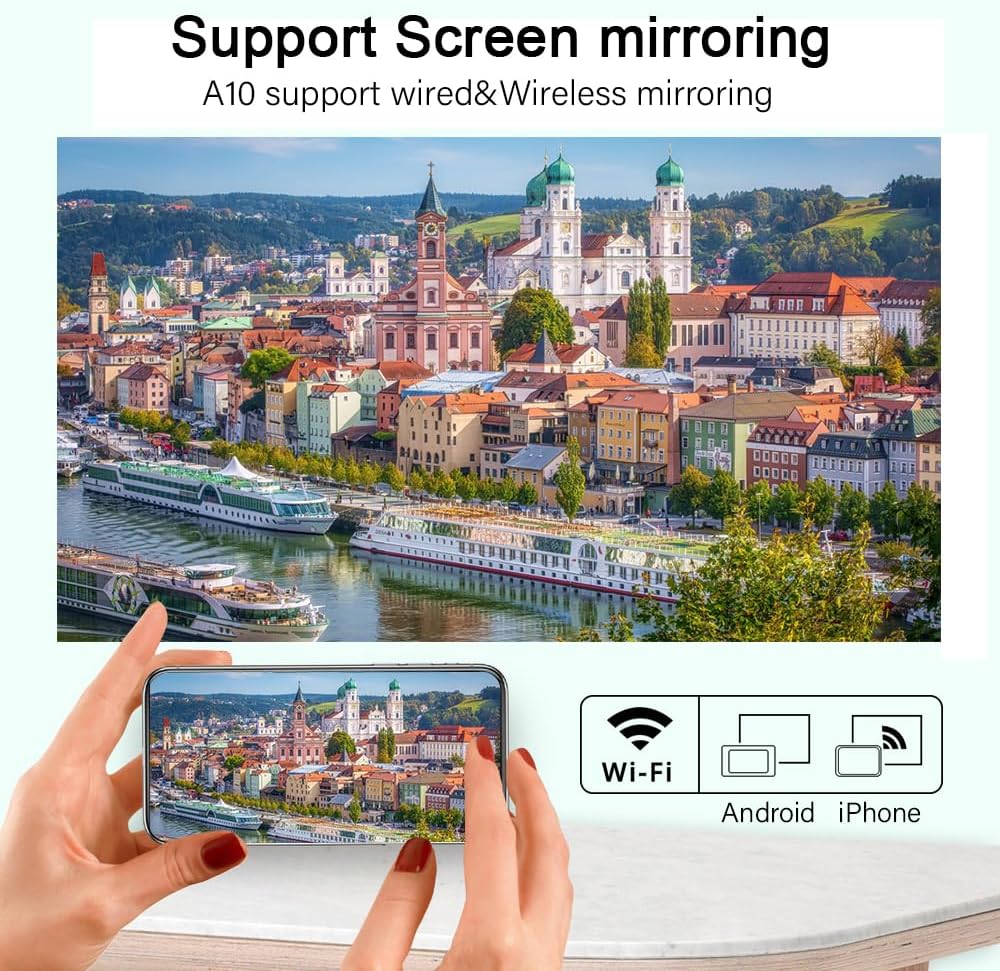
Image: Projector demonstrating wireless screen mirroring from a smartphone.
3.2. Upgraded Performance & Visual Quality
Utilizing the latest projection technology, the Enzemit A10 offers a physical resolution of 480x360 pixels and supports video playback up to 1920x1080 pixels without delay. This ensures a comfortable and clear viewing experience with improved brightness and color quality.

Image: Visual comparison highlighting the A10's superior color and brightness.
3.3. Built-in Powerful 3W Speaker
The A10 Projector includes a powerful 3W speaker, eliminating the need for external audio devices for basic listening. This allows for a self-contained entertainment experience. Note: Due to copyright restrictions, the projector does not support Dolby audio. If playing content with Dolby audio, you may not hear sound.

Image: Illustration of the projector's built-in stereo speaker.
3.4. Diffuse Reflection Imaging for Eye Protection
Unlike direct light sources found in televisions, the projector operates through diffuse reflection imaging. This method is designed to be gentler on the eyes, providing better protection for both adults and children during extended viewing periods.

Image: Visual explanation of the projector's eye-friendly diffuse reflection technology.
3.5. Portable Size
Measuring approximately 5.6 x 3.9 x 2.1 inches, the projector is designed to be highly portable, easily fitting in one hand. This compact design allows you to take your entertainment anywhere you desire.

Image: The projector's small size, demonstrating its portability when held in a hand.
3.6. Complete Functions, Plug & Play Connectivity
The projector offers multiple input source interfaces including HDMI, USB, and a 3.5mm audio output jack. It is compatible with a wide range of devices such as PCs, Fire Sticks, PS5, and more, providing easy plug-and-play functionality for your daily needs.

Image: Overview of supported multimedia devices and input/output ports.
3.7. Power Bank Supply Capability
This mini projector can be powered by a 12V-2A portable power bank, offering enhanced flexibility and mobility. You are no longer restricted by power outlets, allowing you to enjoy your projector anywhere.

Image: The projector being powered by a portable power bank.
3.8. Excellent Cooling System
The projector features a front air outlet design for efficient cooling, which significantly extends its lifespan. It is designed to support over 30,000 hours of use, equating to more than 15 years if used 5 hours daily.
Image: The projector's design, which incorporates its cooling system.
4. Setup Guide
4.1. Initial Power On
- Connect the provided power cable to the projector's power input port and then to a power outlet.
- Press the power button on the projector or the remote control to turn on the device.
- The projector's main interface will appear on the projection surface.
4.2. Adjusting Projection
- Focus Adjustment: Rotate the focus ring on the projector lens until the image appears clear and sharp.
- Projection Distance & Size: Adjust the distance of the projector from the screen or wall to achieve your desired screen size. The optimal projection distance is typically around 2 meters for a 60-inch screen. The projector supports a projection size range of 13-100 inches and a distance range of 0.5-3.3 meters.

Image: Guide to projection distance and screen size.
4.3. Connecting Input Sources
The A10 projector supports various input methods:
- HDMI: Connect your laptop, game console (PS5), Fire Stick, or other HDMI-enabled devices using an HDMI cable.
- USB: Insert a USB drive to play media files directly.
- TF Card: Insert a TF (Micro SD) card to play media files.
- 3.5mm Audio Out: Connect external speakers or headphones if desired.
5. Operating Instructions
5.1. Navigating the User Interface
Use the remote control or the buttons on top of the projector to navigate the intuitive user interface. The main menu typically includes options for Movies, Music, Photos, Text, HDMI input, and Settings.

Image: The projector's user interface, showing various content categories and settings.
5.2. Wireless Screen Mirroring (WiFi)
To mirror your smartphone or tablet screen wirelessly:
- Ensure your projector and mobile device are connected to the same 2.4G WiFi network.
- On the projector's main menu, select the "Wireless Mirroring" or "Screen Mirroring" option.
- For iOS devices: Open Control Center, tap "Screen Mirroring" or "AirPlay Mirroring," and select the projector from the list.
- For Android devices: Go to your device's settings, find "Cast," "Smart View," "Wireless Display," or similar options, and select the projector.
- Your device's screen should now be mirrored on the projector.

Image: Demonstrating smooth smartphone screen sharing to the projector.
5.3. Audio Output
The projector has a built-in 3W speaker. For external audio, connect speakers or headphones to the 3.5mm audio output jack. Remember that Dolby audio is not supported, and content with Dolby encoding may result in no sound.
6. Maintenance
- Lens Cleaning: Use a soft, lint-free cloth specifically designed for optical lenses to gently wipe the projector lens. Avoid abrasive materials or harsh chemicals.
- Ventilation: Ensure the projector's air vents are not obstructed during operation to allow for proper airflow and cooling. Regularly check for dust accumulation around the vents and gently clean if necessary.
- Storage: When not in use for extended periods, store the projector in a cool, dry place, away from direct sunlight and extreme temperatures.
7. Troubleshooting
| Problem | Possible Cause | Solution |
|---|---|---|
| No Sound | Content has Dolby audio encoding. | The projector does not support Dolby audio. Try playing content without Dolby encoding or connect to an external audio system that supports Dolby. |
| No Picture / Blurry Image | Incorrect focus adjustment; Loose cable connection; Incorrect input source. | Adjust the focus ring on the lens. Ensure all cables (HDMI, USB) are securely connected. Select the correct input source from the projector's menu. |
| Cannot Connect to WiFi / Screen Mirroring Fails | Projector and device on different networks; Weak WiFi signal; Device compatibility issue. | Ensure both devices are connected to the same 2.4G WiFi network. Move the projector closer to the WiFi router. Restart both the projector and your mobile device. Verify your device's screen mirroring function. |
| Projector Overheats / Shuts Down | Obstructed ventilation; Prolonged use in hot environment. | Ensure the air vents are clear and unobstructed. Operate the projector in a well-ventilated area. Allow the projector to cool down if it has been running for an extended period. |
8. Specifications
| Feature | Detail |
|---|---|
| Brand | Enzemit |
| Model Number | Mini Projector A10 Wifi |
| Display Resolution | Native 480x360 pixels (Supports 1920x1080P) |
| Connectivity Technology | Wi-Fi (2.4G), HDMI, USB, 3.5mm Jack |
| Special Features | Built-In Speaker, Wireless Mirroring, Portable |
| Recommended Uses | Business, Gaming, Home Cinema, Outdoor Use |
| Projection Size Range | 13-100 inches |
| Projection Distance Range | 0.5-3.3 meters |
| Light Source Lifespan | >30,000 hours |
| Power Supply | AC Adapter, 12V-2A Portable Power Bank |
9. Warranty and Support
For information regarding warranty coverage, returns, or technical support for your Enzemit Mini Projector A10, please refer to the purchase documentation or contact the seller directly. You can also visit the official Enzemit store on Amazon for additional resources and contact information: Enzemit Amazon Store.
Ask a question about this manual
Ask about setup, troubleshooting, compatibility, parts, safety, or missing instructions. Manuals+ will review the question and use this page’s manual context to help answer it.