
Beatfoxx CDB-1016U
Beatfoxx CDB-1016U BK Boombox User Manual
Model: CDB-1016U
Introduction
The Beatfoxx CDB-1016U Boombox is a versatile audio system designed for both home and portable use. It combines classic audio formats with modern connectivity options, offering a comprehensive listening experience. This manual provides detailed instructions for setting up, operating, and maintaining your device.

Figure 1: Front view of the Beatfoxx CDB-1016U BK Boombox, showing the speakers, control panel, and carrying handle.
Setup
Powering the Device
The Beatfoxx CDB-1016U Boombox can be powered using the included AC power cable or by batteries for portable use.
- AC Power: Insert the AC power cable into the AC IN jack on the back of the unit and plug the other end into a standard wall outlet (AC 230V ~ 50Hz).
- Battery Power: For portable operation, open the battery compartment on the bottom of the unit. Insert six (6) Type C (UM-2) batteries, ensuring correct polarity (+/-). Close the battery compartment securely.

Figure 2: The boombox operating on AC power, with an illustration of the required Type C batteries for portable use.
Operating Instructions
Controls Overview
Familiarize yourself with the main controls located on the top and front of the boombox.

Figure 3: Detailed view of the boombox's control panel, cassette compartment, carrying handle, and CD compartment.
- POWER Button: Turns the unit on/off.
- MODE Button: Switches between CD, USB, Bluetooth, Radio (FM/AM), and AUX modes.
- VOLUME Knob: Adjusts the audio output level.
- TUNING Knob: Used for manual tuning in Radio mode.
- PLAY/PAUSE Button: Starts or pauses playback.
- STOP/EJECT Button: Stops playback and opens the CD compartment or ejects cassette.
- SKIP/SEARCH Buttons (<< / >>): Skips tracks or fast forwards/rewinds.
- REPEAT/PROG Button: Repeats current track/all tracks or programs CD/USB playback order.
- FOLDER Button: Navigates through folders on USB.
- REC Button: Initiates recording to cassette.
Selecting Playback Sources
The boombox supports multiple audio sources. Use the MODE button to cycle through them.

Figure 4: Visual representation of the seven available playback sources on the boombox.
CD Playback
- Press the MODE button to select CD mode.
- Press the STOP/EJECT button to open the CD compartment.
- Place a CD (CD, CD-R, CD-RW, MP3 CD) onto the spindle with the label side facing up.
- Close the CD compartment. The display will show "READING" and then the total number of tracks.
- Press the PLAY/PAUSE button to start playback.
- Use the SKIP/SEARCH buttons to navigate between tracks.
- Press REPEAT to repeat the current track or all tracks.
Cassette Playback and Recording
The boombox features a built-in cassette player and recorder.

Figure 5: The cassette compartment of the boombox shown open, ready for tape insertion.
Playback:
- Open the cassette compartment.
- Insert a cassette tape.
- Close the compartment.
- Press the PLAY button on the cassette controls to start playback.
- Use FWD or REW for fast forward or rewind.
- Press STOP/EJECT to stop playback and eject the tape.
Recording:
You can record from CD, USB, Radio, or AUX input to a cassette tape.
- Insert a blank or recordable cassette tape into the compartment.
- Select the desired source (CD, USB, Radio, or AUX) using the MODE button.
- Start playback on the source (e.g., play a CD, tune to a radio station).
- Press the REC button on the cassette controls. The unit will automatically start recording the audio from the selected source onto the cassette.
- Press STOP on the cassette controls to end recording.
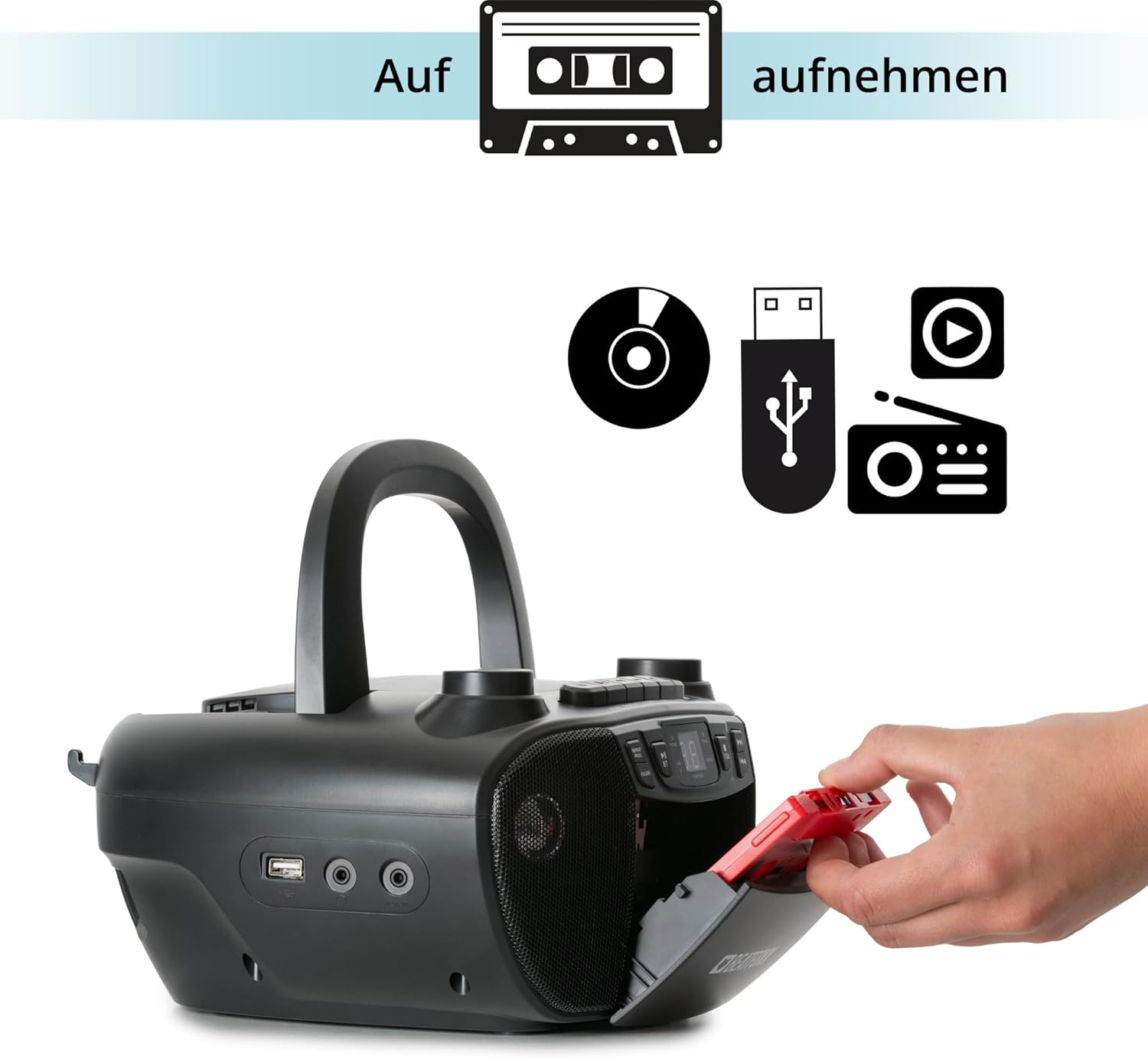
Figure 6: Illustration of the boombox's recording capability, showing a cassette tape being inserted for recording from CD, USB, or radio.
Radio (FM/AM)
- Extend the telescopic antenna for better FM reception.
- Press the MODE button to select Radio mode (FM or AM).
- Use the TUNING knob to manually tune to your desired radio station.
Bluetooth Connectivity
- Press the MODE button to select Bluetooth mode. The display will show "BT" and flash, indicating it's in pairing mode.
- On your Bluetooth-enabled device (smartphone, tablet), enable Bluetooth and search for available devices.
- Select "Beatfoxx CDB-1016U" from the list of devices.
- Once paired, the "BT" indicator on the boombox will stop flashing and remain solid.
- You can now stream audio wirelessly from your device to the boombox.
USB Playback
- Insert a USB flash drive containing MP3 audio files into the USB port.
- Press the MODE button to select USB mode. The unit will automatically start playing the first track.
- Use the SKIP/SEARCH buttons to navigate between tracks.
- Use the FOLDER button to navigate through folders on the USB drive.

Figure 7: Detailed view of the boombox's connectivity options, including the USB port, headphone output, and AUX input.
AUX Input
Connect external audio devices (e.g., MP3 players, smartphones without Bluetooth) to the boombox using a 3.5mm audio cable (not included).
- Connect one end of the 3.5mm audio cable to the AUX IN jack on the boombox.
- Connect the other end to the headphone jack or audio output of your external device.
- Press the MODE button to select AUX mode.
- Play audio from your external device. The sound will be output through the boombox speakers.
Headphone Output
For private listening, connect standard 3.5mm headphones to the HEADPHONE jack. Audio will automatically mute from the speakers when headphones are connected.
Maintenance
Cleaning
- Always unplug the unit from the power source before cleaning.
- Use a soft, dry cloth to clean the exterior surfaces.
- Do not use abrasive cleaners, waxes, or solvents as they may damage the finish.
- For the CD lens, use a specialized CD lens cleaner.
- For the cassette head, use a cassette head cleaning kit.
Battery Care
- Remove batteries if the unit will not be used for an extended period to prevent leakage.
- Do not mix old and new batteries, or different types of batteries.
- Dispose of used batteries responsibly according to local regulations.
Troubleshooting
| Problem | Possible Cause | Solution |
|---|---|---|
| No power | Power cable not connected; Batteries depleted or incorrectly inserted. | Ensure AC cable is securely plugged in. Check battery polarity and replace if necessary. |
| No sound | Volume too low; Wrong mode selected; Headphones connected. | Increase volume. Press MODE button to select correct source. Disconnect headphones. |
| CD skipping or not playing | CD is dirty or scratched; CD inserted incorrectly. | Clean CD with a soft cloth. Re-insert CD correctly. Try another CD. |
| Bluetooth not pairing | Boombox not in pairing mode; Device too far; Bluetooth disabled on device. | Ensure boombox is in BT mode and "BT" is flashing. Move device closer. Enable Bluetooth on your device. |
| Poor radio reception | Antenna not extended; Weak signal. | Fully extend the telescopic antenna. Adjust antenna position. Try tuning to a stronger station. |
Specifications
| Feature | Detail |
|---|---|
| Brand | Beatfoxx |
| Model Number | CDB-1016U (Manufacturer Ref: 00104749) |
| Color | Black |
| Connectivity Technology | Auxiliary, USB, Bluetooth |
| Compatible Devices | Portable audio devices, MP3 players, Smartphones, Tablets |
| Speaker Type | Stereo |
| Power Source | AC Power Cable, 6 x Type C Batteries |
| Audio Output Power | 2 x 1.2 W |
| Supported Formats | CD, MP3, CD-R, CD-RW, Cassette, FM/AM Radio, Bluetooth, USB |
| Item Weight | 1.6 Kilograms |
| Dimensions (W x H x D) | 24 x 13 x 22.5 cm (approx.) |
Warranty and Support
This Beatfoxx product comes with a standard manufacturer's warranty. Please refer to the warranty card included in your product packaging for specific terms and conditions.
For technical support, troubleshooting assistance, or warranty claims, please contact Beatfoxx customer service through their official website or the retailer where the product was purchased. Keep your proof of purchase for warranty validation.
Related documentsCDB-1016U


Ask a question about this manual
Ask about setup, troubleshooting, compatibility, parts, safety, or missing instructions. Manuals+ will review the question and use this page’s manual context to help answer it.