
ESR Geo Digital iPad Pencil
ESR Geo Digital iPad Pencil Instruction Manual
Model: Geo Digital iPad Pencil
Brand: ESR
1. Introduction
This manual provides detailed instructions for the setup, operation, maintenance, and troubleshooting of your ESR Geo Digital iPad Pencil. Please read this manual thoroughly to ensure proper use and to maximize the functionality of your device.
2. Product Overview
The ESR Geo Digital iPad Pencil is designed to enhance your iPad experience with precision and convenience. Key features include:
- Find My Functionality: Easily locate your pencil using the Apple Find My app.
- Fast Charging: Achieve a full charge in just 20 minutes.
- Easy Shortcuts: Single tap for home, double tap for task manager, and real-time battery display via Bluetooth.
- Tilt Sensitivity: Adjust line thickness for realistic shading and drawing.
- Palm Rejection: Comfortably rest your hand on the screen while writing or drawing.
- Secure Magnetic Attachment: Conveniently attach to compatible iPads for storage.
- Durable and Replaceable Nib: Features a 1.5mm POM tip for smooth, lag-free performance.

Image: The ESR Geo Digital iPad Pencil in pink, shown with three replacement nibs, a USB-C charging cable, and a tablet displaying the Find My map interface.
3. Setup Guide
3.1 Unboxing and Initial Inspection
Carefully open the product packaging. Ensure all components are present:
- ESR Geo Digital iPad Pencil
- Replacement Nibs (3 included)
- USB-C Charging Cable
- Instruction Manual (this document)

Image: Close-up of the ESR Geo Digital iPad Pencil in pink, alongside three pink replacement nibs, illustrating the durable and replaceable design.
3.2 Initial Charging
Before first use, fully charge your ESR Geo Digital iPad Pencil.
- Connect the provided USB-C charging cable to the charging port on the pencil.
- Connect the other end of the cable to a compatible USB-C power adapter (not included) or a USB-C port on your computer.
- The pencil will fully charge in approximately 20 minutes.

Image: The ESR Geo Digital iPad Pencil connected to a laptop via a USB-C cable, illustrating its fast charging capability. Text indicates 12 hours in-use time, 20 minutes charging time, and 5 minutes standby mode.
3.3 Bluetooth Pairing
To enable advanced features like shortcuts and battery level display, pair your pencil via Bluetooth:
- Long press the top button on the pencil for 2 seconds to power it on.
- Within 3 minutes of powering on, open Settings on your iPad.
- Go to Bluetooth and turn it on.
- Select "ESR Geo Digital Pencil" from the list of available devices to connect.

Image: A three-panel illustration showing how to power on the pencil by long-pressing the top button, how to connect it via Bluetooth in iPad settings, and how to view Bluetooth features like battery level.
3.4 Find My Setup
The Find My function allows you to locate your pencil if it's misplaced. This feature works when your Apple device is online and the Digital Pencil is within 30 meters via Bluetooth.
- Ensure your pencil is paired via Bluetooth (see 3.3).
- Open the Find My app on your iPad.
- Your ESR Geo Digital Pencil should appear in the list of items.
- You can then use the app to locate it on a map or play a sound if it's nearby.

Image: A four-step visual guide demonstrating how to pair, locate, play a sound, and find the ESR Geo Digital iPad Pencil using the Find My app on an iPad.
4. Operating Instructions
4.1 Basic Usage
Once paired, simply touch the pencil nib to your iPad screen to begin writing, drawing, or navigating. The pencil is designed for smooth, lag-free performance.

Image: A comparison showing the ESR Geo Digital iPad Pencil providing smooth, lag-free drawing on an iPad screen versus a generic stylus that is laggy and unresponsive.
4.2 Shortcut Functions
When connected via Bluetooth, the top button on the pencil provides convenient shortcuts:
- Tap Once: Returns to the main iPad home screen.
- Double-Tap: Accesses the task manager (multitasking view).

Image: An illustration detailing the advanced Bluetooth features of the ESR Geo Digital iPad Pencil, including single-tap to home page, double-tap to multitasking view, and real-time battery level display.
4.3 Tilt Sensitivity and Palm Rejection
The pencil features built-in sensors for tilt sensitivity, allowing you to vary line thickness by tilting the nib, similar to a traditional pencil. Palm rejection technology ensures you can comfortably rest your hand on the screen without interfering with your writing or drawing.

Image: A two-part image showing a hand comfortably resting on an iPad screen while using the ESR Geo Digital iPad Pencil (palm rejection), and three illustrations demonstrating how tilting the pencil (90°, 60°, 30°) affects line thickness (tilt sensitivity).
4.4 Magnetic Attachment
For convenient storage and transport, the ESR Geo Digital iPad Pencil can magnetically attach to compatible iPad models. Simply align the flat edge of the pencil with the magnetic strip on your iPad.
5. Maintenance
5.1 Charging
To maintain optimal performance, charge your pencil when the battery level is low. A full charge provides approximately 12 hours of in-use time and 5 minutes of standby mode after 20 minutes of charging.
5.2 Nib Replacement
The pencil comes with replaceable nibs. If the nib becomes worn or damaged, follow these steps to replace it:
- Gently twist the old nib counter-clockwise to remove it.
- Align a new nib with the tip of the pencil.
- Gently twist the new nib clockwise until it is securely in place.
Image: Close-up of the ESR Geo Digital iPad Pencil in pink, alongside three pink replacement nibs, illustrating the durable and replaceable design.
5.3 Cleaning
Wipe the pencil with a soft, dry cloth to remove dust or smudges. Do not use harsh chemicals or abrasive materials.
6. Troubleshooting
| Problem | Possible Cause | Solution |
|---|---|---|
| Pencil not responding | Low battery; Not powered on; Not paired; Incompatible iPad model. | Charge the pencil; Long press top button to power on; Re-pair via Bluetooth; Verify iPad compatibility. |
| Shortcuts not working | Not connected via Bluetooth. | Ensure Bluetooth is enabled and the pencil is connected to your iPad. |
| Find My not locating pencil | Pencil out of Bluetooth range (30m); iPad offline. | Move closer to the pencil; Ensure your iPad has an internet connection. |
| Inaccurate or skipping lines | Worn nib; Screen protector interference; Software glitch. | Replace the nib; Ensure screen protector is compatible; Restart iPad and pencil. |
7. Specifications
- Model: Geo Digital iPad Pencil
- Brand: ESR
- Color: Pink
- Material: Aluminum
- Item Weight: 2.46 ounces
- Package Dimensions: 7.09 x 2.13 x 0.79 inches
- Battery: 1 Lithium Ion battery (required)
- Charging Time: Approximately 20 minutes for full charge
- In-use Time: Approximately 12 hours
- Standby Mode: 5 minutes
- Nib Type: 1.5mm POM tip, replaceable
7.1 Compatibility
The ESR Geo Digital iPad Pencil is compatible with a wide range of Apple iPad models from 2018 and later. Please confirm your iPad model before use.
Compatible iPad Models:
- New 2025 iPad 11th (A16) & iPad Air 11” (M3) & iPad Air 13” (M3)
- iPad Pro 11” & 13” (M4)
- iPad 10th/9th/8th/7th/6th Generation
- iPad Air 11"/13"(M2), iPad Air 5th/4th/3rd Generation
- iPad Pro 11 inch 4th/3rd/2nd/1st Generation
- iPad Pro 12.9” 6th/5th/4th/3rd Generation
- iPad Mini 6th/5th/7th (A17Pro)
Note: Magnetic attachment is only supported with Apple iPads that support Pencil magnetic attachment.
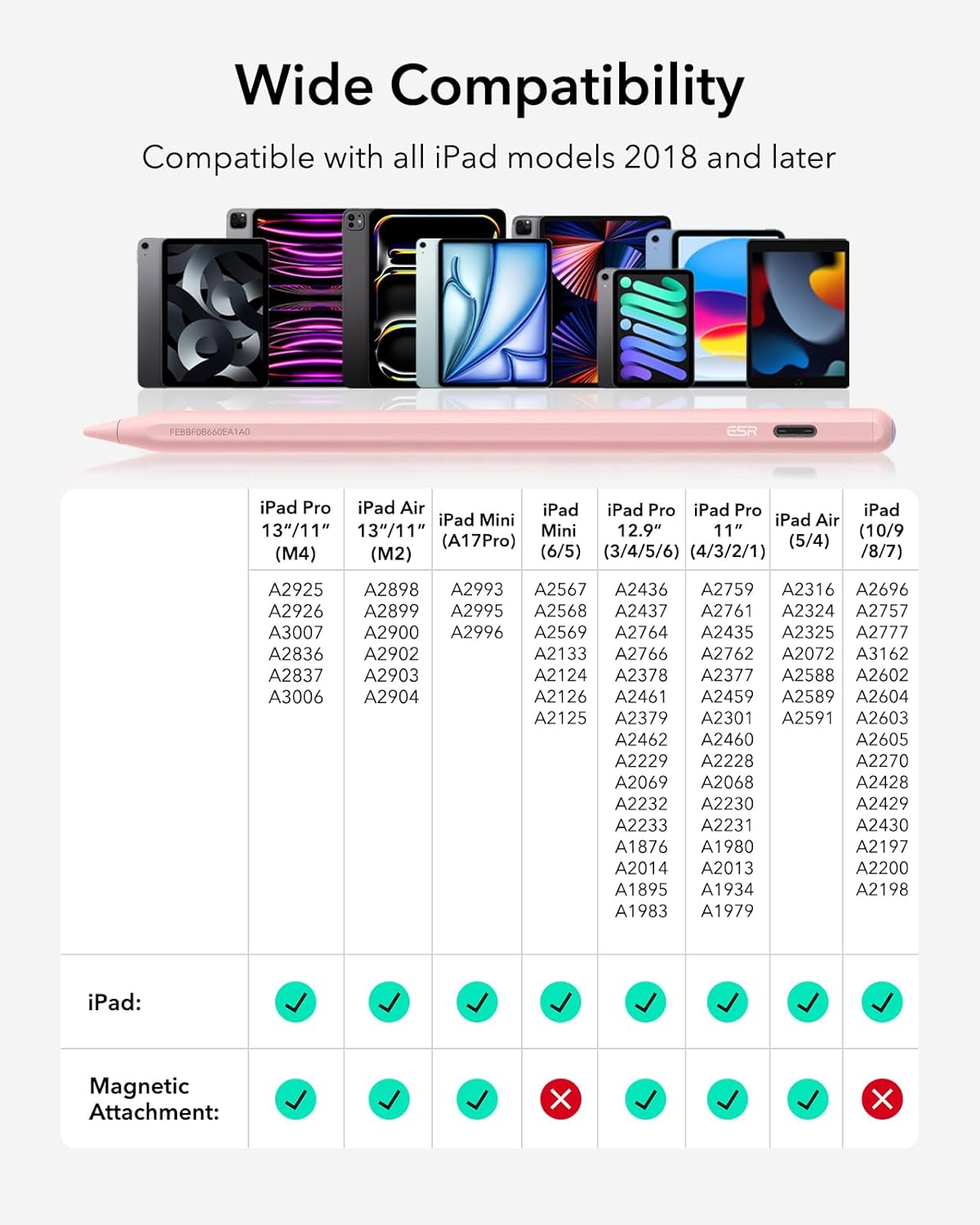
Image: A detailed compatibility chart showing various iPad models and their corresponding model numbers, indicating whether the ESR Geo Digital iPad Pencil is compatible and if magnetic attachment is supported.

Image: A visual guide demonstrating how to find your iPad model number by navigating to Settings > General > About, and by checking the model name printed on the back of the iPad.
8. Warranty and Support
For warranty information and customer support, please refer to the official ESR website or contact their customer service directly. Keep your purchase receipt for warranty claims.
ESR Official Website: www.esrgear.com
Ask a question about this manual
Ask about setup, troubleshooting, compatibility, parts, safety, or missing instructions. Manuals+ will review the question and use this page’s manual context to help answer it.