
1. Introduction
Thank you for choosing the TIQLAB Electric Standing Desk. This desk is designed to provide a versatile and ergonomic workspace, allowing seamless transitions between sitting and standing positions. It features an electric height adjustment system, integrated storage drawers, and a durable construction for long-term use. This manual provides essential information for assembly, operation, maintenance, and troubleshooting to ensure optimal performance and safety.

Image 1.1: TIQLAB Electric Standing Desk in use.
2. Safety Information
Please read and understand all safety instructions before assembling or operating the desk. Failure to follow these instructions may result in injury or damage to the product.
- Always follow the assembly instructions carefully.
- Keep hands and fingers away from moving parts when adjusting the desk height.
- Do not exceed the maximum weight limit of 220 lbs (100 kg) on the desk surface.
- Ensure the desk is placed on a level surface and is properly anchored to prevent tipping, if applicable.
- Keep children and pets away from the desk during operation.
- Do not sit or stand on the desk.
- Disconnect power before cleaning or performing maintenance.
3. Package Contents
Before beginning assembly, verify that all components are present and undamaged. If any parts are missing or damaged, please contact customer support.
- Desk Frame (Legs and Crossbar)
- Desktop Surface (Splice Board)
- Control Panel and Power Adapter
- Four Fabric Drawers
- Storage Shelf/Monitor Stand
- Assembly Hardware (Screws, Bolts, Allen Wrench)
- Desk Hooks (2x)
- Adjustable Foot Pads (4x)
- Instruction Manual
4. Setup and Assembly
Assembly typically takes approximately 60 minutes. It is recommended to have two people for certain steps. All necessary tools, including a specialized L-shaped Allen wrench, are included.
4.1 Preparation
- Clear a spacious area for assembly.
- Lay out all components and hardware, referring to the parts list.
- Keep the instruction manual handy for step-by-step guidance.
4.2 Assembly Steps (General Overview)
- Assemble the Desk Frame: Attach the lifting columns to the crossbar.
- Attach Feet: Secure the foot pads to the bottom of the lifting columns.
- Mount Desktop: Carefully place the desktop surface onto the assembled frame and secure it with screws.
- Install Storage Shelf: Attach the upper storage shelf/monitor stand to the desktop.
- Insert Drawers: Place the fabric drawers into their designated compartments.
- Connect Control Panel: Mount the control panel and connect all necessary cables to the motor and power adapter.
- Attach Accessories: Install the desk hooks and manage cables using the integrated cable hole.

Image 4.1: Desk features including cable hole, adjustable foot pads, and desk hooks.
5. Operating Instructions
The TIQLAB Electric Standing Desk features an intuitive control panel for height adjustment and memory presets.
5.1 Control Panel Functions
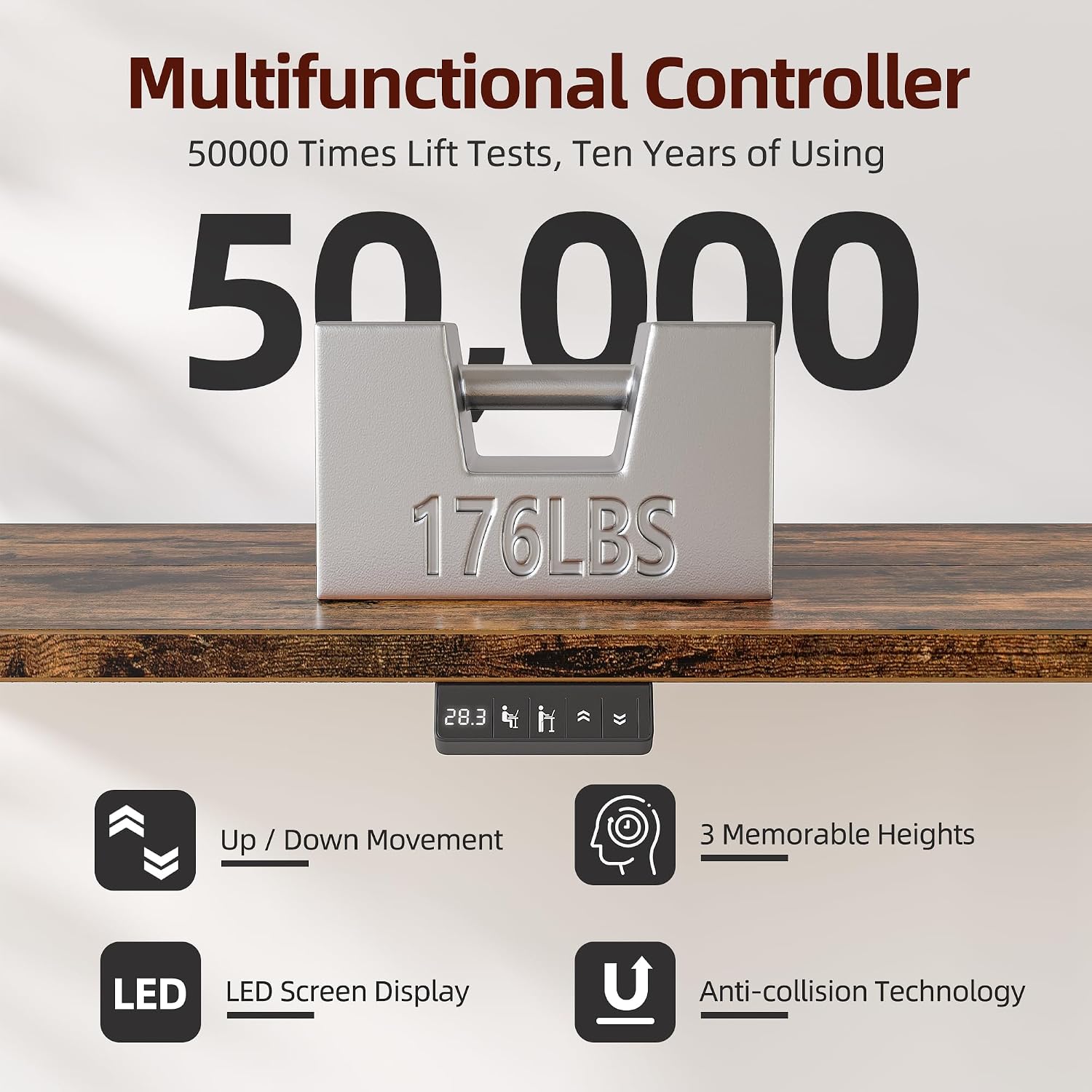
Image 5.1: Multifunctional Control Panel.
- Up/Down Arrows: Press and hold to adjust the desk height manually. Release to stop.
- LED Screen Display: Shows the current desk height in inches.
- Memory Presets (1, 2, 3): Save up to three preferred height settings.
- Anti-Collision Technology: The desk will automatically stop and slightly reverse if it encounters an obstruction during height adjustment.
5.2 Setting Memory Presets
- Adjust the desk to your desired height using the Up/Down arrows.
- Press the "M" button (or similar 'Set' button, if present, otherwise assume direct preset buttons).
- Press one of the numbered preset buttons (1, 2, or 3) within 3 seconds. The LED display will show "S-" followed by the number to confirm the setting.
5.3 Using Memory Presets
Press the desired numbered preset button (1, 2, or 3). The desk will automatically move to the saved height.

Image 5.2: Smooth and quiet operation of the desk.
6. Maintenance
Regular maintenance ensures the longevity and optimal performance of your standing desk.
- Cleaning: Wipe the desk surface and frame with a soft, damp cloth. Avoid abrasive cleaners or harsh chemicals.
- Cable Management: Periodically check and organize cables to prevent tangles and damage.
- Fasteners: Occasionally check all screws and bolts to ensure they are tight. Retighten if necessary.
- Motor Care: The electric motor is designed for maintenance-free operation. Do not attempt to open or lubricate the motor housing.
7. Troubleshooting
If you encounter issues with your TIQLAB Electric Standing Desk, refer to the following common problems and solutions.
| Problem | Possible Cause | Solution |
|---|---|---|
| Desk does not move | Power cable disconnected; Control panel cable loose; Overload | Check all cable connections; Reduce weight on desk; Unplug and replug power after 10 seconds. |
| Desk moves unevenly | Uneven load; Obstruction; Loose fasteners | Distribute weight evenly; Check for obstructions; Tighten all assembly fasteners. |
| Error code on display | Specific system error | Refer to the detailed error code section in the full manual (if available) or contact customer support. Often, a power cycle (unplug, wait 10s, replug) can resolve temporary errors. |
| Anti-collision activates frequently | Sensitivity too high; Obstruction | Ensure no objects are in the desk's path; Consult full manual for sensitivity adjustment (if available). |
If the problem persists after attempting these solutions, please contact TIQLAB customer support.
8. Specifications
Detailed technical specifications for the TIQLAB Electric Standing Desk.
| Feature | Detail |
|---|---|
| Brand | TIQLAB |
| Model | 55*28 inch |
| Product Dimensions (D x W x H) | 24"D x 55"W x 29"H |
| Adjustable Height Range | 28.3" to 47.2" |
| Maximum Weight Capacity | 220 lbs (100 kg) |
| Number of Drawers | 4 (Fabric) |
| Top Material Type | Engineered Wood |
| Base Material | Wood (Frame is likely steel, but base material is listed as 'adjustable desk' and 'Wood' in specs, so clarifying as 'Engineered Wood Top, Steel Frame') |
| Noise Level | Less than 50dB during operation |
| Special Feature | Electric Height Adjustment, Memory Presets, Anti-Collision |
| Included Components | Desk, Keyboard Tray (not explicitly mentioned in feature bullets but in specs), Monitor Arm (not explicitly mentioned in feature bullets but in specs) |

Image 8.1: Desk dimensions and static load capacity.
9. Warranty Information
The TIQLAB Electric Standing Desk comes with a Limited Warranty. Please retain your proof of purchase for warranty claims. The warranty covers manufacturing defects under normal use. For specific terms and conditions, refer to the warranty card included with your product or contact TIQLAB customer support.
10. Customer Support
For any questions, assistance with assembly, troubleshooting, or warranty inquiries, please contact TIQLAB customer support. You can typically find contact information on the TIQLAB official website or through the retailer where you purchased the product.
When contacting support, please have your product model (55*28 inch) and purchase date available to expedite service.