
ESR 6C006
ESR Geo Digital iPad Pencil User Manual
Model: 6C006
1. Introduction
This manual provides comprehensive instructions for the ESR Geo Digital iPad Pencil, Model 6C006. It covers setup, operation, maintenance, and troubleshooting to ensure optimal performance and longevity of your device. The ESR Geo Digital Pencil is designed to enhance your iPad experience with features like Apple Find My compatibility, fast charging, and easy shortcuts.
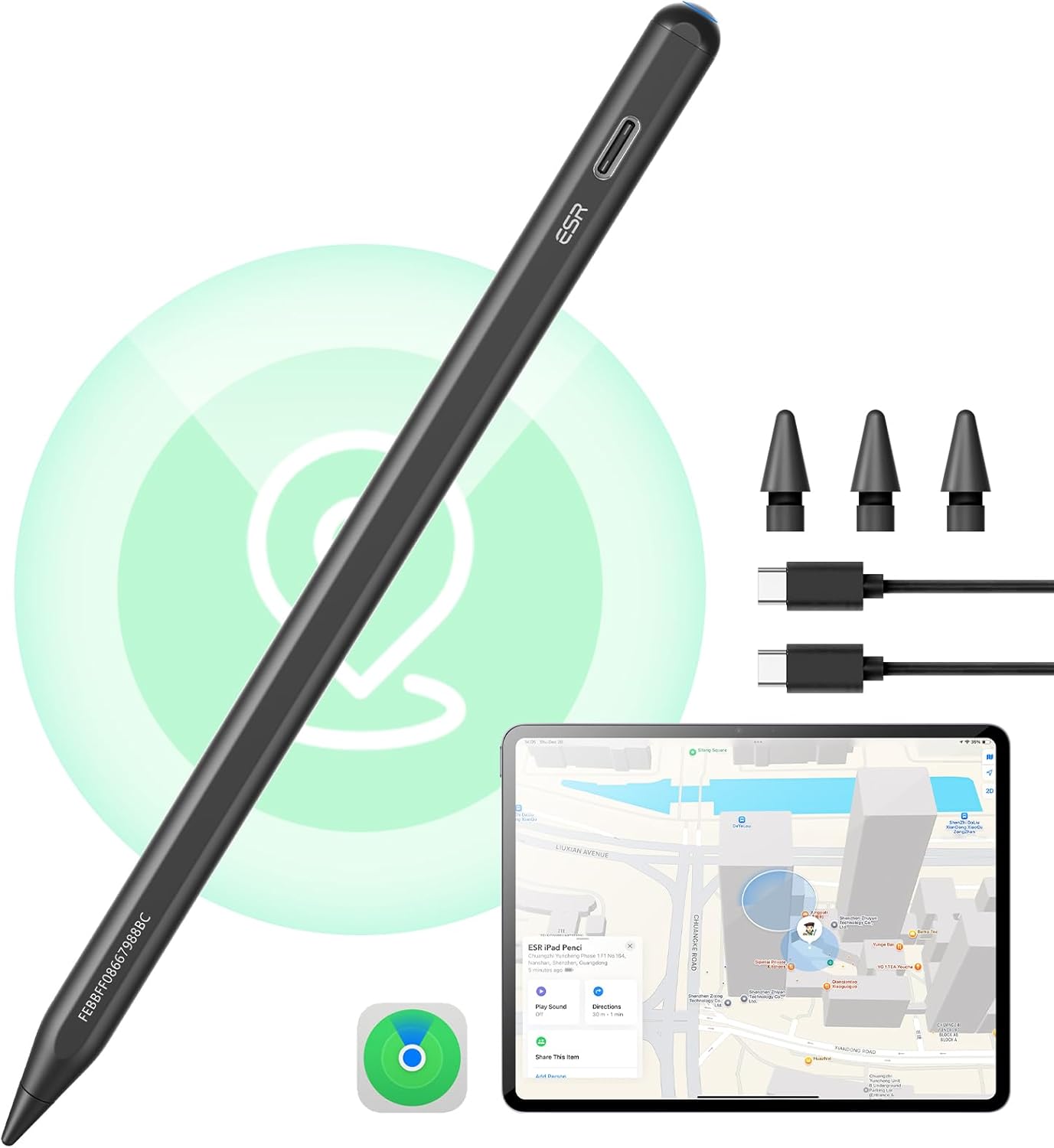
Image: The ESR Geo Digital iPad Pencil in black, shown with replacement tips and a USB-C charging cable. A glowing circle around the pencil indicates its Find My capability, and an iPad screen displays the Find My app interface.
2. Setup
2.1 Initial Charging
Before first use, fully charge the ESR Geo Digital iPad Pencil. Connect a USB-C charger to the charging port on the pencil. A full charge takes approximately 20 minutes.
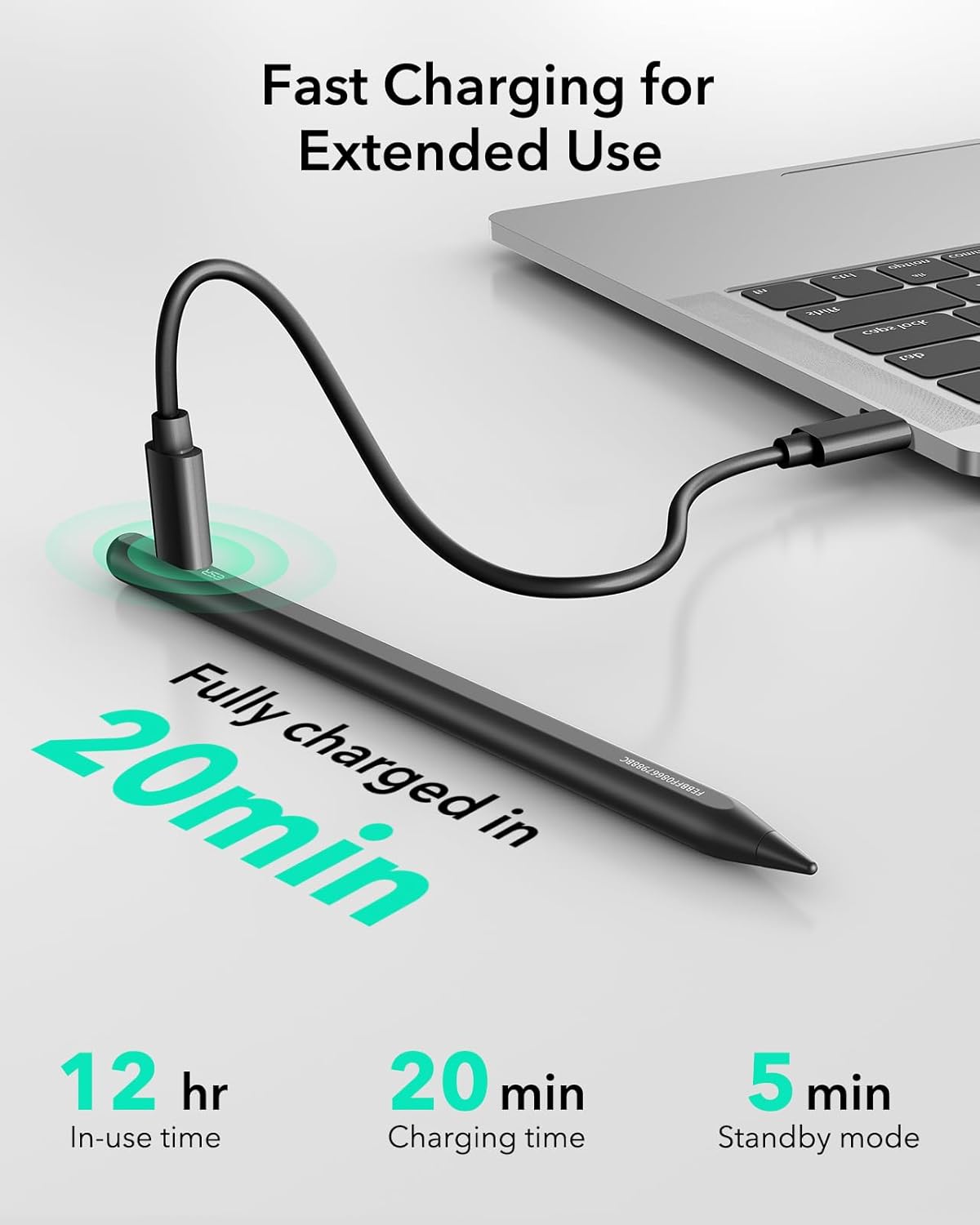
Image: The ESR Geo Digital iPad Pencil connected to a laptop via a USB-C cable for charging. Text indicates "Fully charged in 20min" and provides battery life details: 12 hr in-use time, 20 min charging time, 5 min standby mode.
2.2 Bluetooth Pairing
To enable full functionality, including shortcuts and battery level display, pair the pencil with your iPad via Bluetooth.
- Ensure your iPad's Bluetooth is enabled.
- Turn on the ESR Geo Digital Pencil.
- On your iPad, go to Settings > Bluetooth and select the ESR Geo Digital Pencil from the list of available devices.
- Confirm the pairing request.
2.3 Apple Find My Setup
The ESR Geo Digital Pencil integrates with Apple's Find My network, allowing you to locate it if misplaced.
- After Bluetooth pairing, open the Find My app on your iPad.
- Follow the on-screen prompts to add the ESR Geo Digital Pencil as an item.
- You can then use the Find My app to locate your pencil, play a sound if it's nearby, or view its last known location on a map.
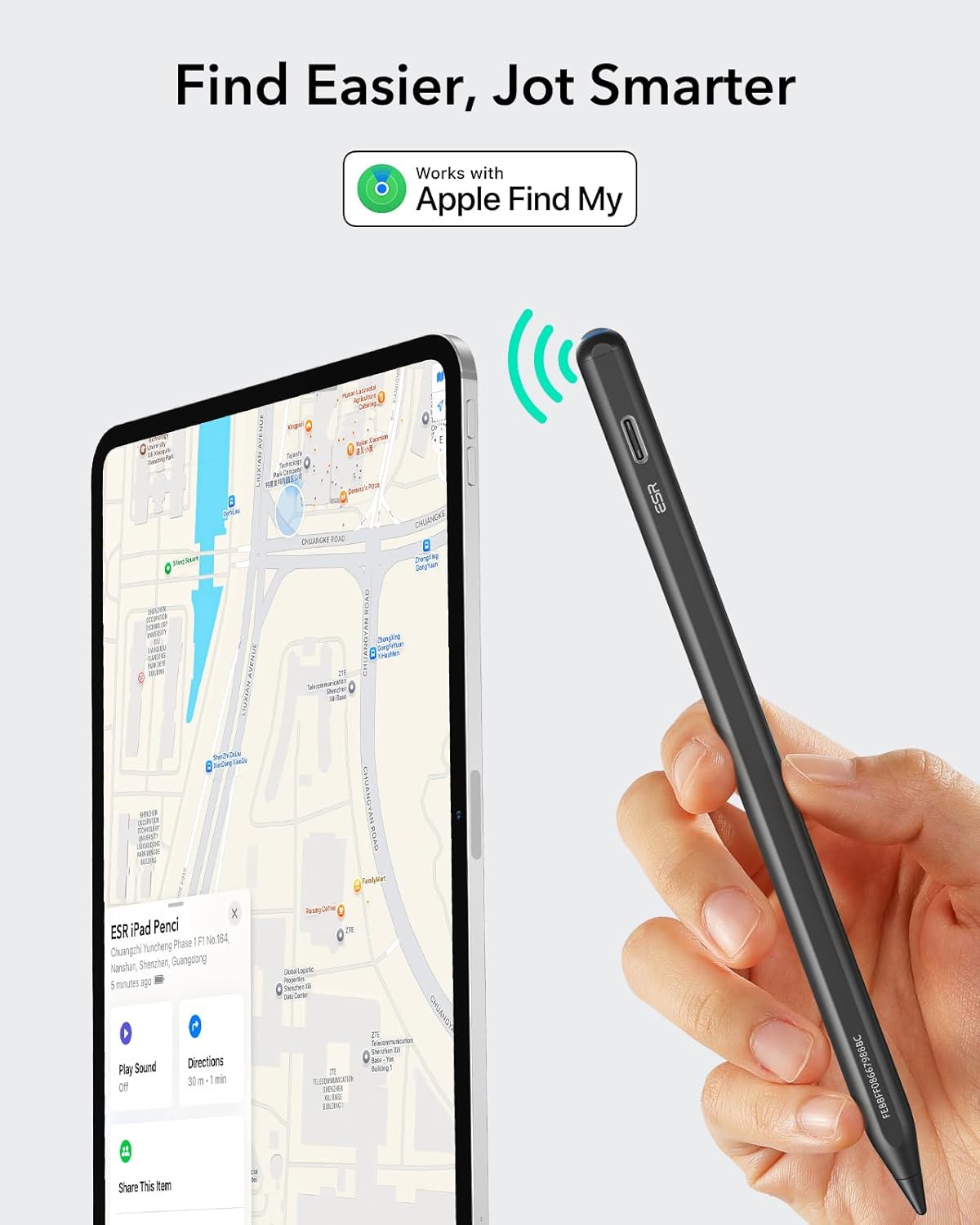
Image: The ESR Geo Digital iPad Pencil shown next to an iPad displaying the Apple Find My app. A signal icon emanates from the pencil, indicating its connectivity to the Find My network. The iPad screen shows the pencil's location on a map and options to "Play Sound" or get "Directions".
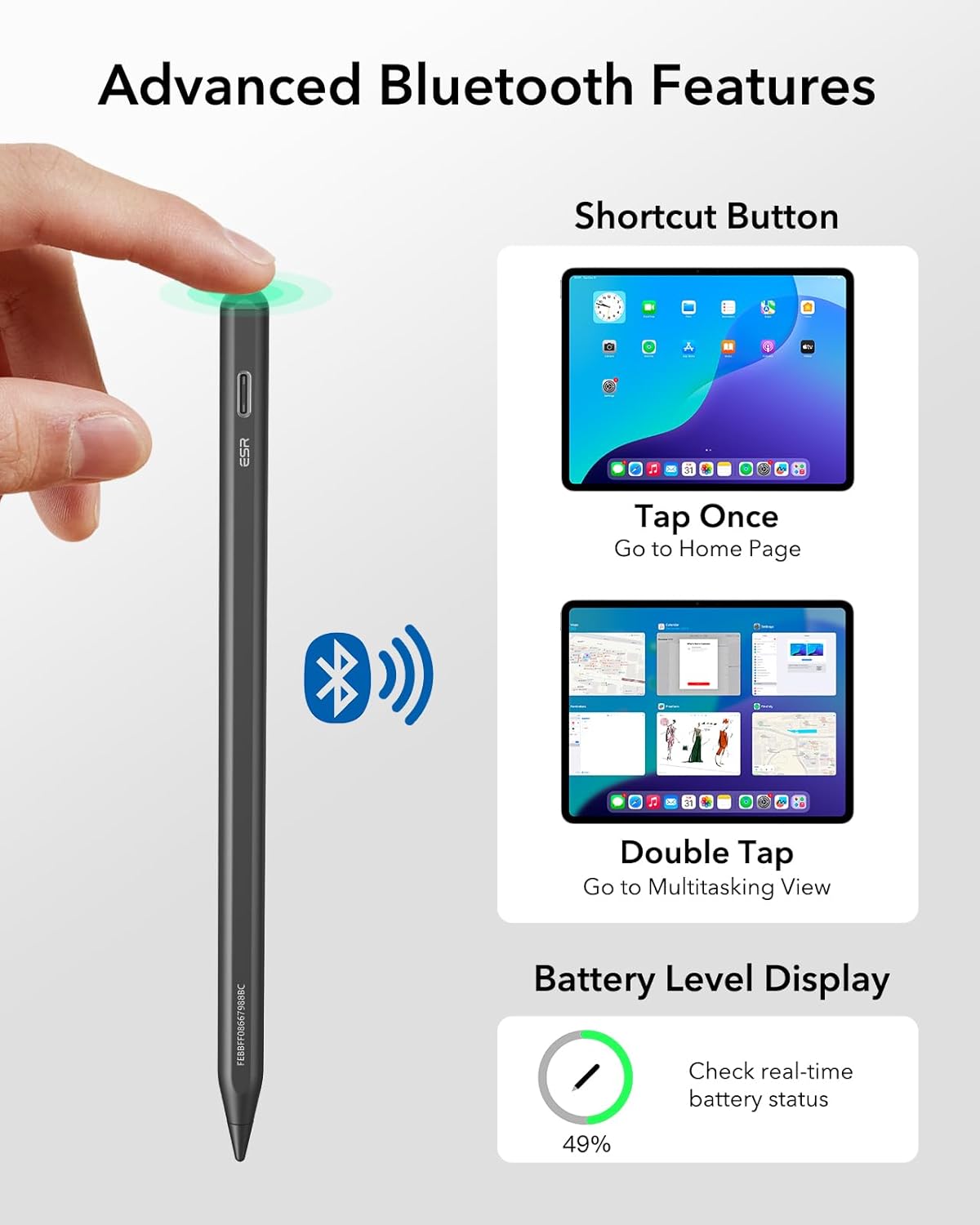
Image: The ESR Geo Digital iPad Pencil resting on a couch, with musical note icons indicating it is playing a sound. An iPad in the foreground shows the Find My app with the "Play Sound" option highlighted, demonstrating how to locate the pencil when it's nearby but out of sight.
3. Operating Instructions
3.1 Basic Use
The ESR Geo Digital Pencil functions as a precise input device for your iPad. Simply touch the tip to the screen to interact with apps, draw, or write.
3.2 Shortcut Functions
When connected via Bluetooth, the pencil offers convenient shortcut functions:
- Single Tap: Tap the top of the pencil once to return to the iPad's Home screen.
- Double Tap: Double tap the top of the pencil to access the Multitasking View (App Switcher).

Image: The ESR Geo Digital iPad Pencil with a hand tapping its top, illustrating the shortcut button. Two iPad screens show the results of the shortcuts: "Tap Once" for the Home Page and "Double Tap" for Multitasking View. A battery icon also indicates the real-time battery level display feature.
3.3 Tilt Sensitivity
The integrated sensor allows for tilt sensitivity, enabling you to adjust line thickness and create shading effects by tilting the pencil, similar to a traditional drawing tool.
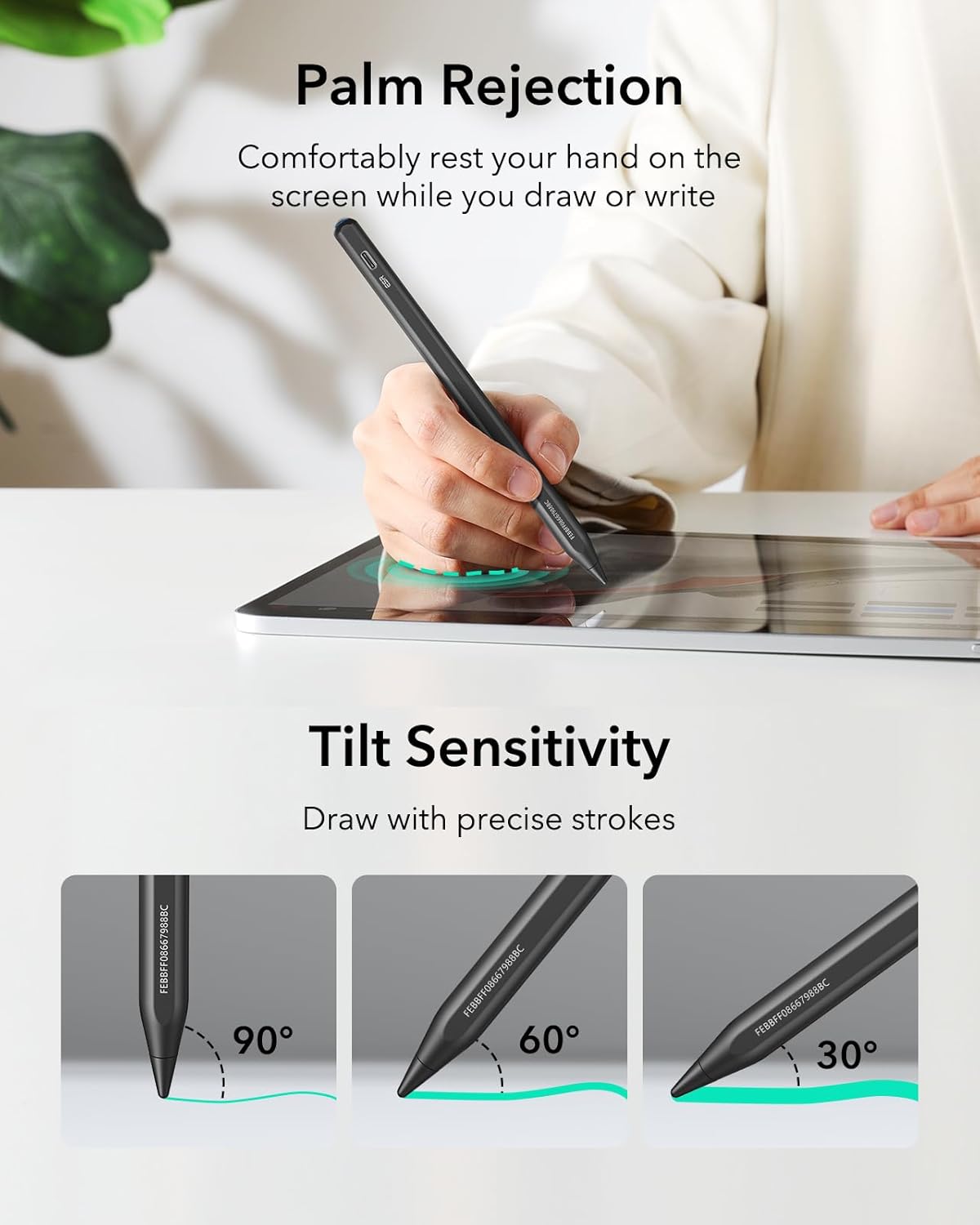
Image: Three illustrations of the ESR Geo Digital iPad Pencil at different angles (90°, 60°, 30°) demonstrating how tilting the pencil affects the stroke thickness on an iPad screen, showcasing its tilt sensitivity feature for drawing with precise strokes.
3.4 Palm Rejection
The pencil features palm rejection technology, allowing you to comfortably rest your hand on the iPad screen while writing or drawing without unintended marks.
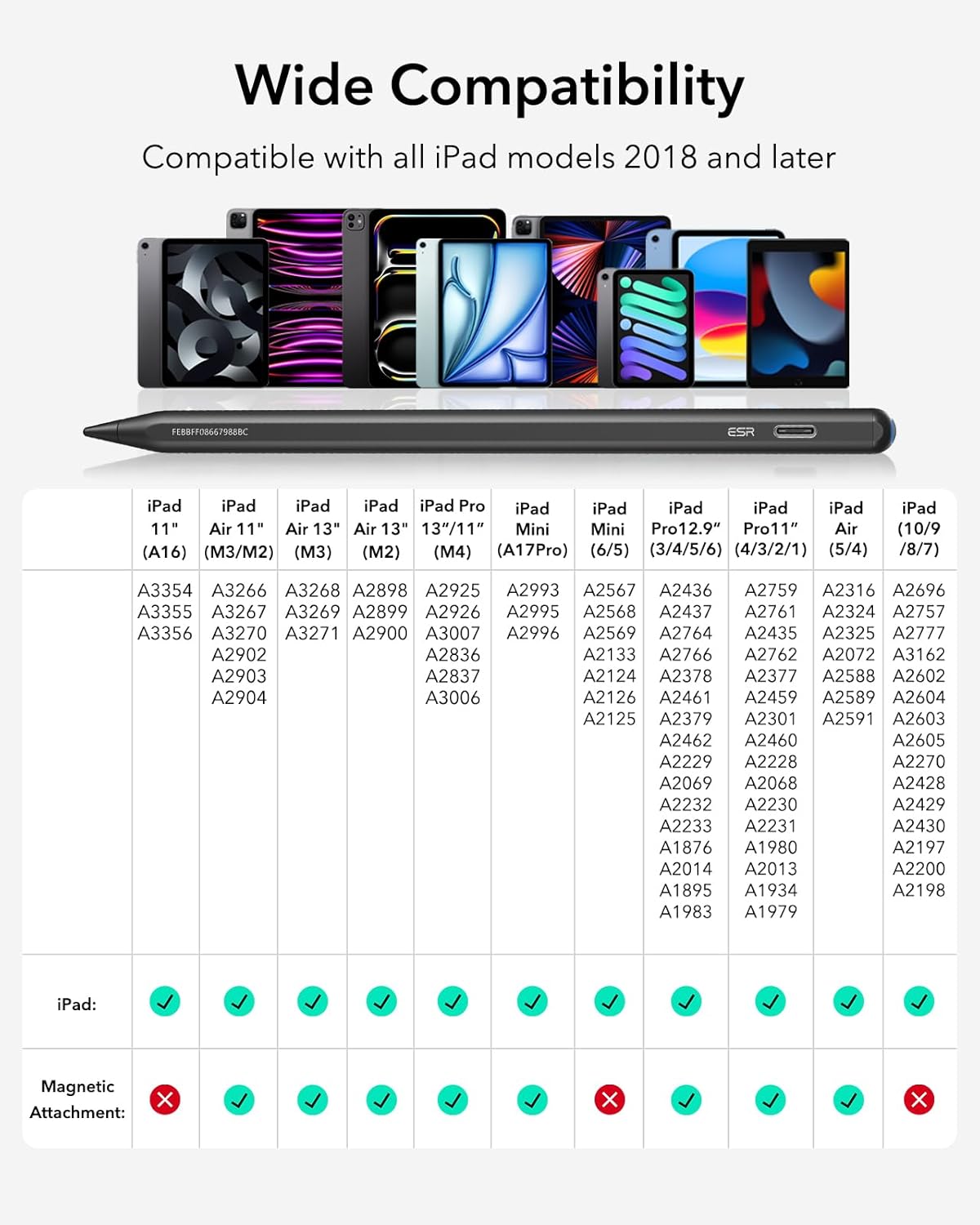
Image: A hand resting on an iPad screen while using the ESR Geo Digital iPad Pencil, illustrating the palm rejection feature that allows comfortable drawing or writing without interference from the hand.
3.5 Magnetic Attachment
For convenient storage, the ESR Geo Digital Pencil can magnetically attach to compatible iPad models. This feature is supported only by iPad models that support magnetic attachment for pencils.
4. Maintenance
4.1 Cleaning
Wipe the pencil with a soft, dry, lint-free cloth. Do not use abrasive cleaners or immerse the pencil in liquids.
4.2 Nib Replacement
The pencil tip (nib) is replaceable. If the nib becomes worn or damaged, gently twist it counter-clockwise to remove and replace with a new one. Ensure the new nib is securely twisted clockwise until snug.
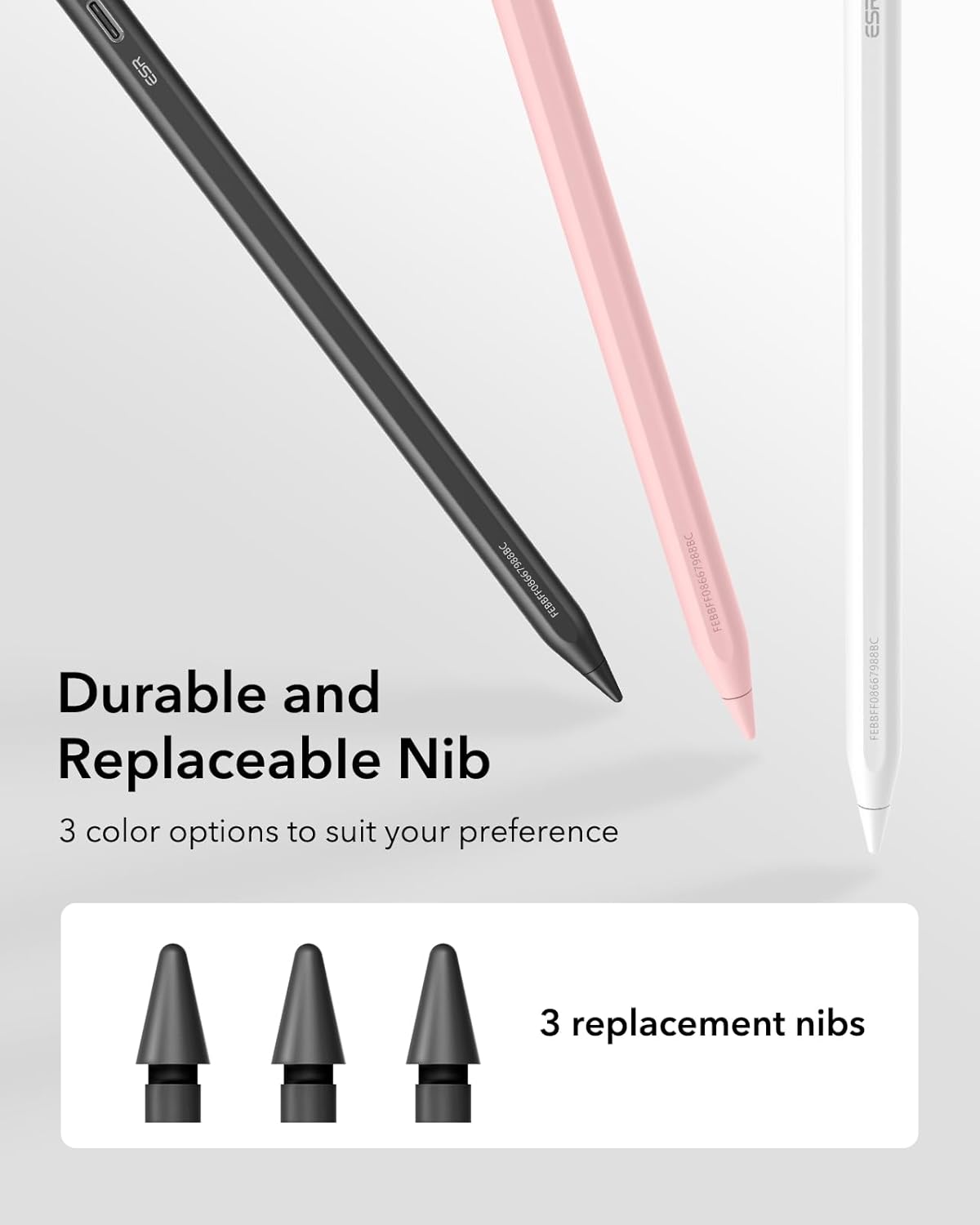
Image: Three ESR Geo Digital iPad Pencils in black, pink, and white, with a focus on their tips. Below them, three replacement nibs are shown, indicating that the nibs are durable and replaceable, with three replacement nibs included.
4.3 Storage
Store the pencil in a cool, dry place away from direct sunlight and extreme temperatures. Utilize the magnetic attachment feature on compatible iPads for secure storage when not in use.
5. Troubleshooting
| Problem | Possible Cause | Solution |
|---|---|---|
| Pencil not responding | Low battery; Not paired; iPad issue | Charge the pencil; Re-pair via Bluetooth; Restart iPad |
| Shortcuts not working | Not connected via Bluetooth | Ensure Bluetooth is enabled and pencil is paired |
| Inaccurate or laggy input | Worn nib; Screen protector interference; Software glitch | Replace nib; Check screen protector compatibility; Restart iPad/app |
| Cannot locate with Find My | Not added to Find My; Out of range; Low battery | Ensure added to Find My; Move closer to pencil; Charge pencil |
6. Specifications
- Model Number: 6C006
- Brand: ESR
- Color: Black
- Material: Aluminum
- Battery Type: Lithium-ion
- Charging Time: Approximately 20 minutes
- Compatible Devices: iPad Air 2024 11" and 13" (M2), iPad Pro 11" and 13" (M4), iPad 10th/9th/8th/7th/6th generations, iPad Air 5th/4th/3rd generations, iPad Pro 11" 4th/3rd/2nd/1st generations, iPad Pro 12.9" 6th/5th/4th/3rd generations, iPad Mini 6th/5th/7th (A17Pro).
- Features: Apple Find My integration, Fast Charging, Easy Shortcuts (Home, Multitasking), Tilt Sensitivity, Palm Rejection, Magnetic Attachment (on compatible iPads), Replaceable Nib.
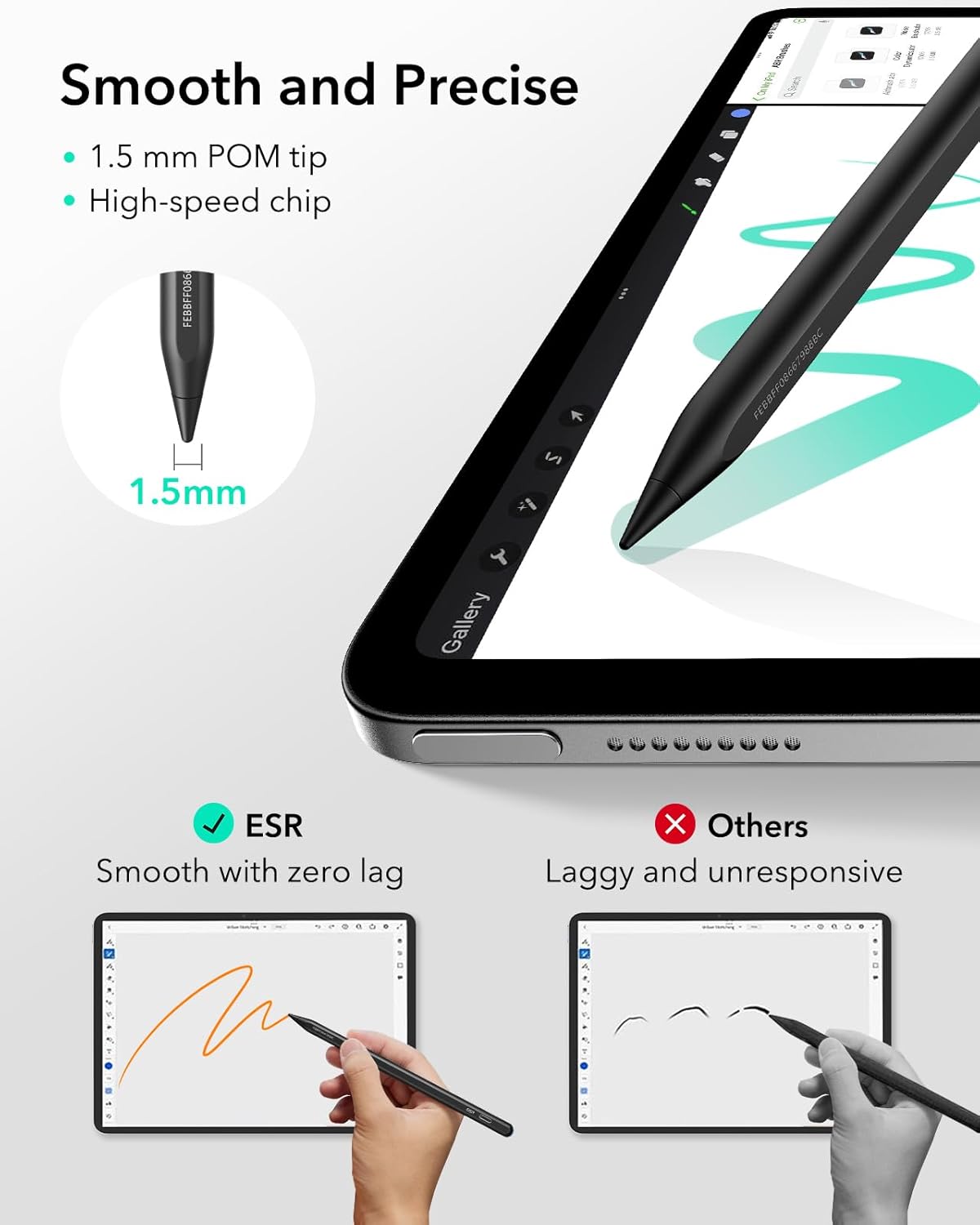
Image: A detailed compatibility chart for the ESR Geo Digital iPad Pencil, listing various iPad models from 2018 onwards and their corresponding model numbers (e.g., iPad 11" (A16), iPad Air 11" (M3/M2), iPad Pro 12.9" (3/4/5/6)). The chart indicates which iPad models support the pencil's basic functions and which also support magnetic attachment.
7. Warranty Information
For warranty details and terms, please refer to the official ESR website or contact customer support. Keep your purchase receipt as proof of purchase.
8. Customer Support
If you encounter any issues or have questions regarding your ESR Geo Digital iPad Pencil, please visit the ESR official support page or contact their customer service team. Contact information can typically be found on the product packaging or the ESR website.
Related Documents - 6C006
 |
ESR Geo Digital Pencil 6C006 User Manual User manual for the ESR Geo Digital Pencil 6C006, providing instructions and specifications for its use. |
 |
ESR Geo Digital Pencil 6C005 User Manual and Compliance Comprehensive user manual and compliance information for the ESR Geo Digital Pencil (Model 6C005), detailing setup, features, safety, and regulatory compliance. |
 |
ESR Digital Pencil Pro User Manual and Specifications Comprehensive guide for the ESR Digital Pencil Pro (Model 6C004), covering setup, usage, troubleshooting, and compliance information. |
 |
ESR Geo Wallet with Find My User Manual This user manual provides comprehensive instructions for setting up, pairing, locating, and maintaining the ESR Geo Wallet with Apple's Find My network. It covers iPhone setup requirements, device operation, safety warnings, and charging. |
 |
ESR HaloLock Geo Wallet Stand 2K644 User Manual | Setup, Pairing, and Location Guide User manual for the ESR HaloLock Geo Wallet Stand (Model 2K644). Learn how to set up your iPhone with Find My, pair the wallet, locate it, and understand safety warnings and charging instructions. |
 |
ESR 2K614 Classic Geo Card Holder User Manual with Find My Integration User manual for the ESR 2K614 Classic Geo Card Holder, detailing setup, pairing with Apple's Find My network, locating your device, safety warnings, and charging instructions. Features anti-lost functionality. |