
Product Overview
The XO BE18 is a stereo audio wireless Bluetooth headset featuring RGB lighting. It is designed for immersive listening experiences and convenient communication, offering multiple playback modes including Bluetooth, AUX, TF card, and FM radio.
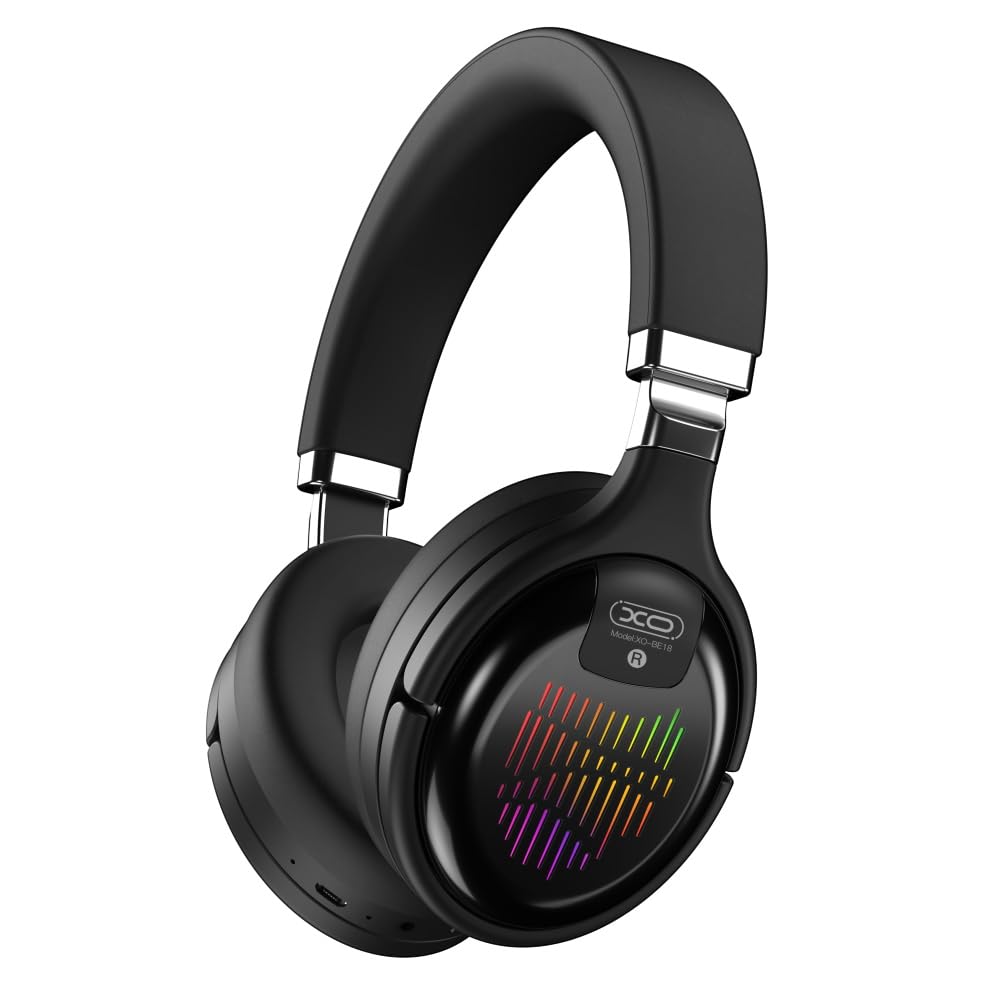
Image: The XO BE18 Wireless Bluetooth Headset, showcasing its over-ear design and integrated RGB lighting on the earcups.
Package Contents
Please ensure all items are present in the package:
- XO BE18 Wireless Bluetooth Headset
- Charging Cable
- User Manual (this document)

Image: The XO BE18 headset shown within its retail packaging, indicating the included accessories.
Setup
Charging the Headset
- Locate the charging port on the headset.
- Connect the provided charging cable to the headset and a compatible USB power source (e.g., computer USB port, USB wall adapter).
- The LED indicator on the headset will typically show a specific color (e.g., red) during charging and change (e.g., turn off or blue) when fully charged.
- A full charge takes approximately 2.5 hours.
Powering On/Off
- To Power On: Press and hold the Power button for approximately 3-5 seconds until the LED indicator lights up and you hear an audible prompt.
- To Power Off: Press and hold the Power button for approximately 3-5 seconds until the LED indicator turns off and you hear an audible prompt.
Operating Instructions
Bluetooth Pairing
- Ensure the headset is powered off.
- Press and hold the Power button for approximately 5-7 seconds until the LED indicator flashes rapidly (e.g., alternating blue and red), indicating pairing mode.
- On your device (smartphone, tablet, computer), enable Bluetooth and search for available devices.
- Select "XO BE18" from the list of found devices.
- Once paired, the LED indicator will typically flash slowly or turn solid blue, and you will hear a confirmation tone.
Basic Controls
The headset features various buttons for controlling audio playback and calls. Refer to the image below for button locations.

Image: Close-up view of the XO BE18 headset earcup, highlighting the control buttons and ports.
- Power Button: Press and hold to power on/off. Short press to play/pause music or answer/end calls.
- Volume Up (+): Short press to increase volume. Long press for next track.
- Volume Down (-): Short press to decrease volume. Long press for previous track.
- Mode Button (M): Short press to switch between Bluetooth, AUX, TF card, and Radio modes.
RGB Lighting
The headset features integrated RGB lighting on the earcups. This lighting typically activates automatically when the headset is powered on. Specific controls for the RGB lighting (if any) may be integrated with the mode button or a dedicated button not explicitly detailed.

Image: The XO BE18 headset displaying its colorful RGB lighting on the earcups.
Using the Microphone
The built-in microphone allows for hands-free calls. When a call comes in, press the Power button once to answer. Press again to end the call.
AUX Mode
Connect an audio cable (not included) from your device's 3.5mm audio jack to the headset's AUX port to use it in wired mode. The headset does not require power in AUX mode.
TF Card Mode
Insert a TF (microSD) card with audio files into the designated slot. Use the Mode button to switch to TF card mode.
Radio Mode
Use the Mode button to switch to Radio mode. The headset will automatically scan for available FM radio stations.
Maintenance
- Cleaning: Use a soft, dry cloth to clean the headset. Do not use abrasive cleaners or solvents.
- Storage: When not in use, store the headset in a cool, dry place. The headset features a portable folding design for compact storage.
- Battery Care: To prolong battery life, avoid fully discharging the battery frequently. Charge the headset regularly, even if not in constant use.
- Water Exposure: This headset is not waterproof. Avoid exposure to water or excessive moisture.

Image: The XO BE18 headset shown in its folded configuration, demonstrating its portable design.
Troubleshooting
| Problem | Possible Solution |
|---|---|
| Headset does not power on. | Ensure the headset is fully charged. Connect to a power source and try again. |
| Cannot pair with device. |
|
| No sound or low volume. |
|
| Microphone not working. |
|
| RGB lighting not working. | Ensure the headset is powered on. If the issue persists, contact customer support. |
Specifications
| Feature | Detail |
|---|---|
| Model Name | BE18 |
| Connectivity | Wireless (Bluetooth V5.0) |
| Wireless Range | About 10 meters |
| Audio Technology | Hi-Fis Audio, Intelligent Noise Reduction |
| Ear Placement | On Ear |
| Noise Control | Sound Isolation |
| Microphone | Built-in |
| Battery Capacity | 250mAh |
| Music Playback Time | About 4 hours |
| Call Time | About 4 hours |
| Charging Time | About 2.5 hours |
| Standby Time | Long Standby Capability |
| Speaker Power | 3 mW |
| Sensitivity | 94±3dBm |
| S/N Ratio | >=75dB |
| Working Frequency | 20Hz-20KHz |
| Play Modes | Bluetooth, AUX, TF Card, Radio |
| Bluetooth Protocols | A2DP, HSP, HFP |
| Dimensions (Package) | 195 x 195 x 80 mm |
| Color | Black |

Image: A detailed table outlining the technical specifications and product information for the XO BE18 headset.
Warranty and Support
This product comes with a standard manufacturer's warranty. For specific warranty terms and conditions, please refer to the warranty card included in your product packaging or contact the retailer where you purchased the product.
For technical support or further assistance, please contact your retailer or visit the official XO website (if available).
