
Introduction
Welcome to the GOBOULT Mirage Smart Watch user manual. This guide provides detailed instructions on how to set up, operate, and maintain your new smartwatch. Please read this manual thoroughly to ensure optimal performance and longevity of your device.
Product Overview
The GOBOULT Mirage Smart Watch is a feature-rich device designed to enhance your daily life with advanced health monitoring, communication, and fitness tracking capabilities. It features a vibrant 1.39-inch HD display, Bluetooth calling, and a durable zinc alloy frame.
Key Features:
- 1.39-inch HD Display: Bright and clear screen with 500 nits brightness and 360x360 pixel resolution.
- Bluetooth Calling: Make and receive calls directly from your wrist with a built-in speaker and microphone.
- Comprehensive Health Monitoring: Includes SpO2, heart rate, blood pressure, sleep tracking, breath training, and menstrual cycle tracking.
- 120+ Sports Modes: Track a wide range of physical activities with detailed metrics.
- AI Voice Assistant: Hands-free control and access to features.
- IP67 Water Resistance: Designed to withstand splashes and dust.
- Customizable Watch Faces: Over 300 cloud-based watch faces to personalize your device.
- Smart Notifications: Receive alerts for calls, messages, and app notifications.
- Long Battery Life: Up to 7 days of typical use.
What's in the Box:
- GOBOULT Mirage Smart Watch (Coal Black)
- Charging Cable
- User Manual
- Warranty Card

Image: Overview of the GOBOULT Mirage Smart Watch highlighting its main features.
Setup Guide
1. Charging the Smart Watch
- Connect the magnetic charging cable to the charging pins on the back of your smartwatch.
- Plug the USB end of the cable into a standard USB power adapter (5V/1A recommended) or a computer's USB port.
- The watch display will show a charging indicator. A full charge takes approximately 120 minutes.
- Ensure the charging pins are clean and dry before charging to prevent corrosion.
2. Powering On/Off
- Power On: Press and hold the side button (digital crown) for a few seconds until the GOBOULT logo appears.
- Power Off: From the watch face, swipe down to access quick settings, or navigate to the settings menu. Select "Power Off" and confirm. Alternatively, press and hold the side button until the power off option appears.
3. Pairing with Your Smartphone
- Download the official GOBOULT companion app from your smartphone's app store (available for iOS and Android).
- Ensure Bluetooth is enabled on your smartphone.
- Open the GOBOULT app and follow the on-screen instructions to create an account or log in.
- In the app, select "Add Device" or a similar option to search for your smartwatch.
- Select "GOBOULT Mirage" from the list of available devices.
- Confirm the pairing request on both your smartphone and the smartwatch.
- Once paired, the watch will synchronize data with your phone, and you can customize settings through the app.
Operating Instructions
Basic Navigation:
- Touchscreen: Swipe left/right, up/down to navigate through menus and notifications. Tap to select items.
- Digital Crown (Side Button):
- Press once: Return to the watch face from any screen, or wake the screen.
- Press and hold: Power on/off, or access the AI Voice Assistant (configurable).
- Rotate: Scroll through menus, lists, or adjust settings.
- Shortcut Button: The second physical button on the side can be customized for quick access to specific functions, such as launching sports modes.

Image: Digital crown and button functionalities for navigation and quick access.
Health Monitoring
The GOBOULT Mirage Smart Watch offers a comprehensive suite of health tracking features. For accurate readings, ensure the watch is worn snugly on your wrist, about one finger's width from your wrist bone.
- Heart Rate Monitoring: The watch continuously tracks your heart rate. View real-time data on the watch or detailed trends in the app.
- SpO2 (Blood Oxygen) Monitoring: Measure your blood oxygen levels on demand. Navigate to the SpO2 function on your watch and remain still for accurate results.
- Blood Pressure Monitoring: Access the blood pressure feature on your watch for readings.
- Sleep Monitoring: Wear your watch to bed to track your sleep patterns, including deep sleep, light sleep, and awake times. Data is available in the app.
- Breath Training Mode: Follow guided breathing exercises to help reduce stress and improve relaxation.
- Activity Tracking: Monitors steps, distance, and calories burned throughout the day.
- Drink Water Reminder: Set reminders in the app to ensure you stay hydrated.
- Sedentary Reminder: Receive alerts when you've been inactive for too long, encouraging you to move.
- Menstrual Cycle Tracking: For female users, track and predict menstrual cycles through the companion app.

Image: The watch's health sensors and a summary of its health monitoring capabilities.
Sports Modes
The GOBOULT Mirage Smart Watch supports over 120 sports modes to accurately track your workouts. From running to yoga, you can monitor your performance and progress.
Using Sports Modes:
- Access the sports mode menu from the watch's main interface or by using the dedicated shortcut button.
- Scroll through the list and select your desired activity (e.g., Running, Cycling, Yoga, Cricket, Badminton, Basketball).
- Tap to start the activity. The watch will begin recording data such as duration, heart rate, calories burned, and distance (where applicable).
- To pause or end an activity, swipe right or press the side button and follow the on-screen prompts.
- Review your workout summaries on the watch or in detail within the companion app.

Image: The watch interface showing various sports modes and quick access options.
Bluetooth Calling & Smart Notifications
With Bluetooth 5.3 connectivity, your GOBOULT Mirage Smart Watch allows you to manage calls and receive notifications directly on your wrist.
Bluetooth Calling:
- Ensure your watch is paired with your phone via Bluetooth.
- Making Calls: Access the dial pad or contact list on your watch to initiate a call.
- Receiving Calls: When a call comes in, the watch will display the caller ID. You can answer or reject the call directly from your wrist using the built-in speaker and microphone.
- Contact Sync: Synchronize your phone contacts with the watch through the companion app for easy access.
Smart Notifications:
- Enable app notifications in the GOBOULT companion app on your smartphone.
- Your watch will display incoming messages, social media alerts, and other app notifications.
- Swipe up or down on the watch face to view your notification history.

Image: Bluetooth calling features and interface on the smartwatch.

Image: Smart notifications and other quick access features like calculator and voice assistant.
Customization
Watch Faces:
Personalize your GOBOULT Mirage Smart Watch with over 300 cloud-based watch faces. You can change the watch face directly from the device or through the companion app.
- On the Watch: From the watch face, press and hold the screen. Swipe left or right to browse available watch faces and tap to select.
- Via App: Open the GOBOULT app, navigate to the watch face section, and explore a wider selection of designs. Download and apply your preferred watch face.

Image: Examples of customizable watch faces available for the smartwatch.
Additional Features
AI Voice Assistant:
Activate the AI Voice Assistant (compatible with Hey Siri and Ok Google) by long-pressing the digital crown or through a dedicated menu option. Use voice commands to perform various tasks hands-free.
Find My Phone:
If your paired smartphone is misplaced, use the "Find My Phone" feature on your watch to make it ring or vibrate, helping you locate it quickly.
- Go to the watch menu.
- Select the "Find Phone" option.
- The connected phone will ring or vibrate.
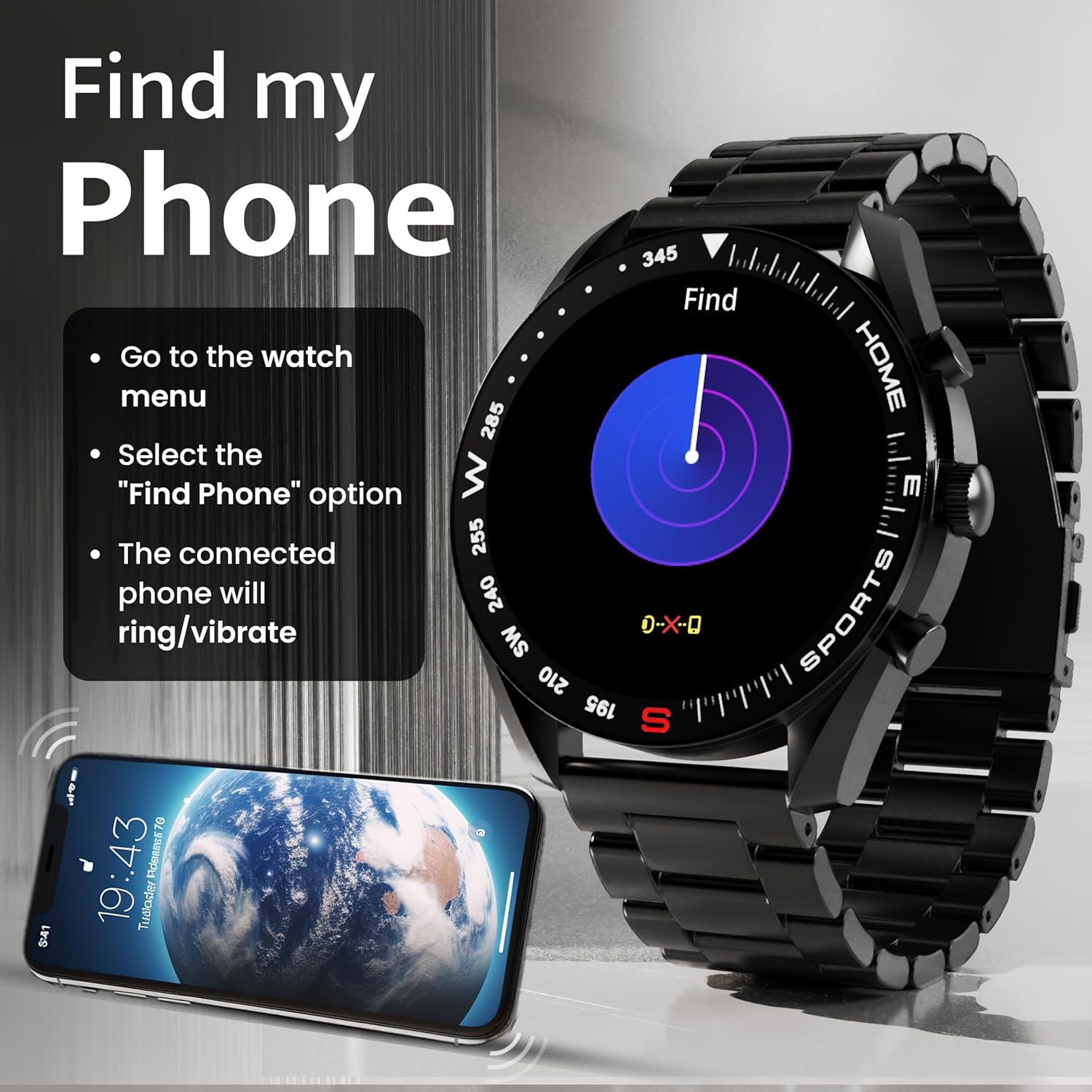
Image: How to use the 'Find My Phone' feature on the smartwatch.
Mini Games:
The watch includes several mini-games for entertainment, such as 2048, Battleship, Hamster, and Young Bird.

Image: Examples of mini-games available on the smartwatch.
Maintenance
Cleaning Your Smart Watch:
- Wipe the watch screen and body with a soft, lint-free cloth.
- For stubborn dirt, slightly dampen the cloth with water. Avoid using harsh chemicals or abrasive materials.
- Clean the charging pins regularly with a dry cloth or cotton swab to ensure proper charging.
Water Resistance (IP67):
The GOBOULT Mirage Smart Watch is IP67 water-resistant, meaning it is protected against dust ingress and can withstand immersion in water up to 1 meter for up to 30 minutes. However, it is not suitable for swimming, showering with hot water, or diving. Avoid exposure to high-pressure water or corrosive liquids.

Image: Information regarding the IP67 water and dust resistance of the smartwatch.
Strap Adjustment:
The watch comes with a metallic strap adjustment tool. Refer to the included instructions or a professional for adjusting the strap length to ensure a comfortable and secure fit.

Image: The watch's zinc alloy frame and the metallic strap adjustment tool.
Troubleshooting
- Watch not turning on: Ensure the watch is fully charged. Connect it to the charging cable and allow it to charge for at least 30 minutes before attempting to power it on again.
- Unable to pair with phone:
- Make sure Bluetooth is enabled on your phone and the watch.
- Ensure the watch is within the Bluetooth range (up to 10 meters).
- Restart both your phone and the smartwatch.
- Clear the Bluetooth cache on your phone or forget the device and try pairing again.
- Ensure the GOBOULT companion app is updated to the latest version.
- Inaccurate health data: Ensure the watch is worn snugly on your wrist, not too tight or too loose. Clean the sensors on the back of the watch. Avoid excessive movement during measurements.
- Notifications not appearing:
- Check if notifications are enabled for the specific apps in the GOBOULT companion app.
- Ensure your phone's notification settings allow the GOBOULT app to display alerts.
- Verify that the watch is properly connected to your phone via Bluetooth.
- Short battery life: Reduce screen brightness, disable unnecessary features like continuous heart rate monitoring if not needed, and limit the number of active notifications. Ensure the watch is fully charged.
- Touchscreen unresponsive: Restart the watch. If the issue persists, ensure the screen is clean and dry.
Specifications
| Feature | Detail |
|---|---|
| Model Name | Mirage |
| Display Size | 1.39 inches HD |
| Display Resolution | 360 x 360 pixels |
| Brightness | 500 Nits Peak Brightness |
| Connectivity | Bluetooth 5.3 |
| Water Resistance | IP67 |
| Frame Material | Zinc Alloy |
| Battery Type | Lithium Polymer |
| Average Battery Life | Up to 7 Days |
| Charge Time | Approximately 120 Minutes |
| Operating System Compatibility | iOS, Android |
| Item Weight | 106 g |
| Included Components | Smart Watch, Charging Cable, User Manual, Warranty Card |
Warranty and Support
Warranty Information:
Your GOBOULT Mirage Smart Watch comes with a manufacturer's warranty. Please refer to the included Warranty Card for specific terms, conditions, and duration of the warranty. Keep your purchase receipt as proof of purchase.
Customer Support:
If you encounter any issues or have questions not covered in this manual, please contact GOBOULT customer support. Contact details can typically be found on the Warranty Card or the official GOBOULT website.
