
Introduction
This manual provides detailed instructions for the setup, operation, and maintenance of your FREEWOLF M68 65% Wireless Gaming Keyboard. The M68 features tri-mode connectivity (Wired, 2.4GHz, Bluetooth 5.0), PBT keycaps, rainbow LED backlighting, and an ergonomic design. Please read this manual thoroughly before using the product to ensure optimal performance and longevity.

Image: The FREEWOLF M68 65% Wireless Gaming Keyboard, showcasing its compact layout and keycap design.

Image: An overview of the FREEWOLF M68 keyboard's key features, including its compact layout, tri-mode connectivity, 2000mAh battery, PBT keycaps, rainbow lighting, multi-device linking, multimedia functions, and ergonomic design.
Package Contents
- FREEWOLF M68 65% Wireless Gaming Keyboard
- USB-C Cable
- 2.4GHz Wireless Receiver
- User Manual (this document)
Setup
1. Charging the Keyboard
Before initial use, fully charge the keyboard using the provided USB-C cable. Connect the USB-C end to the keyboard and the USB-A end to a power source (e.g., computer USB port, USB wall adapter). The keyboard has a built-in 2000mAh rechargeable battery.

Image: The FREEWOLF M68 keyboard highlighting its 2000mAh built-in battery for extended use.
2. Connectivity Modes
The M68 keyboard supports three connection modes: Wired, 2.4GHz Wireless, and Bluetooth 5.0. A switch on the keyboard allows you to select your preferred mode.

Image: Close-up of the FREEWOLF M68 keyboard's side, illustrating the 3-mode connection switch for 2.4G, Bluetooth, and Wired modes, along with the USB-C port and 2.4G receiver storage.
Wired Mode
- Connect the USB-C cable to the keyboard and the USB-A end to your computer.
- Set the mode switch on the keyboard to the "Wired" position.
- The keyboard will be recognized automatically by your operating system.
2.4GHz Wireless Mode
- Locate the 2.4GHz USB receiver, typically stored in a compartment on the keyboard.
- Plug the receiver into an available USB port on your computer.
- Set the mode switch on the keyboard to the "2.4G" position.
- The keyboard should connect automatically.
Bluetooth Mode
The keyboard supports connecting to up to three Bluetooth devices simultaneously.
- Set the mode switch on the keyboard to the "BT" position.
- To pair with a device, press and hold FN + Q, FN + W, or FN + E for 3-5 seconds until the indicator light flashes rapidly, indicating pairing mode.
- On your device (computer, tablet, smartphone), go to Bluetooth settings and search for "FREEWOLF M68" or a similar name.
- Select the keyboard to complete the pairing process. The indicator light will stop flashing once connected.
- To switch between paired Bluetooth devices, press FN + Q, FN + W, or FN + E briefly.
Operating Instructions
1. Function Key Combinations (FN)
The M68 keyboard utilizes the FN key for accessing various secondary functions and multimedia controls.
- FN + F1-F12: Access standard F-keys (F1-F12).
- FN + Q/W/E: Switch between Bluetooth devices 1, 2, and 3.
- FN + Backspace: Toggle backlight on/off or breathing mode.
- FN + Left Arrow / Right Arrow: Adjust backlight speed.
- FN + Up Arrow / Down Arrow: Adjust backlight brightness.
- FN + ESC: Restore factory settings.
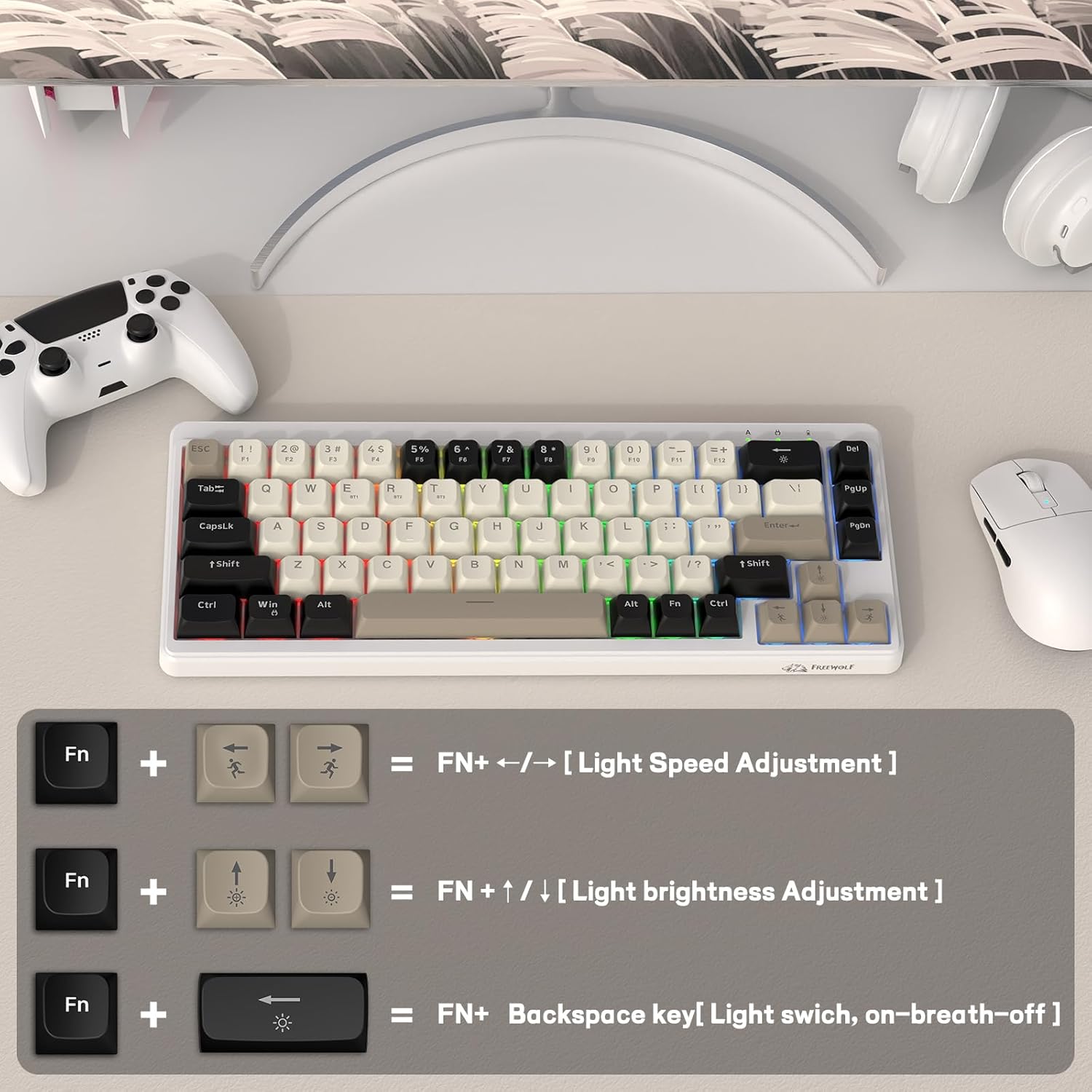
Image: Diagram illustrating FN key combinations for adjusting backlight speed and brightness, and toggling the backlight on/off or breathing mode.
2. Ergonomic Adjustment
The keyboard features double leg braces on the back, allowing for three comfortable typing angles.
- Flat Position: Leg braces not open.
- Medium Angle: Open one leg brace.
- Steep Angle: Open both leg braces.
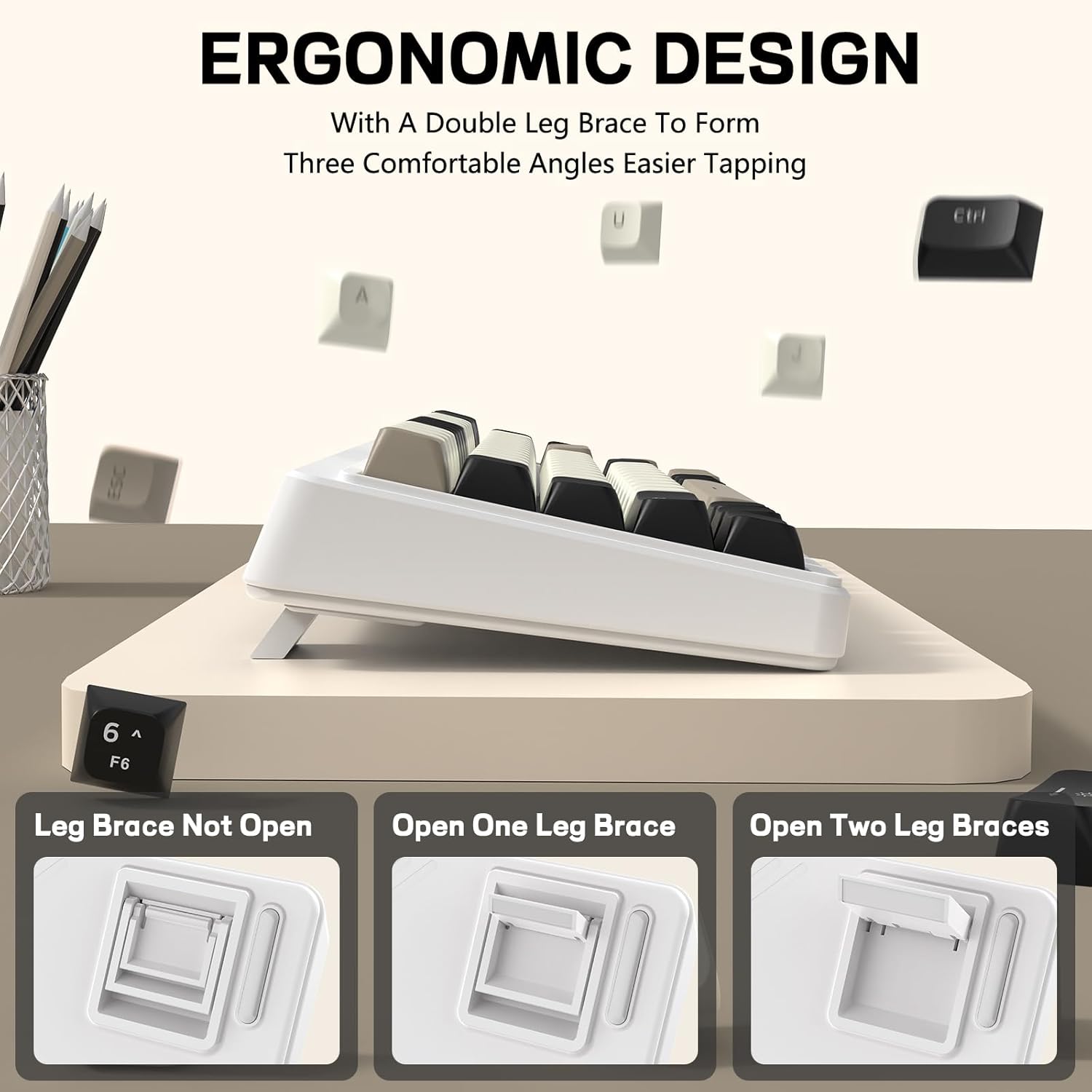
Image: Visual representation of the FREEWOLF M68 keyboard's adjustable leg braces, showing three different ergonomic typing angles.
Maintenance
- Cleaning: Use a soft, dry cloth to wipe the keyboard surface. For deeper cleaning, use a slightly damp cloth with mild soap, ensuring no liquid enters the keyboard.
- Keycap Removal: The PBT keycaps can be removed for cleaning. Use a keycap puller (not included) to gently lift keycaps. Reinstall by pressing them firmly onto the switches.
- Storage: Store the keyboard in a cool, dry place away from direct sunlight and extreme temperatures.

Image: Close-up of the FREEWOLF M68 keyboard showcasing its PBT keycaps, highlighting their clear legends and comfortable feel.
Troubleshooting
- Keyboard not responding:
- Ensure the keyboard is charged.
- Check the connection mode switch (Wired, 2.4G, BT) matches your intended connection.
- For 2.4GHz, ensure the receiver is securely plugged in.
- For Bluetooth, ensure the keyboard is paired correctly (FN+Q/W/E) and your device's Bluetooth is enabled.
- Try connecting via USB-C cable to rule out wireless issues.
- Backlight not working:
- Ensure the keyboard is charged.
- Press FN + Backspace to toggle the backlight.
- Adjust brightness using FN + Up Arrow / Down Arrow.
- Intermittent connection:
- Move the keyboard closer to the receiver/device to reduce interference.
- Ensure no other wireless devices are causing interference.
- Re-pair Bluetooth devices if necessary.
Specifications
| Model | M68 |
| Connectivity | Wired (USB-C), 2.4GHz Wireless, Bluetooth 5.0 |
| Key Layout | 65% (67 Keys) |
| Keycaps | PBT |
| Backlighting | Rainbow LED (RGB support) |
| Battery Capacity | 2000mAh |
| Dimensions (L x W x H) | 12.8" x 4.92" x 1.57" (325mm x 125mm x 40mm) |
| Weight | 1.36 pounds (0.62 kg) |
| Compatible Devices | Laptop, PC, Tablet (Windows, Mac, Linux, iOS, Android) |

Image: The FREEWOLF M68 keyboard illustrating its 65% compact layout and physical dimensions (325mm/12.8inch length, 125mm/4.92inch width).
Warranty and Support
For warranty information and technical support, please refer to the contact details provided with your purchase or visit the official FREEWOLF website. Keep your proof of purchase for warranty claims.


