
SOBERNA
Tikland Wireless Ear Buds Bluetooth 5.3 Headphones User Manual
Brand: SOBERNA
1. Introduction
This manual provides detailed instructions for the proper use and maintenance of your Tikland Wireless Ear Buds Bluetooth 5.3 Headphones. Please read this manual thoroughly before using the product to ensure optimal performance and longevity.
2. What's in the Box
Upon opening your product package, please verify that all the following items are included:
- Tikland Wireless Ear Buds (Left and Right)
- Charging Case
- Charging Cable
- User Manual
3. Product Overview
The Tikland Wireless Ear Buds feature an in-ear design with rounded tips and ear hooks for a secure fit, ideal for sports. The charging case provides portable power and includes a digital display for battery status.
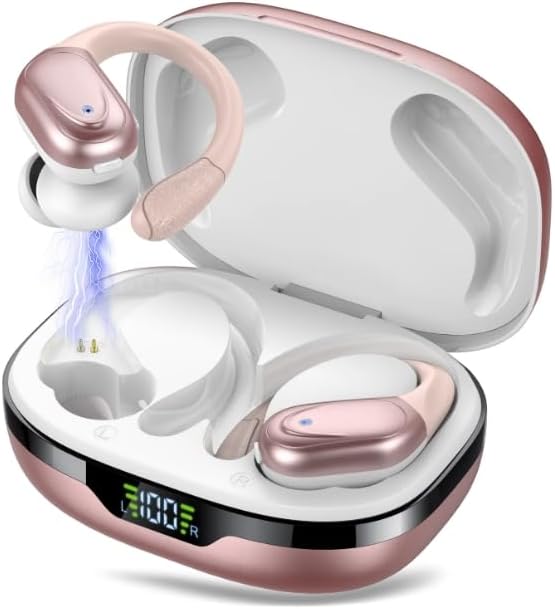
Image: The Tikland Wireless Ear Buds in their rose gold charging case. One earbud is shown being magnetically drawn into its charging slot, while the other rests in its slot. The charging case features a digital display showing 'L 100 R', indicating the charge level of both left and right earbuds.
4. Setup
4.1 Charging the Earbuds and Case
- Place the earbuds into the charging case. Ensure they are correctly seated in their respective slots.
- Connect the provided charging cable to the charging port on the case and to a USB power source.
- The digital display on the charging case will indicate the charging status. A full charge is indicated by '100'.
- Allow approximately 1-2 hours for a full charge of both the earbuds and the case.
4.2 Bluetooth Pairing
- Ensure the earbuds are charged.
- Open the charging case. The earbuds will automatically enter pairing mode, indicated by a flashing LED light on the earbuds.
- On your device (e.g., smartphone, tablet, laptop), go to the Bluetooth settings.
- Search for new devices. Select "Tikland X17-Pro" from the list of available devices.
- Once connected, the LED light on the earbuds will stop flashing, and your device will confirm the connection.
- The earbuds will automatically reconnect to the last paired device when taken out of the case, if Bluetooth is enabled on the device.
5. Operating the Earbuds
5.1 Basic Controls (Remote Control Method)
- Power On: Open the charging case or long-press the touch area on both earbuds.
- Power Off: Place the earbuds back into the charging case and close the lid, or long-press the touch area on both earbuds.
- Play/Pause: Single tap the touch area on either earbud.
- Next Track: Double tap the touch area on the right earbud.
- Previous Track: Double tap the touch area on the left earbud.
- Answer/End Call: Single tap the touch area on either earbud during an incoming call.
- Reject Call: Long-press the touch area on either earbud during an incoming call.
- Activate Voice Assistant: Triple tap the touch area on either earbud.
5.2 Compatible Devices
These earbuds are compatible with a wide range of Bluetooth-enabled devices, including:
- Laptops
- Desktops
- Tablets
- Telephones (Smartphones)
- Smart Speakers
- Televisions
- Car Audio Systems
6. Maintenance
Proper care will extend the life of your earbuds. Follow these guidelines:
- Cleaning: Use a soft, dry, lint-free cloth to clean the earbuds and charging case. Do not use abrasive cleaners or solvents.
- Water Resistance: The earbuds are IPX7 waterproof, meaning they can withstand immersion in water up to 1 meter for 30 minutes. However, the charging case is not waterproof. Avoid exposing the charging case to liquids.
- Storage: Store the earbuds in their charging case when not in use to protect them and keep them charged. Store in a cool, dry place away from extreme temperatures.
- Avoid Impact: Do not drop or subject the earbuds or charging case to strong impacts.
7. Troubleshooting
If you encounter issues with your earbuds, refer to the table below for common problems and solutions.
| Problem | Possible Cause | Solution |
|---|---|---|
| Earbuds not pairing | Low battery; Bluetooth off; Earbuds not in pairing mode; Device already connected to another Bluetooth device. | Charge earbuds and case; Ensure Bluetooth is enabled on your device; Place earbuds in case, close, then open to re-enter pairing mode; Disconnect from other devices. |
| No sound from earbuds | Volume too low; Earbuds not connected; Media paused. | Increase volume on your device; Reconnect earbuds; Check if media is paused. |
| One earbud not working | Low battery on one earbud; Earbud not properly seated in case for charging. | Ensure both earbuds are fully charged; Clean charging contacts on earbud and case. |
| Charging case not charging | Faulty cable or power source. | Try a different charging cable and USB power adapter. |
8. Specifications
| Feature | Detail |
|---|---|
| Model Name | X17-Pro |
| Brand | SOBERNA |
| Connectivity Technology | Wireless |
| Wireless Communication Technology | Bluetooth |
| Bluetooth Version | 5.3 |
| Ear Placement | In Ear |
| Form Factor | In Ear |
| Earpiece Shape | Rounded tips |
| Water Resistance Level | IPX7 Waterproof |
| Battery Life | 80 Hours (with charging case) |
| Audio Driver Type | Dynamic Driver |
| Control Method | Remote |
| Color | Rose Gold |
| Specific Uses For Product | Sport |
| Manufacturer | soberna |
| Country of Origin | China |
| ASIN | B0DM4J3D11 |
9. Warranty and Support
9.1 Warranty Information
Your Tikland Wireless Ear Buds are covered by a limited warranty against defects in materials and workmanship from the date of purchase. Please retain your proof of purchase for warranty claims. The warranty period and terms may vary by region. For specific warranty details, please refer to the warranty card included in your product packaging or contact customer support.
9.2 Customer Support
If you have any questions, require technical assistance, or need to report an issue with your product, please contact our customer support team. Contact information can typically be found on the product packaging, our official website, or through your retailer.
Ask a question about this manual
Ask about setup, troubleshooting, compatibility, parts, safety, or missing instructions. Manuals+ will review the question and use this page’s manual context to help answer it.