1. Introduction
This manual provides essential information for the safe and effective operation of your Yatao Digital Camera YT01. Please read it thoroughly before using the camera and retain it for future reference.
2. Safety Information
- Do not expose the camera to water or moisture. This product is not water-resistant.
- Avoid dropping the camera or subjecting it to strong impacts.
- Keep the camera away from extreme temperatures and direct sunlight.
- Use only the specified battery type (Lithium Ion) and charging accessories.
- Do not attempt to disassemble or modify the camera.
- Clean the camera with a soft, dry cloth. Avoid harsh chemicals.
3. Package Contents
Verify that all items are present in your camera kit:
- Yatao Digital Camera YT01
- Lithium Ion Battery
- 64GB Micro SD Card
- Type-C USB Cable
- Lanyard
- Lens Cap
- Cleaning Cloth

Image: Contents of the Yatao Digital Camera YT01 package.
4. Camera Overview
Familiarize yourself with the various parts and controls of your Yatao Digital Camera YT01.
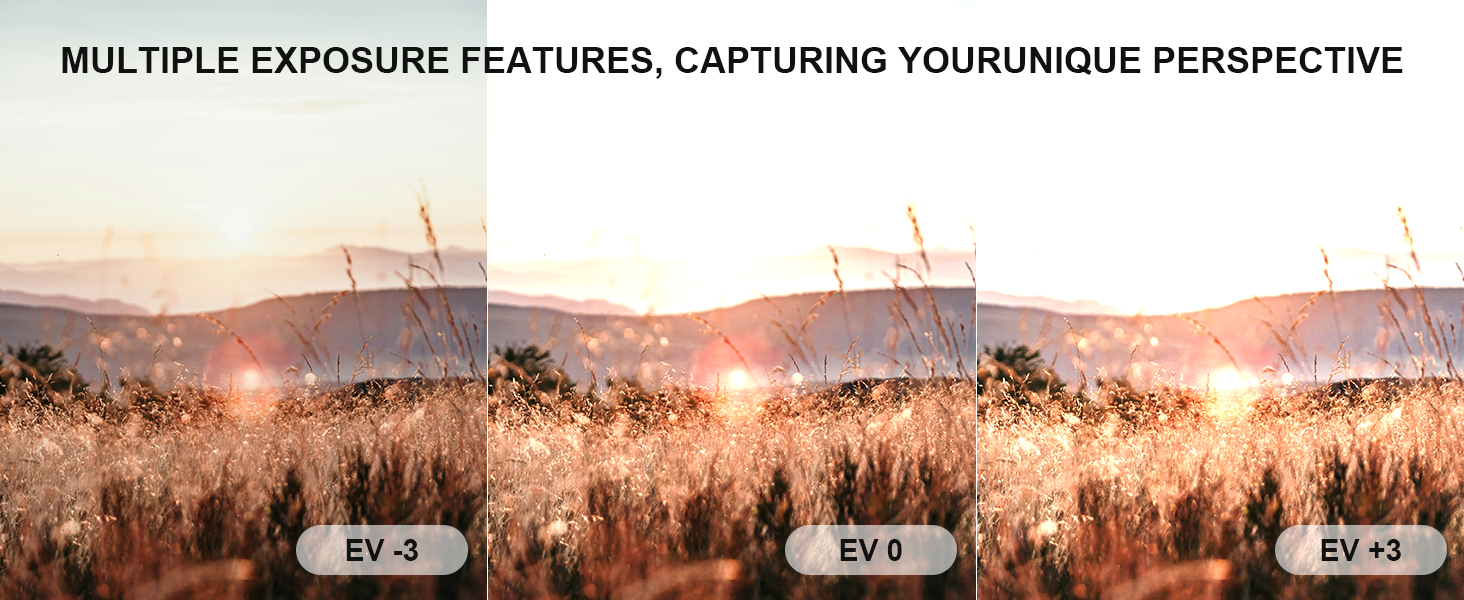
Image: Labeled diagram of the Yatao Digital Camera YT01 components.
Key Components:
- TFT Display: 3-inch screen for viewing and menu navigation.
- Front and Rear Cameras: For versatile shooting, including selfies.
- Microphone: For audio recording during video capture.
- Power Indicator: Shows camera status.
- Control Keys: Left/Right, Up/Down, OK/Menu, Playback/Mode, Front/Delete.
- Flashlight: Built-in flash for low-light conditions.
- TF Card Slot: For inserting the Micro SD card.
- Screw Hole for Tripod: Standard mount for tripods.
- Battery Cover: Access to the battery compartment.
- Hot Shoe Interface: For external accessories (e.g., external microphone, not included).
- USB Interface: Type-C port for charging and data transfer.
5. Setup
5.1. Battery Installation and Charging
- Open the battery cover located at the bottom of the camera.
- Insert the Lithium Ion battery, ensuring the correct orientation.
- Close the battery cover securely.
- Connect the camera to a power source using the provided Type-C USB cable for charging. The power indicator will show charging status.
5.2. Micro SD Card Installation
- Locate the TF Card Slot on the side of the camera.
- Insert the 64GB Micro SD card into the slot with the gold contacts facing down, until it clicks into place.
- To remove, gently push the card until it springs out.
Note: This camera supports a maximum memory card capacity of 256GB.

Image: The camera includes a 64GB Micro SD card for ample storage.
6. Operating Instructions
6.1. Power On/Off
- To power on, press and hold the Power Key.
- To power off, press and hold the Power Key again.
6.2. Taking Photos (64MP)
- Ensure the camera is in Photo mode (check the display).
- Frame your shot using the TFT display.
- Press the Photo Key to capture an image.
6.3. Recording Videos (5K)
- Switch to Movie mode using the Mode Key.
- Press the Photo Key to start recording. A red indicator will typically appear on the screen.
- Press the Photo Key again to stop recording.

Image: The camera supports UHD 5K video recording.
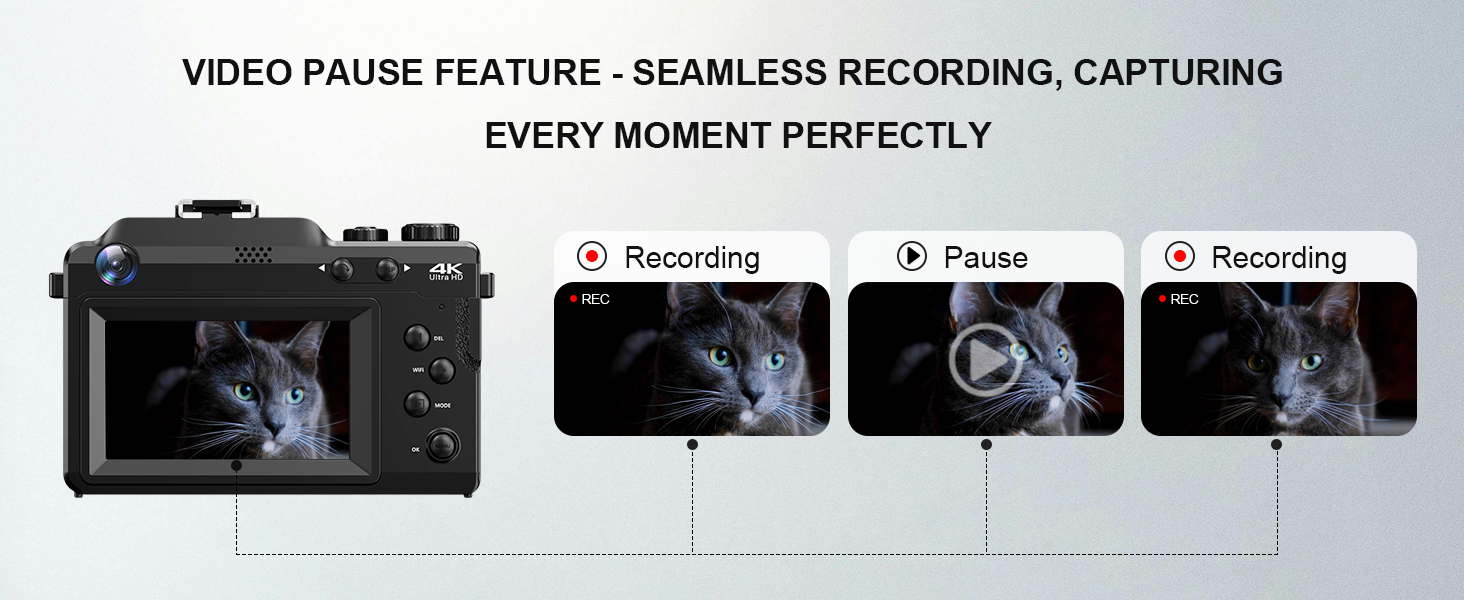
Image: The video pause feature allows for seamless recording.
6.4. Using Dual Cameras (Selfie Mode)
The camera features both front and rear cameras. Use the dedicated camera switch or menu option to toggle between them for convenient selfies or vlogging.

Image: The dual camera setup allows for easy switching between front and rear views.
6.5. Zoom Function (18x Digital Zoom)
Utilize the zoom controls (typically 'W' for wide and 'T' for telephoto) to adjust the 18x digital zoom. This allows you to bring distant subjects closer.

Image: Demonstrating the 18x digital zoom capability.
6.6. Built-in Flash
The camera includes a built-in flashlight for illuminating subjects in low-light environments. The flash mode can typically be set to automatic via the camera's menu.

Image: The built-in flash assists in capturing clear moments in low light.
7. Advanced Features
7.1. WiFi Connectivity
The integrated WiFi allows for wireless transfer of photos and videos to a smartphone or tablet. It also enables remote control of the camera via a compatible application.
- Activate WiFi in the camera's menu.
- Connect your smartphone/tablet to the camera's WiFi network (SSID: DSC-4K-e55511, Password: 12345678).
- Use the dedicated app to browse, transfer files, or control the camera remotely.

Image: WiFi function for convenient sharing and remote control.
7.2. Webcam Functionality
The camera can function as a high-definition webcam when connected to a computer via USB. This feature is useful for video calls or live streaming.
- Connect the camera to your computer using the Type-C USB cable.
- On the camera screen, select 'Webcam' from the USB connection options.
- Your computer should recognize the camera as a webcam, ready for use with video conferencing software.

Image: The camera can be used as a webcam for video calls and streaming.
7.3. Shooting Modes
The camera offers various shooting modes to suit different scenarios:
- Automatic: Standard mode for general photography.
- Self-Timer: Set a delay (e.g., 5s, 10s, 15s) before taking a photo.
- Continuous Shooting: Captures multiple photos in quick succession.
- Movie Mode: For video recording.
- Time-lapse Recording: Captures a series of images over time to create a time-lapse video.
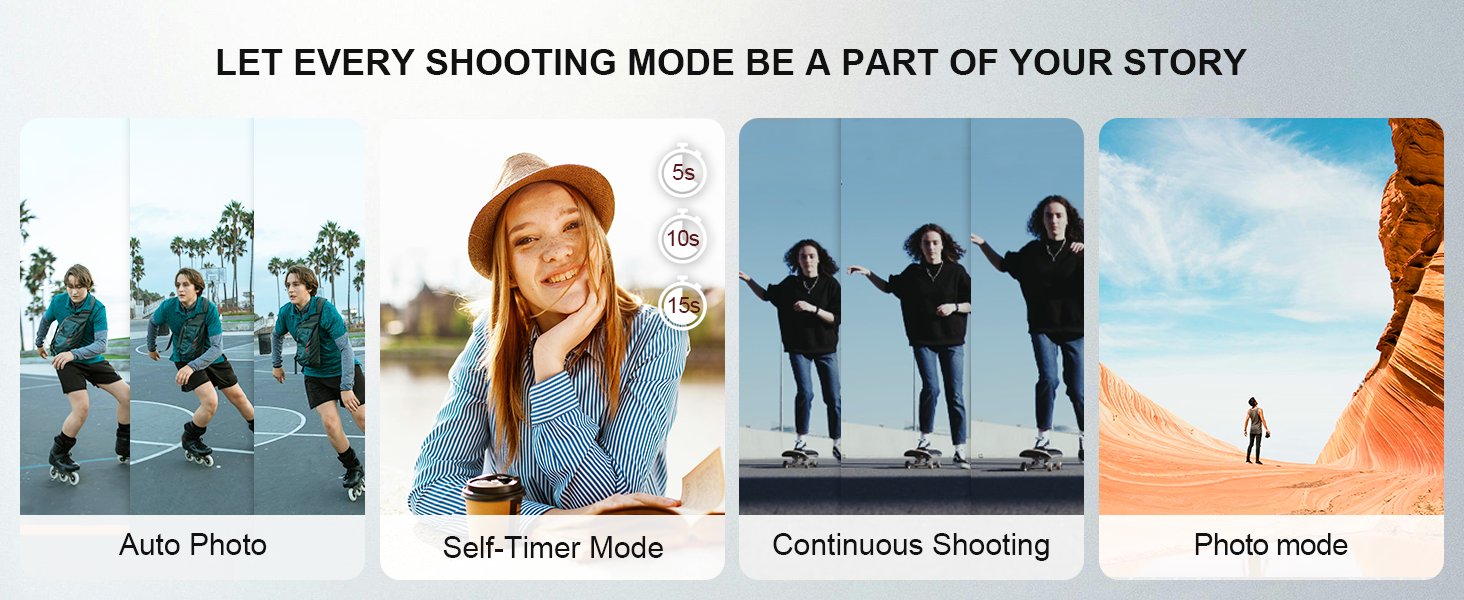
Image: Various shooting modes available on the camera.
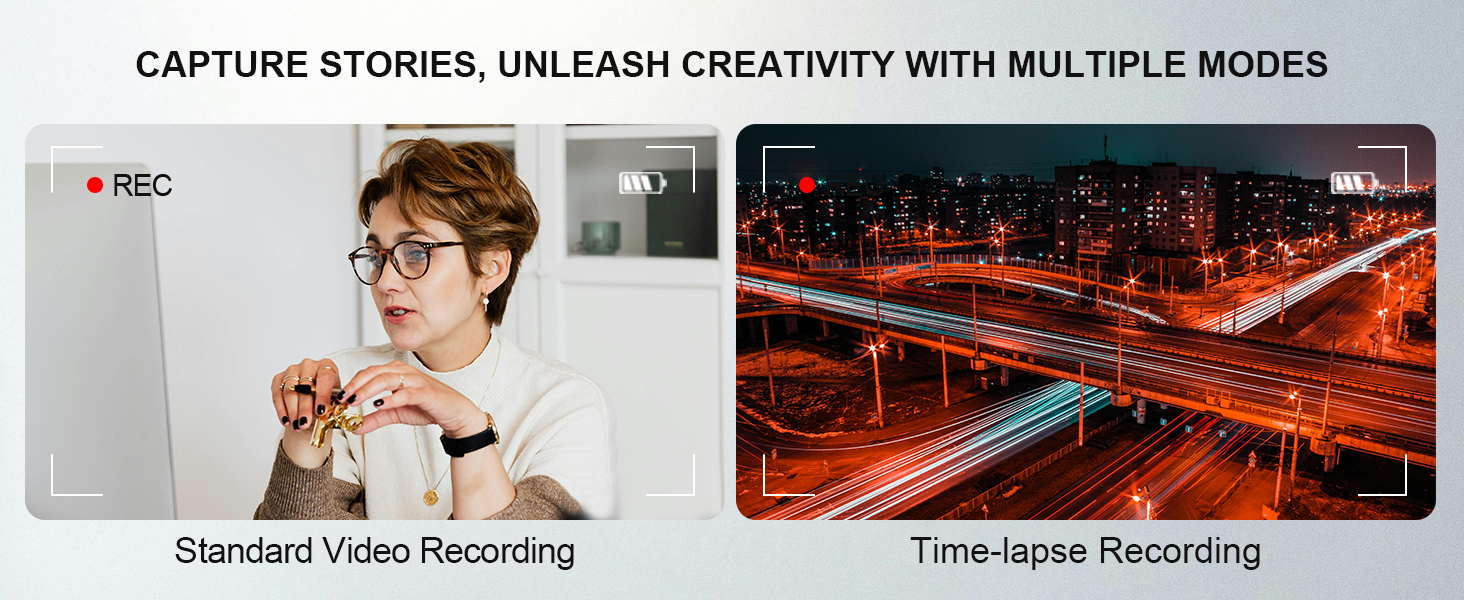
Image: Standard and Time-lapse video recording modes.
7.4. Exposure Control
Adjust the exposure value (EV) to control the brightness of your photos. Options typically include EV -3, EV 0, and EV +3 for darker, normal, or brighter images, respectively.

Image: Demonstrating multiple exposure features.
7.5. Filters
Apply various filters to your photos to enhance their aesthetic. Available filters may include ordinary, black and white, negative film, nostalgia, red, green, and blue.

Image: Capture colorful aspects of the world with various filters.
8. File Management
8.1. Viewing Photos and Videos
Press the Playback/Mode Key to enter playback mode. Use the Left/Right keys to navigate through your captured images and videos.
8.2. Deleting Files
In playback mode, select the file you wish to delete and press the Front/Delete Key. Confirm your selection when prompted.
8.3. Connecting to a Computer
When connecting the camera to a computer via the USB cable, you will be presented with options on the camera screen:
- Charging Mode: Charges the camera battery.
- Storage Mode: Allows access to the Micro SD card contents for file transfer.
- Webcam Mode: Activates the camera as a computer webcam.

Image: USB connection options when connected to a computer.
9. Maintenance
- Cleaning: Use the provided cleaning cloth to gently wipe the camera body and lens. For stubborn smudges on the lens, use a specialized lens cleaning solution and cloth.
- Battery Care: Store the battery in a cool, dry place when not in use. Avoid fully discharging the battery for extended periods.
- Storage: When storing the camera for a long time, remove the battery and Micro SD card. Store the camera in a protective case to prevent dust and scratches.
10. Troubleshooting
- Camera does not power on: Ensure the battery is correctly installed and fully charged.
- Cannot take photos/record videos: Check if the Micro SD card is inserted correctly and has sufficient free space. Ensure the camera is in the correct mode (Photo/Movie).
- Images are blurry: Ensure the lens is clean. Check lighting conditions.
- WiFi connection issues: Verify WiFi is enabled on the camera and your device. Re-enter the password if necessary.
- Computer does not recognize camera: Ensure the USB cable is properly connected. Select 'Storage Mode' or 'Webcam Mode' on the camera screen. Try a different USB port or cable.
11. Specifications
| Feature | Specification |
|---|---|
| Model Name | YT01 |
| Photo Sensor Resolution | 64 MP |
| Video Resolution | 5K (5120x2880@30FPS), 4K (3840x2160@30FPS), 2.7K (2688x1520@30FPS), 1080P (1920x1080@60FPS/30FPS), 720P (1280x720@120FPS/60FPS/30FPS) |
| Display Screen | 3.0-inch TFT Display |
| Digital Zoom | 18x |
| Image Stabilization | Digital |
| Wireless Technology | Wi-Fi (SSID: DSC-4K-e55511, Password: 12345678) |
| Memory Storage Capacity | 64 GB (Micro SD Card included, supports up to 256GB) |
| Battery Type | 1500mAh Lithium-Ion Battery |
| USB Interface | USB 2.0 (high speed), Type-C |
| Autofocus | Yes (Hybrid Auto Focus, Normal auto focus range of > 10cm) |
| Supported File Format | JPEG (Photos), MP4 (Videos) |
| Flash Modes | Automatic (Built-in flashlight) |
| Compatible Devices | Computers, Smartphones, Tablets |
| Water Resistance Level | Not Water Resistant |
12. Warranty and Support
For warranty information and technical support, please refer to the documentation provided with your purchase or contact Yatao customer service through the retailer where the product was purchased.


