
Avylet A4
Avylet Dash Cam A4 User Manual
Model: A4
1. Introduction
This user manual provides detailed instructions for the installation, operation, and maintenance of your Avylet Dash Cam A4. Please read this manual thoroughly before using the product to ensure proper functionality and safety. This dual-channel dash cam records in 4K on the front and 1080P on the rear, capturing important details for your driving safety and evidence needs.
2. Package Contents
Verify that all items listed below are included in your package:
- Dashcam x1
- Rear Camera with 18ft cable x1
- Car charger with 11.5ft cable x1
- Adhesive Tape for Front Camera x2
- Adhesive Tape for Rear Camera x2
- Electrostatic Film x2
- Trim Removal Tool x1
- Cable clips x6
- User manual x1
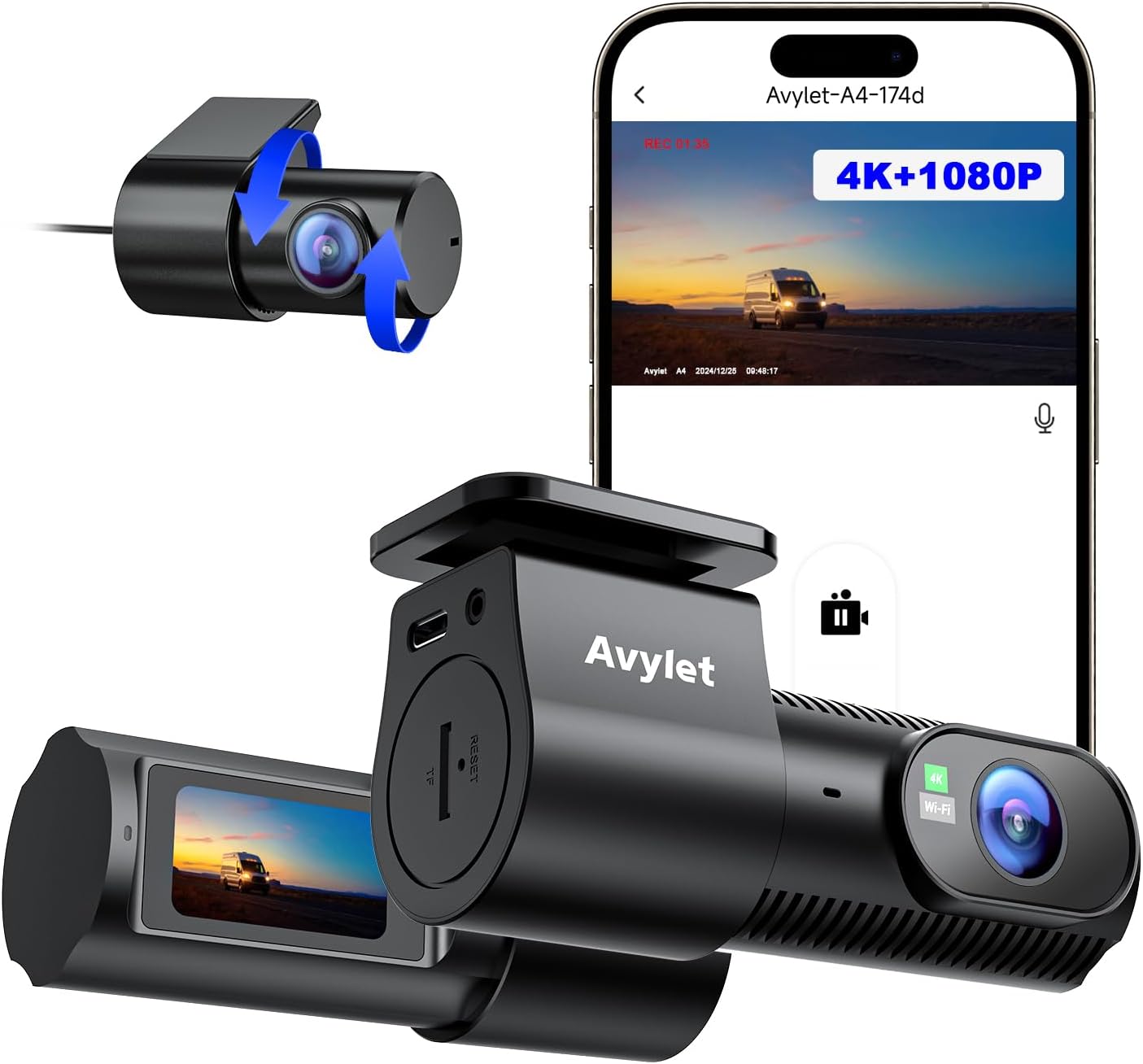
Image: The Avylet Dash Cam A4, showing the main unit, rear camera, and various accessories included in the package.
3. Product Overview
The Avylet Dash Cam A4 is designed for comprehensive vehicle recording, featuring both front and rear cameras. Its compact design ensures minimal obstruction to your view.
Key Features:
- 4K Front + 1080P Rear Recording: Captures high-resolution video for clear details.
- Built-in WiFi & Free App Control: Allows for easy video management and settings adjustment via smartphone.
- External GPS Module Support: Records location, route, speed, and time (module not included).
- 24-Hour Parking Monitoring: Includes Parking Mode and Time-Lapse recording for continuous surveillance.
- Wide-Angle View: 170° front and 150° rear lenses minimize blind spots.
- 1.5'' IPS Display: For real-time monitoring and easy angle adjustments.
- Superior Night Vision: F1.6 aperture, 6-layer glass lens, and WDR technology for clear low-light recording.
- Loop Recording and G-Sensor: Ensures continuous recording and protects critical footage during collisions.
- High-Temperature Resistant Super Capacitor: Enhances durability and safety in extreme temperatures.

Image: Visual representation of the Avylet Dash Cam A4 highlighting its versatile features such as 4K resolution, wide angle, Wi-Fi, and parking monitor.
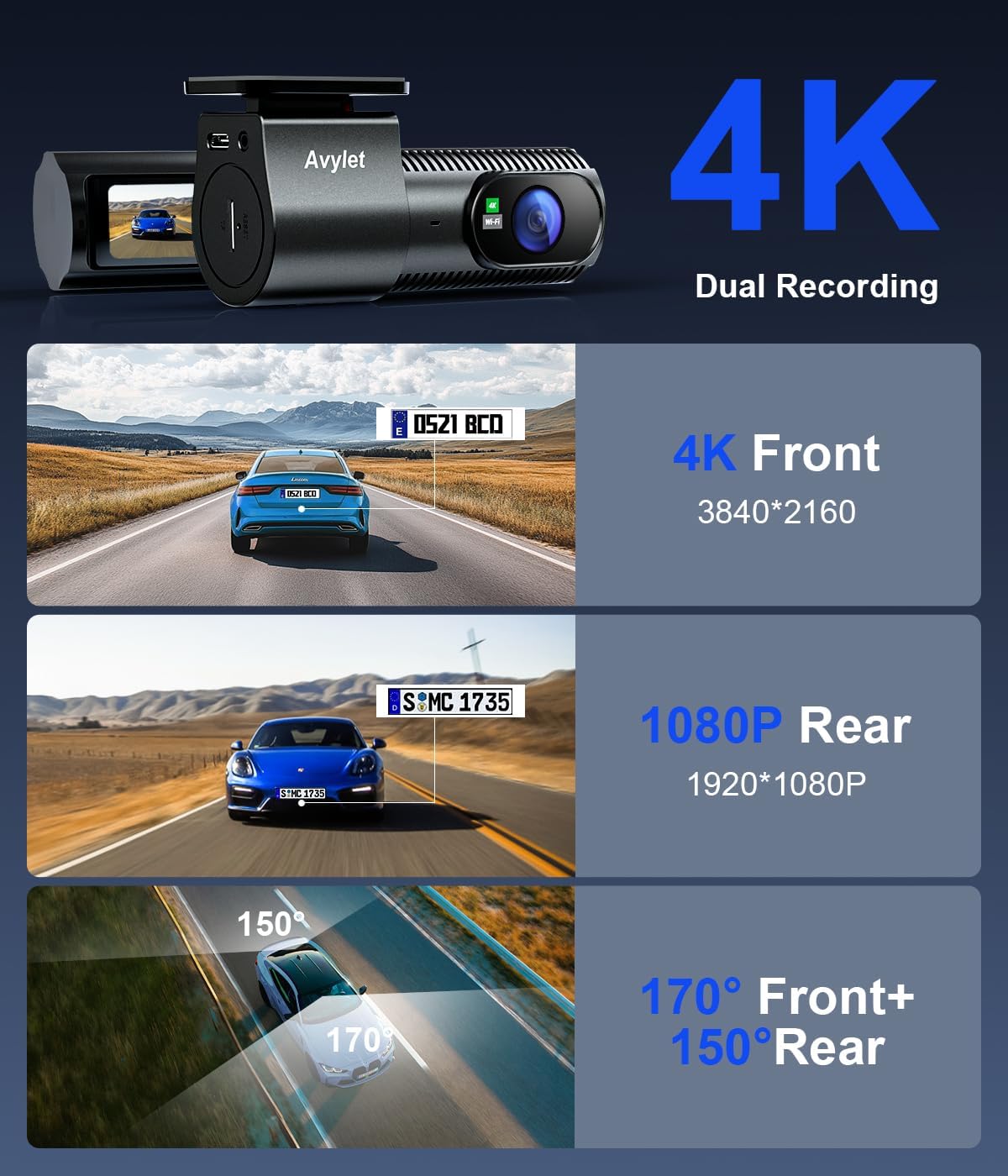
Image: Illustrates the dual recording capability of the dash cam, showing 4K front and 1080P rear video capture with wide-angle views.
4. Setup
Follow these steps for proper installation of your Avylet Dash Cam A4:
- Clean the Windshield: Before installing, thoroughly clean the area on your windshield where the dash cam will be mounted. Ensure it is free of dust and grease for optimal adhesion.
- Apply Electrostatic Film: Apply the provided electrostatic film to the front windshield. This helps protect your windshield and allows for easier removal of the dash cam later.
- Prepare the Dash Cam: Remove the red protective film from the adhesive bracket on the main dash cam unit.
- Install Front Camera: Carefully install the front camera onto the prepared area of the windshield. The front camera offers a 270° rotation angle for flexible adjustment.
- Install Rear Camera: Install the rear camera on the rear windshield. The rear camera features a 360° rotatable lens for comprehensive coverage. Ensure the cable is routed neatly.
- Route Cables: Use the trim removal tool and cable clips to route the power cable and rear camera cable along the edges of your car's interior, hiding any excess cables in the gaps. This ensures a clean and unobtrusive installation.
- Connect Power: Connect the car charger to your vehicle's cigarette lighter outlet. Then, connect the power cable from the charger to the main dash cam unit. This links both the front and rear cameras for power.
- Adjust Angle: Once powered on, adjust the dash cam's angle to ensure it captures the desired view of the road. Use the 1.5-inch IPS screen for real-time monitoring to achieve the perfect angle.
Video: A step-by-step guide on how to quickly install the Avylet Dual Dash Cam, covering windshield cleaning, film application, camera mounting, and cable routing.
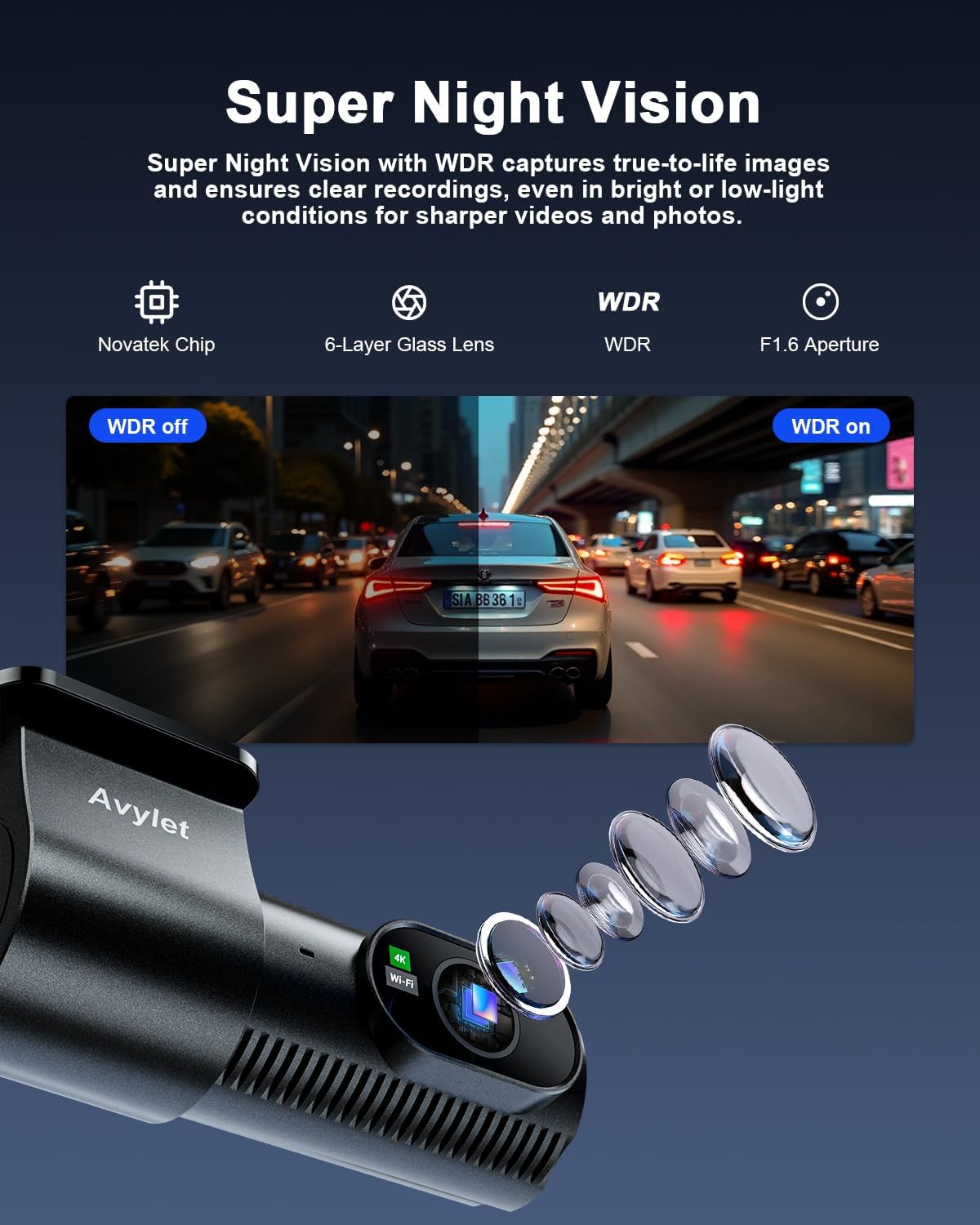
Image: The Avylet Dash Cam A4, discreetly installed behind the rearview mirror, showcasing its compact and hidden design.
5. Operating the Dash Cam
5.1. Power On/Off
The dash cam automatically powers on when connected to the car charger and the vehicle's ignition is turned on. It powers off automatically when the ignition is turned off.
5.2. Wi-Fi & App Control
The Avylet Dash Cam A4 features built-in Wi-Fi for seamless control via the "AUTOSOCT" mobile app (available for Android and iOS). This allows you to:
- Stream live video from the dash cam.
- Download recorded videos directly to your phone.
- Adjust camera settings (e.g., resolution, G-sensor sensitivity).
- Perform OTA (Over-The-Air) firmware updates.
- Edit and share your footage.
Note: For iPhone users, videos need to be downloaded to the app before they can be saved to your phone's photo album.
Video: Demonstrates the built-in Wi-Fi and APP control features, showing how to connect the dash cam to a smartphone and manage settings.
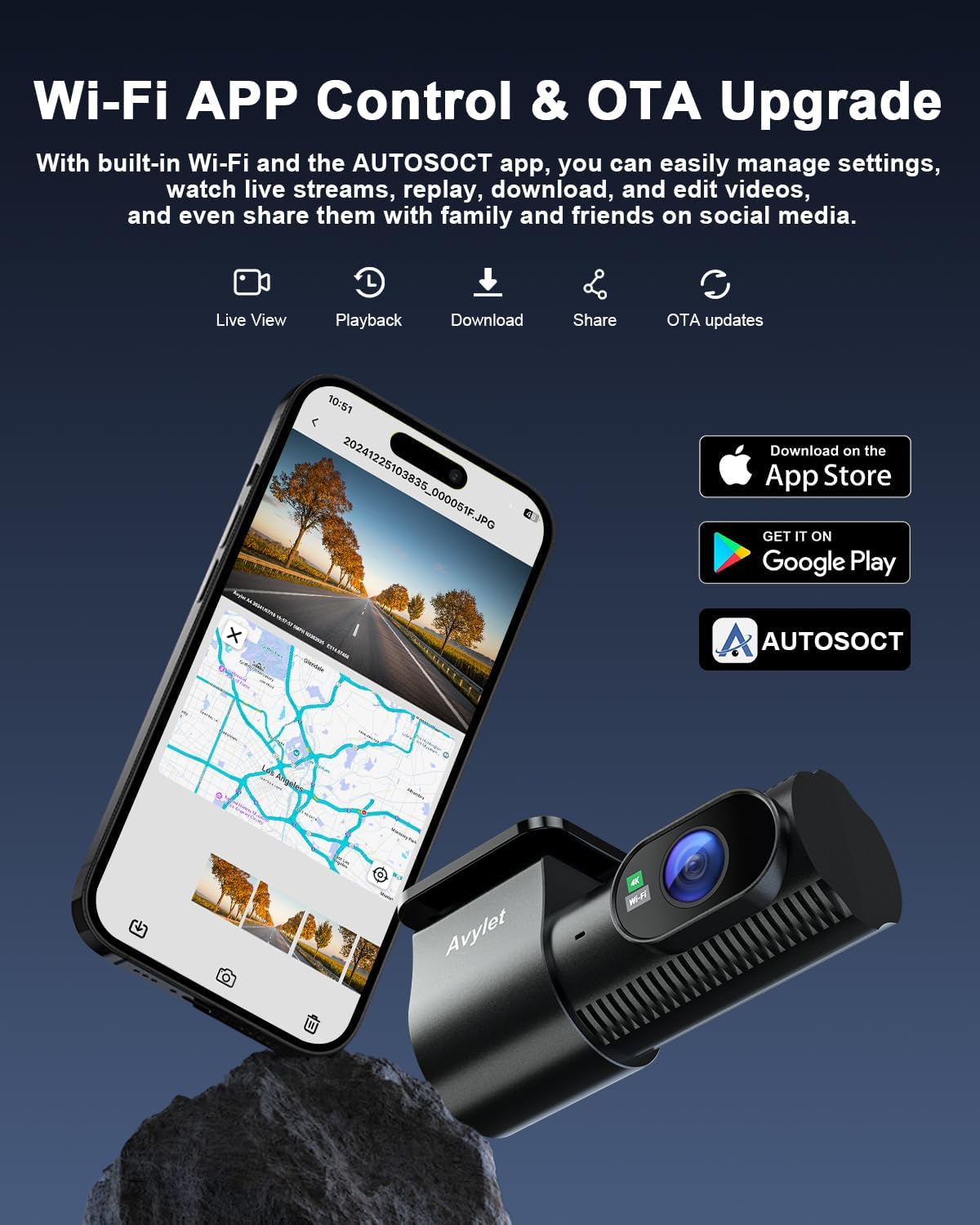
Image: The dash cam connected to a smartphone displaying the "AUTOSOCT" app interface for live view, playback, download, and sharing.
5.3. Loop Recording & G-Sensor
The dash cam continuously records video in segments (1, 3, or 5 minutes). When the memory card is full, the oldest unlocked video files are automatically overwritten to ensure uninterrupted recording. The built-in G-sensor detects sudden movements or collisions. In such events, it automatically locks the current video footage to prevent it from being overwritten, preserving critical evidence.

Image: Illustrates the loop recording function, showing how the dash cam overwrites old files when the storage is full.

Image: Depicts the G-Sensor and collision detection feature, explaining how it locks footage during impacts.
5.4. Parking Monitoring
The dash cam offers 24-hour parking monitoring features:
- Parking Mode: In the event of a collision or emergency braking while parked, the dash cam automatically saves the recorded video clip.
- Time-Lapse: When the vehicle is parked, the dash cam continues to record at a reduced frame rate, saving storage space while providing continuous surveillance.
Note: An ACC hardwire kit is required for 24-hour parking monitoring (not included). Using other brands may cause compatibility issues.

Image: Explains the Parking Mode and Time-Lapse features for 24-hour parking surveillance.
5.5. External GPS Module (Optional)
The dash cam supports an optional external GPS module (not included). When connected, it records your location (longitude and latitude), route, speed, and time directly into the video files. This data can be accessed on both personal computers and mobile phones, providing crucial evidence for insurance claims or accident investigations.
To obtain the GPS module or download the necessary player, please reach out to Avylet customer support.

Image: Shows the dash cam's compatibility with an external GPS module for recording location and speed data.
5.6. Night Vision and WDR
Equipped with a high-performance chipset, advanced sensors, an F1.6 aperture, and a 6-layer glass lens, the Avylet Dash Cam A4 delivers superior night vision. WDR (Wide Dynamic Range) technology balances exposure and enhances contrast, ensuring clear and detailed images even in low-light or challenging lighting conditions.

Image: Demonstrates the superior night vision capabilities and WDR technology for clear recording in various lighting conditions.
6. Maintenance
To ensure the longevity and optimal performance of your Avylet Dash Cam A4, follow these maintenance guidelines:
- Regular Cleaning: Periodically clean the camera lenses and the screen with a soft, lint-free cloth. Avoid using abrasive cleaners that could scratch the surfaces.
- Memory Card Management: Regularly format your memory card (at least once a month) to prevent data corruption and ensure smooth recording. Back up any important footage before formatting.
- Firmware Updates: Check for and install any available firmware updates via the "AUTOSOCT" app. Updates often include bug fixes, performance improvements, and new features.
- Temperature Considerations: While the super capacitor allows for operation in extreme temperatures (-4°F to 158°F), prolonged exposure to direct sunlight or extreme heat when parked can still affect the device's lifespan. If possible, park in shaded areas.
- Cable Management: Ensure all cables are securely tucked away and not interfering with vehicle operation or visibility. Regularly check for any signs of wear or damage to the cables.
Video: Shows the dash cam capturing footage at 4K resolution, demonstrating the clear image quality that should be maintained through proper care.
7. Troubleshooting
If you encounter issues with your Avylet Dash Cam A4, refer to the common problems and solutions below:
| Problem | Possible Cause / Solution |
|---|---|
| Q1: Unable to connect to the App? |
|
| Q2: Why is the rear camera not displaying? |
|
| Q3: What if the voice prompts are too frequent? |
|
| Memory Card Issues (e.g., freezing, not recording) |
|
For any further assistance or troubleshooting, please do not hesitate to contact our professional after-sales team. We will respond to your inquiry within 12 hours.

Image: A visual representation of common frequently asked questions (FAQ) related to the dash cam's operation and connectivity.
8. Specifications
| Attribute | Detail |
|---|---|
| Brand | Avylet |
| Model Name | A4 |
| Product Dimensions | 1.97 x 4.13 x 2.05 inches |
| Item Weight | 3 ounces |
| Video Capture Resolution | Single Front 4K; Dual Channel 4K Front +1080P Rear |
| Connectivity Technology | Wi-Fi |
| Special Features | 4K Front and 1080P Rear Recording; Wi-Fi & Free APP & OTA Upgrade; External GPS (optional); 1.5'' IPS Screen & Compact Mini Design; F1.6 Aperture; Parking Monitor; G-Sensor; Super Capacitor |
| Mounting Type | Windshield Mount |
| Color | Black |
| Manufacturer | Avylet |
| Country of Origin | China |
9. Warranty and Support
Avylet provides comprehensive after-sales support for this 4K dashboard camera, including:
- 1-Year Warranty: Covers manufacturing defects and malfunctions under normal use.
- Lifetime Technical Support: Dedicated support for any technical issues or questions you may have throughout the product's lifespan.
To get support, please reach out to us directly (refer to the user manual for contact information) or visit our website at Avylet.com. We are committed to responding to your inquiry within 12 hours.
Related documentsA4

Ask a question about this manual
Ask about setup, troubleshooting, compatibility, parts, safety, or missing instructions. Manuals+ will review the question and use this page’s manual context to help answer it.