1. Introduction
Welcome to the user manual for your new Xiaomi Dual Mode Wireless Mouse 2. This high-performance mouse is designed for versatility and comfort, offering seamless connectivity through both 2.4GHz wireless and Bluetooth modes. Its ergonomic design and precise tracking make it ideal for various computing tasks, from everyday use to professional applications. Please read this manual carefully to ensure proper use and maintenance of your device.

Figure 1: Xiaomi Dual Mode Wireless Mouse 2 (Black and White variants shown).
2. Package Contents
- Xiaomi Dual Mode Wireless Mouse 2
- USB Receiver (typically stored inside the mouse)
- AA Battery (pre-installed or included)
- User Manual (this document)
3. Product Overview
Familiarize yourself with the components of your Xiaomi Dual Mode Wireless Mouse 2.

Figure 2: Top view of the mouse, showing left/right buttons and scroll wheel.
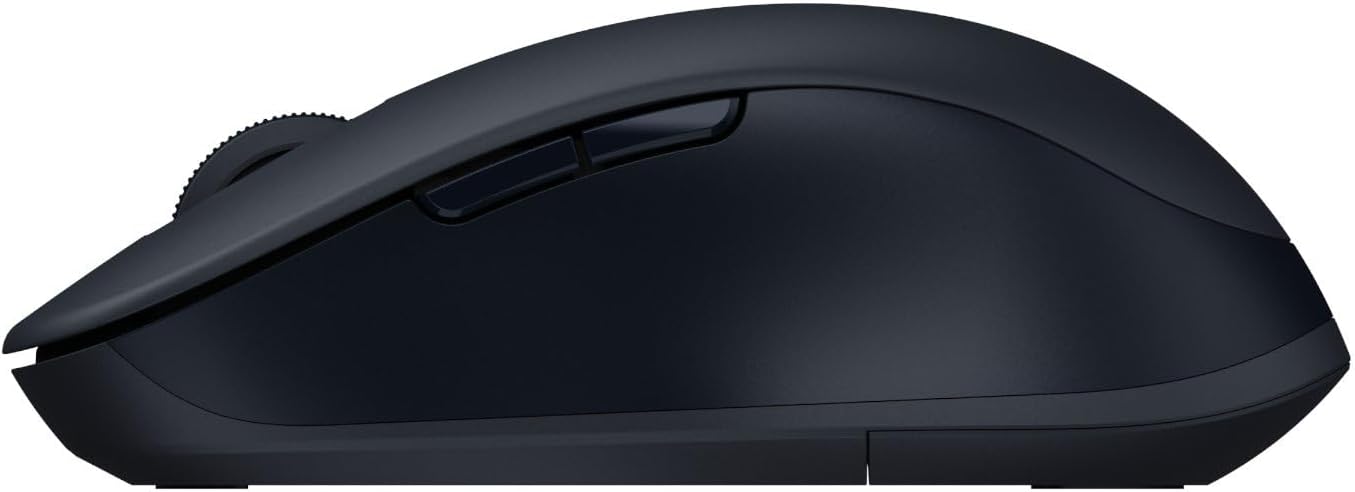
Figure 3: Side view of the mouse, showing the side buttons.
- Left Click Button
- Right Click Button
- Scroll Wheel / Middle Click Button
- DPI Switch Button (if applicable, not explicitly mentioned but common)
- Forward Button (Side)
- Backward Button (Side)
- Mode Switch Button / Indicator Light (usually on the bottom or top)
- Battery Compartment / USB Receiver Slot (on the bottom)
- Optical Sensor (on the bottom)
4. Setup and Installation
4.1. Battery Installation
The Xiaomi Dual Mode Wireless Mouse 2 requires one AA battery. The battery compartment is located on the underside of the mouse.
- Gently slide open the battery compartment cover on the bottom of the mouse.
- Insert one AA battery, ensuring the positive (+) and negative (-) terminals align correctly with the indicators inside the compartment.
- Close the battery compartment cover until it clicks securely into place.
4.2. Connecting the Mouse
Your mouse supports two connection modes: 2.4GHz wireless via USB receiver and Bluetooth.
4.2.1. 2.4GHz Wireless Connection (USB Receiver)
- Locate the USB receiver, usually stored inside the battery compartment of the mouse.
- Plug the USB receiver into an available USB port on your computer.
- Turn on the mouse using the power switch on its underside.
- The mouse should automatically connect to your computer. If not, press the mode switch button on the mouse to cycle to 2.4GHz mode (indicated by a specific LED color or pattern).
4.2.2. Bluetooth Connection
- Turn on the mouse using the power switch on its underside.
- Press the mode switch button on the mouse to cycle to Bluetooth mode. The indicator light will typically blink rapidly, indicating it's in pairing mode.
- On your computer or device, open Bluetooth settings.
- Search for new devices and select "Xiaomi Mouse 2" (or similar name) from the list of available devices.
- Follow any on-screen prompts to complete the pairing process.
5. Operating the Mouse
Once connected, your Xiaomi Dual Mode Wireless Mouse 2 is ready for use.
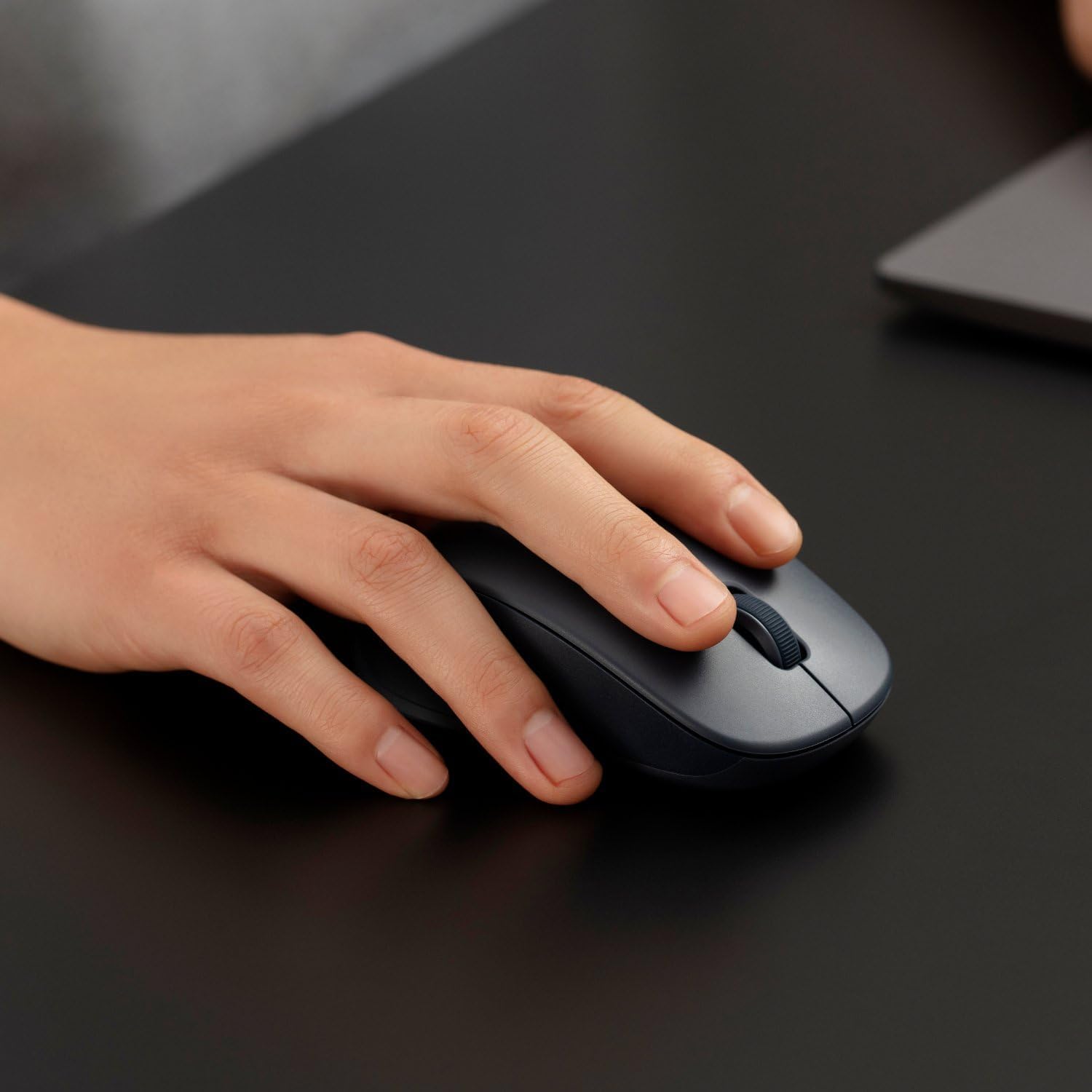
Figure 4: Proper hand placement for using the mouse.
5.1. Basic Functions
- Left Click: Primary action, used for selecting items, opening links, etc.
- Right Click: Opens context menus, provides additional options.
- Scroll Wheel: Scroll up or down through documents and web pages.
- Middle Click (Scroll Wheel Press): Often used for opening links in new tabs or auto-scrolling.
- Side Buttons (Forward/Backward): Navigate web pages or folders.
5.2. Switching Modes
To switch between 2.4GHz wireless and Bluetooth modes, press the mode switch button (usually located on the bottom or top of the mouse). The indicator light will change to reflect the active mode.
5.3. DPI Adjustment (If Applicable)
Some models may feature a DPI switch button (often located behind the scroll wheel) to adjust cursor sensitivity. Press this button to cycle through different DPI settings (e.g., 800, 1200, 1600 DPI).
6. Maintenance and Care
- Cleaning: Use a soft, dry cloth to clean the mouse. For stubborn dirt, slightly dampen the cloth with water. Do not use harsh chemicals or abrasive cleaners.
- Battery Replacement: When the mouse performance degrades or the indicator light signals low battery, replace the AA battery as described in Section 4.1.
- Storage: When not in use for extended periods, turn off the mouse to conserve battery life. Store the USB receiver inside the mouse's compartment to prevent loss.
- Environment: Avoid exposing the mouse to extreme temperatures, direct sunlight, or excessive moisture.
7. Troubleshooting
| Problem | Possible Solution |
|---|---|
| Mouse not responding |
|
| Cursor movement is erratic or jumpy |
|
| Cannot connect via Bluetooth |
|
8. Specifications
| Feature | Detail |
|---|---|
| Brand | XIAOMI |
| Model Number | BHR8850GL |
| Color | Noir (Black) |
| Connectivity Technology | Bluetooth, 2.4GHz Wireless (via USB receiver) |
| Movement Detection Technology | Gyroscopic (Optical sensor) |
| Number of Buttons | 4 |
| Special Features | LED Light (indicator), Dual Mode |
| Compatible Devices | Personal Computer, Laptop |
| Item Weight | 62 Grams |
| Battery Type | 1 AA battery |
9. Warranty and Support
Your Xiaomi Dual Mode Wireless Mouse 2 comes with a standard manufacturer's warranty. Please refer to the warranty card included in your product packaging for specific terms and conditions, including warranty period and coverage details.
For technical support, troubleshooting assistance, or warranty claims, please contact Xiaomi customer service or visit the official Xiaomi support website. Contact information can typically be found on the product packaging or the official Xiaomi website.
Note: Keep your purchase receipt as proof of purchase for warranty purposes.


