
1. Introduction
This manual provides essential instructions for the safe and efficient operation, setup, and maintenance of your Displays2go Pedestal Display with Digital Sign (Model DF037NLB). Please read this manual thoroughly before using the product and retain it for future reference.
The DF037NLB is a versatile pedestal display featuring a 37-inch stretch LCD advertising screen, designed for indoor use. It includes a rear locking storage compartment for added functionality.
2. Safety Information
- This product is intended for indoor use only. Do not expose to moisture, rain, or extreme temperatures.
- Ensure the unit is placed on a stable, level surface to prevent tipping.
- Do not block ventilation openings.
- Use only the provided power adapter.
- Disconnect power before cleaning or performing any maintenance.
- This product may contain chemicals known to the State of California to cause cancer and birth defects or other reproductive harm (Proposition 65 warning).
3. Package Contents
Verify that all components are present in the packaging:
- Pedestal Display Unit (DF037NLB)
- Power Cable
- Remote Control
- Set of Keys (for storage compartment)
- User Manual (this document)
4. Setup
4.1 Unpacking and Placement
- Carefully remove the pedestal display from its packaging.
- Place the unit on a flat, stable surface in your desired indoor location. Ensure adequate space around the unit for ventilation.
4.2 Power Connection
- Locate the power input port on the rear of the unit.
- Connect the provided power cable to the unit and then to a standard electrical outlet.
- The unit is now ready for initial power-on.
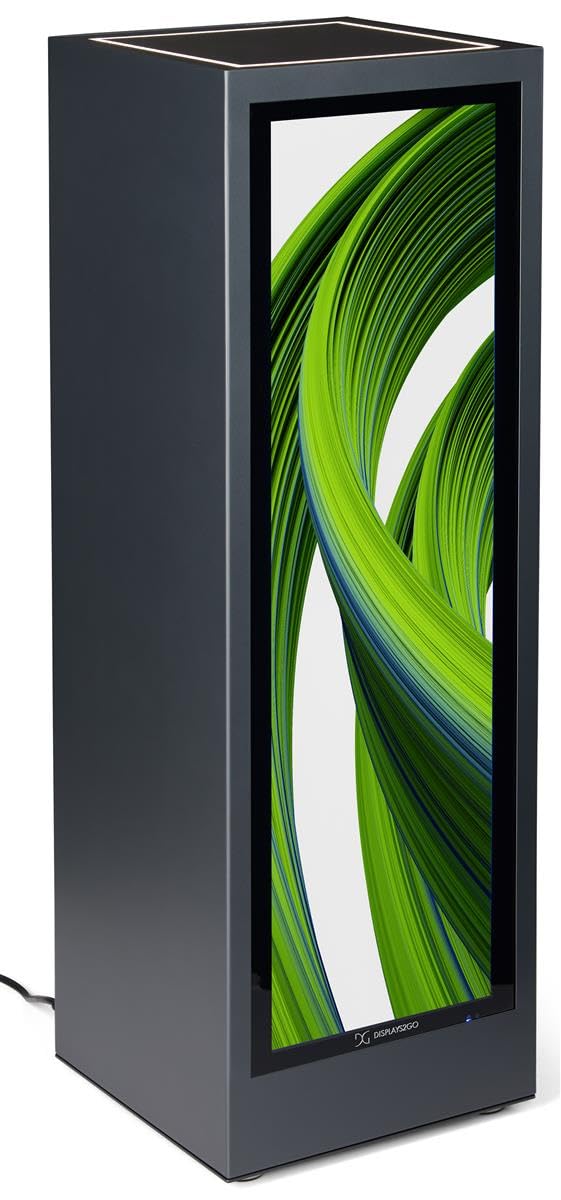
Image 4.1: Front view of the Displays2go Pedestal Display with Digital Sign.
5. Operating Instructions
5.1 Digital Signage Operation
The pedestal display features a 37-inch stretch LCD screen for displaying various media content.
- Content Formatting: For optimal display, format your marketing materials to a resolution of 720 pixels wide x 2520 pixels high.
- USB Content Transfer: Use the USB ports located on the rear of the unit to transfer images, videos, and other content to the display's internal storage.
- Connectivity: The unit supports WiFi and Bluetooth connectivity. This allows for network access, content updates, and connection to external Bluetooth speakers or peripherals like a mouse and keyboard.
- Google Play Access: Access the Google Play app store to download and install business applications directly onto the display.
- Audio: The display includes two built-in speakers for audio playback.

Image 5.1: The digital display showcasing product advertisements for watches.

Image 5.2: The digital display showcasing product advertisements for headphones.

Image 5.3: The 37-inch diagonal measurement of the stretch LCD screen.
5.2 Rear Locking Storage Compartment
The unit features a rear-accessible storage compartment for securing personal items or product backstock.
- To open the compartment, insert one of the provided keys into the lock and turn.
- To lock, close the door, insert the key, and turn to secure. Remove the key to prevent unauthorized access.
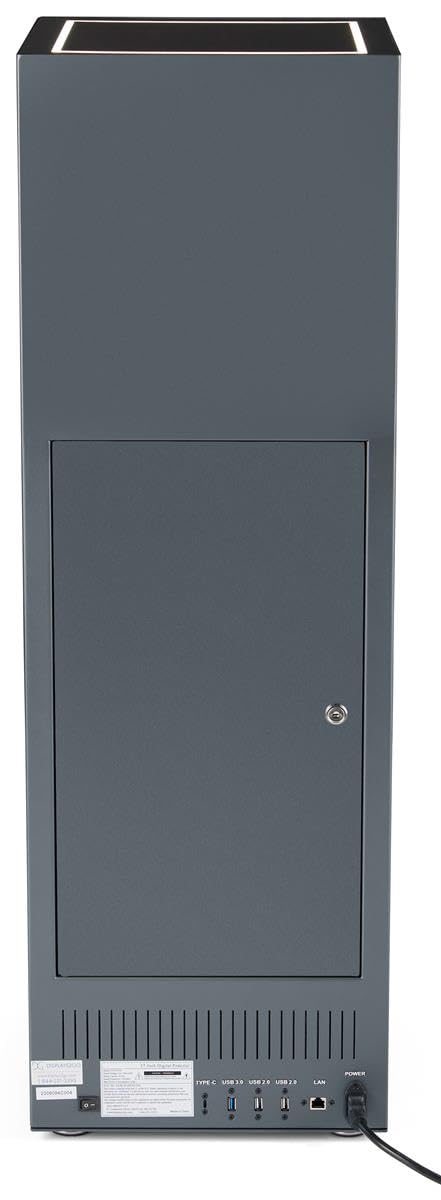
Image 5.4: Rear view of the pedestal display showing the closed locking storage compartment and connectivity ports.

Image 5.5: Rear view of the pedestal display with the locking storage compartment open, revealing interior space.
5.3 LED Illumination
The mirrored top surface of the pedestal features LED illumination to highlight products placed on top. This feature is integrated with the main power supply and activates when the unit is powered on.
6. Maintenance
6.1 Cleaning
- Always disconnect the power cable before cleaning.
- Use a soft, dry, lint-free cloth to clean the exterior surfaces of the pedestal.
- For the screen, use a screen-specific cleaning solution and a microfiber cloth. Do not spray liquid directly onto the screen.
- Avoid abrasive cleaners or solvents, as they may damage the finish.
6.2 Software Updates
Periodically check for software updates through the unit's operating system settings to ensure optimal performance and access to the latest features. Refer to the on-screen instructions for update procedures.
7. Troubleshooting
If you encounter issues with your pedestal display, refer to the following common problems and solutions:
| Problem | Possible Cause | Solution |
|---|---|---|
| Display not turning on | No power connection | Ensure power cable is securely connected to the unit and a working outlet. |
| No image on screen | Incorrect input source or no content loaded | Check display settings for input source. Ensure content is properly loaded via USB or network. |
| No sound from speakers | Volume too low or muted | Adjust volume using the remote control or on-screen settings. Check if external Bluetooth speakers are connected and overriding internal speakers. |
| Cannot connect to Wi-Fi/Bluetooth | Network issues or incorrect settings | Verify Wi-Fi network is active and password is correct. Ensure Bluetooth device is in pairing mode and within range. |
8. Specifications
| Feature | Detail |
|---|---|
| Model Number | DF037NLB |
| Product Dimensions (W x D x H) | 14 x 14 x 43 inches |
| Screen Size | 37 inches (diagonal) |
| Recommended Content Resolution | 720px (width) x 2520px (height) |
| Connectivity | WiFi, Bluetooth, USB ports (Type-C, USB 3.0, USB 2.0), LAN |
| Audio | Built-in speakers |
| Storage | Rear locking compartment |
| Operating System | Access to Google Play App Store |
| Usage Environment | Indoor Use Only |
9. Warranty and Support
For warranty information, technical support, or service inquiries, please contact Displays2go customer service. Refer to your purchase documentation or the Displays2go official website for contact details.

