
ZIPCIDE 64GB
Contents
User Manual: ZIPCIDE 64GB Digital Voice Recorder
Model: 64GB
Brand: ZIPCIDE
Introduction
This manual provides comprehensive instructions for the operation and maintenance of your ZIPCIDE 64GB Digital Voice Recorder. Designed for clarity and ease of use, this device offers high-quality audio recording capabilities for various applications, including lectures, meetings, interviews, and personal memos. Please read this manual thoroughly to ensure optimal performance and longevity of your device.

Image: The ZIPCIDE 64GB Digital Voice Recorder, presented as a sleek pen, alongside its key accessories including headphones, a 64GB TF card, and replacement pen refills. The image highlights its primary function as a recording device with visual sound waves.
Package Contents
Upon opening the package, please verify that all items listed below are present and in good condition:
- Digital Voice Recorder (Pen)*1
- 64 GB TF Card*1 (pre-installed)
- 3.5mm Headphones*1
- Micro-USB Cable*1
- Controller*1 (for headphones)
- Replacement Refills*5
- Screwdriver*1 (for refill replacement)
- User Manual*1

Image: A visual representation of all components included in the product package, neatly arranged. This includes the pen recorder, various cables, headphones, replacement ink refills, a small screwdriver, and the user manual.
Setup
1. Charging the Device
Before initial use, fully charge the voice recorder. Unscrew the pen body to reveal the Micro-USB port. Connect the provided Micro-USB cable to the port and the other end to a USB power source (e.g., computer USB port, USB wall adapter). A full charge takes approximately 1.5 hours. The device supports up to 15 hours of continuous recording and 30 hours of headphone playback on a full charge.

Image: The voice recorder connected to a laptop via its USB cable, demonstrating the charging process and how to access recorded files.
2. Inserting/Checking TF Card
The 64GB TF card is typically pre-installed. To access or replace it, gently unscrew the pen body. The TF card slot will be visible. Ensure the card is securely inserted. The device supports expandable memory.
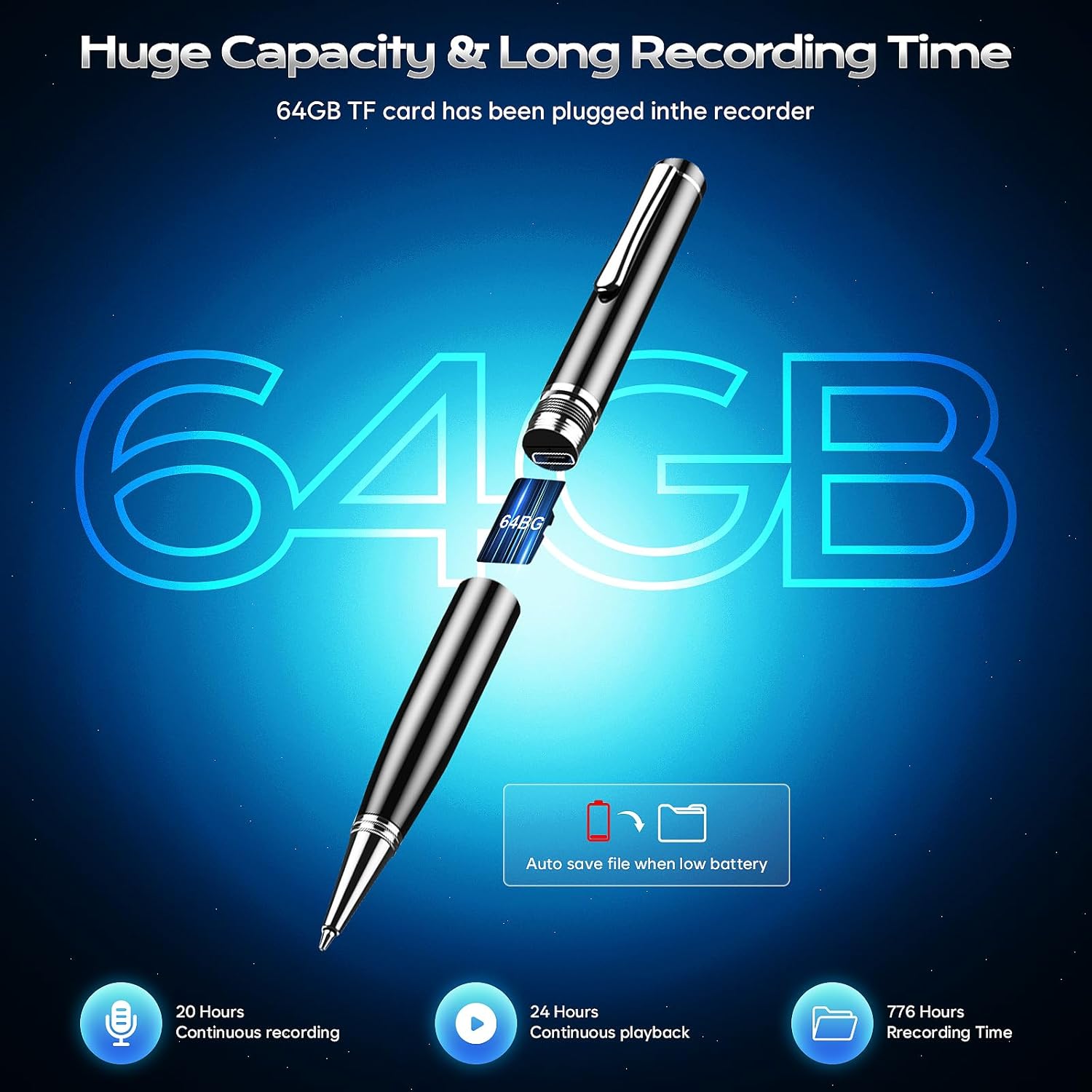
Image: An illustration showing the internal structure of the pen, specifically highlighting the removable 64GB TF card, which provides ample storage for recordings.
Operating Instructions
1. One-Click Recording and Saving
To start recording, long press the button on the top of the recorder for three seconds. The device will begin recording immediately. To save the recording, long press the same button again for three seconds. The recording will be saved, and the device will power off or stop recording, depending on its current state.

Image: A hand demonstrating the simple one-click operation of the pen recorder to initiate and save recordings.
2. Voice Activated Recording (VOR)
The voice-activated recording (VOR) feature allows the recorder to automatically start recording when sound is detected and pause when silence occurs, saving memory and battery. This function is off by default. To enable or configure VOR, connect the device to your computer and adjust the settings via the configuration file on the TF card. Refer to the "File Management" section for details on accessing device settings.

Image: A graphic illustrating the Voice Activated Recording (VOR) feature, showing how the device intelligently starts recording when sound is present and pauses during silence.
3. Playback
There are two primary methods for playing back your recordings:
- Direct Playback with Headphones: Connect the provided wired headphones to the pen recorder (after unscrewing the body to reveal the port). Use the inline controller to navigate between tracks (previous/next) and adjust the volume.
- Computer Playback: Connect the recorder to your computer using the Micro-USB cable. The device will appear as a removable drive. Navigate to the recorded files (usually .WAV or .MP3 format) and play them using your computer's media player.

Image: Demonstrates the two ways to listen to recordings: directly through the included headphones or by connecting the device to a computer.
4. File Management and Timestamping
Each recording file is automatically timestamped, making it easy to locate and organize your audio. When connected to a computer, you can easily transfer, delete, or rename files. The device functions as a 64GB USB drive for convenient file access.

Image: A comprehensive graphic detailing various features including one-click recording, pen refill mechanism, charging time, continuous recording/playback durations, TF card slot, and the timestamping of recorded files.
Key Features
AI-Intelligent Noise Reduction
Equipped with an AI + DSP chip and intelligent digital noise reduction technology, this recorder automatically adjusts to incoming sound waves to filter and attenuate environmental noise. Combined with a dynamic noise-cancelling microphone, it captures clear audio, ensuring high sound quality even in noisy environments.

Image: Close-up of the pen recorder emphasizing its HD Premium Sound Quality and the DSP noise reduction chip, with a visual representation of noise cancellation.
High Capacity Storage & Battery Life
The device includes a 64GB TF card, capable of storing up to 776 hours of recording files (at 192kbps). The 270mAh rechargeable battery provides up to 15 hours of continuous recording and 30 hours of headphone playback after a 1.5-hour charge. An external memory slot allows for expandable storage.
Versatile Applications
This digital recorder is suitable for a wide range of uses, including recording meetings, lectures, interviews, and personal notes. Its discreet pen design allows for unobtrusive recording while also functioning as a regular writing instrument.

Image: A collage showcasing the diverse applications of the voice recorder, from academic settings to professional meetings and personal use.
Maintenance
Replacing Pen Refills
The pen comes with 5 replacement refills. To replace a refill, gently unscrew the pen tip. Remove the old refill and insert a new one. Use the provided small screwdriver if needed to assist with the process.
Cleaning
Wipe the exterior of the device with a soft, dry cloth. Do not use liquid cleaners or abrasive materials.
Storage
Store the device in a cool, dry place away from direct sunlight and extreme temperatures. Avoid dropping the device or exposing it to moisture.
Troubleshooting
| Problem | Possible Cause | Solution |
|---|---|---|
| Device not turning on/recording | Low battery; Device off | Charge the device fully; Long press the top button for 3 seconds to power on. |
| Poor audio quality | Excessive background noise; Device too far from source; Incorrect settings | Ensure recording in a quiet environment; Place device closer to audio source; Adjust gain/denoise settings via computer. |
| Cannot transfer files to computer | Loose USB connection; Driver issue; Corrupted TF card | Ensure cable is securely connected; Try a different USB port or computer; Reformat TF card (backup data first). |
| Voice Activated Recording not working | VOR function is off by default | Connect to computer and enable VOR function in the settings file. |
If you encounter issues not listed here or if the solutions provided do not resolve the problem, please contact ZIPCIDE customer support for assistance.
Specifications
| Feature | Detail |
|---|---|
| Model Number | 64GB |
| Memory Storage Capacity | 64 GB (TF Card included) |
| Digital Recording Time | Up to 776 hours (192kbps) |
| Continuous Recording Battery Life | 15 hours |
| Headphone Playback Battery Life | 30 hours |
| Charging Time | Approx. 1.5 hours |
| Audio Format | MP3 Audio (WAV also supported) |
| Microphone Form Factor | Built-In |
| Hardware Interface | Micro USB 2.0 Type A |
| Headphones Jack | 3.5 millimeters |
| Product Dimensions | 0.77 x 0.77 x 0.33 inches |
| Item Weight | 5 ounces |
| Compatible Devices | Laptop, Personal Computer, Tablet |
Warranty and Support
Warranty Information
Your ZIPCIDE Digital Voice Recorder is covered by a 1-Year Replacement Promise from the date of purchase. This warranty covers manufacturing defects and ensures a replacement if your device experiences issues under normal use conditions.

Image: A shield graphic indicating a 1-Year Warranty Promise.
Customer Support
For any issues, questions, or technical assistance, please contact our professional customer support team. We offer 24-hour support and a 30-day return and exchange policy.
- Email: support@zipcide.com
- Phone: [Insert Phone Number Here, if available]
- Website: Visit the ZIPCIDE Store on Amazon

Image: A graphic detailing the after-sale service support, including 24-hour professional support and a 30-day return and exchange policy.
Ask a question about this manual
Ask about setup, troubleshooting, compatibility, parts, safety, or missing instructions. Manuals+ will review the question and use this page’s manual context to help answer it.