
Introduction
The Apera MT06 Car Bluetooth 5.1 Kit is a versatile audio receiver designed to transform any audio system with a 3.5mm AUX input into a wireless Bluetooth-enabled device. This kit allows for seamless streaming of stereo music and convenient hands-free calling, enhancing your audio experience in your car or at home.
Key features include Bluetooth 5.1 connectivity, a built-in microphone for hands-free calls, automatic power on/off, and noise cancellation technology for clear audio.
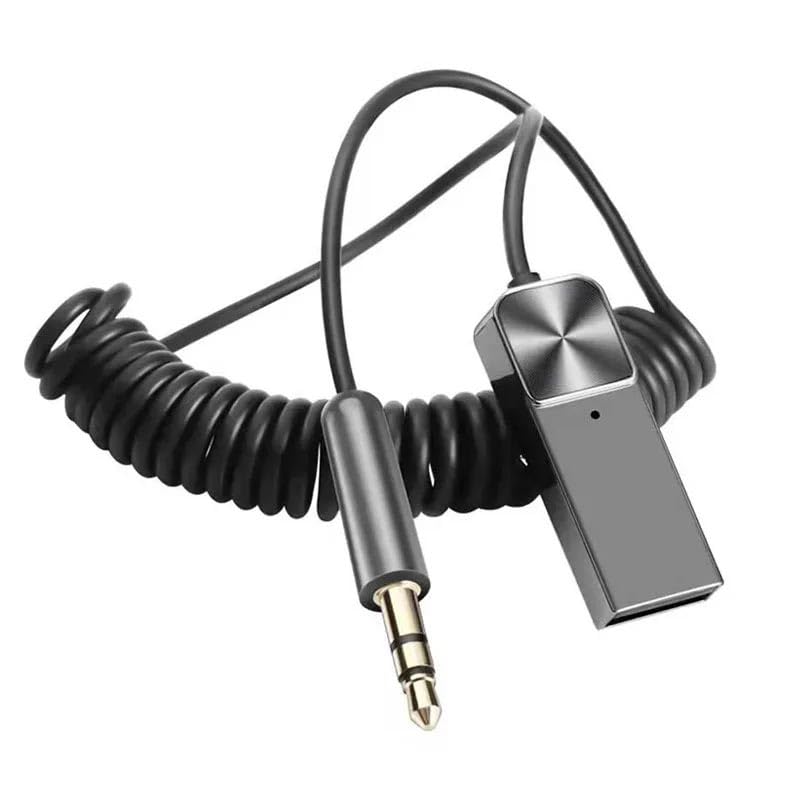
Image: The Apera MT06 Car Bluetooth 5.1 Kit, showcasing its compact design with USB and 3.5mm AUX connectors.

Image: Diagram illustrating the wide compatibility of the Apera MT06 with various devices such as loudspeakers, car audio systems, headsets, mobile phones, and laptops.
Setup Instructions
- Power Connection: Connect the USB-A end of the Apera MT06 to a powered USB port. This can be a USB port in your car, a car charger, or a USB wall adapter for home use. The device will power on automatically.
- Audio Connection: Plug the 3.5mm AUX jack into the AUX input of your car stereo, home stereo, or speaker system.
- Pairing Mode: Once powered on, the device will automatically enter Bluetooth pairing mode. A flashing LED indicator on the device will confirm it is ready for pairing.
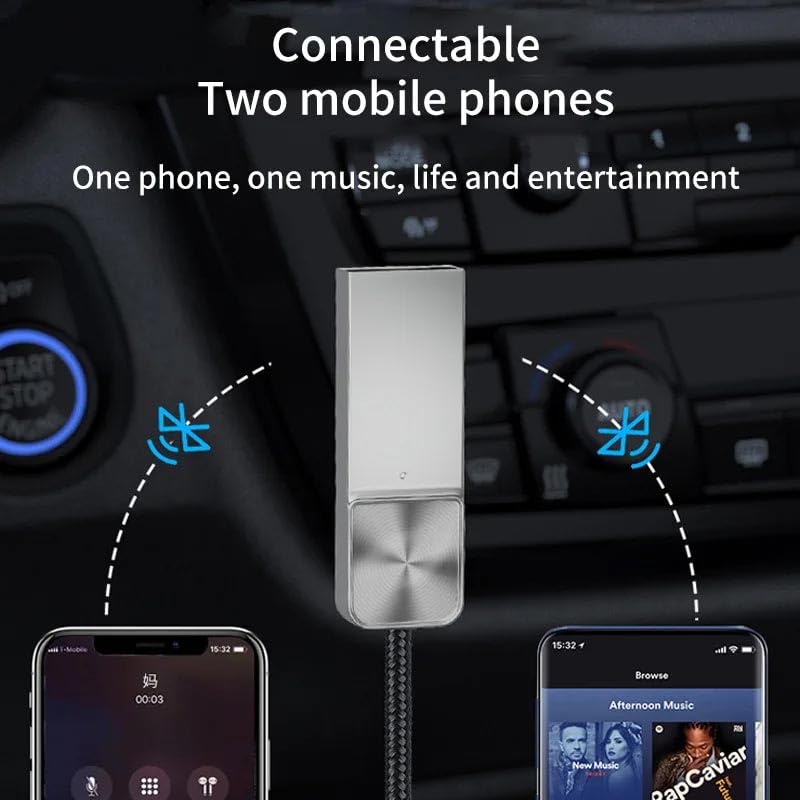
Image: A close-up view of the Apera MT06 device, highlighting its USB and 3.5mm AUX connectors for easy setup.
Operating Instructions
-
Bluetooth Pairing:
- On your mobile device (smartphone, tablet, etc.), enable Bluetooth.
- Search for available Bluetooth devices.
- Select "Apera MT06" (or a similar name) from the list to initiate pairing.
- Once successfully paired, the LED indicator on the MT06 will show a steady light.
- Music Playback: After successful pairing, play audio from your mobile device. The sound will be wirelessly transmitted to your connected car stereo or speaker. The device supports high-fidelity stereo music playback.
-
Hands-Free Calling:
- When a call is received, the device allows you to answer, reject, or redial calls directly through your connected audio system.
- The built-in microphone facilitates clear hands-free communication.
- Note: For optimal call quality, ensure the microphone is not obstructed and speak clearly.
- Multi-Device Connection: The Apera MT06 supports simultaneous connection to two mobile phones, allowing for flexible use and easy switching between devices.
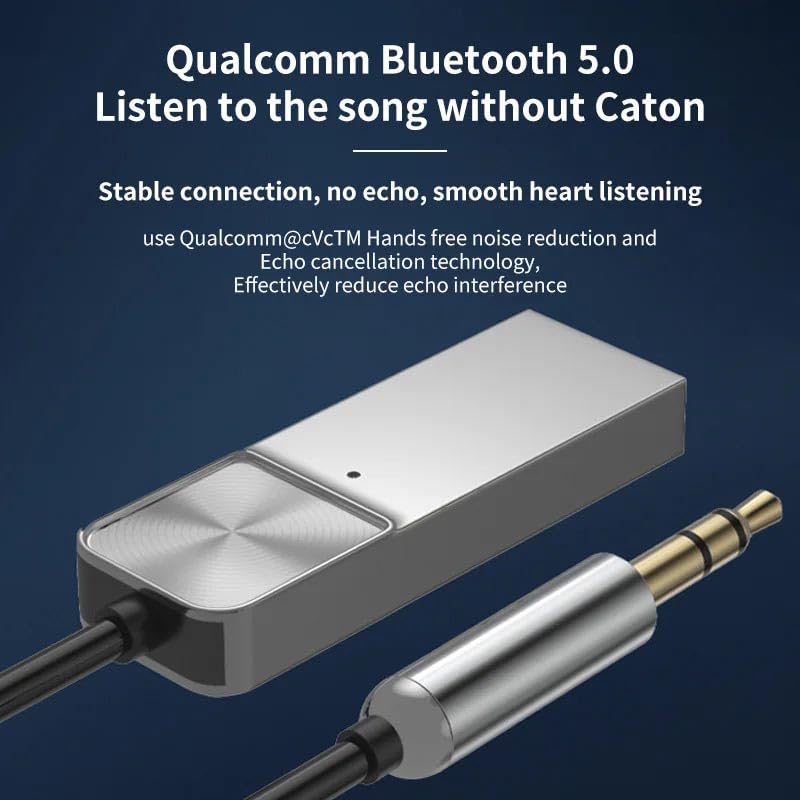
Image: Illustration showing the Apera MT06 connected to two mobile phones simultaneously, enabling multi-device audio streaming.
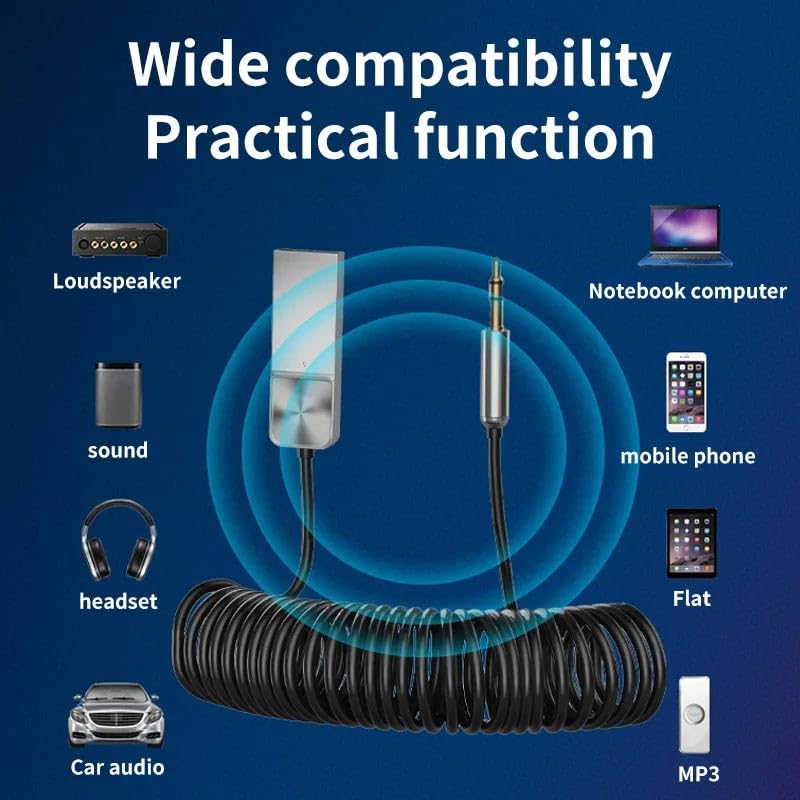
Image: Visual highlighting the Qualcomm Bluetooth 5.0 technology with cVcTM Hands-free noise reduction and echo cancellation for stable and clear audio.
Maintenance
- Cleaning: To clean the device, gently wipe it with a soft, dry cloth. Avoid using liquid cleaners, abrasive materials, or harsh chemicals, as these can damage the device.
- Storage: When not in use, store the Apera MT06 in a cool, dry place, away from direct sunlight and extreme temperatures.
- Cable Care: The device features a 1.20-meter flexible cable with an extended stretch capability (from 0.3m to 1.13m). To ensure longevity, avoid excessive pulling, twisting, or sharp bends that could damage the internal wiring.

Image: Close-up of the Apera MT06's flexible, extended stretch cable, demonstrating its durability and convenience for storage.
Troubleshooting
-
No Power:
- Ensure the USB connector is securely plugged into a functional, powered USB port.
- Verify the power source (e.g., car charger, car USB port) is active.
-
Cannot Pair with Bluetooth:
- Confirm the Apera MT06 is in pairing mode (flashing LED indicator).
- Ensure Bluetooth is enabled on your mobile device.
- Move your mobile device closer to the MT06 to ensure it's within range.
- Try restarting both the MT06 (by unplugging and replugging) and your mobile device's Bluetooth function.
-
No Audio Output:
- Check that the 3.5mm AUX jack is fully inserted into the audio input of your car stereo or speaker.
- Verify the volume levels on both your mobile device and the connected audio system.
- Ensure your car stereo or home audio system is set to the correct AUX input source.
-
Poor Audio Quality or Noise:
- Ensure a stable Bluetooth connection.
- Move away from potential sources of electromagnetic interference.
- If experiencing static or humming, try a different USB power source or AUX input, as some vehicle electrical systems can introduce noise. The device includes Qualcomm cVcTM noise reduction to minimize interference.
-
Hands-Free Call Issues:
- Ensure the built-in microphone is not obstructed.
- Speak clearly and directly towards the device for optimal voice pickup.
Specifications
| Brand | Apera |
| Model | MT06 |
| Connectivity Technology | Bluetooth 5.1 (also referred to as Bluetooth 5.0 in some specifications) |
| Special Features | Automatic On/Off, Built-In Microphone, Hands-Free Calls, Noise Cancellation |
| Material | Metal Aluminium |
| Audio Input | 3.5mm Jack |
| Audio Output Mode | Stereo |
| Cable Length | 1.20 meters (flexible, with extended stretch from 0.3m to 1.13m) |
| Bluetooth Range | 10 to 80 meters (depending on environment) |
| Compatible Devices | Smartphone |
| Compatible Vehicle Type | Car |
Warranty Information
Specific warranty details for the Apera MT06 Car Bluetooth 5.1 Kit are not provided in the product information. For comprehensive warranty terms and conditions, please refer to your purchase receipt, the retailer's policy, or contact Apera directly through their official website or customer service channels.
Customer Support
Should you require further assistance, have questions not covered in this manual, or encounter issues with your Apera MT06, please reach out to Apera customer support. Contact information can typically be found on the product packaging or the official Apera website.
When contacting support, please have your product model (MT06) and any relevant purchase details ready to facilitate a quicker resolution.