
Introduction
The UNISHEEN UR230A-B VHS to Digital Converter (2.0) is designed to convert and store analog video and audio signals into digital formats. This device supports various analog inputs including AV/RCA (CVBS+R/L), S-Video, and AUX, allowing you to digitize content from VCRs, camcorders, DVD players, retro gaming consoles, and security cameras. It records video up to 1080P 30Hz and audio in MP3 format, saving directly to a USB drive or TF/SD card without requiring a computer. The UR230A-B model includes an upgraded battery base for portable use.
Package Contents
Please verify that all items are present in your package:
- UNISHEEN UR230A-B Video to Digital Converter
- Remote Control
- AV Cable (RCA composite video and stereo audio)
- USB Power Cable
- User Manual
- 3.5mm to 3.5mm Audio Cable (AUX)
- Power Adapter (USB wall charger)
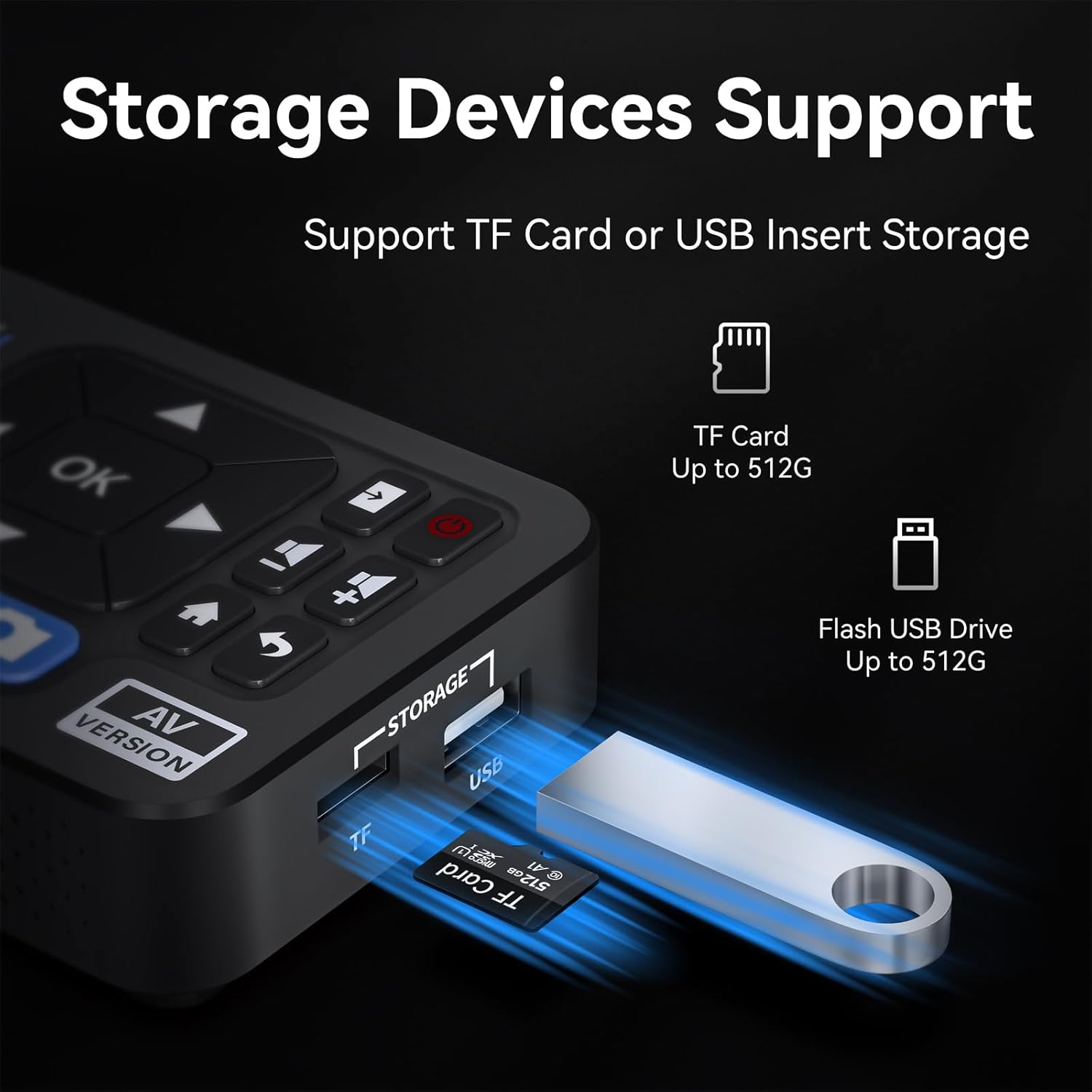
Image: The UNISHEEN UR230A-B converter and its accessories, including the remote control, various cables, and user manual.
Product Overview
Front Panel and Controls
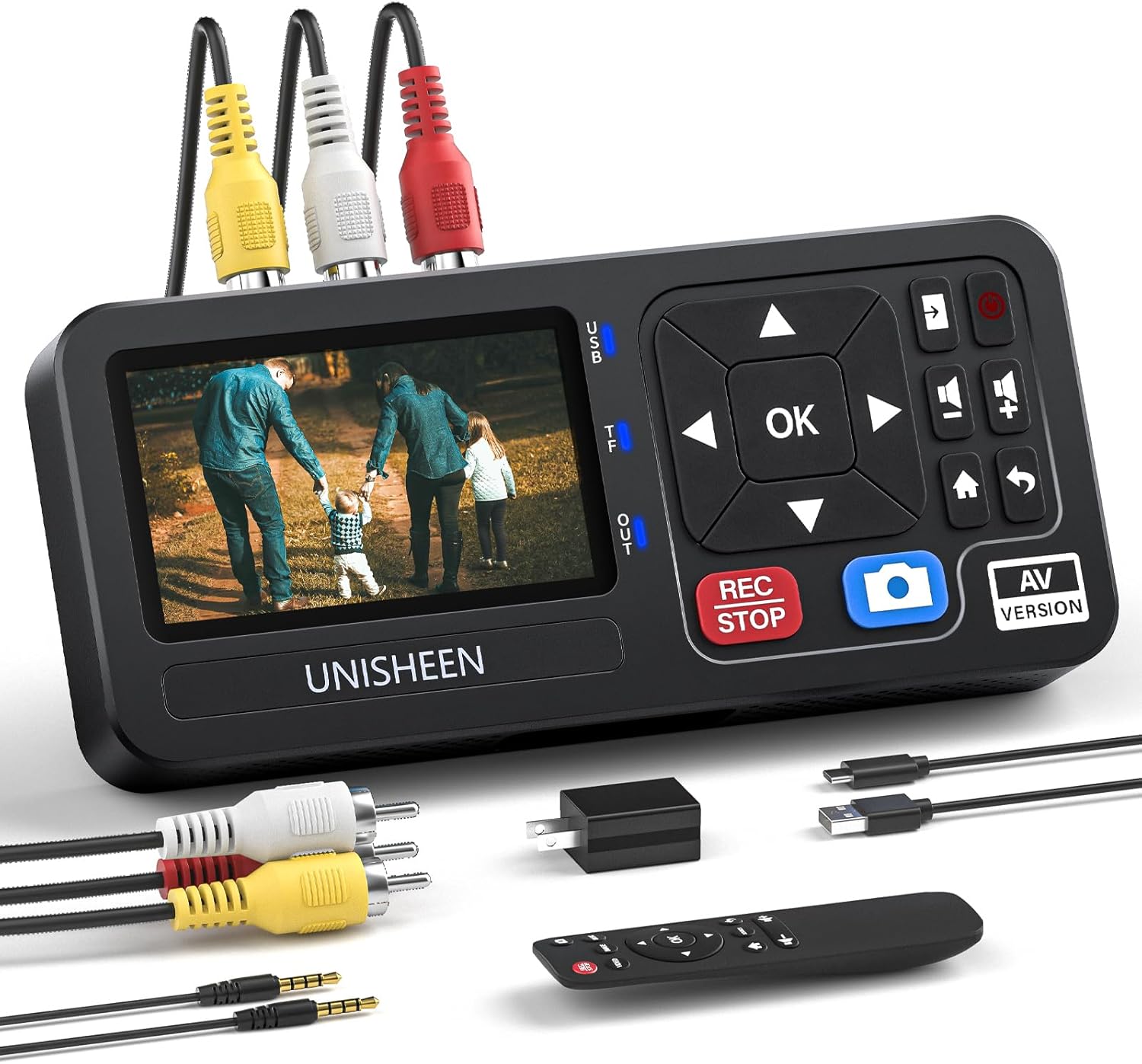
Image: Front view of the UNISHEEN UR230A-B converter, showing the integrated LCD screen and control buttons.
- LCD Screen: 3.0-inch display for previewing video, navigating menus, and playing back recordings.
- Directional Buttons (Up, Down, Left, Right): Used for menu navigation and adjusting settings.
- OK Button: Confirms selections.
- REC/STOP Button: Initiates and stops video recording.
- Snapshot Button: Captures still images during video playback or live preview.
- Menu/Home Button: Accesses the main menu or returns to the home screen.
- Volume Buttons (+/-): Adjusts speaker volume.
- AV Version Button: Switches between AV input modes.
Side and Rear Ports
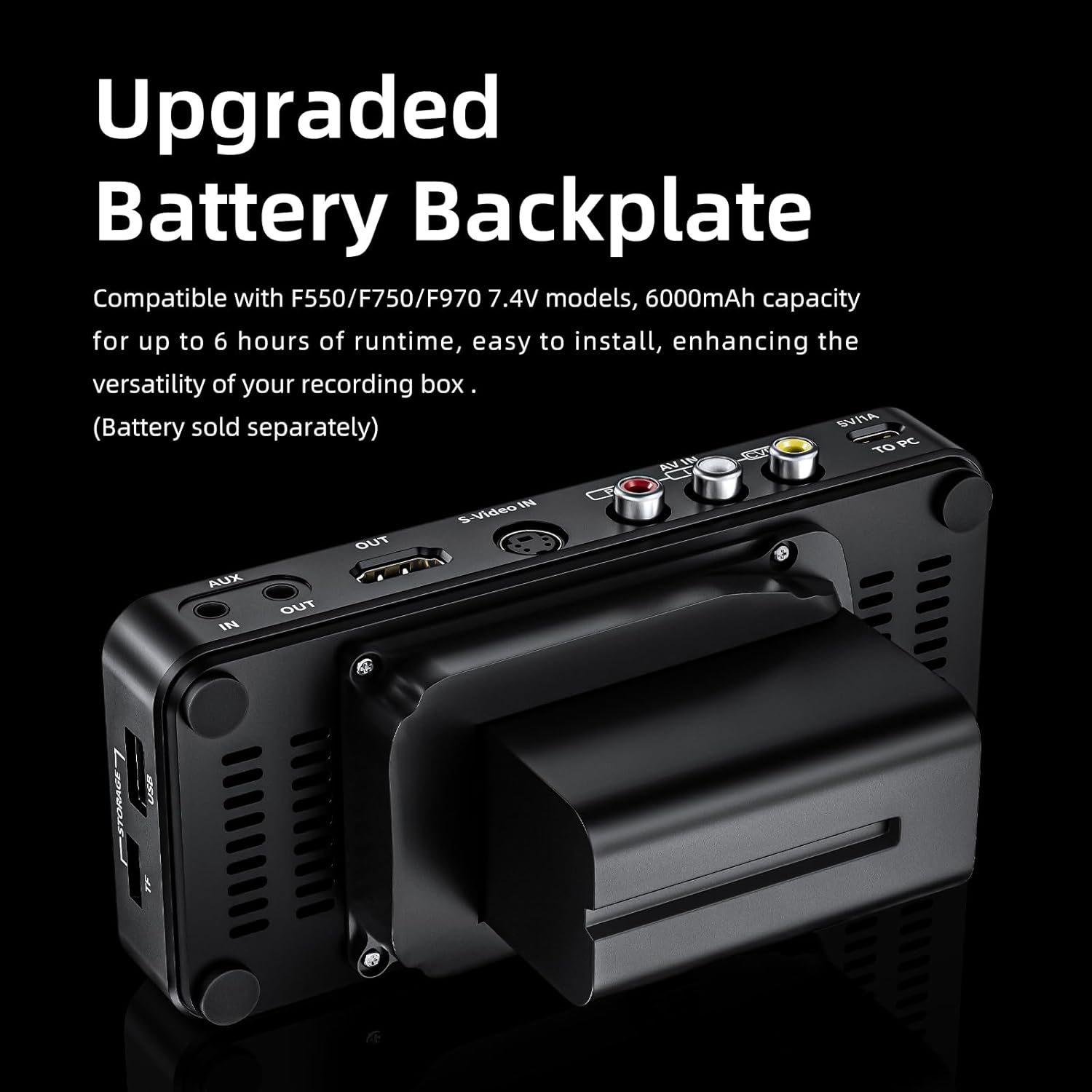
Image: Side view of the UNISHEEN UR230A-B converter, highlighting the USB and TF card storage slots.

Image: Rear view of the UNISHEEN UR230A-B converter, displaying all input and output ports including AV, S-Video, AUX, HDMI, and power.
- AV IN (RCA): Yellow (video), White (left audio), Red (right audio) inputs for composite video sources.
- S-Video IN: Input for S-Video sources.
- AUX IN/OUT (3.5mm): Audio input/output jack.
- HDMI OUT: Output to connect to a TV or monitor for larger display.
- USB Port: For connecting USB flash drives for storage.
- TF Card Slot: For inserting TF/SD cards for storage.
- 5V/1A (USB-C): Power input port.
- TO PC (USB-C): Connects to a computer for data transfer (note: some users report limited PC connectivity).
Setup
- Power Connection: Connect the provided USB power cable to the 5V/1A port on the converter and plug it into a power source using the included adapter.
- Insert Storage: Insert a USB flash drive or a TF/SD card (up to 512GB) into the designated slot. Ensure it is formatted correctly (FAT32 or exFAT recommended for larger capacities).
- Connect Video Source:
- For AV/RCA: Connect the yellow, white, and red RCA cables from your source device (e.g., VCR, camcorder) to the corresponding AV IN ports on the converter.
- For S-Video: Connect the S-Video cable from your source device to the S-Video IN port. If using S-Video, connect separate RCA cables for audio to the white and red AV IN ports.
- For AUX Audio: Use the 3.5mm AUX IN port for audio-only input.
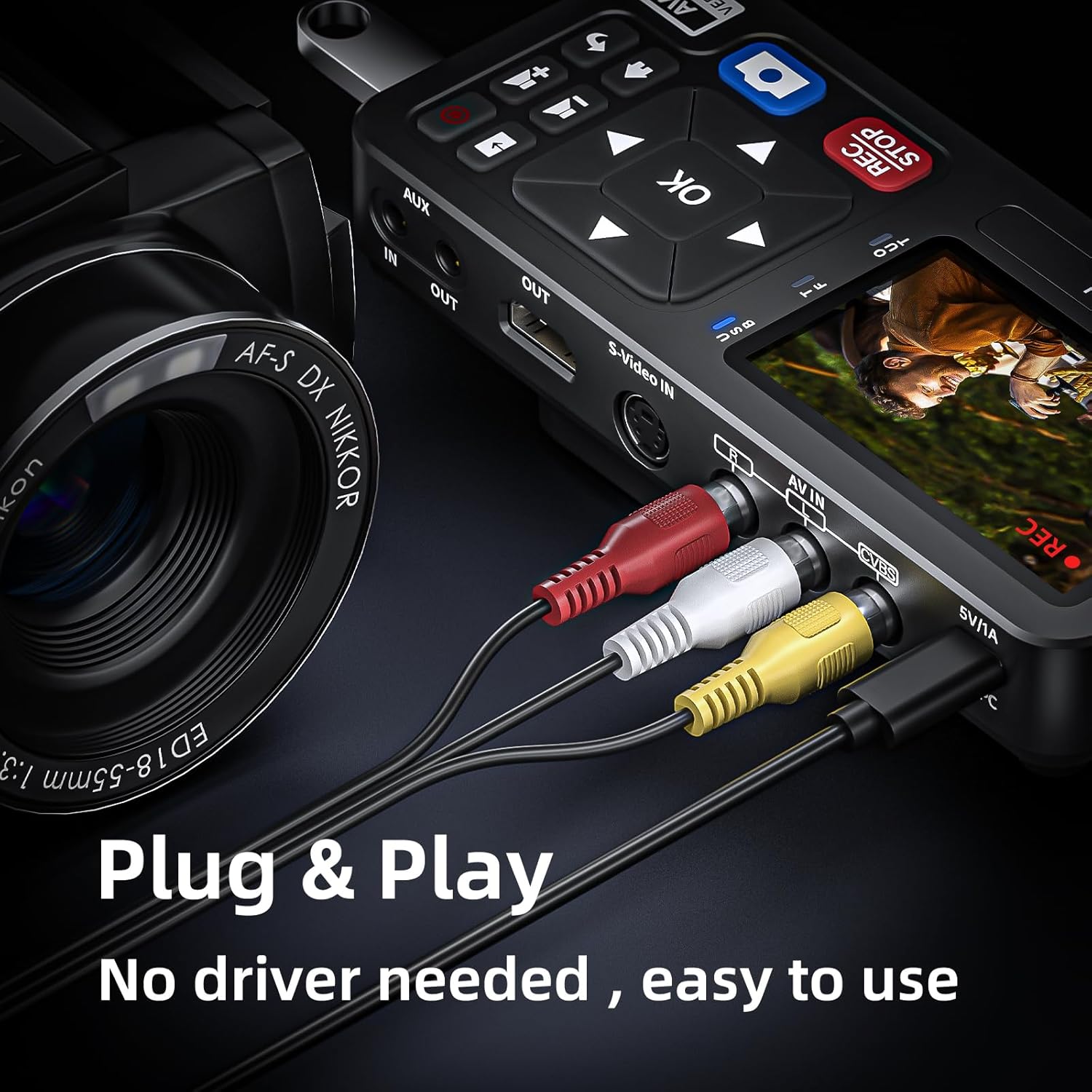
Image: A close-up view of the UNISHEEN converter with AV cables properly connected to the input ports, illustrating the plug-and-play setup.
- Optional HDMI Output: If you wish to view the content on a larger screen, connect an HDMI cable from the HDMI OUT port on the converter to an HDMI input on your TV or monitor.
Operating Instructions
Recording Video
- Power On: The device powers on automatically when connected to power.
- Select Input: Use the directional buttons and OK to navigate to the "Sources" option in the settings menu to select between CVBS (for AV/RCA) or S-Video input.
- Preview: Ensure your source device is playing content. The video should appear on the converter's LCD screen.
- Start Recording: Press the REC/STOP button on the device or the remote control to begin recording. A "REC" indicator will appear on the screen.
- Stop Recording: Press the REC/STOP button again to stop recording. The recorded file will be saved to your inserted USB drive or TF/SD card.

Image: The UNISHEEN converter actively recording video from an analog source, with the "REC" indicator visible on the screen.
Scheduled Recording
The device supports scheduled recording for up to 999 minutes.
- Navigate to the settings menu.
- Find the "Auto-Stop Timer" option.
- Set the desired recording duration in minutes.
- Start recording as usual. The device will automatically stop after the set time.
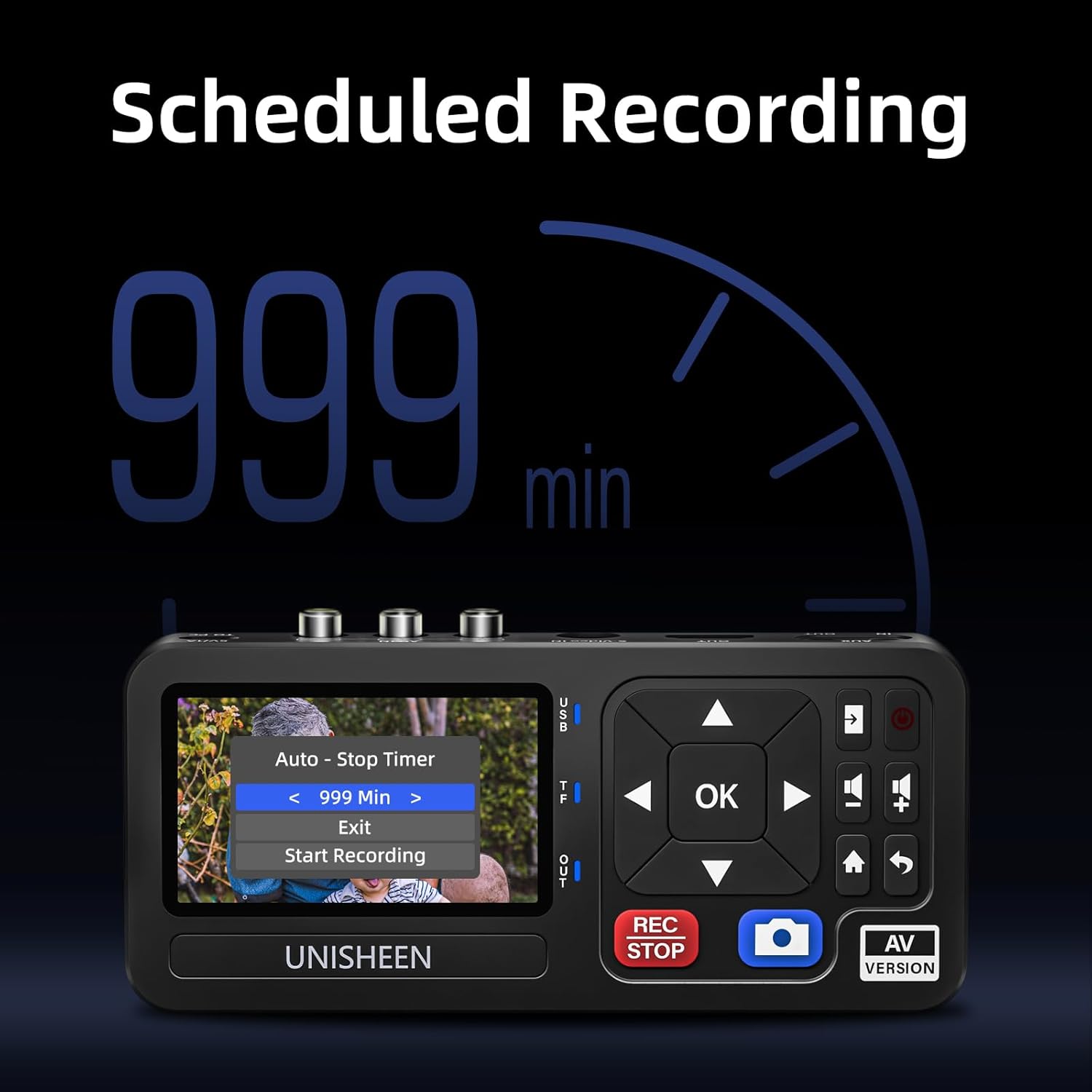
Image: The UNISHEEN converter's screen displaying the "Auto-Stop Timer" setting for scheduled recordings.
Playback
- From the main menu, select "Videos" or "Audio" to browse your recorded files.
- Use the directional buttons to select a file and press OK to play.
- During playback, use the directional buttons for fast forward/rewind and the OK button for pause/play.
Video: Demonstration of the UNISHEEN converter's recording and playback functions, showing menu navigation and video review on the device's screen.
Settings
Access the settings menu to adjust various parameters:
- Language: Select your preferred language.
- Sources: Choose between CVBS or S-Video input.
- Recorded Resolution: Set recording resolution (up to 1080P).
- Video Bitrate: Adjust video quality.
- Audio Bitrate: Adjust audio quality.
- Video-In Volume: Adjust input audio level.
- Speaker Volume: Adjust the device's built-in speaker volume.
- LCD Brightness: Adjust screen brightness.
- Information Bar: Toggle on/off the display of recording information.
- Auto-Stop Timer: Set scheduled recording duration.
- TF Transfer Mode: (If applicable) For transferring files to/from TF card.
- System Time: Set date and time.
- Upgrade Firmware: For system updates.

Image: The UNISHEEN converter's main menu, providing access to videos, pictures, audio, and system settings.
Storage Options
The UNISHEEN UR230A-B supports direct recording to external storage devices:
- USB Flash Drive: Insert a USB drive into the USB port. Supports up to 512GB.
- TF/SD Card: Insert a TF/SD card into the TF card slot. Supports up to 512GB.
Ensure your storage device has sufficient free space and is formatted to a compatible file system (FAT32 or exFAT).
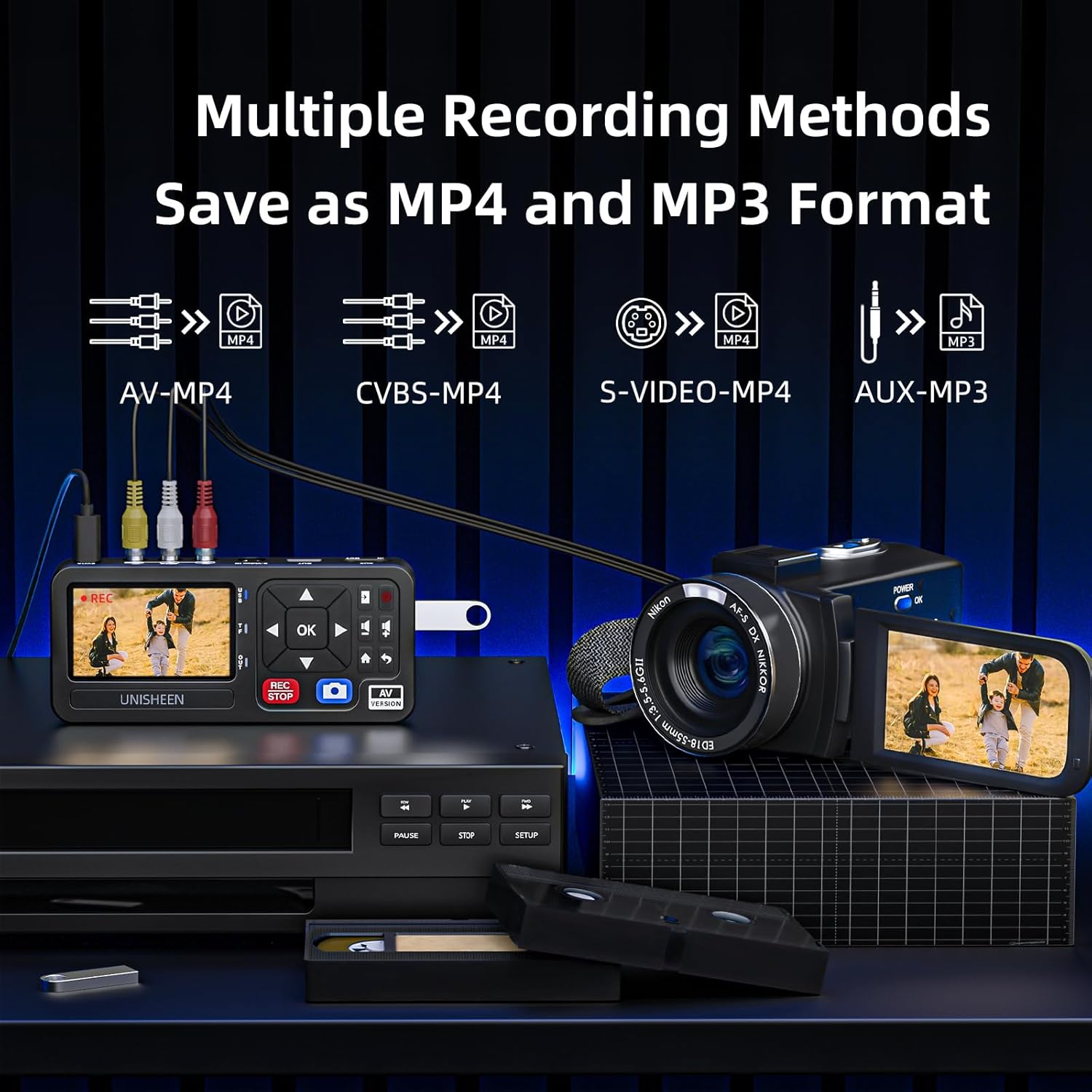
Image: The UNISHEEN converter with both a USB flash drive and a TF card inserted, demonstrating its flexible storage capabilities.
Battery Base (UR230A-B Specific)
The UR230A-B model features an upgraded battery base for enhanced portability. This base is compatible with F550/F750/F970 7.4V battery models (battery sold separately). When a compatible battery is installed, the device can operate for up to 6 hours, providing flexibility for recording in locations without direct power access.
Image: Rear view of the UNISHEEN UR230A-B converter, showing the attached battery base for portable operation.
Compatibility
The UNISHEEN UR230A-B is compatible with a wide range of analog video and audio sources, including:
- VHS Players
- VCRs
- DVRs
- DVD Players
- Cassette Players (for audio)
- Hi8 Camcorders
- Mini DV Players
- Camcorders
- Retro Gaming Consoles (e.g., N64, PS2)
- Security Cameras
It supports various TV standards: PAL, NTSC3.58, NTSC4.43, SECAM, PAL/M, PAL/N.
The device itself operates independently and does not require a computer for recording. However, recorded files can be transferred to computers running Windows, macOS, or Linux for further editing or storage.
Image: A visual representation of the UNISHEEN converter's broad compatibility with different video sources and computer operating systems.
Maintenance
- Cleaning: Use a soft, dry cloth to clean the device. Avoid liquid cleaners or abrasive materials.
- Storage: Store the device in a cool, dry place away from direct sunlight and extreme temperatures.
- Cable Care: Handle cables gently to prevent damage.
- Firmware Updates: Periodically check the manufacturer's website for firmware updates to ensure optimal performance.
Troubleshooting
- No Video Signal on Screen:
- Ensure all AV or S-Video cables are securely connected to both the source device and the converter.
- Verify the correct input source (CVBS or S-Video) is selected in the converter's settings.
- Check if the source device is powered on and playing content.
- If using HDMI OUT, ensure the TV/monitor is on the correct HDMI input.
- No Audio:
- Check the white and red RCA audio cables are correctly connected.
- Adjust the "Video-In Volume" and "Speaker Volume" in the settings.
- Ensure the source device's audio output is active.
- Recording Not Starting/Saving:
- Verify a USB drive or TF/SD card is inserted and has sufficient free space.
- Ensure the storage device is formatted correctly (FAT32 or exFAT).
- Check if the storage device is properly recognized by the converter (check storage status in settings).
- Remote Control Not Responding:
- Ensure batteries are correctly inserted and have charge.
- Point the remote directly at the converter's IR receiver.
- Check for any obstructions between the remote and the converter.
- "TO PC" Connection Issues:
- The "TO PC" port is primarily for data transfer from the device's internal storage (if any) or connected external storage to a computer. It is not for live video capture to PC software.
- Ensure the USB cable is a data transfer cable and not just a charging cable.
- Some operating systems may require specific drivers; consult the manufacturer's support if issues persist.
Specifications
| Feature | Detail |
|---|---|
| Model Number | UR230A-B |
| Input Interfaces | AV Port (RCA Composite), S-Video, AUX (3.5mm) |
| Output Interfaces | HDMI, AUX (3.5mm) |
| Video Capture Resolution | Up to 1080p 30Hz |
| Video Format | MP4 |
| Audio Format | MP3 |
| Audio Sampling Rate | Up to 48KHz |
| TV Standards Supported | PAL, NTSC3.58, NTSC4.43, SECAM, PAL/M, PAL/N |
| Storage Support | USB Flash Drive (up to 512GB), TF/SD Card (up to 512GB) |
| Display Screen | 3.0-inch LCD |
| Power Input | 5V/1A (USB-C) |
| Battery Base Compatibility | F550/F750/F970 7.4V battery models (battery sold separately) |
| Product Dimensions | 6.22 x 2.76 x 0.98 inches |
| Item Weight | 6.3 ounces |
Warranty and Support
For any questions or assistance regarding your UNISHEEN UR230A-B converter, please contact the seller directly through the platform where you made your purchase. Typically, you can find a "Contact Seller" button within your order details.
- Customer Service: Expect a response within 24 hours for inquiries.
- Product Damage: If the product arrives damaged, you may apply for an exchange through the Amazon platform within 30 days of receipt.
For more information, visit the UNISHEEN Store on Amazon.