
1. Introduction
Welcome to the user manual for your calonny 5G Dual-Band Wireless Router, Model JC16. This device is designed to provide high-speed 5G mobile internet connectivity, offering a flexible and reliable network solution for various environments, including homes, home offices, and small businesses. This manual will guide you through the setup, operation, maintenance, and troubleshooting of your router to ensure optimal performance.
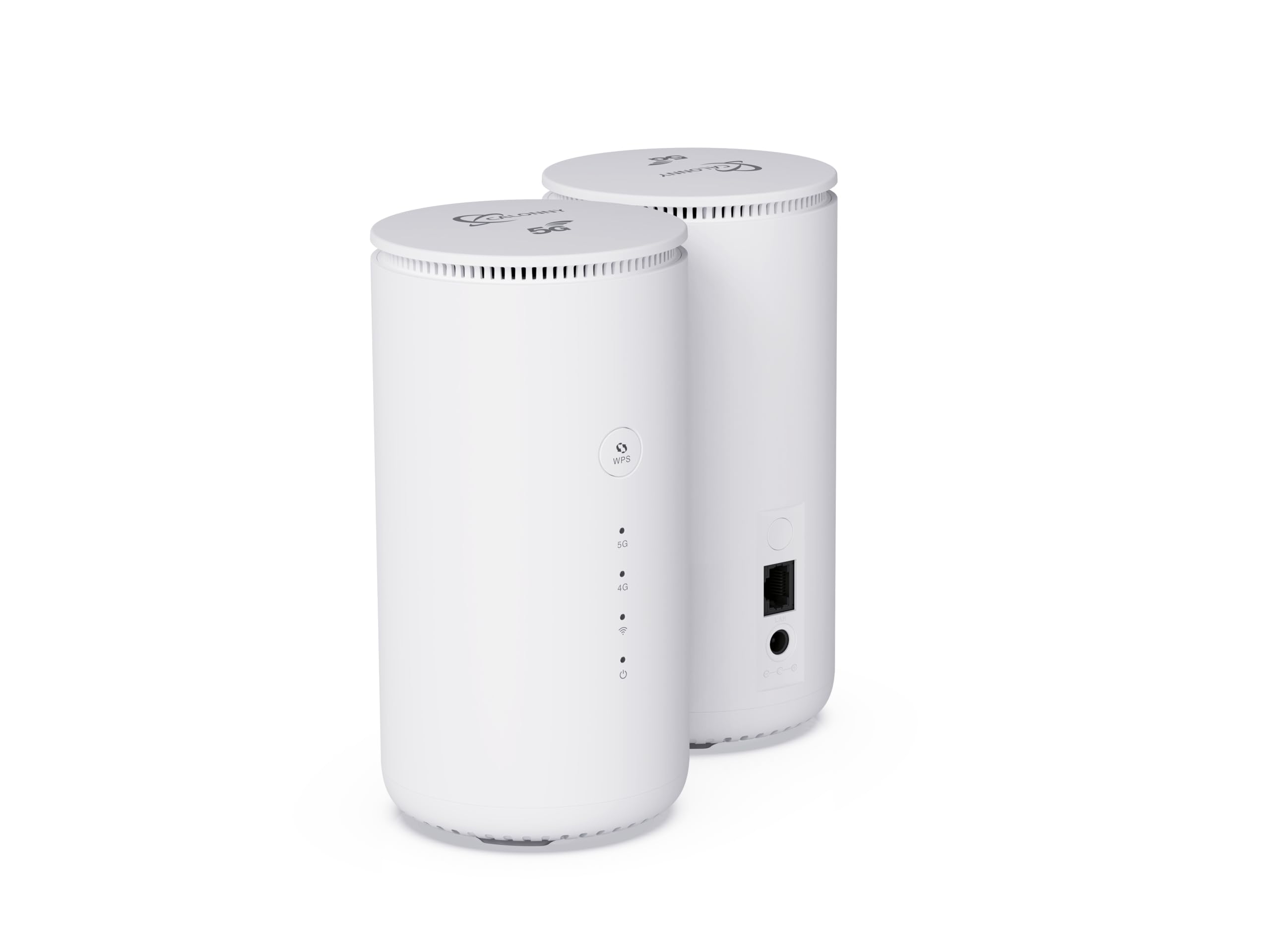
Figure 1: calonny 5G Dual-Band Wireless Router (Model JC16)
2. Product Features
- Plug and Play Mobile Network: The 5G router features a SIM card slot, providing seamless connectivity wherever you go. Simply insert your SIM and power on to stay connected, making it ideal for home, home office, RV travel, camping, and small businesses.
- High-Speed 5G Connectivity: Equipped with a state-of-the-art 5G NR SA/NSA modem, this mobile router delivers mobile 5G speeds up to 1600 Mbps. Compatible with European networks.
- Dual-Band Wi-Fi Router: Enhance your connectivity with next-generation dual-band Wi-Fi, offering ultra-fast speeds up to 2402 Mbps on the 5 GHz band and up to 574 Mbps on the 2.4 GHz band. This superior wireless performance supports simultaneous online gaming, HD video streaming, and easy file sharing across multiple devices.
- Integrated Antenna and Efficient Heat Dissipation: The 5G router features 6 integrated high-bandwidth cellular antennas for extensive signal coverage. Fan convection significantly enhances heat dissipation, ensuring stable operation even during prolonged high-speed use.
- Secure Network: WPA-PSK and WPA2-PSK Wi-Fi encryptions provide active protection against security threats. Integrated parental controls allow you to manage and restrict internet access for specific devices.
- 5G and 4G LTE Backward Compatibility: Supports both Standalone (SA) and Non-Standalone (NSA) 5G networks, and is backward compatible with 4G LTE cellular networks. It can function as a 5G router with a SIM card slot, an LTE router, or a 4G router.

Figure 2: Internal cooling design for stable operation
3. Package Contents
Please check the package contents carefully. If any item is missing or damaged, contact your retailer.
- 1x calonny 5G Wireless Router (Model JC16)
- 1x Power Adapter (12V DC)
- 1x RJ45 Ethernet Cable
- Quick Installation Guide (QIG)
- Safety and Warranty Card
4. Setup
4.1 Inserting the SIM Card
- Ensure the router is powered off.
- Locate the SIM card slot, usually at the bottom or side of the device.
- Insert a Nano-SIM card into the slot with the gold contacts facing down and the notched corner oriented correctly. Push until it clicks into place.
- Close the SIM card slot cover if applicable.
4.2 Connecting Power
- Connect the provided power adapter to the router's power input port.
- Plug the power adapter into a standard electrical outlet.
- The router will automatically power on, and the LED indicators will light up.
4.3 Initial Network Connection
Wait for the router to boot up completely. The 5G/4G and Wi-Fi indicator lights should become stable, indicating a successful connection to the mobile network and active Wi-Fi.
5. Operating Instructions
5.1 Connecting Devices via Wi-Fi
- On your device (smartphone, laptop, tablet), open the Wi-Fi settings.
- Locate the Wi-Fi network name (SSID) printed on the label at the bottom of your router.
- Select the SSID and enter the Wi-Fi password (also found on the router label).
- Your device should now be connected to the internet.
5.2 Connecting Devices via Ethernet
- Use the provided RJ45 Ethernet cable to connect your device (e.g., PC, Smart TV) to one of the LAN ports on the router.
- The device will automatically establish a wired network connection.
5.3 Accessing the Web Management Interface
For advanced settings, such as changing Wi-Fi name/password, parental controls, or network configurations, access the router's web management interface:
- Connect your device to the router via Wi-Fi or Ethernet.
- Open a web browser and enter the default IP address (e.g.,
192.168.1.1) found on the router's label. - Enter the default username and password (also on the router label) to log in.
- Follow the on-screen instructions to configure your router settings.
6. Maintenance
6.1 General Care
- Keep the router in a well-ventilated area to prevent overheating.
- Avoid exposing the router to direct sunlight, moisture, or extreme temperatures.
- Clean the router with a soft, dry cloth. Do not use liquid cleaners.
6.2 Firmware Updates
Regularly check for firmware updates through the web management interface. Firmware updates can improve performance, add new features, and enhance security. Follow the instructions provided in the interface for updating the firmware.
7. Troubleshooting
| Problem | Possible Cause | Solution |
|---|---|---|
| No power | Power adapter not connected or faulty outlet. | Ensure the power adapter is securely connected and the outlet is working. Try a different outlet. |
| No 5G/4G signal | SIM card not inserted correctly, no mobile network coverage, or SIM card issues. | Reinsert the SIM card. Check mobile network coverage in your area. Contact your mobile operator to verify SIM card status. |
| No Wi-Fi connection | Incorrect Wi-Fi password, Wi-Fi disabled, or device too far from router. | Verify the Wi-Fi password. Ensure Wi-Fi is enabled on the router (check LED indicator). Move your device closer to the router. |
| Slow internet speed | Poor signal strength, network congestion, or too many connected devices. | Relocate the router to an area with better signal. Reduce the number of active devices or bandwidth-intensive activities. |
| Cannot access web interface | Incorrect IP address, network connection issue, or browser problem. | Verify the router's IP address. Ensure your device is connected to the router's network. Try a different web browser. |
7.1 Resetting the Router
If you encounter persistent issues, you may need to reset the router to its factory default settings. This will erase all custom configurations.
- With the router powered on, locate the Reset button (often a small pinhole).
- Use a paperclip or a similar pointed object to press and hold the Reset button for about 10 seconds.
- Release the button when the LED indicators flash, indicating the reset process has begun.
- The router will restart with factory default settings. You will need to reconfigure it.
8. Specifications
| Feature | Description |
|---|---|
| Brand | calonny |
| Model | JC16 |
| Product Model Number | JC16 |
| Operating System | Linux |
| Compatible Devices | PC, Smart TV, Smartphone, Tablet |
| Special Features | LED Indicators |
| Data Transfer Rate (5G Mobile) | Up to 1600 Mbps |
| Wireless Communication Standard | 802.11ax (Wi-Fi 6) |
| Frequency Band Class | Dual-Band (2.4 GHz, 5 GHz) |
| Wi-Fi Speeds | Up to 2402 Mbps (5 GHz), Up to 574 Mbps (2.4 GHz) |
| Connector Type | 5G, Wi-Fi, Ethernet (LAN/WAN) |
| Antenna Type | Internal (6 high-bandwidth cellular antennas) |
| Color | White |
| Product Weight | 359 g |
| Package Dimensions | 20 x 16 x 9 cm |
| Batteries Included/Required | No |
| Software Updates Guaranteed Until | Unknown |
9. Warranty and Support
The calonny 5G Dual-Band Wireless Router (Model JC16) comes with a standard manufacturer's warranty. Please refer to the included Safety and Warranty Card for detailed information regarding warranty terms, conditions, and duration.
For technical support, product inquiries, or warranty claims, please contact your retailer or visit the official calonny support website. Keep your purchase receipt and product serial number handy when seeking support.


