
Introduction
This manual provides detailed instructions for the proper installation and maintenance of your MP-MALL Galaxy S20 Screen Protector and Camera Lens Protector. This product is designed to offer superior protection for your device's screen and camera lenses, featuring 9H hardness tempered glass, high-definition clarity, and support for ultrasonic fingerprint recognition.
Please read these instructions carefully before installation to ensure optimal performance and longevity of the protectors.
Installation Guide
Screen Protector Installation
- Prepare Your Workspace: Ensure you are in a clean, dust-free environment. Wash your hands thoroughly to avoid transferring oils or dirt to the screen.
- Clean the Screen:
- Use the provided alcohol wipe to thoroughly clean your phone's screen, removing all smudges and fingerprints.
- Dry the screen completely with the microfiber cloth.
- Use the dust-absorber sticker to remove any remaining dust particles. Inspect the screen carefully under light to ensure it is perfectly clean.
- Align the Screen Protector:
- Carefully peel off the protective film from the adhesive side of the screen protector (usually marked "1" or "Back"). Avoid touching the adhesive surface.
- Align the screen protector with your phone's screen, paying close attention to the edges, cutouts for the camera, and sensors. Ensure it is centered.
- Apply the Protector:
- Once aligned, gently lower the protector onto the screen. The adhesive will begin to spread automatically.
- If bubbles appear, gently push them towards the edges using the microfiber cloth or a squeegee card (if provided). Small bubbles should disappear within 24-48 hours.
- Final Touches: Wipe the screen protector with the microfiber cloth to remove any smudges.
Camera Lens Protector Installation
- Clean the Camera Lenses: Use an alcohol wipe and microfiber cloth to clean the camera lenses thoroughly. Ensure no dust or smudges remain.
- Align and Apply: Carefully peel off the adhesive backing from the camera lens protector. Align it precisely over your phone's camera lenses and gently press down to secure it.
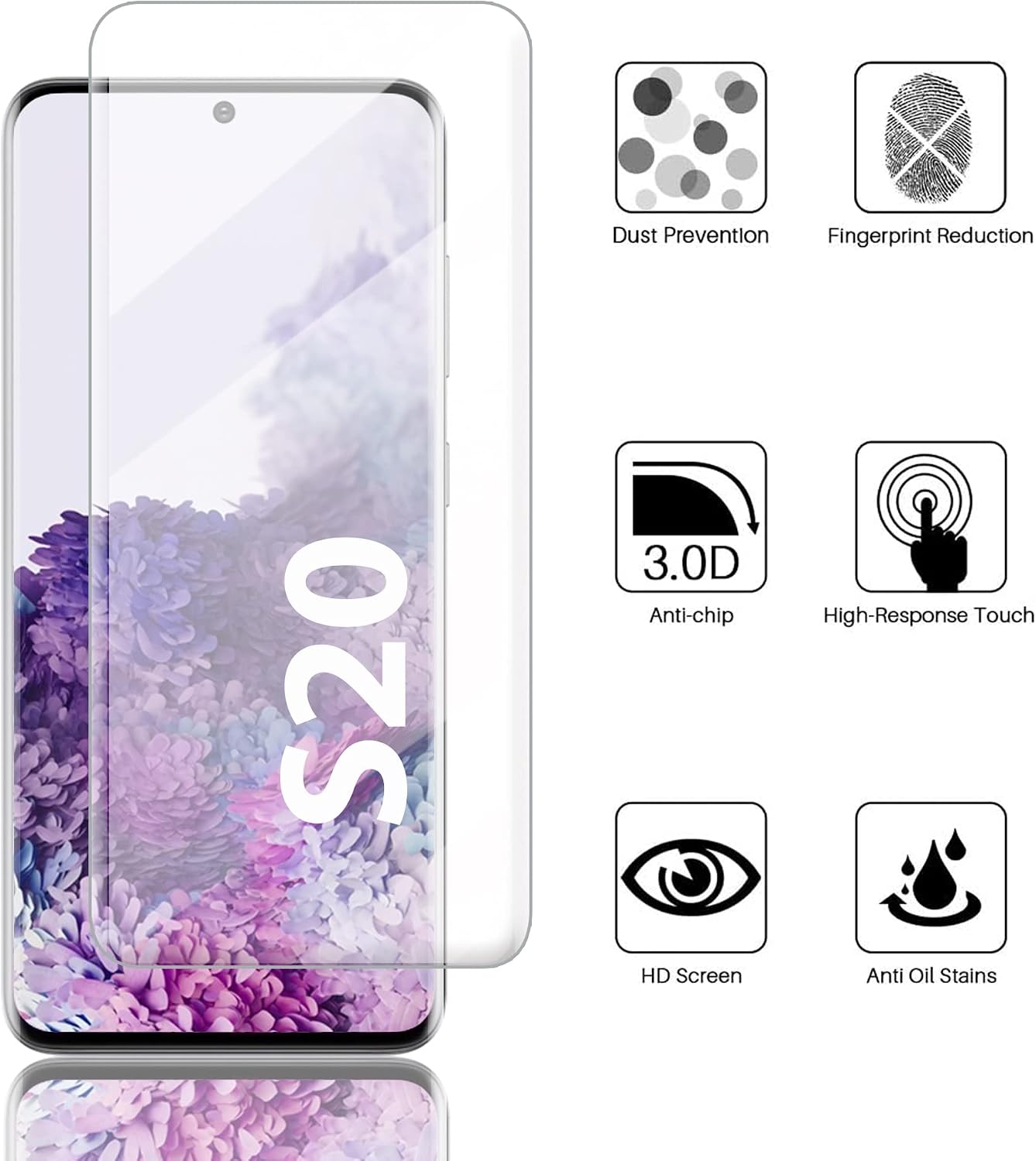
Image: Overview of screen protector features, including dust prevention and fingerprint reduction.
Operating Notes
Ultrasonic Fingerprint Sensor Compatibility
This screen protector is designed to be compatible with the Samsung Galaxy S20's ultrasonic fingerprint sensor. For optimal performance after installation, it is highly recommended to re-register your fingerprints. This process helps the device recognize your prints through the new protector more accurately.
- Go to your phone's Settings.
- Navigate to Biometrics and security > Fingerprints.
- Delete any existing fingerprint registrations.
- Follow the on-screen prompts to register your fingerprints again with the screen protector applied.
Touch Sensitivity
The screen protector maintains high touch sensitivity, ensuring your device responds as if no protector is present. If you experience any reduction in touch response, ensure the protector is properly adhered without air gaps.

Image: Demonstrating fingerprint reduction and high-response touch with the screen protector.
Maintenance and Care
To ensure the longevity and clarity of your screen and camera lens protectors, follow these simple care guidelines:
- Cleaning: Use a soft, lint-free microfiber cloth to gently wipe the surface of the protectors. For stubborn smudges, slightly dampen the cloth with water or a screen cleaner specifically designed for electronics. Avoid harsh chemicals, abrasive materials, or excessive moisture.
- Avoid Sharp Objects: While the protectors offer 9H hardness, extreme pressure or contact with very sharp objects can still cause damage. Avoid placing your phone in pockets or bags with keys, coins, or other sharp items.
- Temperature Exposure: Avoid exposing your device to extreme temperatures, as this can affect the adhesive properties of the protectors.
Troubleshooting
- Problem: Bubbles under the screen protector after installation.
- Solution: Small bubbles often disappear naturally within 24-48 hours. For larger bubbles, gently lift the nearest edge of the protector slightly and use a squeegee or microfiber cloth to push the bubble towards the edge. Ensure the screen is completely dust-free before re-applying.
- Problem: Fingerprint sensor not working or slow to respond.
- Solution: Re-register your fingerprints after installing the screen protector. Ensure your finger is clean and dry when scanning. If the issue persists, ensure the fingerprint area on the protector is clean and free from air bubbles.
- Problem: Screen protector lifting at the edges.
- Solution: This can occur if the screen was not perfectly clean during installation or if the protector was not aligned correctly. Ensure the edges are free from dust and gently press down firmly. If lifting continues, the protector may need to be replaced.
Product Specifications
| Feature | Detail |
|---|---|
| Brand | MP-MALL |
| Model Name | Galaxy S20 Tempered Glass Screen Protector |
| Model Number | SJ-US-S20-GB-22-A |
| Compatible Devices | Samsung Galaxy S20 (S20 5G) |
| Item Hardness | 9H |
| Clarity | 99.99% (HD Clear) |
| Screen Surface Description | Glossy, 3D Curved |
| Special Features | Ultrasonic Fingerprint Support, Hydrophobic, Oleophobic, Anti-fingerprint, High-Response Touch, Anti-chip, Dust Prevention, Anti-Oil Stains |
| Unit Count | 4.0 Count (2 Screen Protectors + 2 Camera Lens Protectors) |
| Water Resistance Level | Not Water Resistant |

Image: Illustration of 9H hardness, preventing scratches and bumps.

Image: Detail of the 3D curved surface for a full-screen, tight fit.

Image: High Definition protective film ensuring original visual experience.
Warranty and Support
MP-MALL products are designed for quality and durability. For any questions regarding installation, product performance, or warranty claims, please contact MP-MALL customer support through the retailer's platform or the official MP-MALL website.
Please retain your purchase receipt as proof of purchase for any warranty-related inquiries.