
1. Product Compatibility
This FUWANG keyboard case is designed for specific iPad models. Please verify your iPad's model number on the back of the device to ensure compatibility.
- Compatible with: iPad (A16) 11th Generation 11-inch 2025 (Models: A3354, A3355, A3356)
- Compatible with: iPad 10th Generation 10.9 inch 2022 (Models: A2696, A2757, A2777, A3162)
- Not compatible with: iPad Air 10.9 (5th/4th Gen), iPad Pro 11 inch (Full Series 2016-2025), iPad 9/8/7th Gen.
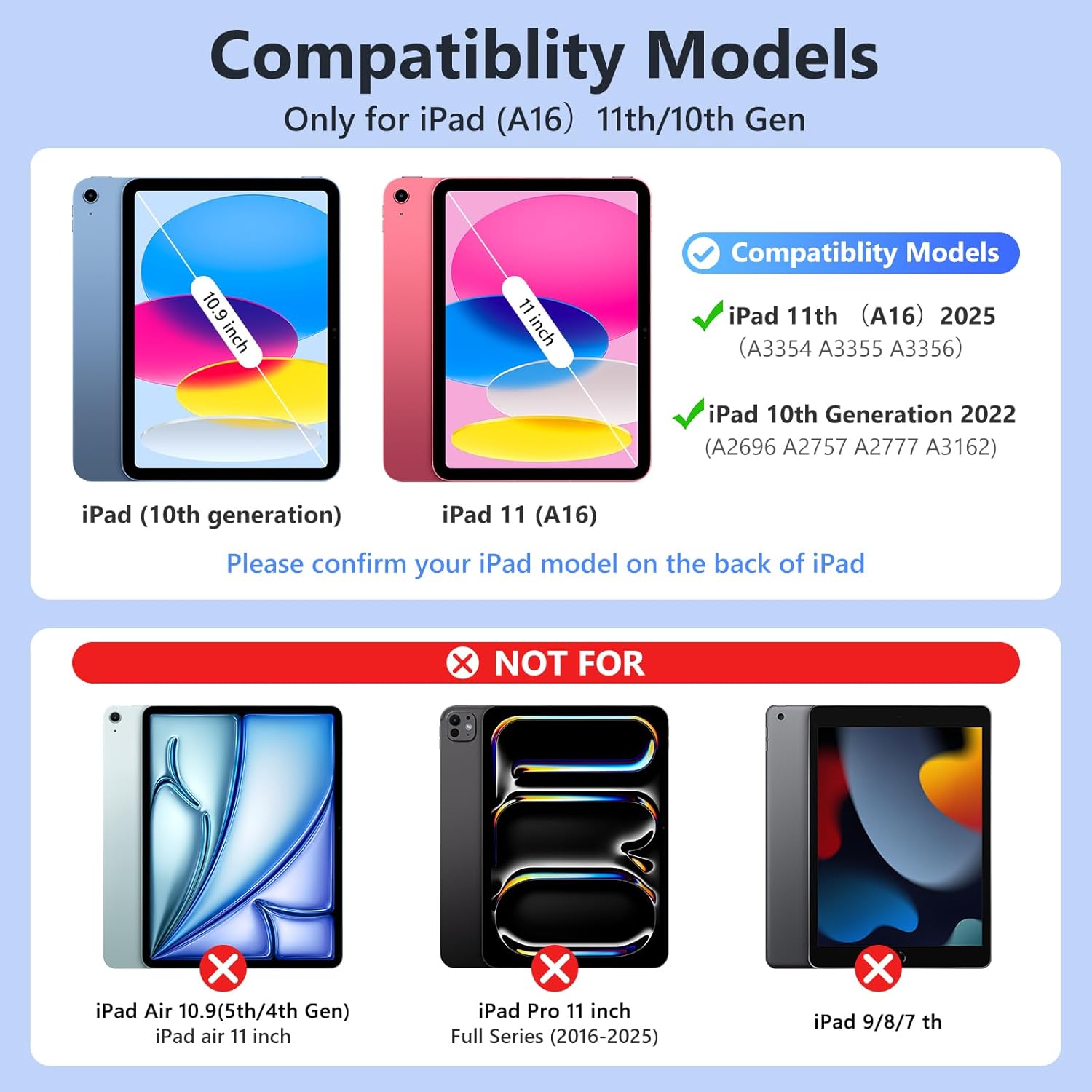
Image: Compatibility chart for FUWANG keyboard case.
2. Package Contents
Please check the package for the following items:
- 1 x FUWANG Keyboard Case for iPad (A16) 11th/10th Generation
- 1 x Wireless Backlit Keyboard
- 1 x Type-C Charging Cable
- 1 x User Manual (this document)
Note: Tablet and stylus pencil are not included.

Image: Contents of the FUWANG keyboard case package.
3. Setup Instructions
3.1. Charging the Keyboard
Before initial use, fully charge the wireless keyboard.
- Locate the Type-C charging port on the keyboard.
- Connect the provided Type-C charging cable to the keyboard and a USB power source (e.g., wall adapter, computer USB port).
- The Charge LED (Red) will illuminate during charging. It will turn off when the keyboard is fully charged.
- Charging typically takes 2-3 hours. A full charge provides approximately 120 hours of working time and over 130 days of standby time.

Image: Keyboard connected to Type-C charging cable.

Image: Keyboard charging specifications.
3.2. Pairing the Keyboard with Your iPad
Follow these steps to connect the wireless keyboard via Bluetooth:
- Ensure the keyboard is charged.
- Turn on the keyboard by sliding the POWER switch to the 'ON' position. The Power LED (Blue) will light up for 2 seconds and then turn off.
- Press the 'CONNECT' button on the keyboard. The BT LED (Blue) will start flashing, indicating it's in pairing mode.
- On your iPad, go to Settings > Bluetooth.
- Turn on Bluetooth. Your iPad will search for available devices.
- Select 'Bluetooth Keyboard' from the list of devices.
- Once paired, the BT LED on the keyboard will turn off automatically.

Image: Bluetooth pairing instructions and troubleshooting.
4. Operating Instructions
4.1. Attaching and Detaching Your iPad
The case features a flexible TPU inner shell designed to securely hold your iPad while allowing easy installation and removal.
- To install, gently push your iPad into the TPU shell, ensuring all corners are seated correctly.
- To remove, carefully peel back one corner of the TPU shell and lift the iPad out.

Image: FUWANG keyboard case with iPad.
4.2. Adjusting Viewing Angles
The magnetic design allows for multiple stable viewing angles to suit various activities like typing, drawing, or watching videos.
- Position the iPad in the case and adjust the magnetic flap to achieve desired angles (e.g., 110°, 120°, 130°).
- The keyboard can be detached and positioned separately for optimal comfort.
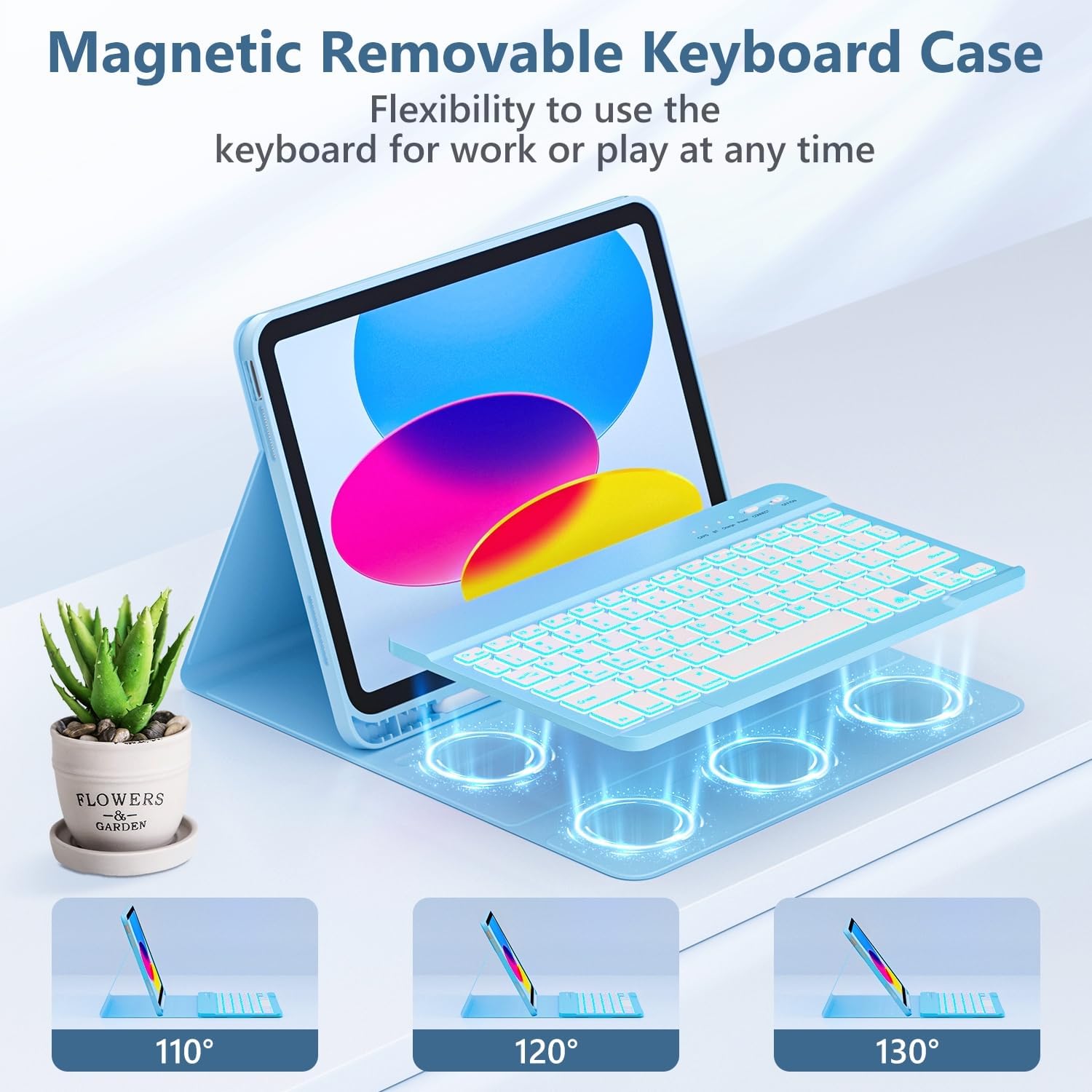
Image: Multiple viewing angles for the keyboard case.

Image: Four placement modes for flexible use.
4.3. Using the Backlit Keyboard
The keyboard features 7-color backlighting with 3 brightness levels for comfortable typing in various lighting conditions.
- To turn on/off the backlight, press the Light Bulb key (usually next to the Spacebar or Function keys).
- To change backlight colors, press Fn + Light Bulb key.
- To adjust brightness levels, press Fn + Up Arrow or Fn + Down Arrow (or specific brightness keys if available, refer to keyboard layout).

Image: 7-color backlit keyboard in use.
4.4. Keyboard Shortcuts
The keyboard includes a row of dedicated shortcut keys for enhanced productivity:
- Esc: Escape
- F1: Home
- F2: Search
- F3: Virtual Keyboard
- F4: Screenshot
- F5: Previous Track
- F6: Play/Pause
- F7: Next Track
- F8: Mute
- F9: Volume Down
- F10: Volume Up
- F11: Lock Screen
- F12: Brightness Down
- Delete: Brightness Up

Image: Keyboard shortcut keys.
4.5. Auto Sleep/Wake Function
The case supports the iPad's auto sleep/wake function, helping to conserve battery life.
- Closing the case will put your iPad into sleep mode.
- Opening the case will wake your iPad.
- Important Note: For optimal auto sleep/wake functionality, remove the wireless Bluetooth keyboard from the case. The magnets within the keyboard can interfere with the case's magnetic sensors, preventing proper sleep/wake activation.

Image: Auto sleep/wake function explanation.
4.6. Integrated Pencil Holder
The case includes a dedicated holder for your stylus pencil, keeping it secure and accessible.

Image: Integrated pencil holder and other features.
5. Maintenance
To ensure the longevity and appearance of your keyboard case, follow these maintenance guidelines:
- Cleaning the Case: Wipe the exterior PU leather with a soft, damp cloth. Avoid harsh chemicals or abrasive cleaners.
- Cleaning the Keyboard: Use a soft, dry cloth to clean the keyboard keys. For stubborn dirt, a slightly damp cloth can be used, ensuring no moisture enters the keyboard.
- Storage: When not in use for extended periods, store the case and keyboard in a cool, dry place.
- Avoid Extremes: Do not expose the product to extreme temperatures, direct sunlight, or excessive moisture.
6. Troubleshooting
If you encounter issues with your FUWANG keyboard case, refer to the following solutions:
- Keyboard Not Connecting/Pairing:
- Ensure the keyboard is fully charged.
- Make sure the keyboard's power switch is ON and the 'CONNECT' button has been pressed.
- On your iPad, go to Bluetooth settings. If 'Bluetooth Keyboard' is listed, try 'Forget This Device' and then re-pair.
- Restart your iPad and the keyboard, then attempt pairing again.
- Ensure no other Bluetooth devices are interfering with the connection.
- Backlight Not Working:
- Ensure the keyboard is powered on and charged.
- Press the Light Bulb key to toggle the backlight.
- Adjust brightness using Fn + Up/Down Arrow.
- Auto Sleep/Wake Not Functioning Correctly:
- Ensure the iPad is correctly seated in the case.
- Important: Remove the detachable keyboard from the case. The keyboard's internal magnets can interfere with the iPad's sleep/wake sensors when placed directly on the case.
- Keys Not Responding:
- Check if the keyboard is charged and properly connected via Bluetooth.
- Restart the keyboard and iPad.
Image: Bluetooth connection troubleshooting guide.
7. Specifications
| Feature | Detail |
|---|---|
| Brand | FUWANG |
| Compatible Devices | iPad (A16) 11th Gen 11-inch 2025 (A3354, A3355, A3356), iPad 10th Gen 10.9-inch 2022 (A2696, A2757, A2777, A3162) |
| Item Model Number | A3354 A3355 A3356 A2696 A2757 A2777 |
| Keyboard Connectivity | Wireless Bluetooth |
| Keyboard Backlight | 7 Colors, 3 Brightness Levels |
| Battery Capacity | 500mAh Lithium Ion (included) |
| Charging Port | Type-C |
| Charging Time | Approx. 2-3 hours |
| Working Time | Approx. 120 hours |
| Standby Time | Over 130 days |
| Material | PU Leather exterior, Flexible TPU inner shell |
| Item Weight | 1.98 pounds |
| Package Dimensions | 11.14 x 8.19 x 1.3 inches |
8. Warranty and Support
FUWANG is committed to providing quality products and customer satisfaction.
- Warranty: This product comes with a standard manufacturer's warranty. Please refer to the product packaging or purchase documentation for specific warranty terms and duration.
- Customer Service: If you have any questions, concerns, or require assistance with your FUWANG keyboard case, please do not hesitate to contact our customer service team. We offer 24-hour friendly customer service.
For support, please visit the FUWANG store on Amazon or contact us through the platform where you purchased the product.

