
1. Introduction
This manual provides detailed instructions for the installation, operation, and maintenance of your LaView Smart Lock LV-DHU06-B-NL4. Please read this manual thoroughly before installation and use to ensure proper functionality and to maximize the benefits of your smart lock. Keep this manual for future reference.
2. Product Overview
The LaView Smart Lock LV-DHU06-B-NL4 is a Wi-Fi and Bluetooth-enabled keyless entry deadbolt designed to enhance your home security. It integrates with your existing single-cylinder deadbolt, offering convenient access control via a mobile application, touch, or voice commands. The lock supports automatic locking and unlocking features, as well as remote access management.

Image: The LaView Smart Lock exterior unit shown alongside its smartphone application interface, displaying lock status and control options.
3. Package Contents
Verify that all components are present before beginning installation:
- LaView Smart Lock Exterior Unit
- LaView Smart Lock Interior Unit
- Mounting Plate
- Mounting Hardware (screws, bolts)
- AA Batteries (typically 4, may be sold separately)
- User Manual

Image: A diagram illustrating the components of the LaView Smart Lock, including the exterior and interior units, battery compartment, and how it integrates with an existing deadbolt. It also shows a physical key for backup access.
4. Setup
4.1 Pre-installation Check
Ensure your door is compatible with the LaView Smart Lock. This lock is designed for use with standard single-cylinder deadbolts.

Image: A visual guide indicating door types compatible with the LaView Smart Lock, specifically highlighting compatibility with single-cylinder deadbolts.
4.2 Installation
Installation typically takes approximately 10 minutes. Follow these steps:
- Remove Existing Deadbolt: Unscrew and remove your current deadbolt from the door.
- Install New Deadbolt Mechanism: If your existing deadbolt mechanism is not compatible or if a new one is provided, install it into the door edge.
- Mount Exterior Unit: Place the exterior unit on the outside of the door, aligning it with the deadbolt mechanism.
- Mount Interior Unit: Attach the interior mounting plate to the door, then connect the cable from the exterior unit to the interior unit. Secure the interior unit to the mounting plate.
- Install Batteries: Open the battery cover on the interior unit and insert 4 AA batteries, ensuring correct polarity.

Image: The interior unit of the LaView Smart Lock with its battery compartment open, showing the placement for AA batteries.
4.3 App Setup
To utilize the smart features, download and configure the LaView app:
- Download App: Search for 'LaView' in your smartphone's app store and download the official application.
- Create Account: Follow the in-app instructions to create a new user account or log in if you already have one.
- Add Device: In the app, select the option to add a new device and follow the pairing process for your smart lock.
- Connect to Wi-Fi: Configure the lock to connect to your home Wi-Fi network through the app for remote access and advanced features.
5. Operating Instructions
5.1 Manual Operation
The LaView Smart Lock retains the ability to be operated manually:
- Physical Key: Use the provided physical key as a backup to lock or unlock the deadbolt.
- Interior Knob: Rotate the knob on the interior unit to manually lock or unlock the door from the inside.
5.2 App Control
The LaView app provides comprehensive control and monitoring features:
- Locking/Unlocking: Tap the lock/unlock icon in the app to control your door remotely.
- Monitoring: View unlock records and real-time status of your door (locked/unlocked, battery level).
- Alerts: Receive notifications for door activity, such as unauthorized access attempts or low battery.
- Access Sharing: Grant or revoke access permissions for up to 20 individuals (family, friends, service providers) directly through the app.

Image: A visual representation of the multi-user sharing feature, showing how access can be granted to various individuals like family, friends, and service providers via the app.
5.3 Automatic Locking/Unlocking
Configure automatic functions for enhanced convenience:
- Auto-Lock: Set the lock to automatically secure the door after a specified duration (e.g., 30 seconds) once it has been closed. The auto-lock timer can typically be adjusted between 10 to 180 seconds via the app.

Image: A graphic demonstrating the auto-lock feature, where the LaView Smart Lock automatically locks the door after 30 seconds of being closed.
- Auto-Unlock: The lock can be configured to automatically unlock as you approach the door within a specified range (e.g., 200 meters).
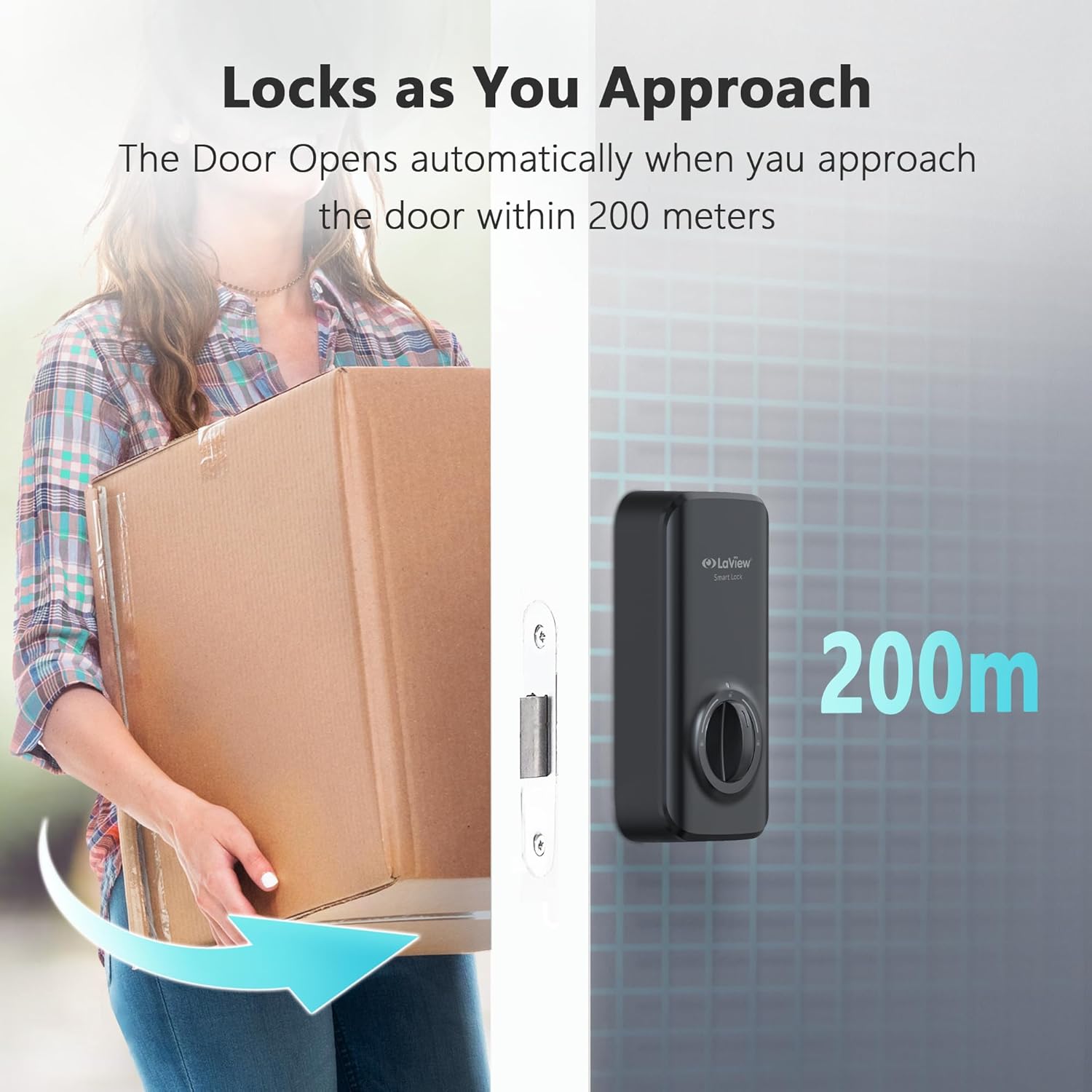
Image: A visual representation of the auto-unlock function, showing the LaView Smart Lock unlocking as a user approaches within 200 meters.
5.4 Voice Control
Integrate your LaView Smart Lock with voice assistants for hands-free control:
- Compatibility: The lock is compatible with Amazon Alexa and Google Assistant.
- Setup: Follow the instructions in the LaView app to link your smart lock with your preferred voice assistant.
- Commands: Use voice commands such as "Alexa, lock the front door" or "Hey Google, unlock the front door" (PIN may be required for unlocking via voice for security).

Image: A depiction of the LaView Smart Lock working with voice assistants, showing a user issuing a command to Alexa and receiving confirmation.
6. Maintenance
Regular maintenance ensures optimal performance of your smart lock:
- Battery Replacement: Replace all 4 AA batteries when the low battery alert is received via the app or indicated on the lock. Use high-quality alkaline batteries.
- Cleaning: Wipe the lock's exterior surfaces with a soft, dry cloth. Avoid abrasive cleaners or solvents.
- Firmware Updates: Periodically check the LaView app for available firmware updates. Install updates to ensure your lock has the latest features and security enhancements.
7. Troubleshooting
If you encounter issues with your LaView Smart Lock, refer to the following common problems and solutions:
- Lock does not respond:
- Check battery level and replace if necessary.
- Ensure the lock is properly installed and all cables are connected.
- Restart the lock by removing and reinserting batteries.
- App cannot connect to the lock:
- Verify your smartphone's Bluetooth is enabled and you are within range.
- Ensure the lock is connected to your Wi-Fi network (if using remote features).
- Restart your Wi-Fi router and the smart lock.
- Lock calibration issues:
- Ensure the deadbolt mechanism moves freely without obstruction.
- Perform a factory reset and re-calibrate the lock through the LaView app.
- Verify the lock is installed correctly and not binding against the door frame.
- Voice control not working:
- Confirm the lock is linked correctly to Amazon Alexa or Google Assistant in the LaView app.
- Check your internet connection and the status of your voice assistant device.
- Ensure you are using the correct voice commands.
8. Specifications
| Feature | Specification |
|---|---|
| Brand | LaView |
| Model Name | LV-DHU06-B-NL4 |
| Lock Type | Deadbolt |
| Control Method | App, Touch, Voice |
| Connectivity | Wi-Fi, Bluetooth |
| Special Feature | Anti-Corrosion |
| Product Dimensions (L x W x H) | 5.91 x 6.3 x 1.97 inches |
| Item Weight | 1.32 pounds |
| UPC | 192728016729 |
9. Warranty Information
LaView products are covered by a limited warranty. For specific details regarding the warranty period and terms for your LV-DHU06-B-NL4 Smart Lock, please refer to the warranty card included with your product packaging or visit the official LaView website. Keep your proof of purchase for warranty claims.
10. Support
For technical assistance or customer service inquiries, please contact LaView support:
- Phone Support: Available 9 am to 5 pm (local time, check LaView website for specific hours).
- Email Service: Available 24/7.
- Online Resources: Visit the LaView Store on Amazon or the official LaView website for FAQs, support articles, and contact information.


