
1. Product Overview
The CMTECK USB Condenser Microphone is designed for high-quality audio capture, ideal for streaming, podcasting, video conferencing, and gaming. It features a cardioid polar pattern to minimize background noise, a built-in sound card for plug-and-play functionality, zero-latency monitoring, and convenient gain control.

Figure 1: CMTECK USB Condenser Microphone with its components, including the microphone unit, desktop stand, and USB cable.
2. Package Contents
Please verify that all items are present in your package:
- CMTECK Original Computer Microphone
- 6ft USB Cable (USB-C to USB-A)
- Tripod Stand
- Anti-Vibration Shock Mount
- Pop Filter
- User Manual (this document)
3. Setup Instructions
3.1 Assembly
- Attach the Shock Mount: Secure the anti-vibration shock mount to the microphone unit.
- Mount to Stand: Attach the shock mount (with microphone) to the included tripod stand. Ensure it is stable. If using a boom arm, use the provided mount adapter for 3/8" thread sizes.
- Install Pop Filter: Position the pop filter in front of the microphone to reduce plosive sounds.
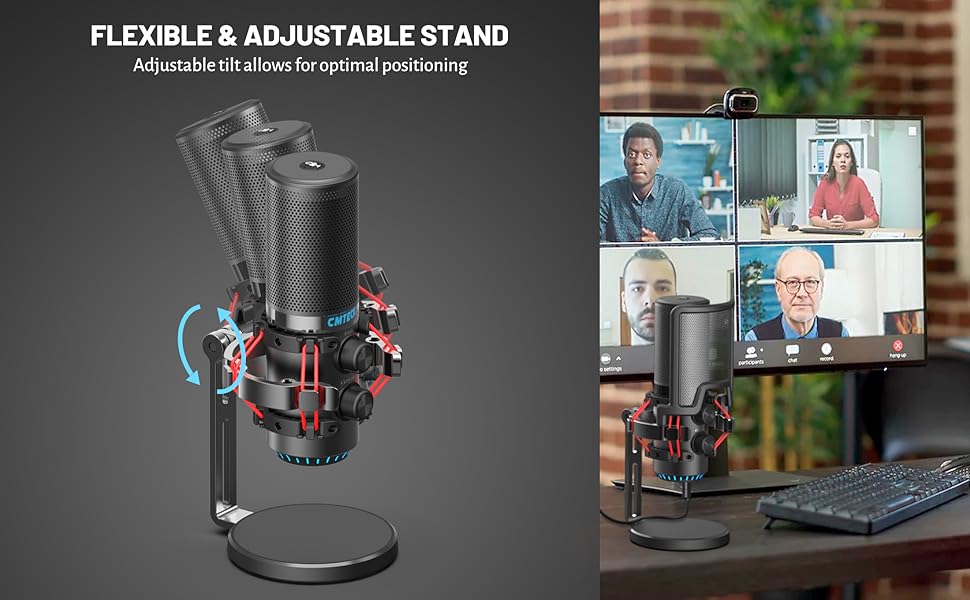
Figure 2: Exploded view of microphone components and assembly points.
3.2 Connection (Plug and Play)
The CMTECK USB Microphone features a built-in sound card for easy plug-and-play operation, requiring no driver installation.
- Connect USB Cable: Insert the USB-C end of the provided 6ft cable into the microphone's USB-C port.
- Connect to Device: Plug the USB-A end of the cable into an available USB port on your computer (Windows 7, 8, 10, Mac OS) or PS4.
- System Recognition: Your operating system should automatically detect and install the microphone.
Note: This microphone is not compatible with Raspberry Pi or Android devices.

Figure 3: Connecting the microphone to a computer, highlighting its plug-and-play functionality.
4. Operating Instructions
4.1 Studio-Quality Sound and Cardioid Polar Pattern
The microphone features a cardioid polar pattern, which primarily picks up sound from the front, effectively reducing unwanted background noise from the sides and rear. This ensures clear and focused audio capture for your voice.
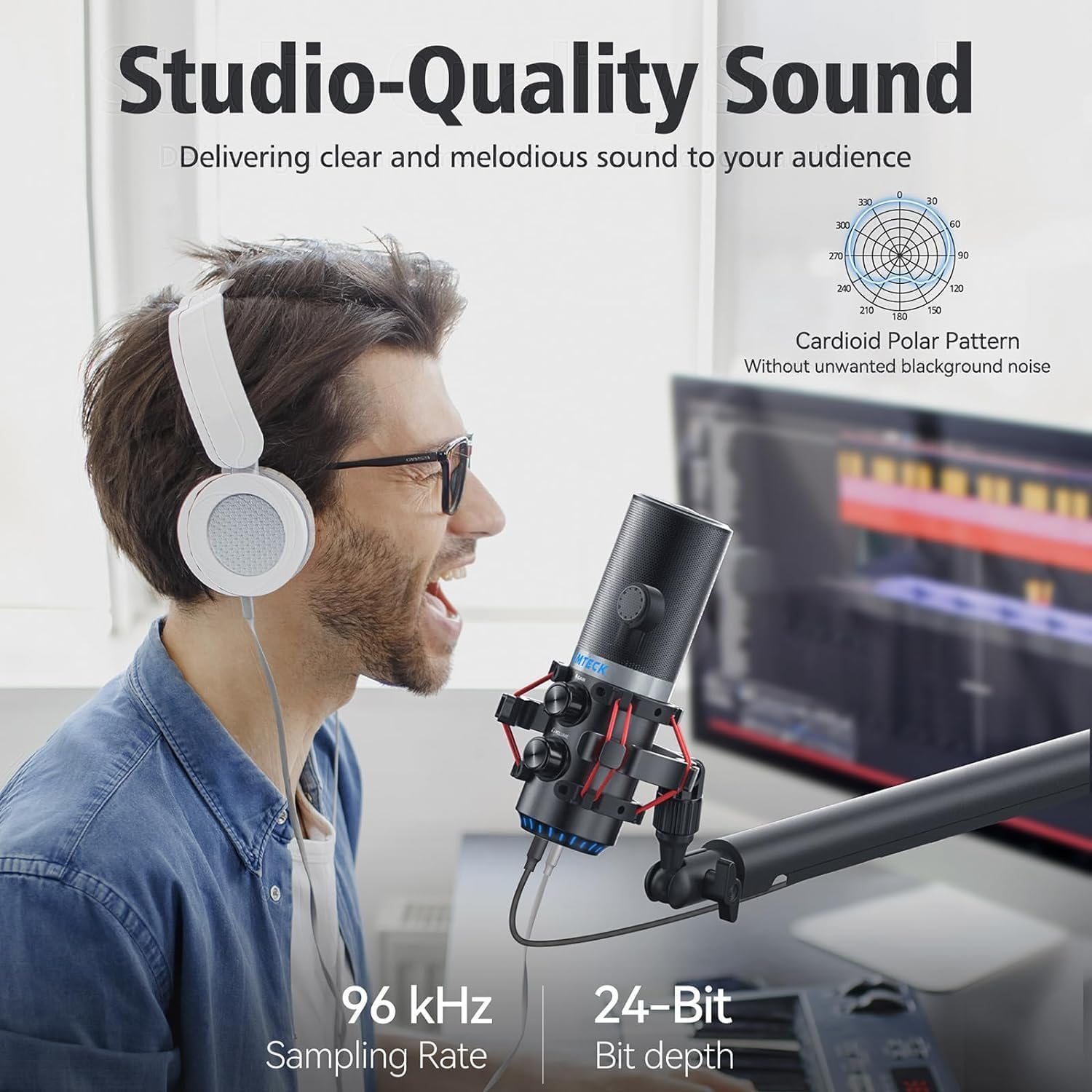
Figure 4: Illustrating the microphone's cardioid pickup pattern for focused sound capture.
4.2 Gain Control
The microphone is equipped with a gain control knob. Rotate this knob to adjust the microphone's sensitivity and volume level. Adjust the gain to achieve optimal sound input without distortion or excessive background noise.

Figure 5: The microphone's gain control knob for adjusting input sensitivity.
4.3 Zero-Latency Monitoring
A 3.5mm headphone jack is integrated into the microphone for real-time, zero-latency monitoring of your audio. Plug your headphones into this jack to hear your voice exactly as it's being captured, allowing for precise adjustments during recording or live sessions. An additional knob controls the headphone volume.

Figure 6: Headphone jack for real-time audio monitoring.
4.4 Tap-to-Mute Sensor with LED Indicator
The top of the microphone features a tap-to-mute sensor for quick and easy muting. An LED indicator provides visual feedback on the microphone's status:
- Green LED: Microphone is active and capturing audio.
- Red LED: Microphone is muted.
Tap the top of the microphone to toggle between active and muted states.
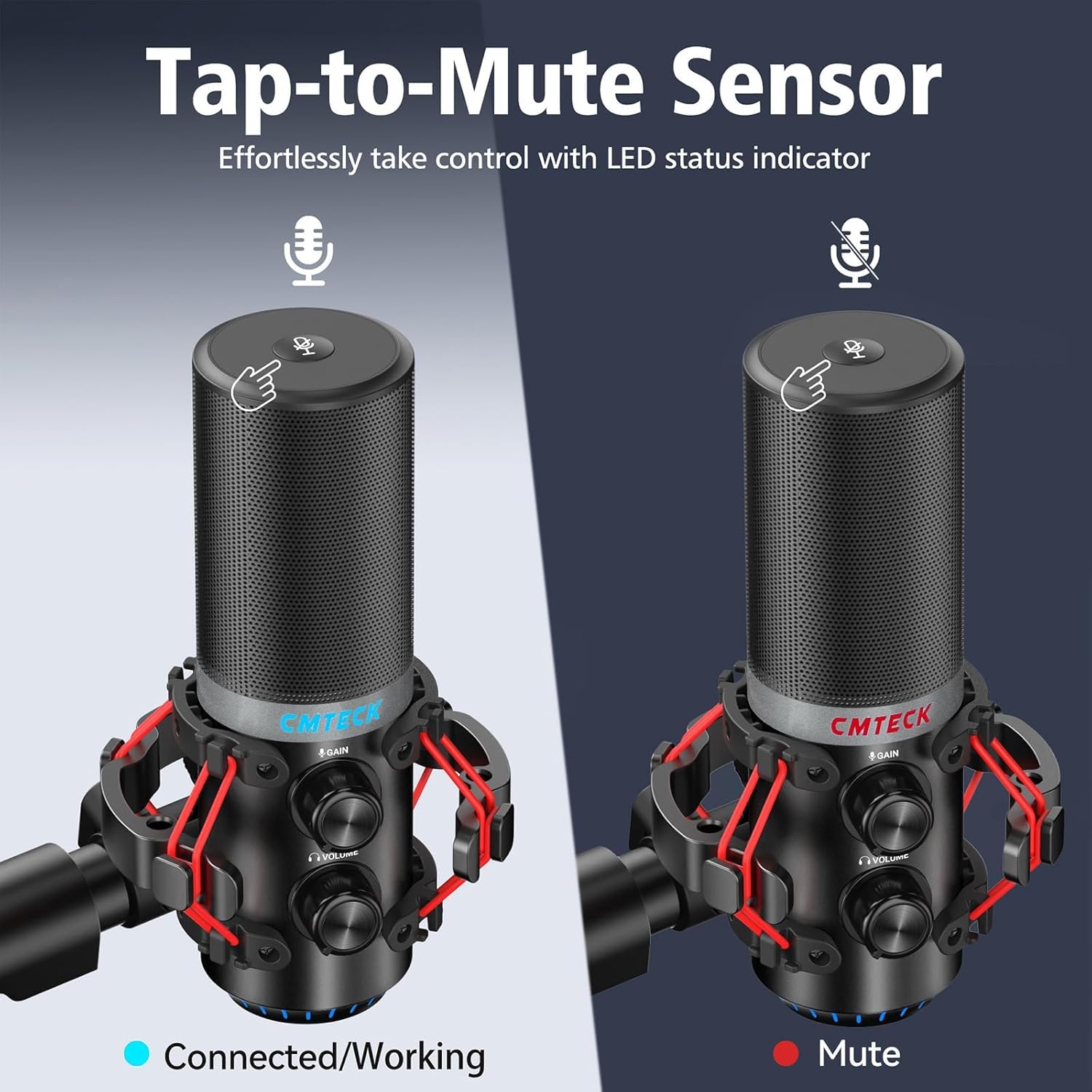
Figure 7: Tap-to-mute sensor and LED status indicator.
5. Maintenance
To ensure the longevity and optimal performance of your CMTECK USB Microphone, follow these maintenance guidelines:
- Cleaning: Use a soft, dry cloth to wipe the microphone body. Avoid using liquid cleaners or abrasive materials.
- Storage: When not in use, store the microphone in a clean, dry place away from extreme temperatures and humidity.
- Handling: Handle the microphone with care to prevent drops or impacts, which can damage internal components.
6. Troubleshooting
If you encounter issues with your CMTECK USB Microphone, please refer to the following common solutions:
| Problem | Possible Cause | Solution |
|---|---|---|
| No sound or low volume | Incorrect connection, low gain, system settings | Ensure USB cable is securely connected. Adjust the gain control knob on the microphone. Check your computer's sound input settings to ensure the CMTECK microphone is selected and its volume is not muted. |
| Static or poor audio quality | High gain, environmental interference, faulty cable | Reduce the gain control. Ensure the microphone is positioned away from other electronic devices that might cause interference. Try a different USB port or cable if available. Consider using noise reduction software if background noise is persistent. |
| Mute button is unresponsive or inconsistent | Improper tap, sensor issue | Ensure you are tapping the center of the mute sensor firmly. Avoid touching other parts of the microphone while attempting to mute. If the issue persists, try disconnecting and reconnecting the microphone. |
| Headphone monitoring not working | Headphones not connected, volume low | Ensure headphones are fully plugged into the 3.5mm jack. Adjust the headphone volume knob on the microphone. |
| Microphone not recognized by system | Compatibility issue, USB port problem | Verify your operating system is Windows (7, 8, 10), Mac OS, or PS4. Try a different USB port on your device. Restart your computer/PS4. |
7. Specifications
| Feature | Detail |
|---|---|
| Model Number | XM630-Parent |
| Brand | CMTECK |
| Connectivity Technology | USB |
| Connector Type | USB Type-C |
| Material | Aluminum |
| Item Weight | 1.5 pounds |
| Polar Pattern | Cardioid |
| Special Features | Mute Function, Volume Control, Gain Control, Zero-Latency Monitoring |
| Compatible Devices | Windows (7, 8, 10), Mac OS, PS4 |
| Included Components | Microphone, 6ft USB Cable, Tripod Stand, Anti-Vibration Shock Mount, Pop Filter, User Manual |
8. Warranty and Support
CMTECK products undergo rigorous quality control. We offer a 30-day return service and a 24-month warranty from the date of purchase.
For any questions, technical assistance, or warranty claims, please contact our Customer Experience Team. They are available 24/7 to provide support.
Please refer to the official CMTECK website or your purchase platform for contact details.


