
1. Introduction
This user manual provides comprehensive instructions for the Inateck Magnetic Keyboard Case, model KB09119. This accessory transforms your compatible iPad into a versatile laptop-like device, enhancing productivity with its integrated keyboard, multi-touch trackpad, and adjustable floating cantilever stand. Please read this manual carefully to ensure proper use and maintenance of your keyboard case.
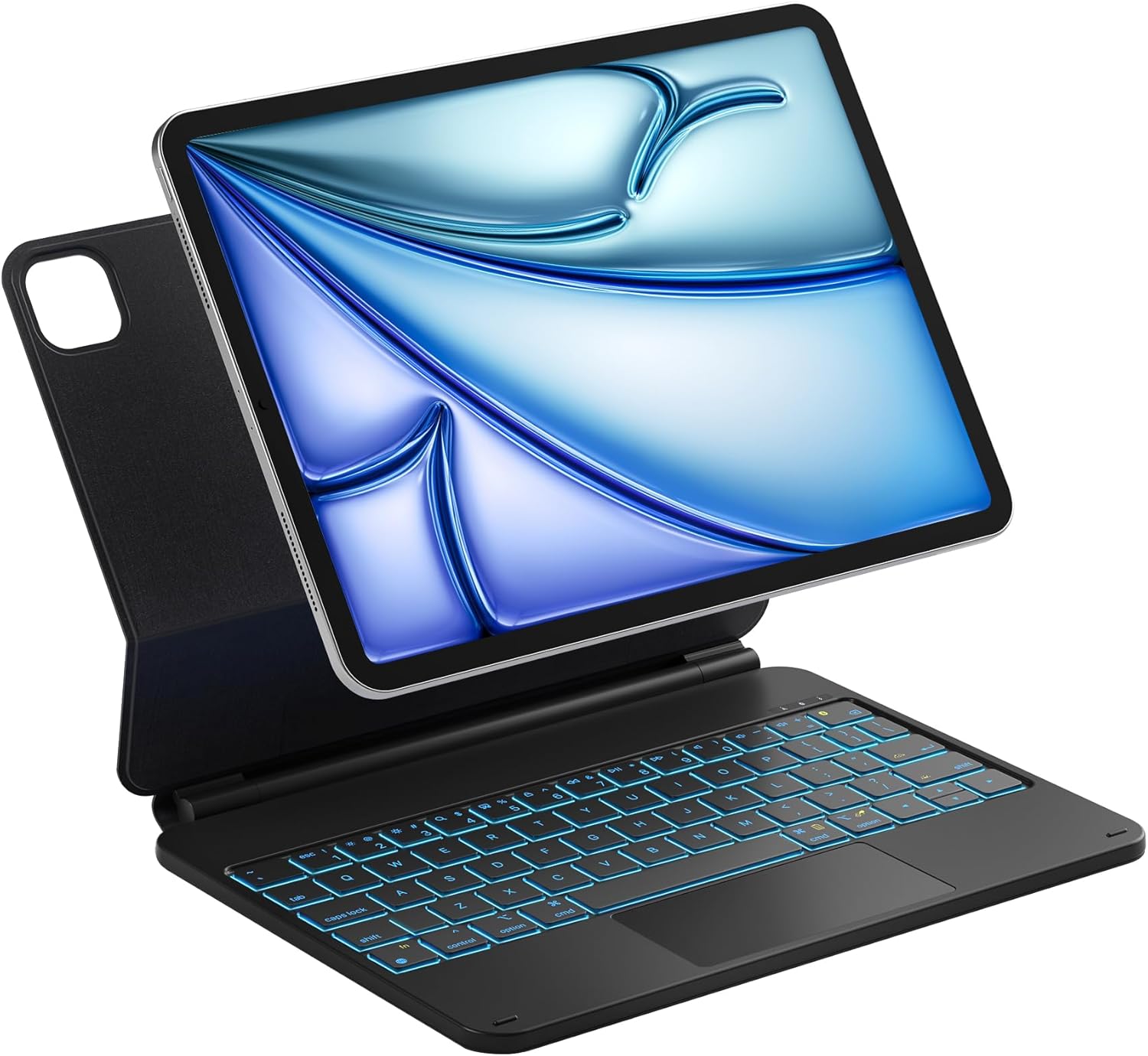
Image 1.1: The Inateck Magnetic Keyboard Case with an iPad securely attached, showcasing its laptop-like configuration.
2. Compatibility
The Inateck Magnetic Keyboard Case (KB09119) is specifically designed for the following iPad models:
- iPad Air 11-inch (M3/M2) 2024/2025
- iPad Air 4th/5th Generation (10.9-inch)
- iPad Pro 11-inch 1st/2nd/3rd/4th Generation
Please ensure your iPad model is listed above for optimal fit and functionality. This keyboard case is not compatible with iPad A16 (2025), iPad 10th Gen (2022), or iPad Pro 11" M4 (2024).

Image 2.1: Visual guide detailing the compatible iPad models for the keyboard case.
3. Setup
3.1 Magnetic Attachment
The keyboard case features strong magnetic adsorption for easy and secure attachment of your iPad. Simply align your iPad with the magnetic back panel of the case; it will snap into place automatically.

Image 3.1: Demonstrates the simple and secure magnetic attachment mechanism for the iPad.
3.2 Bluetooth Pairing
To connect the keyboard to your iPad via Bluetooth:
- Ensure the keyboard case is charged (refer to Section 5).
- Turn on the keyboard using the power switch, usually located on the side or back of the keyboard.
- On your iPad, go to Settings > Bluetooth and ensure Bluetooth is turned on.
- On the keyboard, press the Fn key simultaneously with the Delete key (often labeled with a Bluetooth icon) to enter pairing mode. The Bluetooth indicator light on the keyboard will flash.
- On your iPad, locate "Inateck Keyboard" or a similar device name in the Bluetooth devices list and tap to connect.
- Once connected, the Bluetooth indicator light on the keyboard will stop flashing and remain solid or turn off, indicating a successful pairing.

Image 3.2: Representation of the Bluetooth technology enabling wireless connection.
4. Operating Instructions
4.1 Floating Cantilever Stand
The keyboard case features a floating cantilever design, allowing your iPad to be suspended above the keyboard. The aluminum alloy hinge provides a wide range of adjustable viewing angles, up to 130 degrees, for comfortable typing, viewing, or drawing.

Image 4.1: Illustration of the floating cantilever stand, demonstrating its adjustable angle range.
4.2 Keyboard Features
The keyboard is equipped with scissor-switch keys for smooth rebound and a comfortable typing experience with 1.4mm key travel. Illuminated keycaps ensure worry-free typing in low-light conditions.
4.2.1 Backlight Control
The keyboard features a 7-color backlight with 3 levels of brightness. Use the dedicated backlight key (often labeled with a light bulb icon) to cycle through colors and adjust brightness levels to your preference.

Image 4.2: The keyboard illuminated with a vibrant backlight, highlighting its 7-color and 3-level brightness options.

Image 4.3: Detailed view of the keyboard's scissor-switch keys and illuminated keycaps, emphasizing smooth and responsive typing.
4.3 Multi-touch Trackpad
The integrated multi-touch trackpad provides precise and responsive control, supporting various touch gestures for efficient navigation and interaction with your iPad. It includes anti-mistouch technology to prevent accidental inputs.
4.3.1 Trackpad Gestures
- Drag: Tap and hold with one finger, then drag.
- Scroll: Swipe with two fingers.
- Swipe: Swipe with three or four fingers for various system functions (e.g., switching apps).
- Zoom In/Out: Pinch with two fingers.
- Secondary Click: Tap with two fingers.
- Show Desktop: Swipe down with three fingers.
- App Exposé: Swipe up with three fingers.
- Swipe between full-screen apps: Swipe left or right with four fingers.

Image 4.4: Visual guide to the multi-touch trackpad and its supported gestures.
4.4 Multi-function Hotkeys
The keyboard supports a full range of iPadOS keyboard shortcuts and dedicated hotkeys for efficient multitasking and quick access to functions. These include media controls, volume adjustment, search, and screen lock.

Image 4.5: Overview of the keyboard's dedicated hotkeys for quick access to iPadOS functions.
4.5 Smart Screen On/Off
The keyboard case features intelligent wake-on-open and sleep-on-close functionality. Opening the case automatically wakes your iPad's screen, and closing it puts the iPad to sleep, conserving battery life and enhancing work efficiency.

Image 4.6: Depiction of the smart screen on/off feature, showing the iPad screen waking upon opening and sleeping upon closing.
5. Charging and Battery
The keyboard case is powered by a built-in Lithium Ion battery. It offers ultra-low power standby for extended use.
- A full charge takes approximately 3 hours.
- Once fully charged, the keyboard can last up to a month without backlight usage.
- With backlight enabled, the battery life is approximately one week.
5.1 Charging Instructions
To charge the keyboard, connect a USB-C charging cable to the charging port on the keyboard (typically located on the side or back) and plug the other end into a USB power adapter or a computer's USB port.

Image 5.1: Visual indicating quick charging capability, showing a 10-minute charge for immediate use.

Image 5.2: Detailed view of the charging port on the keyboard, indicating where to connect the charging cable.
6. Maintenance
To ensure the longevity and optimal performance of your Inateck Magnetic Keyboard Case, follow these maintenance guidelines:
- Cleaning: Use a soft, lint-free cloth slightly dampened with water or a mild cleaning solution to wipe down the exterior of the case and keyboard. Avoid harsh chemicals or abrasive materials.
- Dust Removal: Use compressed air to remove dust and debris from between the keys.
- Storage: When not in use for extended periods, store the keyboard case in a cool, dry place. Ensure the iPad is detached or the case is closed to conserve battery.
- Avoid Liquids: Keep the keyboard case away from liquids to prevent damage to electronic components.
- Handle with Care: Avoid dropping the case or subjecting it to strong impacts, which could damage the internal components or the magnetic mechanism.
7. Troubleshooting
If you encounter issues with your Inateck Magnetic Keyboard Case, refer to the following common solutions:
7.1 Keyboard Not Connecting via Bluetooth
- Check Power: Ensure the keyboard is turned on and has sufficient battery charge.
- Re-pair: Go to your iPad's Bluetooth settings, forget the keyboard device if it's listed, then re-initiate pairing by pressing Fn + Delete on the keyboard.
- iPad Bluetooth: Ensure Bluetooth is enabled on your iPad.
- Restart Devices: Try restarting both your iPad and the keyboard.
7.2 Trackpad Not Responding or Malfunctioning
- Check iPad Settings: On your iPad, go to Settings > General > Trackpad. Ensure the trackpad is enabled and adjust tracking speed if necessary.
- Clean Trackpad: Ensure the trackpad surface is clean and free of debris.
- Restart: Disconnect and reconnect the keyboard, or restart your iPad.

Image 7.1: Screenshot of the iPad's trackpad settings, useful for troubleshooting trackpad functionality.
7.3 Backlight Not Working
- Check Battery: Ensure the keyboard has sufficient battery charge, as backlight consumes more power.
- Adjust Brightness: Press the backlight key to cycle through brightness levels and colors.
8. Specifications
| Brand | Inateck |
| Model Number | KB09119-BK-US2 |
| Item Weight | 1.36 pounds (approx. 615g) |
| Product Dimensions | 9.8 x 7.6 x 0.77 inches (approx. 24.9 x 19.3 x 1.96 cm) |
| Power Source | Battery Powered (1 Lithium Ion battery included) |
| Connectivity Technology | Bluetooth |
| Keyboard Description | Ergonomic, Scissor-switch |
| Number of Keys | 64 |
| Keyboard Backlighting | 7-Color RGB, 3 Brightness Levels |
| Special Features | Floating Cantilever Stand, Backlit, Multi-touch Trackpad, Smart Screen On/Off |

Image 8.1: Visual representation of the keyboard case's weight (615g) and thickness (15mm).
9. Warranty and Support
Inateck products are designed for reliability and performance. For any questions, technical assistance, or warranty claims, please contact Inateck customer support through their official website or the retailer where the product was purchased. Please retain your proof of purchase for warranty purposes.