
1. Introduction
The SLYQMC VOCOM 88890300 Diagnostic Interface is a comprehensive tool designed for advanced diagnostics, repair, and maintenance of heavy-duty trucks and construction equipment. This manual provides detailed instructions for setting up, operating, and maintaining your diagnostic interface to ensure optimal performance and accurate results.
2. Safety Information
Always observe the following safety precautions when using the VOCOM 88890300 diagnostic interface:
- Ensure the vehicle's ignition is off before connecting or disconnecting the diagnostic interface.
- Operate the device in a well-ventilated area.
- Avoid exposing the device to extreme temperatures, moisture, or direct sunlight.
- Do not attempt to disassemble or modify the device. Refer all servicing to qualified personnel.
- Use only the cables and accessories provided with the kit.
- Always follow vehicle manufacturer's safety guidelines when performing diagnostics or repairs.
3. Package Contents
Verify that all items listed below are present in your package:
- 1 x 88890300 Vocom Interface
- 1 x OBD2 Cable
- 1 x 8-pin Cable
- 1 x 14-pin Cable
- 1 x 12-pin Cable for Renault trucks
- 1 x USB Cable
- 1 x SSD (Solid State Drive) with software

Image 3.1: All components included in the SLYQMC VOCOM 88890300 diagnostic kit.
4. Product Overview
The VOCOM 88890300 interface serves as the central communication unit between your computer and the vehicle's electronic control units (ECUs). It is housed in a durable casing designed for workshop environments.

Image 4.1: Close-up view of the VOCOM 88890300 interface unit.
The interface features various ports for connecting to different vehicle types using the provided adapter cables. Status indicator lights on the unit provide feedback on connection and operation.
5. System Requirements
To operate the SLYQMC VOCOM 88890300 diagnostic interface, a computer running the following operating system is required:
- Operating System: Windows 10
Ensure your computer meets these requirements for proper software installation and functionality.
6. Setup and Installation
6.1 Software Installation
The diagnostic software (Tech Tool V2.8.150 or later) is provided on the included SSD. Follow these steps to install the software:
- Connect the SSD to your computer.
- Navigate to the SSD drive and locate the installation files.
- Run the setup executable and follow the on-screen instructions to install the Tech Tool software.
- Ensure all drivers for the VOCOM interface are installed during this process.
- Restart your computer after installation is complete.
6.2 Hardware Connection
Connect the VOCOM 88890300 interface to your computer:
- Connect one end of the USB cable to the VOCOM interface.
- Connect the other end of the USB cable to an available USB port on your computer.
- The computer should recognize the device and install any remaining drivers automatically.

Image 6.1: The VOCOM 88890300 interface connected to a laptop with software running.
7. Operation
7.1 Connecting to a Vehicle
Before connecting to a vehicle, ensure the vehicle's ignition is off.
- Identify the correct diagnostic port on your vehicle.
- Select the appropriate cable from the kit (OBD2, 8-pin, 14-pin, or 12-pin for Renault trucks).
- Connect one end of the diagnostic cable to the VOCOM interface.
- Connect the other end of the diagnostic cable to the vehicle's diagnostic port.
- Turn the vehicle's ignition to the ON position (engine off).

Image 7.1: The VOCOM 88890300 interface and its array of diagnostic cables for different vehicle connections.
7.2 Using Tech Tool Software
Launch the Tech Tool software on your computer. The software provides a user-friendly interface for various diagnostic and programming functions.
Key functionalities include:
- Repair and Diagnostics: Identify and resolve vehicle issues.
- Maintenance Workshops: Perform routine service tasks.
- On-road and Off-road Testing: Evaluate vehicle performance under various conditions.
- Thorough Analysis: Detailed examination of engines, brakes, and gearboxes.
- Calibration and Parameter Coding: Adjust vehicle settings and parameters.
- Access to Vital Information Records: Retrieve historical data.
- Selective Product Diagnosis, Testing, and Compilation: Targeted diagnostics for specific components.
7.3 RP1210 B Coverage Features
The VOCOM 88890300 offers full RP1210 B coverage, enabling a wide range of advanced diagnostic functions:
- Diagnostic Trouble Code (DTC) Read Out: Retrieve active and stored fault codes.
- Clear Fault Codes: Erase diagnostic trouble codes after repairs.
- Retrieve Vehicle Information: Access VIN, ECU information, and other vehicle data.
- Automatic Full Scan: Comprehensive scan of all accessible ECUs.
- Learned DATA Reset: Reset adaptive learning values.
- Manual Injector Cut Out: Test individual fuel injectors.
- Manual DPF Service Regeneration: Initiate Diesel Particulate Filter regeneration.
- After Treatment Diagnosis: Diagnose issues related to emission control systems.
- Trip Reporting: Generate reports on vehicle operational data.
- Parameter Changes: Modify configurable vehicle parameters.
- Sensor And Parameters Monitoring: View real-time data from various sensors.
- Live Data Transmission: Stream live sensor data to the software.
- Sensor Values: Display current sensor readings.
- Engineer Sensor Monitoring Test: Advanced sensor testing functions.
- SIR Compliant: Supports Service Information Request protocols.
7.4 Supported Vehicles and Systems
The VOCOM 88890300 diagnostic interface is compatible with a wide range of heavy-duty vehicles and electrical systems, covering models from 1988 to 2018.
Supported Companies and Electrical Systems include:
- Vo Trucks: Older electrical system, Vehicle electronics '98, V2, V3, V4.
- Vo Buses: Conventional, Multiplexed, Multiplexed v2, Multiplexed v3.
- Vo Construction Equipment.
- Vo Pta: VERSION2.
- Vo OEM Component Customer: VERSION2.
- Mack Trucks: V-MAC I/II/III, ITC, IV, IV+.
- Re-naulT Trucks: VERSION2.
- U---D Trucks: VERSION2.

Image 7.2: The diagnostic interface is designed for use with various heavy-duty trucks.
7.5 Language Support
The diagnostic software supports multiple languages for user convenience:
- Czech, Danish, German, English, Spanish, French, Italian, Latvian, Lithuanian, Magyar, Dutch, Polish, Portuguese, Roman, Sprsky, Finnish, Svenska, Turkish, Greek, Русский, Chinese, Japanese, Korean.
8. Maintenance
To ensure the longevity and reliable operation of your VOCOM 88890300 diagnostic interface, follow these maintenance guidelines:
- Keep the device and cables clean and free from dust and debris. Use a soft, dry cloth for cleaning.
- Store the device and its accessories in the provided case when not in use to protect them from damage.
- Regularly check cables for any signs of wear or damage. Replace damaged cables immediately.
- Keep the software updated to the latest version to ensure compatibility and access to new features.
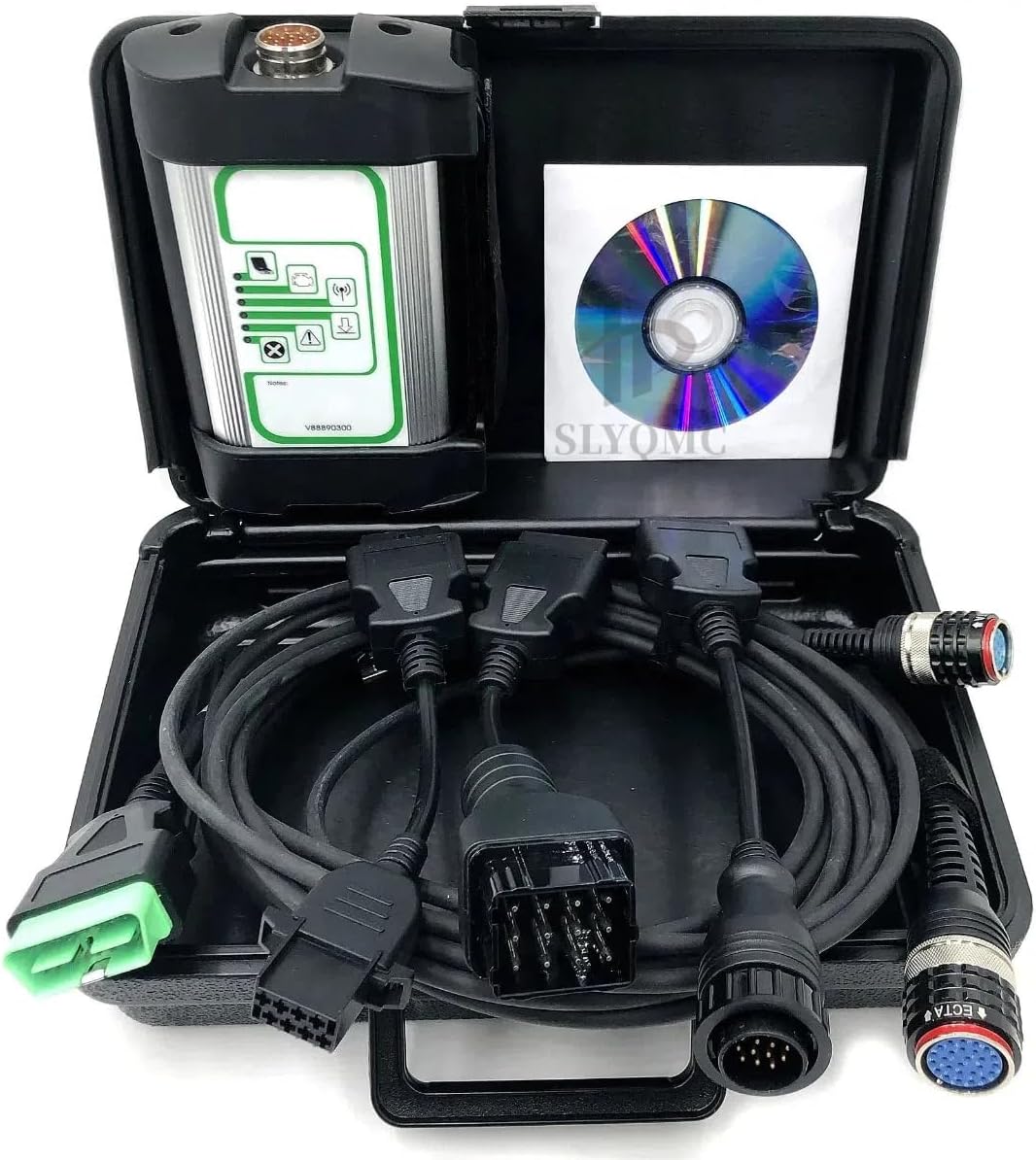
Image 8.1: Storing the diagnostic kit in its protective case helps prevent damage.
9. Troubleshooting
This section addresses common issues you might encounter with your VOCOM 88890300 diagnostic interface.
| Problem | Possible Cause | Solution |
|---|---|---|
| Device not recognized by computer | USB cable issue, driver not installed, faulty USB port. | Try a different USB port or cable. Reinstall drivers from the SSD. Ensure Windows 10 is updated. |
| Software displays "PRO10012" error code | System offline for extended periods, software license issue. | Ensure your computer has an active internet connection. Contact technical support for license verification or re-activation if the issue persists. |
| Cannot connect to vehicle ECU | Incorrect cable, vehicle ignition off, faulty vehicle diagnostic port, software communication error. | Verify the correct diagnostic cable is used. Ensure vehicle ignition is ON. Check the vehicle's diagnostic port for damage. Restart the Tech Tool software and try again. |
| Slow software performance | Computer not meeting minimum requirements, background applications. | Close unnecessary applications. Ensure your computer meets Windows 10 requirements. |
If you encounter issues not covered here, please refer to the "11. Warranty and Support" section for assistance.
10. Specifications
| Feature | Detail |
|---|---|
| Model Number | 88890300 |
| Brand | SLYQMC |
| Operating System Compatibility | Windows 10 |
| Automotive Fit Type | Universal Fit (Heavy Trucks) |
| Supported Vehicle Years | 1988 to 2018 (for compatible models) |
| Software Version | V2.8.150 (or later, as provided on SSD) |
| Connectivity | USB, OBD2, 8-pin, 14-pin, 12-pin |
| UPC | 763508500068 |
11. Warranty and Support
SLYQMC provides technical support for the VOCOM 88890300 diagnostic interface.
- If you encounter any problems during product use, please contact customer service.
- Customer service inquiries will receive a reply within 24 hours.
- For support, please refer to the contact information provided with your purchase or visit the official SLYQMC store page.