
Introduction
Thank you for choosing the Care Bears Wireless LED Headphones. These Bluetooth-enabled headphones are designed for a fun and interactive audio experience, featuring light-up ears and earcups, an adjustable headband, and convenient on-ear controls. This manual will guide you through the setup, operation, and maintenance of your new headphones.
Package Contents
- Care Bears Wireless LED Headphones
- USB Charging Cable
- User Manual
Product Overview
Familiarize yourself with the various components of your headphones:

Figure 1: Front view of the Care Bears Wireless LED Headphones, showcasing the adjustable headband, soft ear pads, and light-up ear features.
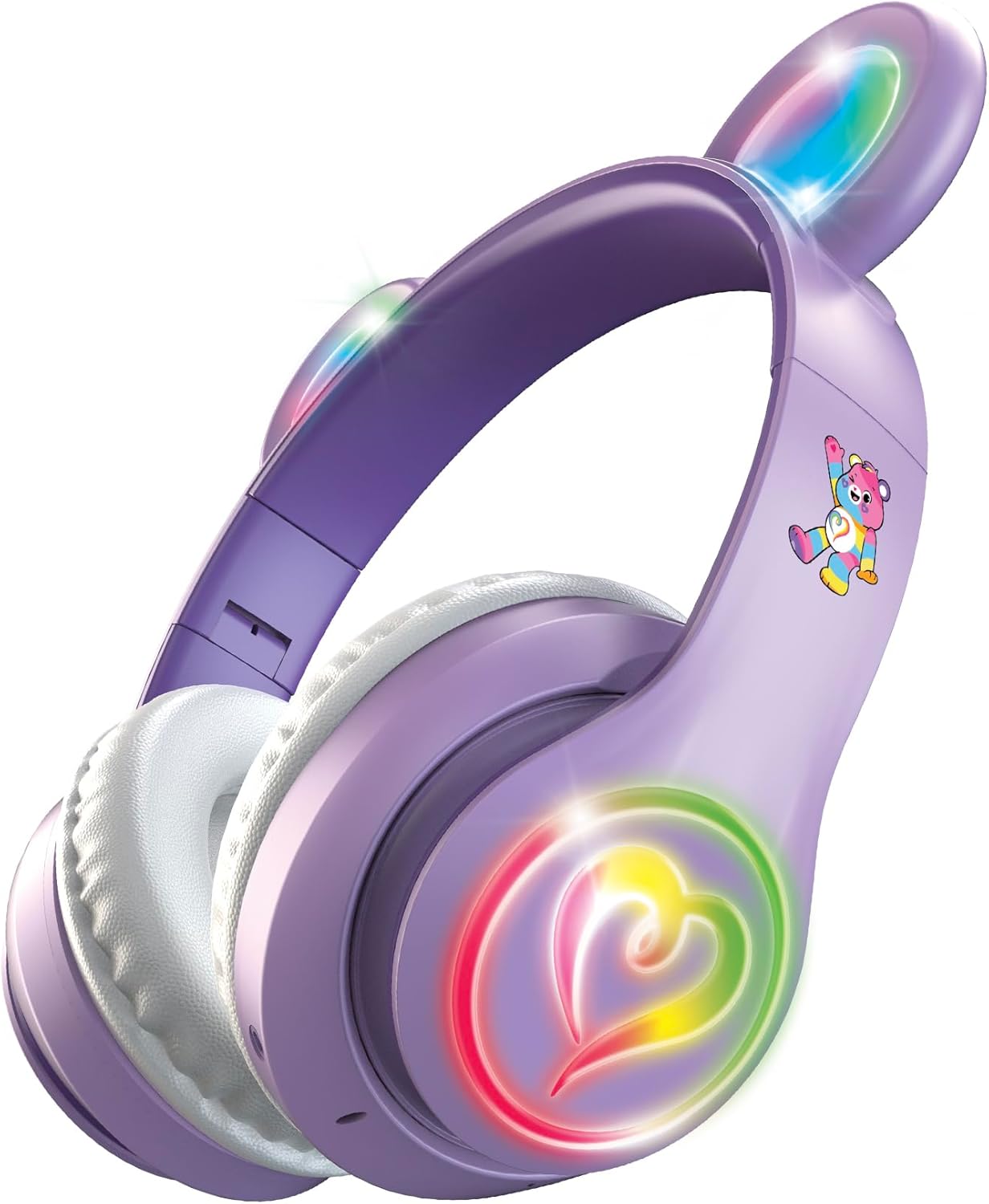
Figure 2: Angled view of the headphones with the multicolor LED lights activated on both the ears and the heart-shaped design on the earcups.
Key Features:
- Adjustable Headband: For a comfortable and secure fit.
- Soft Ear Pads: Designed for extended listening comfort.
- Light-Up Ears and Earcups: Multicolor LED lights for a vibrant visual effect.
- On-Ear Control Panel: Buttons for power, play/pause, track navigation, and volume.
- Microphone: Integrated for hands-free calls.
- Charging Port: Micro USB port for recharging the internal battery.
Setup
1. Charging the Headphones
- Locate the Micro USB charging port on one of the earcups.
- Connect the provided USB charging cable to the headphones and a compatible USB power source (e.g., computer USB port, USB wall adapter).
- The LED indicator light will illuminate during charging and change color or turn off when fully charged.
- A full charge provides approximately 8 hours of continuous use.
2. Bluetooth Pairing
- Ensure the headphones are fully charged.
- Press and hold the Power button on the earcup until the LED indicator light flashes, indicating pairing mode.
- On your device (smartphone, tablet, computer), enable Bluetooth and search for available devices.
- Select "Care Bears Headphones" (or similar name) from the list of found devices.
- Once paired, the LED indicator light will stop flashing and remain solid, or turn off, depending on the model.
- The headphones will automatically attempt to reconnect to the last paired device when powered on.
Operating Instructions
Power On/Off
- To Power On: Press and hold the Power button until the LED indicator lights up.
- To Power Off: Press and hold the Power button until the LED indicator turns off.
Music Playback
- Play/Pause: Press the Play/Pause button once.
- Next Track: Press the 'Next Track' button (often marked with a forward arrow or '+').
- Previous Track: Press the 'Previous Track' button (often marked with a backward arrow or '-').
- Volume Up: Press and hold the 'Volume Up' button (often marked with '+').
- Volume Down: Press and hold the 'Volume Down' button (often marked with '-').
Hands-Free Calling
- Answer/End Call: Press the Play/Pause button once during an incoming call to answer, and once again to end the call.
- Reject Call: Press and hold the Play/Pause button for approximately 2 seconds during an incoming call.
- Redial Last Number: Double-press the Play/Pause button when not on a call.
LED Light Control
The headphones feature multicolor LED lights on the ears and earcups. Refer to the specific button on your headphones, often labeled 'Light' or a light bulb icon, to cycle through light modes or turn them off.
Maintenance
- Cleaning: Use a soft, dry cloth to clean the headphones. Do not use abrasive cleaners or solvents.
- Storage: Store the headphones in a cool, dry place away from direct sunlight and extreme temperatures.
- Avoid Water: These headphones are not waterproof. Avoid exposure to water or excessive moisture.
Troubleshooting
- No Power: Ensure the headphones are fully charged.
- Cannot Pair: Make sure Bluetooth is enabled on your device and the headphones are in pairing mode. Move closer to your device.
- No Sound: Check the volume level on both the headphones and your connected device. Ensure the headphones are properly paired.
- Lights Not Working: Ensure the headphones are powered on and check if there is a dedicated button to activate the LED lights.
Specifications
- Model Number: CBHPLEDGV101-MFN
- Connectivity: Bluetooth 4.2
- Ear Placement: Over Ear
- Battery Life: Up to 8 hours (average)
- Frequency Range: 20Hz - 20,000Hz
- Control Method: Push Button
- Material: Plastic, Fabric, Silicone
- Item Weight: 0.3 Pounds
- Additional Features: Light-Up Ears and Earcups with Multicolor LED Lights
Warranty Information
These headphones come with a 30 Day Limited Warranty from the manufacturer. Please retain your proof of purchase for any warranty claims. The warranty covers manufacturing defects but typically does not cover damage caused by misuse, accidents, or unauthorized modifications.
Support
For further assistance, troubleshooting, or warranty inquiries, please refer to the contact information provided on the product packaging or visit the official Care Bears product support website.