
1. Introduction
The Retekess TC202 PTZ Camera is a versatile video conferencing system designed for various applications, including church worship, events, and professional video conferencing. It features advanced hybrid zoom technology, high-definition imaging, and AI auto-tracking capabilities to ensure clear and dynamic visual communication.

Image: Retekess TC202 PTZ Camera, highlighting its role in clear communication.
2. What's in the Box
Please verify that all items are present in the package:
- TC202 Conference Audio/Video All-in-One Camera x 1
- Power adapter (with power cord) x 1
- USB Type-C 3.0 cable x 1
- User Manual x 1
- Remote control x 1
- Wall-mount accessory kit x 1

Image: All components included in the Retekess TC202 PTZ Camera package, neatly laid out.
3. Product Features
- Hybrid Zoom Technology: The TC202 integrates 12x optical zoom and 16x digital zoom for detailed and clear images across all zoom levels. AI intelligently manages transitions and lens switching.
- UHD 1080P Imaging: Equipped with a 1080P ultra-high-definition camera module, powerful image processing chips, and advanced algorithms for clearer imaging.
- Wide Viewing Angle: Offers a horizontal field of view from 72.5° to 6.9° and a vertical field of view from 44.8° to 3.9°, ensuring comprehensive room coverage. Horizontal rotation range is -170° to 170°, and vertical rotation range is -30° to +90°.
- Low Light Performance: Achieves clearer detail capture in low-light environments with an SNR above 55dB, supporting 0.5Lux @ (F1.8, AGC ON).
- AI Automatic Tracking: Built-in AI intelligent analysis algorithm enables automatic tracking and frame selection, ensuring the speaker is always clearly captured.
- 255 Preset Positions: Supports up to 255 preset camera positions for rapid switching to designated camera angles.
- Software Compatibility: Compatible with popular video conferencing software such as Zoom, Skype, OBS, and Teams.

Image: Visual comparison demonstrating the clarity of hybrid zoom technology in the TC202 versus older digital and optical zoom methods.

Image: The TC202 camera highlighting its 1080P UHD resolution, 12x optical zoom, and 16x digital zoom capabilities.

Image: An illustration of the TC202 camera's wide horizontal and vertical viewing angles in a meeting room setting.
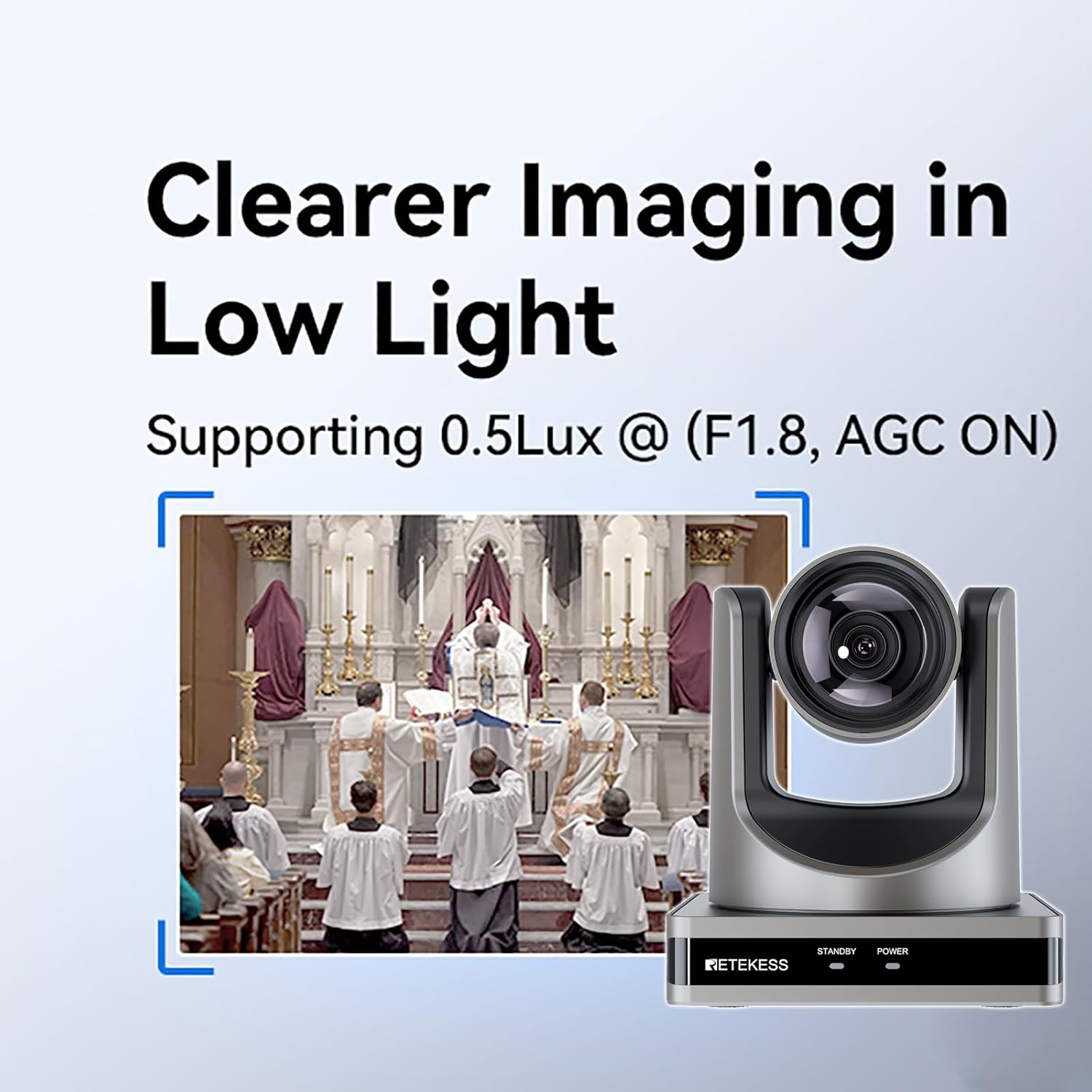
Image: The TC202 camera demonstrating its ability to capture clear images in a low-light church environment.

Image: An illustration of the TC202 camera's AI automatic tracking feature, focusing on a person's face.

Image: An overhead view of a meeting room with numbered circles indicating 255 possible preset camera positions for the TC202.

Image: The TC202 camera shown with logos of Zoom, Skype, and Teams, indicating software compatibility.
4. Setup
4.1 Initial Power On
Connect the provided power adapter to the DC 12V port on the camera and plug it into a power outlet. The camera will perform an initial setup sequence, indicated by movement of the lens. There is no dedicated on/off switch on the camera unit itself; it powers on when connected to power.
Video: A demonstration of the TC202 webcam's display and initial power-on sequence.
4.2 Connecting the Camera
The TC202 offers multiple connectivity options:
- HDMI: Connect the camera to a display or video switcher using the provided HDMI cable.
- USB 3.0: Connect to a computer for use as a webcam.
- NET (Ethernet/PoE): Connect to a network for IP control and Power over Ethernet (PoE) functionality.
- RS232/RS485: For advanced control systems.
- LINE IN: Audio input.
Video: Instructions on how to install and connect the TC202 webcam to various devices.
4.3 Communication Setup
Access the camera's on-screen display (OSD) menu using the remote control to configure communication settings such as Protocol (VISCA), V Address, Net Mode (Serial/Parallel), and Baudrate.
Video: A detailed review and demonstration of the TC202 PTZ camera, including its setup and various features.
5. Operating the Camera
5.1 Remote Control Functions
The camera is operated via an infrared remote control. Ensure the remote is pointed directly at the camera for optimal response. The remote allows control over PTZ movements, zoom, presets, and menu navigation.
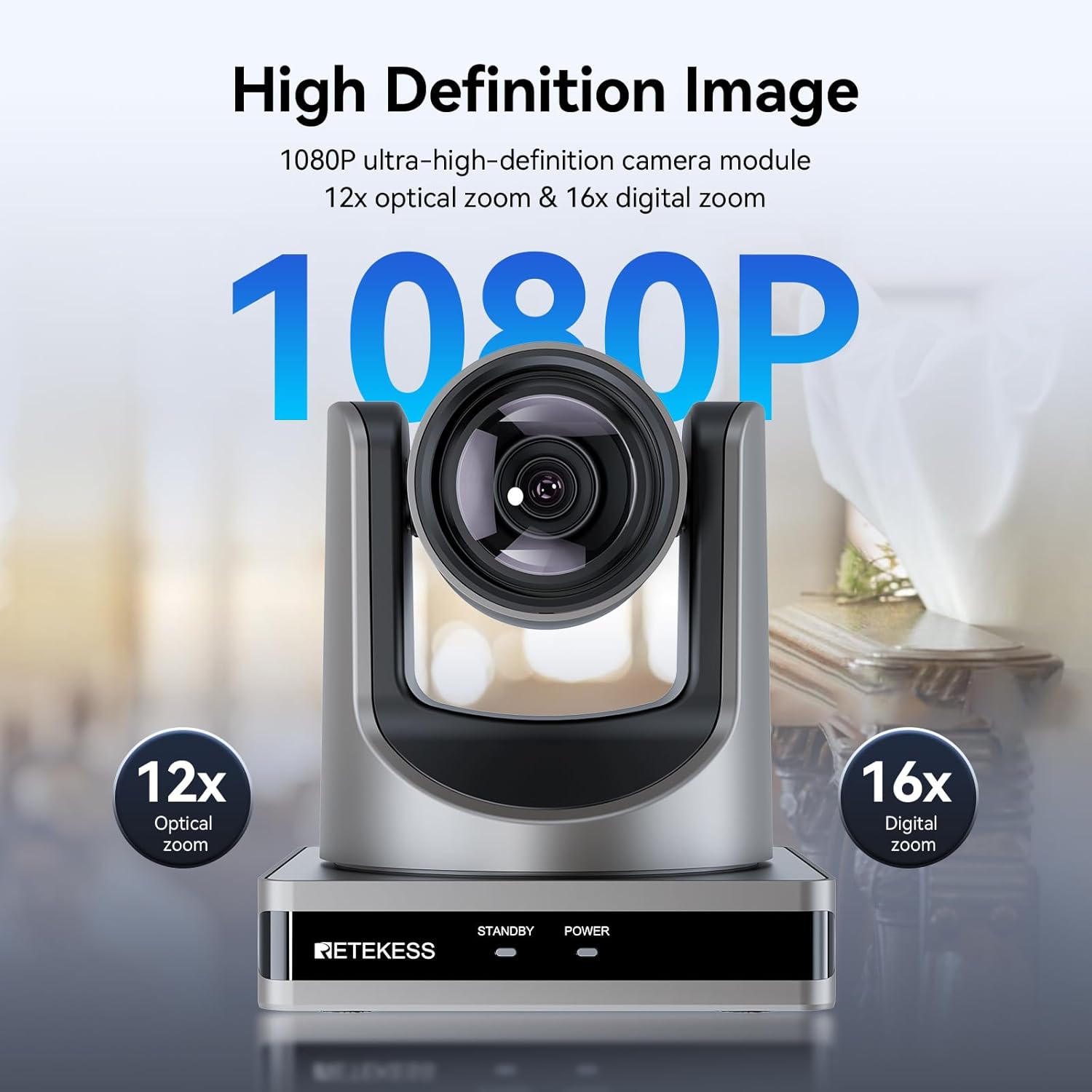
Image: A hand holding the infrared remote control for the Retekess TC202 PTZ Camera.
Video: A guide on how to use the TC202 webcam, including remote control operations.
5.2 PTZ Control (Pan, Tilt, Zoom)
Use the directional buttons on the remote to pan (horizontal movement) and tilt (vertical movement) the camera. The zoom buttons control the 12x optical and 16x digital zoom. The camera supports a horizontal rotation range of -170° to 170° and a vertical rotation range of -30° to +90°.
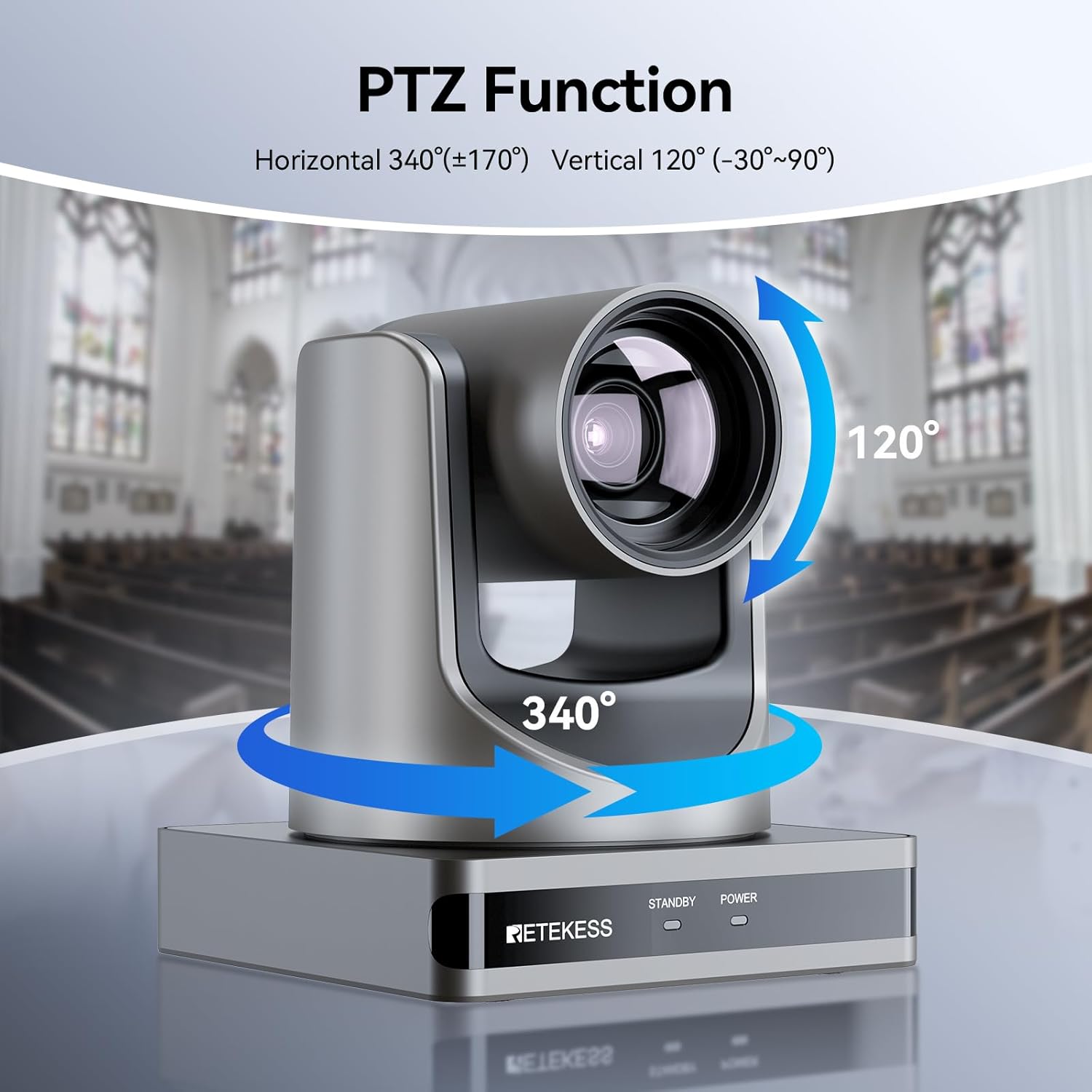
Image: The TC202 camera illustrating its 340-degree horizontal and 120-degree vertical pan and tilt capabilities.
5.3 Preset Positions
The camera supports up to 255 preset positions. To set a preset, move the camera to the desired position, then press the 'PRESET' button followed by a number (0-255). To recall a preset, press the number followed by 'PRESET'.
5.4 AI Auto-Tracking
The built-in AI algorithm can automatically track and frame subjects. This feature is ideal for presentations where the speaker moves around. Note that AI tracking may have limitations when combined with high zoom levels.
5.5 Menu Navigation
Press the 'MENU' button on the remote to access the on-screen display (OSD) menu. Use the directional buttons to navigate and 'HOME' or 'ENTER' to select options. 'MENU' also serves as the 'Exit' button.
- Exposure: Adjust mode (Auto/Manual), ExpComp, Backlight, Gain Limit, Anti-Flicker, Meter, DRC, Iris, Shutter.
- Color: Adjust WB Mode (Auto/Indoor/Outdoor/OnePush/Manual/VAR), RG Tuning, BG Tuning, Saturation, Hue, AWB Sens.
- Image: Adjust Luminance, Contrast, Sharpness, Flip-H, Flip-V, B&W Mode, Gamma, Style.
- P/T/Z: Adjust SpeedByZoom, AF-Zone, AF-Sense, Display Info, Image Freeze, Digital Zoom, Call Preset Speed, Pre Zoom Speed.
- Noise Reduction: Adjust NR2D-Level and NR3D-Level.
- Setup: Adjust Language, Video Format, HDMI Mode, USB Mode, OSD Flip, Audio, Standby Mode, UVC H264.
- AI Mode: Adjust Track Mode (Off/Frame/Track), Restart Storage.
- Restore Default: Reset all settings to factory defaults.
6. Installation Methods
The TC202 camera offers flexible installation options to suit various environments:
- Desktop: Place the camera on a flat surface.
- Wall Hanging: Use the provided wall-mount accessory kit to secure the camera to a wall.
- Tripod Mounting: The camera can be mounted on a standard tripod for portable setups.

Image: Visual representation of the three installation methods for the TC202 camera: desktop, wall hanging, and tripod mounting.
7. Maintenance
To ensure optimal performance and longevity of your Retekess TC202 PTZ Camera, follow these maintenance guidelines:
- Cleaning: Use a soft, dry cloth to clean the camera body. For the lens, use a specialized lens cleaning cloth and solution. Avoid abrasive cleaners or solvents.
- Storage: When not in use for extended periods, store the camera in a dry, dust-free environment.
- Software Updates: Periodically check the Retekess official website for any firmware updates to ensure your camera has the latest features and performance enhancements.
8. Troubleshooting
If you encounter issues with your TC202 camera, please refer to the following common troubleshooting steps:
- No Power: Ensure the power adapter is securely connected to both the camera and a working power outlet. Check the power indicator light on the camera base.
- No Video Output: Verify all video cables (HDMI, USB) are correctly connected. Check the input selection on your display or conferencing software.
- Remote Control Not Responding: Ensure the remote has working batteries and is pointed directly at the camera's IR receiver.
- Image Quality Issues: Check lighting conditions. Adjust exposure, color, and noise reduction settings via the OSD menu. Ensure the lens is clean.
- PTZ Movement Issues: Ensure there are no obstructions to the camera's movement. Check communication settings if controlling via network or RS232/RS485.
For further assistance, please contact Retekess customer support.
9. Specifications
| Feature | Detail |
|---|---|
| Brand | Retekess |
| Model Number | TC202 |
| Item Weight | 6.69 pounds |
| Product Dimensions | 5.6 x 6.5 x 5.6 inches |
| Optical Zoom | 12x |
| Digital Zoom | 16x |
| AI Tracking | Yes |
| Video Capture Resolution | 1080p |
| Photo Sensor Technology | CMOS |
| Maximum Focal Length | 3.5 Millimeters |
| Maximum Aperture | 1.8 f |
| Connectivity Technology | USB3.0, HDMI, NET, PoE, RS232, RS485 |
10. Warranty and Support
For warranty information and technical support, please refer to the documentation included with your product or visit the official Retekess website. You may also contact Retevis Direct, the seller, for assistance.