
ATOTOZONE CB6
Contents
ATOTOZONE CB6 CarPlay AI Box User Manual
Model: CB6
Brand: ATOTOZONE
1. Introduction
The ATOTOZONE CB6 CarPlay AI Box is a versatile device designed to enhance your in-car entertainment and connectivity. It converts your vehicle's wired CarPlay or Android Auto system into a wireless one and integrates a full Android operating system directly onto your car's display. This manual provides detailed instructions for setting up, operating, and maintaining your CB6 device, ensuring optimal performance and user experience.
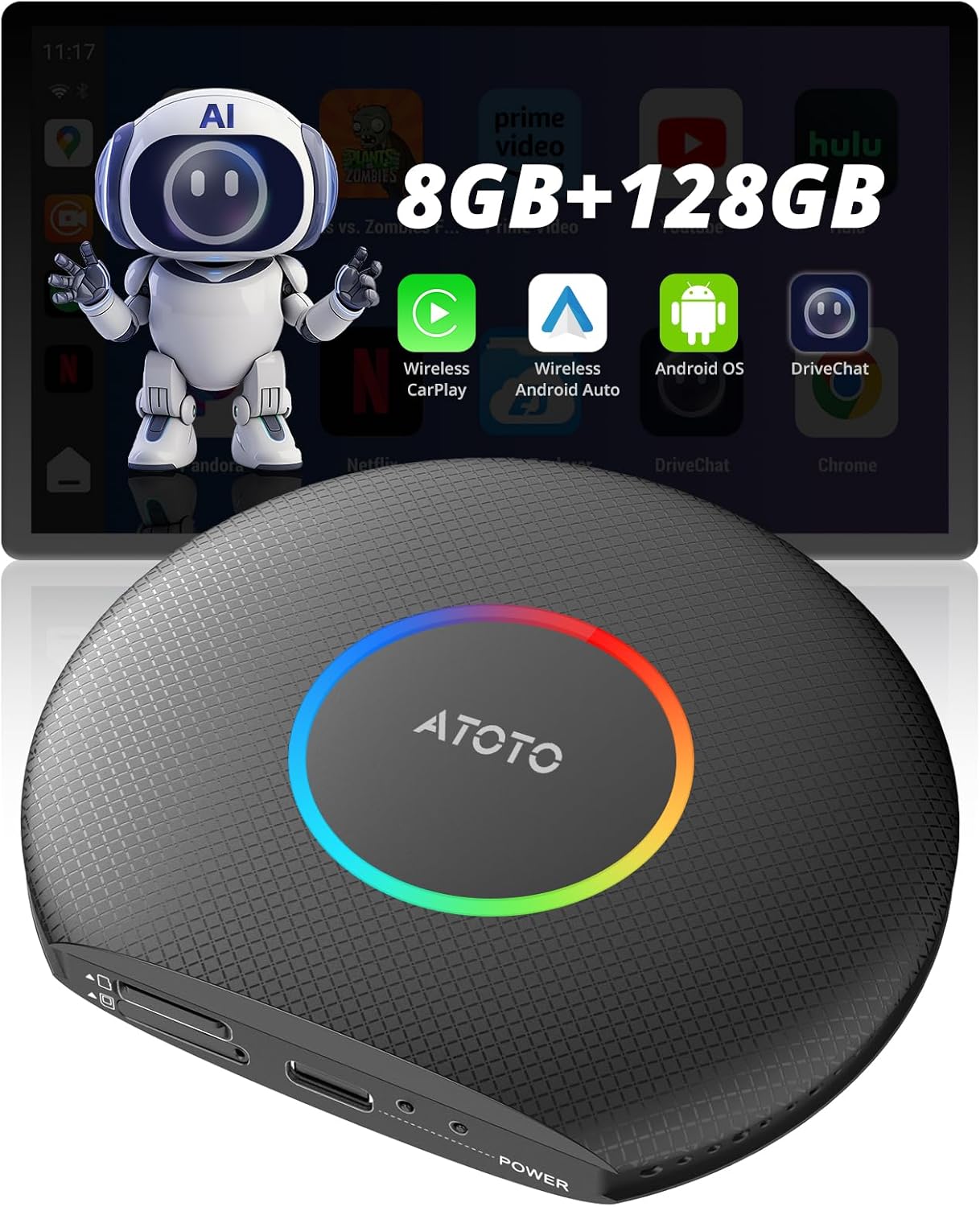
Image: The ATOTOZONE CB6 device with its vibrant LED ring, alongside a car display showing various applications like Prime Video, YouTube, and Netflix, highlighting its 8GB RAM + 128GB ROM capacity.
2. What's in the Box
Verify that all the following items are included in your package:
- CB6 Body (Main Unit)
- USB C-to-C Cable
- USB A-to-C Cable
- Y-shaped Cable

Image: A visual representation of the CB6 device, its dimensions, and the included USB C-to-C, USB A-to-C, and Y-shaped cables, demonstrating how they connect to the device and car's USB ports.
3. Setup Guide
3.1 Connecting the CB6 Device
The CB6 device connects to your car's existing wired CarPlay or Android Auto USB port. Use the appropriate cable provided based on your car's USB port type.
- USB A-to-C Cable: For vehicles with a standard USB-A port.
- USB C-to-C Cable: For vehicles with a USB-C port.
- Y-shaped Cable: For certain car models (e.g., 2016-2020 Nissan, Isuzu, Camry, 2023 Toyota Crown, 2023 Lexus NX, Volkswagen Desay SV) that may require additional power supply for stable operation. Connect both USB-A ends to available USB ports in your car.

Image: A three-step guide illustrating the connection process: Step 1 shows connecting the CB6 to the vehicle's port using either USB A-to-C or USB C-to-C cable. Step 2 depicts inserting a Micro SIM card correctly. Step 3 shows the successful launch of wireless CarPlay or Android Auto on the car's display.
3.2 SIM Card Insertion (Optional)
The CB6 supports a built-in 4G LTE connection for internet access. To use this feature, insert a Micro SIM card into the designated slot on the device. Ensure the SIM card tray is inserted in the correct direction to avoid damage.

Image: A close-up view of the CB6 device showing the correct and incorrect ways to insert a Micro SIM card, emphasizing the importance of proper orientation to prevent damage.
4. Operating Instructions
4.1 Wireless CarPlay and Android Auto
Once connected, the CB6 automatically converts your car's wired CarPlay or Android Auto into a wireless connection. Simply launch the respective application on your car's screen.
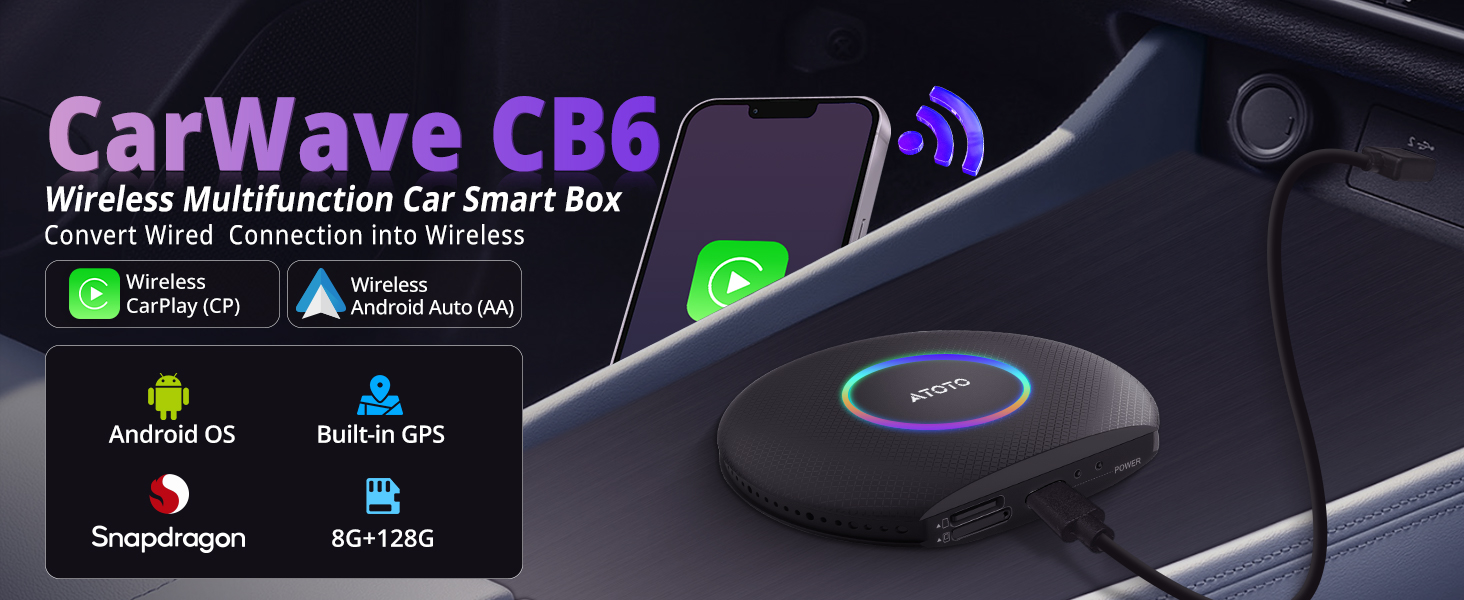
Image: A visual flow demonstrating how a wired CarPlay/Android Auto connection transforms into a wireless one using the CB6 device, showing a smartphone connecting wirelessly to the car's display.
4.2 Android Operating System
The CB6 adds a full Android OS to your car stereo, allowing you to download and use various applications from Google Play Store or the pre-installed 'FindApps' store. Internet access is available via built-in 4G LTE (with SIM card), Bluetooth tethering, or Wi-Fi (note: Wi-Fi is not supported during wireless CarPlay/Android Auto use).

Image: A car's infotainment screen displaying a variety of popular apps like YouTube, Netflix, Spotify, and Google Maps, along with icons for Google Play Store and a dedicated APK downloader, 'FindApps'.
4.3 Dual Bluetooth Functionality
The CB6 features two independent Bluetooth modules:
- Bluetooth 1: Primarily for phone connection, enabling calls, music streaming, and auto screen lock/unlock features.
- Bluetooth 2: Used for internet access via Bluetooth tethering and connecting to external Bluetooth devices such as OBD-II diagnostic scanners (e.g., AC-4450) or interior footwell lights (e.g., CI-FLT01).

Image: A detailed graphic explaining the dual Bluetooth capabilities of the CB6, showing Bluetooth1 for phone connection and auto screen lock/unlock, and Bluetooth2 for internet access and connecting various devices like OBD-II scanners.
4.4 DriveChat AI Assistant
Utilize the integrated DriveChat AI Assistant, powered by ChatGPT, for voice-controlled interactions. This feature allows for AI conversations and chatbot functionalities directly from your car's display.

Image: A car's screen displaying the DriveChat GenAI Assistant interface, showing examples of AI conversations and chatbot interactions, such as asking about the Grand Canyon or requesting a story.
4.5 TrackHU GPS Tracking APP
The CB6 includes the TrackHU GPS tracking application, eliminating the need for external GPS trackers. Features include geofencing, real-time tracking, instant alerts, and route playback.

Image: The TrackHU GPS Tracking APP interface on a car's display and a smartphone, showing a map with a tracked vehicle, along with icons for geofence, real-time tracking, instant alerts, and route playback.
4.6 Split Screen Functionality
The CB6 supports split-screen mode, allowing you to run two applications simultaneously on your car's display. This is useful for navigation while playing media, for example.

Image: A car's display showing the split screen feature, with a video playing on one side and a navigation map on the other, demonstrating different aspect ratio options.
4.7 Personalize LED Light Colors
Customize the LED light colors on the CB6 device to match your preference or car's interior. Options include Daytime mode, Night Mode, and Auto Mode.

Image: The CB6 device illuminated with a colorful LED ring, showcasing the personalization options for LED light colors, including daytime, night, and auto modes, with a color palette icon.
4.8 Optional Interface Layout
The CB6 offers different interface layouts for the Android system, allowing you to choose the display mode that best suits your needs.

Image: Two distinct interface layouts (Mode 1 and Mode 2) displayed on a car's screen, showing different arrangements of icons and information, such as maps, music players, and phone apps.
4.9 OTA Updates
The CB6 supports Over-The-Air (OTA) updates, ensuring your device receives the latest features, performance improvements, and bug fixes. Regularly check for and install available updates to maintain optimal performance.

Image: A car's display showing the 'System Update' screen for the CB6, indicating the current version and providing an option to check for new versions, with a cloud icon representing FOTA (Firmware Over-The-Air) updates.
5. Compatibility
5.1 Phone Compatibility
- Compatible with iPhone 5 or newer (iOS 9.0+).
- Compatible with Android 11.0+.
- Also useful for Google/Samsung phones with Android 10.0+, Galaxy S8/S8+/Note 8 with Android 9.0+.
5.2 Car Stereo Compatibility
The CB6 is compatible with car stereos that come with:
- Only Wired CarPlay & Wired CarPlay and Wireless CarPlay
- Only Wired Android Auto & Wired Android Auto and Wireless Android Auto (You must press and hold the 'Reset' button to switch to Android Auto)
- Wired CarPlay and Wired Android Auto
- Wired CarPlay and Wireless Android Auto
- Wireless CarPlay and Wired Android Auto (You must press and hold the 'Reset' button to switch to Android Auto)
NOT Compatible with Car Stereos that Have:
- Only Wireless CarPlay or Only Wireless Android Auto
5.3 Incompatible Car Models
The CB6 is generally compatible with 98% of car models that have car stereos. However, it is not compatible with:
- BMW models
- Motorcycles
- Trucks
- Nissan models from 2016-2020
- Isuzu
- Camry
- 2023 Toyota Crown
- 2023 Lexus NX
- Volkswagen Desay SV (requires a power supply cable connection)
For head units that only support wireless CarPlay + wired Android Auto, the system needs to be switched to the Android Auto (AA) channel.

Image: A comprehensive compatibility chart detailing supported phone operating systems (iOS and Android versions) and various car stereo configurations (wired/wireless CarPlay/Android Auto combinations), along with a list of incompatible car models.
6. Specifications
| Feature | Specification |
|---|---|
| Product Dimensions | 3.67 x 3.25 x 0.65 inches |
| Item Weight | 8.8 ounces |
| Model Number | CB6 |
| RAM + ROM | 8GB RAM + 128GB ROM |
| Processor | Qualcomm Snapdragon 665 Octa-Core |
| Operating System | Android 13 |
| Connectivity | Wireless CarPlay, Wireless Android Auto, 4G LTE (Micro SIM), Dual Bluetooth, 2.4 & 5.0 GHz WiFi |
| GPS | Built-in GPS |
| Color | Black |
7. Troubleshooting
- Device Not Connecting / Frequent Disconnections:
Ensure the USB cable is securely connected to both the CB6 and the car's USB port. Try using a different USB port in your vehicle if available. If using the Y-shaped cable, ensure both USB-A ends are connected to provide sufficient power. Some car models (e.g., 2016-2020 Nissan, Isuzu, Camry, 2023 Toyota Crown, 2023 Lexus NX, Volkswagen Desay SV) specifically require the Y-shaped cable for stable power. - Cannot Switch to Android Auto:
If your car stereo only supports wireless CarPlay + wired Android Auto, you may need to press and hold the 'Reset' button on the CB6 device to switch to the Android Auto channel. Refer to your car stereo's manual for specific instructions on switching input modes. - SIM Card Not Recognized:
Verify that the Micro SIM card is inserted correctly into the slot. The SIM card tray must be inserted in the proper direction as indicated on the device. Incorrect insertion can prevent recognition or damage the device. - No Internet Access via Wi-Fi:
Note that Wi-Fi is NOT supported for internet access when using wireless CarPlay or wireless Android Auto. For internet connectivity during these modes, use the built-in 4G LTE (with a valid SIM card) or Bluetooth 2 tethering. - Apps Not Installing or Running Slowly:
Ensure you have a stable internet connection. Check available storage space on the device. If performance is slow, try restarting the CB6 device or clearing cache for problematic applications.
8. Maintenance
- Keep the device clean by wiping it with a soft, dry cloth. Avoid using harsh chemicals or abrasive cleaners.
- Ensure the device is not exposed to extreme temperatures, direct sunlight for prolonged periods, or excessive moisture.
- Store the device in a cool, dry place when not in use.
- Regularly check for and install OTA updates to ensure the device operates with the latest software and optimal performance.
9. Warranty and Support
ATOTOZONE provides a 12-month warranty for the CB6 device, with an additional 6 months of extended warranty, totaling 18 months. For any issues or inquiries, online self-service support is available. Our product care experts aim to respond to all inquiries within 24 hours.

Image: A graphic highlighting ATOTOZONE's commitment to excellence, featuring icons for a '12+6 Months Warranty' and 'Expert Support', emphasizing reliable customer care.
Ask a question about this manual
Ask about setup, troubleshooting, compatibility, parts, safety, or missing instructions. Manuals+ will review the question and use this page’s manual context to help answer it.