1. Introduction
This manual provides detailed instructions for the YUNZII RT80 Rapid Trigger Hall Effect Magnetic Gaming Keyboard. It covers setup, operation, maintenance, and troubleshooting to ensure optimal performance and user experience. The RT80 keyboard is designed for precision and speed, featuring advanced magnetic switches and versatile connectivity options.

Image 1.1: The YUNZII RT80 keyboard is suitable for both daily typing and various gaming genres, including FPS, sports, action, and MOBA.
2. Product Overview
2.1 Key Features
- Rapid Trigger Hall Effect Magnetic Switches: Adjustable actuation from 0.1mm to 4.0mm for precise control.
- 8K Hz Hyper-Polling Rate: Up to 8000Hz in wired mode for ultra-low latency.
- Tri-Mode Connectivity: Supports wired (USB-C), 2.4GHz wireless, and Bluetooth connections.
- 75% Layout: Compact design with essential keys.
- RGB Backlighting: Customizable per-key RGB lighting.
- Hot-Swappable: Allows for easy switch replacement.
- Web-Based Customization: No software download required for advanced settings (DKS, Snap Tap, Macros).
- N-Key Rollover (NKRO) & Anti-Ghosting: Ensures all key presses are registered accurately.
- 5000 mAh Battery: Extended wireless usage.
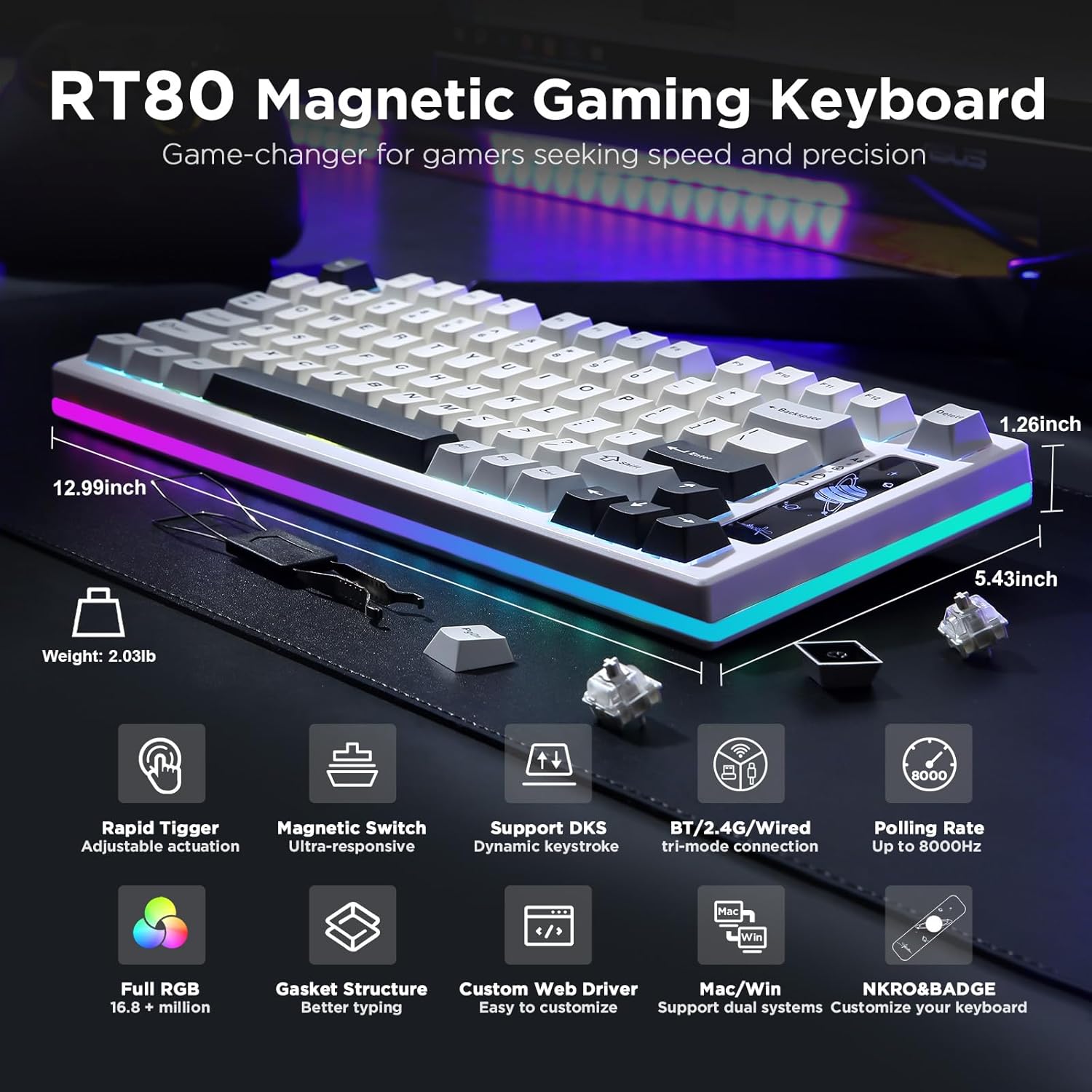
Image 2.1: Overview of the YUNZII RT80 Magnetic Gaming Keyboard, showcasing its dimensions and primary features.
2.2 Package Contents
Verify that all items are present in your package:
- YUNZII RT80 Keyboard
- USB-C Cable
- Keycap Puller
- Extra Keycaps and Switches
- User Manual (this document)
3. Setup
3.1 Connectivity Modes
The RT80 keyboard supports three connection modes: Wired, 2.4GHz Wireless, and Bluetooth.
- Wired Mode: Connect the keyboard to your device using the provided USB-C cable. The keyboard will be recognized automatically.
- 2.4GHz Wireless Mode:
- Locate the 2.4GHz USB receiver.
- Plug the receiver into an available USB port on your device.
- Switch the keyboard to 2.4GHz mode (refer to keyboard shortcuts in Section 4.1).
- Bluetooth Mode: The keyboard can connect to up to three Bluetooth devices.
- Switch the keyboard to Bluetooth mode (refer to keyboard shortcuts in Section 4.1).
- On your device, search for Bluetooth devices and select "YUNZII RT80".
- Pair the device. Repeat for additional Bluetooth slots (BT1, BT2, BT3).
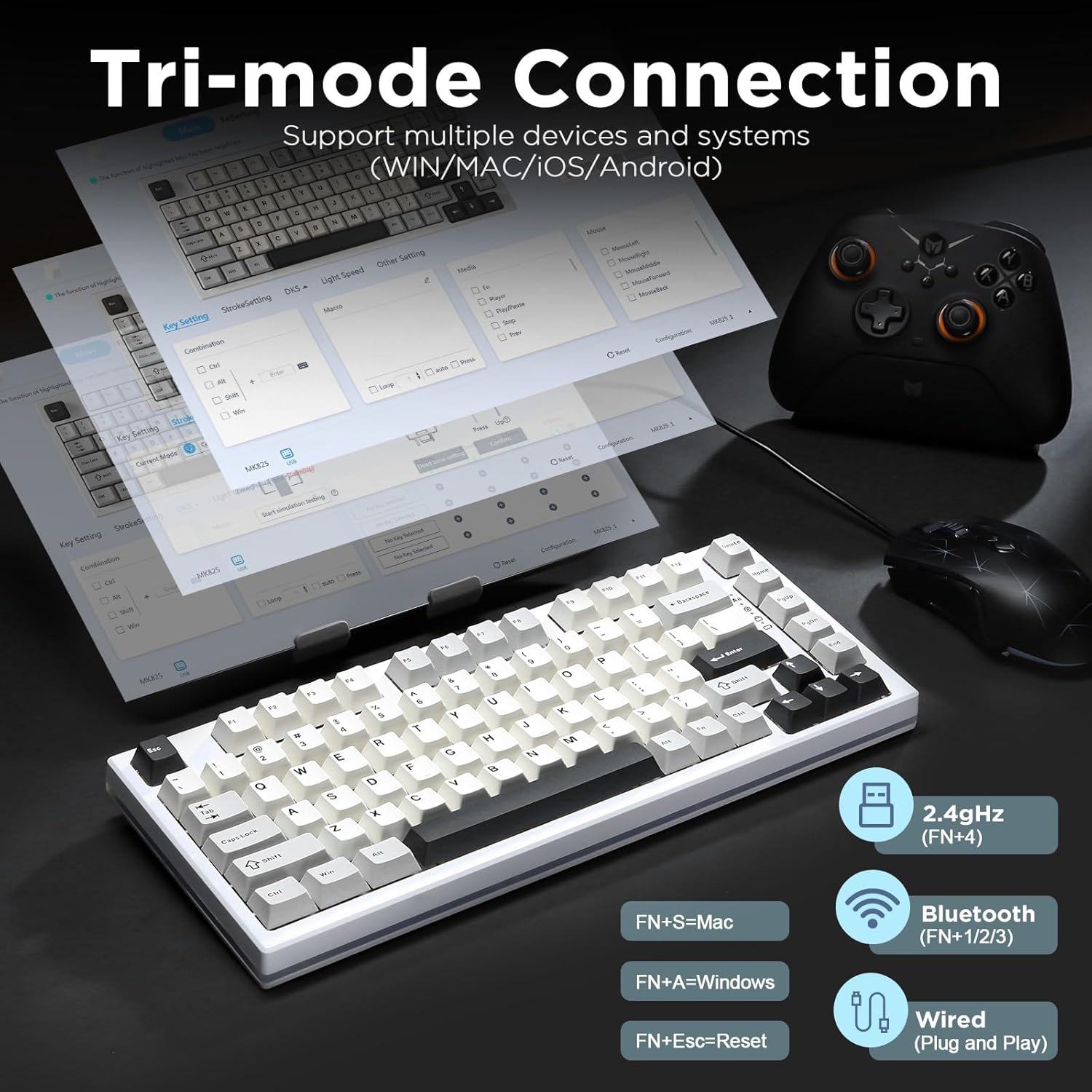
Image 3.1: The YUNZII RT80 supports 2.4GHz wireless, Bluetooth, and wired USB-C connections, compatible with Windows, macOS, iOS, and Android devices.
3.2 Web-Based Customization
The RT80 features a web-based driver for extensive customization without requiring software downloads. This allows for configuration on both Windows and macOS systems.
- Access the customization interface via the official YUNZII website (refer to the included quick start guide for the specific URL).
- Adjust settings for Dynamic Keystrokes (DKS), Snap Tap, key combinations, macros, key reassignments, and RGB lighting effects.
- Configure actuation sensitivity within a range of 0.1mm to 4.0mm with 0.1mm adjustable accuracy.

Image 3.2: The web-based driver provides a user-friendly interface for customizing keyboard settings on Windows and Mac systems.
4. Operating Instructions
4.1 Keyboard Shortcuts
Utilize the Function (Fn) key in combination with other keys for various controls:
| Combination | Function |
|---|---|
| Fn + Esc | Reset Keyboard |
| Fn + Del | Insert Key |
| Fn + A | Switch to Windows Layout |
| Fn + S | Switch to macOS Layout |
| Fn + Win | Win Lock (Disable Windows Key) |
| Fn + P | Keyboard Lock |

Image 4.1: Common keyboard shortcuts for system control and layout switching.
4.2 RGB Lighting Control
Adjust the keyboard's RGB backlighting using the following Fn key combinations:
| Combination | Function |
|---|---|
| Fn + ↑ | Increase Backlight Brightness |
| Fn + ↓ | Decrease Backlight Brightness |
| Fn + ← | Decrease Backlight Speed |
| Fn + → | Increase Backlight Speed |
| Fn + Backspace | Toggle Light On/Off |
| Fn + Home | Change Backlight Color |
| Fn + PgUp | Change Lighting Effect Direction |
| Fn + [ | Decrease Side Light Brightness |
| Fn + ] | Increase Side Light Brightness |
| Fn + ; | Decrease Side Light Speed |
| Fn + ' | Increase Side Light Speed |
| Fn + Right Ctrl | Change Side Light Effect |
| Fn + Right Alt | Change Side Light Color |

Image 4.2: Controls for adjusting the keyboard's RGB backlighting and side lighting.
4.3 Rapid Trigger and Actuation Adjustment
The RT80's Hall Effect magnetic switches allow for customizable actuation points and Rapid Trigger functionality, enhancing responsiveness in gaming.
- Adjustable Actuation: Set the key actuation point from 0.1mm to 4.0mm using the web-based customization tool. A shorter actuation point results in faster key presses.
- Rapid Trigger: This feature allows keys to reset instantly upon upward movement, enabling rapid successive key presses without needing to fully release the key. Configure Rapid Trigger sensitivity via the web interface.
- Dynamic Keystrokes (DKS): Assign up to four different actions to a single key based on the press depth. For example, a light press for walking and a deep press for running. Configure DKS in the web driver.
- Snap Tap (Mop-Tap): Assign two distinct actions to a single key: one for a quick tap and another for holding the key.
- Toggle Key: Assign a toggle function to a key, where one press activates an action and another press deactivates it.

Image 4.3: Visual representation of Rapid Trigger functionality and its benefits in gaming.

Image 4.4: Dynamic Keystrokes (DKS) allow for multiple actions from a single key based on press depth.

Image 4.5: Snap Tap (Mop-Tap) enables two distinct actions from a single key press.

Image 4.6: Toggle Key functionality for continuous actions.
5. Maintenance
5.1 Cleaning the Keyboard
- Disconnect the keyboard from all power sources before cleaning.
- Use a soft, lint-free cloth slightly dampened with water or a mild cleaning solution to wipe the keycaps and chassis.
- For dust and debris between keys, use compressed air.
- Avoid using harsh chemicals, abrasives, or solvents.
5.2 Keycap and Switch Replacement
The RT80 features hot-swappable switches, allowing for easy replacement without soldering.
- Use the provided keycap puller to gently remove keycaps.
- Use a switch puller (not included, but often bundled with switches) to carefully remove the magnetic switches.
- Align new switches with the PCB sockets and press firmly until they click into place. Ensure the pins are not bent.
- Place new keycaps onto the switches.

Image 5.1: The hot-swappable design allows for easy replacement of keycaps and magnetic switches.
6. Troubleshooting
- Keyboard Not Responding:
- Ensure the USB cable is securely connected in wired mode.
- Check battery level in wireless modes (Fn + Space).
- Verify the correct connection mode (Wired, 2.4GHz, Bluetooth) is selected on the keyboard.
- For 2.4GHz, ensure the receiver is properly inserted.
- For Bluetooth, re-pair the device if connection is lost.
- Try resetting the keyboard (Fn + Esc).
- Keys Not Registering or Double-Typing:
- This may indicate a faulty switch. Try replacing the affected switch.
- Check the actuation point settings in the web driver; a very low actuation point might cause unintended presses.
- RGB Lighting Not Working:
- Ensure RGB is not turned off (Fn + Backspace).
- Adjust brightness levels (Fn + ↑/↓).
- Check RGB settings in the web driver.
- Custom Settings Not Saving:
- Ensure your device has a stable internet connection when using the web driver.
- Confirm that settings are applied and saved within the web interface.
7. Specifications
| Feature | Detail |
|---|---|
| Model | RT80 |
| Layout | 75% (82 keys + 1 metal plate) |
| Switches | Gateron White Magnetic Hall Effect Switches |
| Polling Rate | 8000Hz (Wired Mode), 1000Hz (2.4GHz Wireless Mode) |
| Actuation Point | Adjustable 0.1mm - 4.0mm |
| Connectivity | USB-C Wired, 2.4GHz Wireless, Bluetooth (BT1/BT2/BT3) |
| Battery Capacity | 5000 mAh |
| Keycaps | Double Shot PBT Keycaps, Cherry Profile |
| Backlighting | RGB, South-facing LED |
| Compatibility | Windows, macOS, iOS, Android |
| Material | Plastic chassis, Gasket Structure |
| Item Weight | 2.97 pounds |
| Package Dimensions | 13.62 x 7.28 x 2.32 inches |

Image 7.1: Detailed specifications of the Gateron Magnetic Switch used in the RT80 keyboard.

Image 7.2: Physical dimensions and layout of the YUNZII RT80 keyboard.
8. Warranty and Support
For warranty information, technical support, or further assistance, please refer to the official YUNZII website or contact their customer service directly. Details can typically be found on the product packaging or the YUNZII brand store on Amazon.
Visit the YUNZII Store on Amazon for more products and support resources.