
Introduction
Welcome to the PEICHENG Kids Tablet 10-inch Android user manual. This guide provides essential information for setting up, operating, maintaining, and troubleshooting your new tablet. Please read this manual thoroughly to ensure optimal performance and a safe user experience for your child.
The PEICHENG Kids Tablet is designed for children, featuring a 10-inch eye-care IPS display, a robust Android 12 operating system, and a durable shockproof case with an integrated kickstand. It comes preloaded with educational apps and offers dual cameras for capturing precious moments.
Product Overview
Key Features:
- 10-inch HD IPS Eye-Care Display: Designed to reduce blue light irritation for comfortable viewing and learning.
- Android 12 Operating System: Provides a stable and user-friendly platform.
- Quad-Core Processor: Ensures smooth operation for various applications.
- 2GB RAM + 32GB Internal Storage: Sufficient memory for apps and content, expandable via TF card up to 128GB.
- 5000mAh Battery: Offers extended usage for learning and entertainment.
- Dual Cameras: 5MP front camera for video calls and an 8MP rear camera for photos.
- Shockproof Silicone Case: Provides protection against accidental drops and bumps.
- Integrated Foldable Kickstand: Allows for hands-free viewing in multiple scenarios.
- Dual Stereo Speakers: Delivers clear audio for an immersive experience.
What's in the Box:
- PEICHENG Kids Tablet (Model AT11K)
- Pre-installed Shockproof Silicone Protective Case
- Charging Cable (USB-C)
- Power Adapter
- User Manual (this document)
Setup
-
1. Initial Charge
Before first use, fully charge the tablet. Connect the charging cable to the tablet's charging port and the power adapter to a wall outlet. The charging indicator will show the charging status.
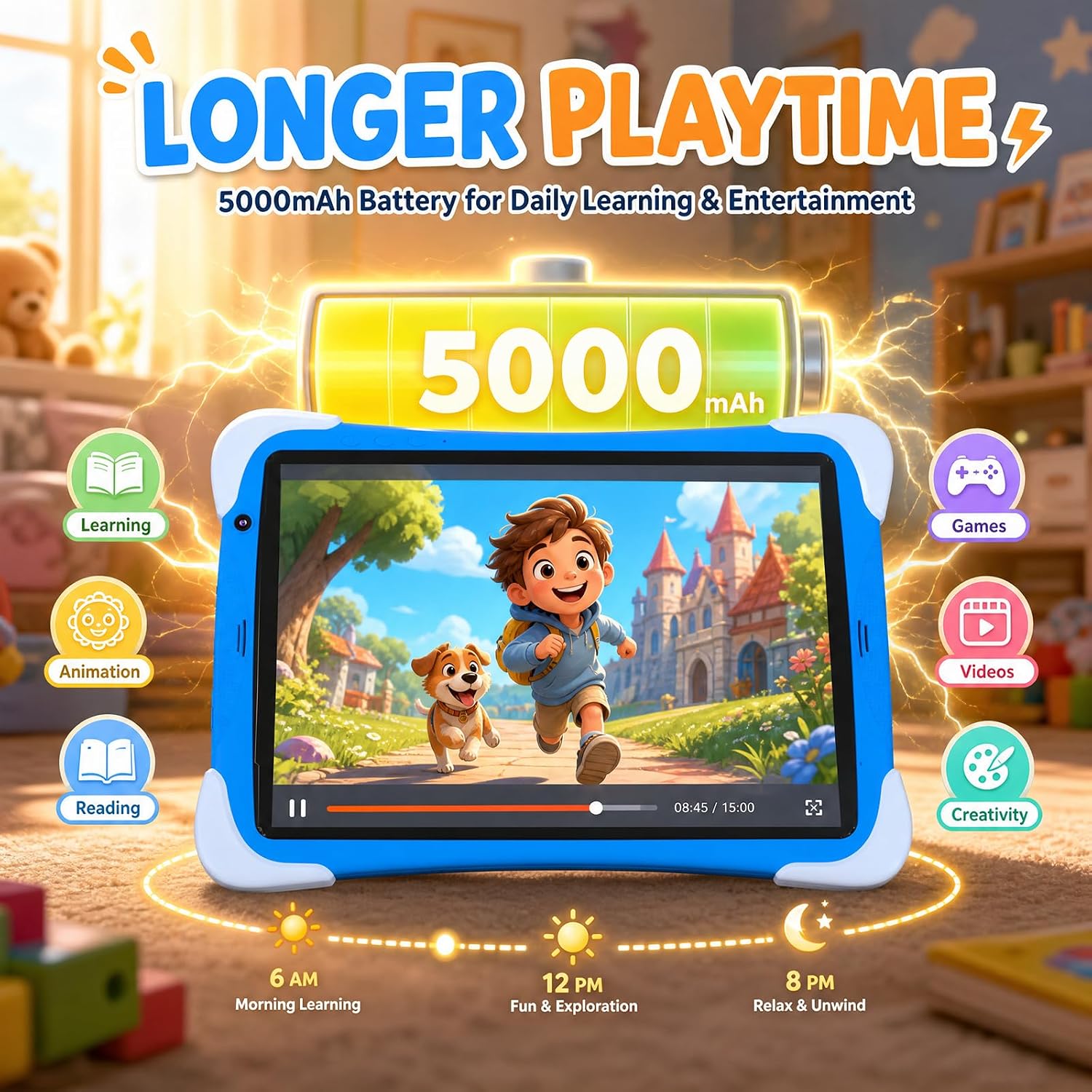
Image: The tablet displaying battery status, indicating a long-lasting 5000mAh battery.
-
2. Power On/Off
Press and hold the Power button (usually located on the side) for a few seconds until the screen lights up. To power off, press and hold the Power button, then select "Power off" from the options.
-
3. Initial Configuration
Follow the on-screen prompts to set up the tablet for the first time. This includes selecting your language, connecting to a Wi-Fi network, and setting up a Google account (optional, but recommended for app downloads).
-
4. Parental Control Setup
The tablet includes parental control features. It is highly recommended to set these up to manage screen time, app access, and content filtering. Refer to the "Parental Controls" section under Operating Instructions for detailed steps.
Operating Instructions
Basic Navigation
- Touchscreen Gestures: Tap to select, swipe to scroll, pinch to zoom.
- Home Screen: Access all your apps and widgets.
- Notifications Bar: Swipe down from the top to view notifications and quick settings.

Image: The tablet's home screen showcasing a variety of educational and entertainment applications.
Parental Controls
The PEICHENG Kids Tablet features a dedicated parental control interface to ensure a safe digital environment for children. This allows parents to:
- Set time limits for tablet usage.
- Manage and approve accessible applications.
- Filter web content to block inappropriate websites.
- Monitor child's activity and app usage.
Access parental controls through the designated app icon on the home screen or via the tablet's settings menu. A password or PIN will be required to enter and modify these settings.
Preloaded Educational Apps
The tablet comes with a selection of preloaded educational applications designed to engage children in learning. These apps cover subjects such as ABC learning, animal cognition, puzzle games, story reading, art creation, and science exploration.
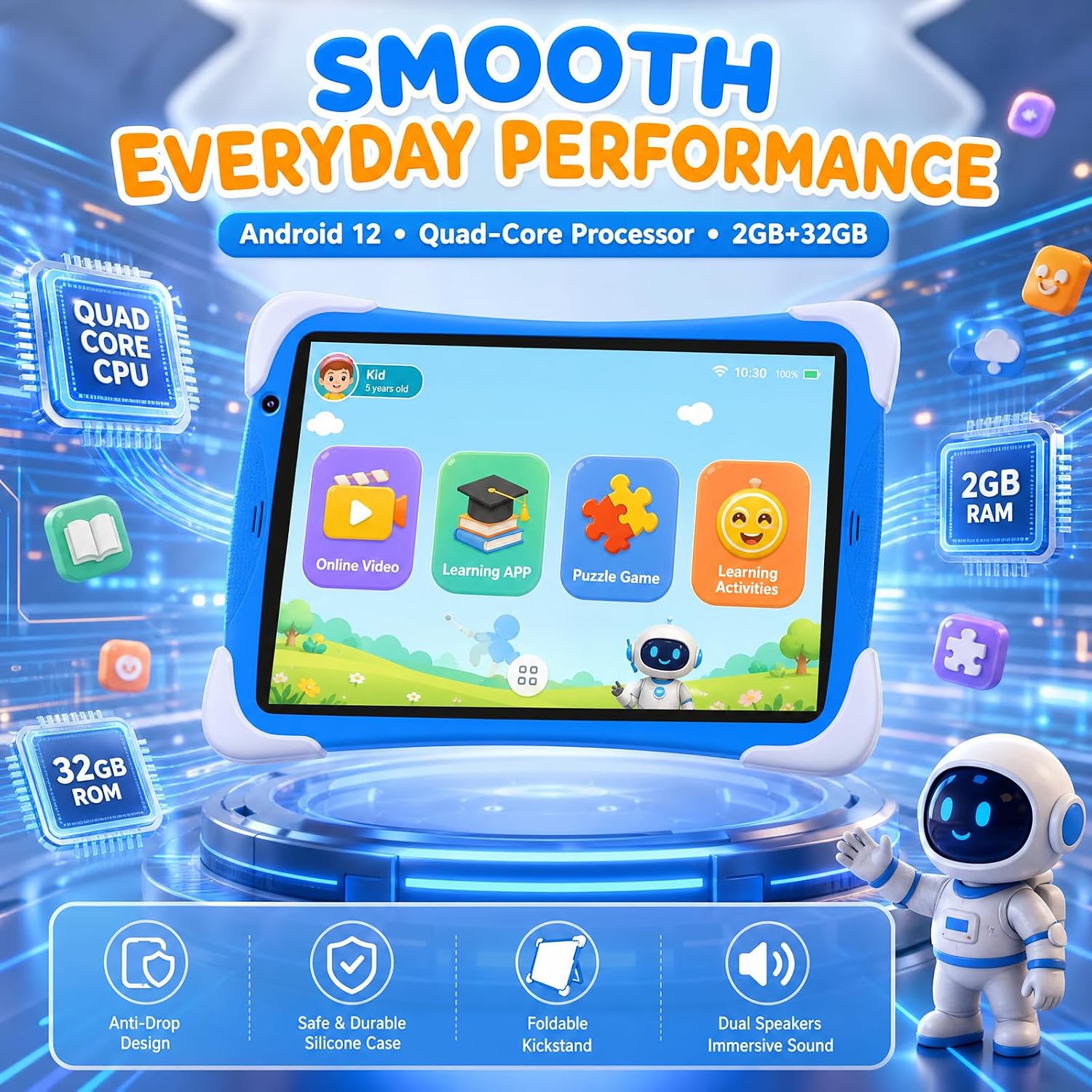
Image: The tablet's interface highlighting smooth performance for online videos, learning applications, and puzzle games.
Camera Usage
The tablet is equipped with dual cameras:
- 5MP Front Camera: Ideal for video calls and selfies.
- 8MP Rear Camera: For capturing photos and videos with a wide-angle lens and auto-focus function.
To use the camera, tap the Camera app icon. You can switch between front and rear cameras, take photos, and record videos. Ensure good lighting for best results.

Image: Two tablets demonstrating the use of front (5MP) and rear (8MP) cameras for capturing moments.
Battery Management
The tablet features a 5000mAh battery designed for extended use. To maximize battery life:
- Reduce screen brightness.
- Close unused applications running in the background.
- Turn off Wi-Fi or Bluetooth when not in use.
- Charge the tablet fully before extended use.
Maintenance
- Cleaning: Use a soft, lint-free cloth to clean the screen and tablet body. Avoid abrasive cleaners or solvents.
- Protective Case: The included shockproof silicone case provides protection. Ensure it is properly fitted at all times.
- Software Updates: Periodically check for system updates in the tablet's settings to ensure optimal performance and security.
- Storage Management: Regularly clear unnecessary files and apps to maintain sufficient storage space. The tablet supports TF card expansion up to 128GB for additional storage.

Image: The tablet encased in its protective silicone cover, highlighting its kid-friendly design and reinforced corners.
Troubleshooting
| Problem | Possible Solution |
|---|---|
| Tablet does not power on. | Ensure the tablet is fully charged. Connect to the charger and wait a few minutes before attempting to power on again. If unresponsive, perform a hard reset by holding the power button for 10-15 seconds. |
| Screen is unresponsive. | Restart the tablet. If the issue persists, ensure the screen is clean and free of debris. |
| Wi-Fi connection issues. | Check if Wi-Fi is enabled in settings. Restart your Wi-Fi router. Forget the network and reconnect. |
| Apps are running slowly or crashing. | Close background applications. Clear app cache in settings. Ensure sufficient storage space is available. Restart the tablet. |
| Battery drains quickly. | Reduce screen brightness. Close unused apps. Disable Wi-Fi/Bluetooth when not needed. Check for apps consuming excessive power in battery settings. |
Specifications
| Brand | PEICHENG |
| Model Name | 10.1 inch Tablet (AT11K) |
| Screen Size | 10.1 inches |
| Display Resolution | 1280 x 800 pixels (HD IPS) |
| Operating System | Android 12 |
| Processor | Quad-Core Processor |
| RAM | 2GB |
| Internal Storage | 32GB (Expandable via TF card up to 128GB) |
| Battery Capacity | 5000mAh |
| Front Camera | 5MP |
| Rear Camera | 8MP |
| Connectivity | Wi-Fi (802.11n), Bluetooth, USB |
| Dimensions (L x W x Thickness) | 10.1"L x 4.85"W x 0.4"Th |
| Weight | 1.05 kg |
| Included Components | Tablet, Shockproof Case, Charging Cable, Power Adapter |
Warranty Information
The PEICHENG Kids Tablet (Model AT11K) comes with a 1-year limited warranty from the date of purchase. This warranty covers manufacturing defects in materials and workmanship under normal use.
The warranty does not cover:
- Damage caused by accident, abuse, misuse, flood, fire, earthquake, or other external causes.
- Damage caused by operating the product outside the permitted or intended uses described by PEICHENG.
- Damage caused by service (including upgrades and expansions) performed by anyone who is not a representative of PEICHENG.
- Products or parts that have been modified to alter functionality or capability without the written permission of PEICHENG.
Please retain your proof of purchase for warranty claims.
Support
For further assistance, technical support, or warranty inquiries, please contact PEICHENG customer service. Refer to the product packaging or the official PEICHENG website for the most current contact information.
When contacting support, please have your tablet's model number (AT11K) and proof of purchase readily available.


