
1. Product Overview
This manual provides instructions for the SABLUTE KL386 Wireless Keyboard and Mouse Combo. This combo offers a compact, quiet, and rechargeable solution for your computing needs, featuring backlit keys and an RGB mouse.
Package Contents:
- Wireless Keyboard
- Wireless Mouse
- USB Receiver (2.4GHz)
- USB-A to USB-C Adapter
- USB-C Charging Cable
- User Manual
Component Identification:
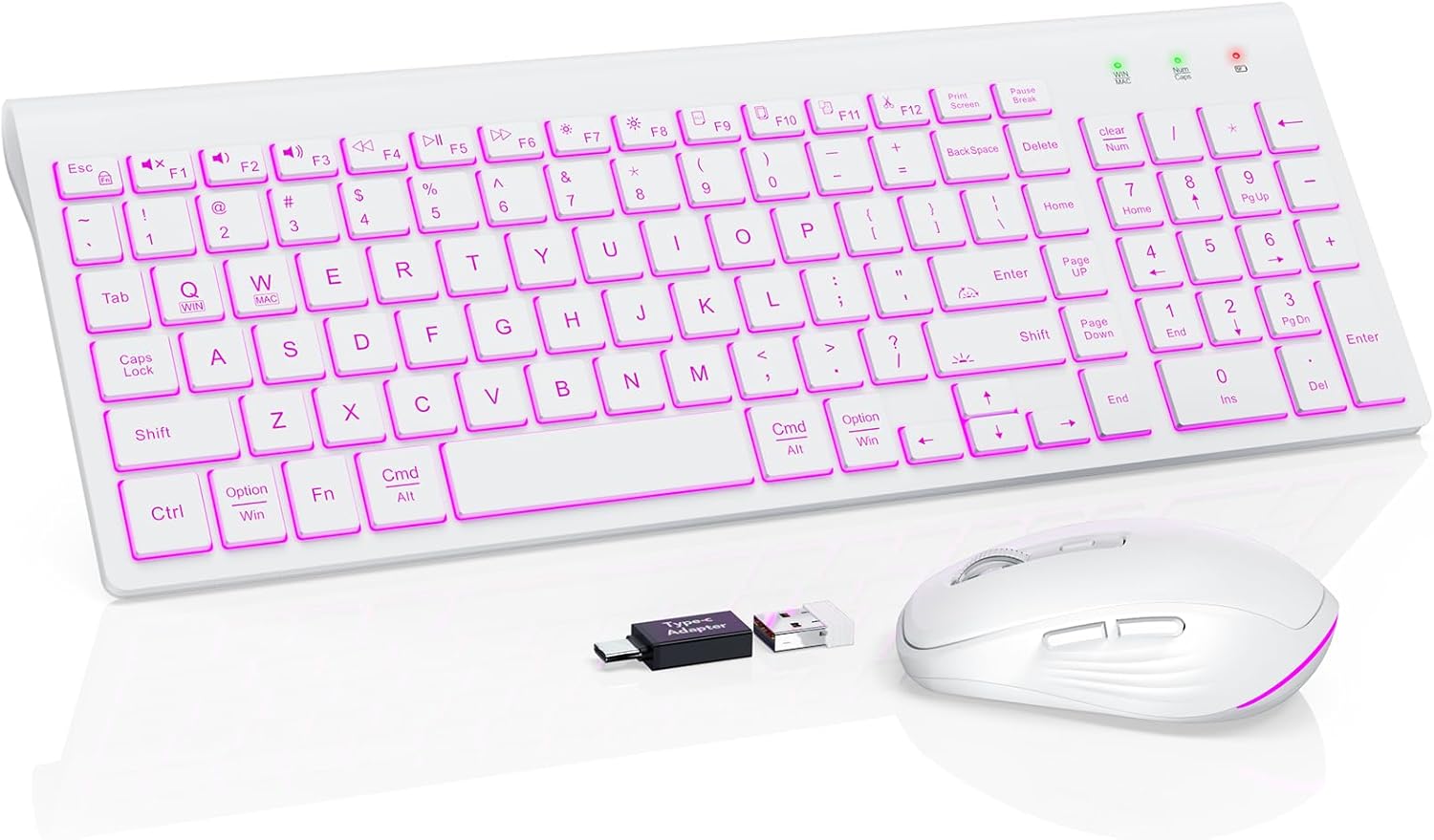
Image: The SABLUTE KL386 wireless keyboard and mouse combo, including the USB receiver and USB-C adapter.
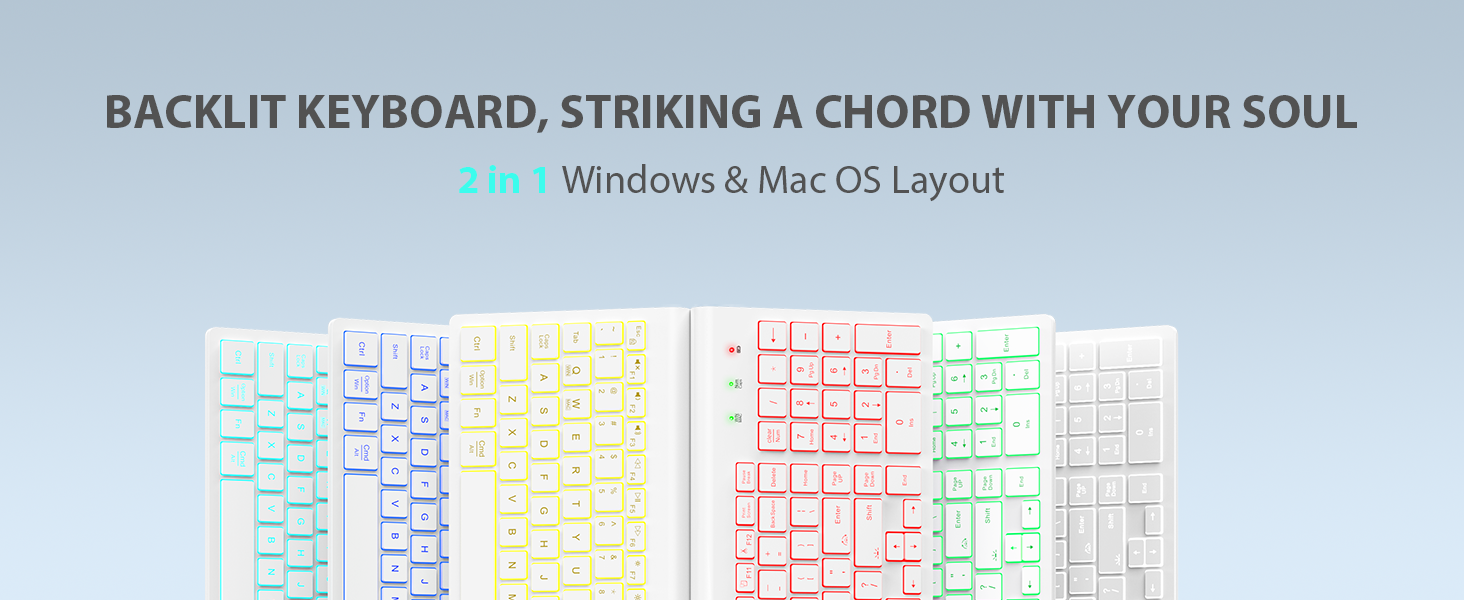
Image: Detailed view of the SABLUTE KL386 keyboard layout, highlighting key functions and indicators.
2. Setup Instructions
2.1 Charging the Devices
Before initial use, fully charge both the keyboard and mouse.
- Connect the provided USB-C charging cable to the charging port on the keyboard and mouse.
- Connect the other end of the cable to a USB power source (e.g., computer USB port, USB wall adapter).
- The charging indicator light will illuminate during charging and turn off when fully charged.

Image: Illustration of the keyboard and mouse connected via USB-C cables for charging, showing battery capacity indicators.
2.2 Connecting the Wireless Combo
The keyboard and mouse share a single USB receiver for connection.
- Locate the USB receiver, typically stored in the mouse's battery compartment.
- Plug the USB receiver into an available USB-A port on your computer. If your computer only has USB-C ports, use the included USB-A to USB-C adapter.
- Turn on the power switch located on the back of both the keyboard and the mouse.
- The devices are plug-and-play and should connect automatically within a few seconds.
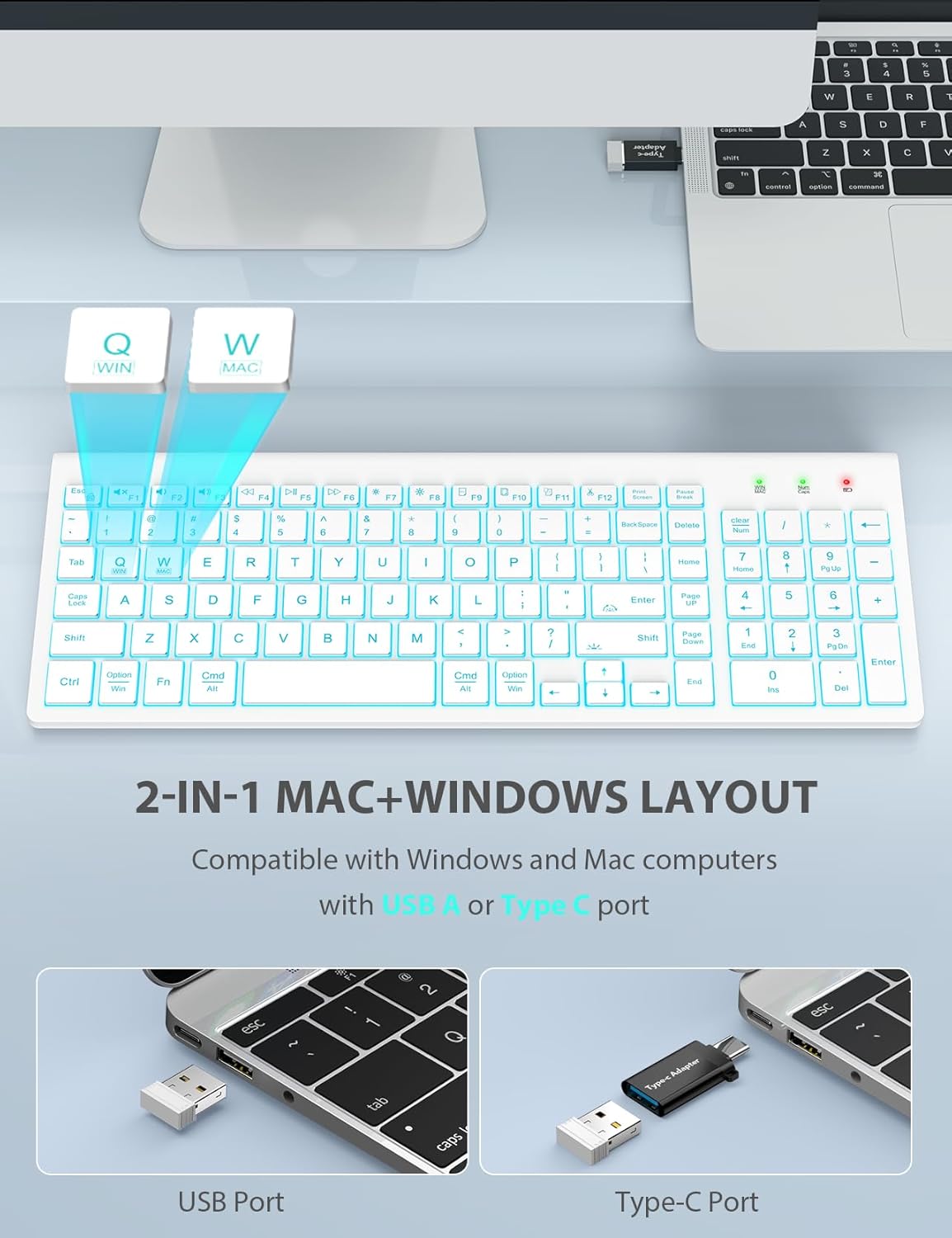
Image: A laptop connected to the wireless keyboard via a USB receiver, demonstrating the use of both USB-A and USB-C ports with the adapter.
2.3 Switching System Layout (Windows/Mac)
The keyboard supports both Windows and Mac layouts.
- To activate the Mac layout: Press Fn + W. A red indicator light will confirm the switch.
- To activate the Windows layout: Press Fn + Q. A green indicator light will confirm the switch.
3. Operating Instructions
3.1 Keyboard Backlight Control
The keyboard features a 7-color switchable backlight with 4 adjustable brightness levels.
- Turn On/Off/Adjust Brightness: Press Fn + Shift. Cycle through Off, Low, Mid, and High brightness levels.
- Switch Colors: Press Fn + Enter. Cycle through the 7 available backlight colors.
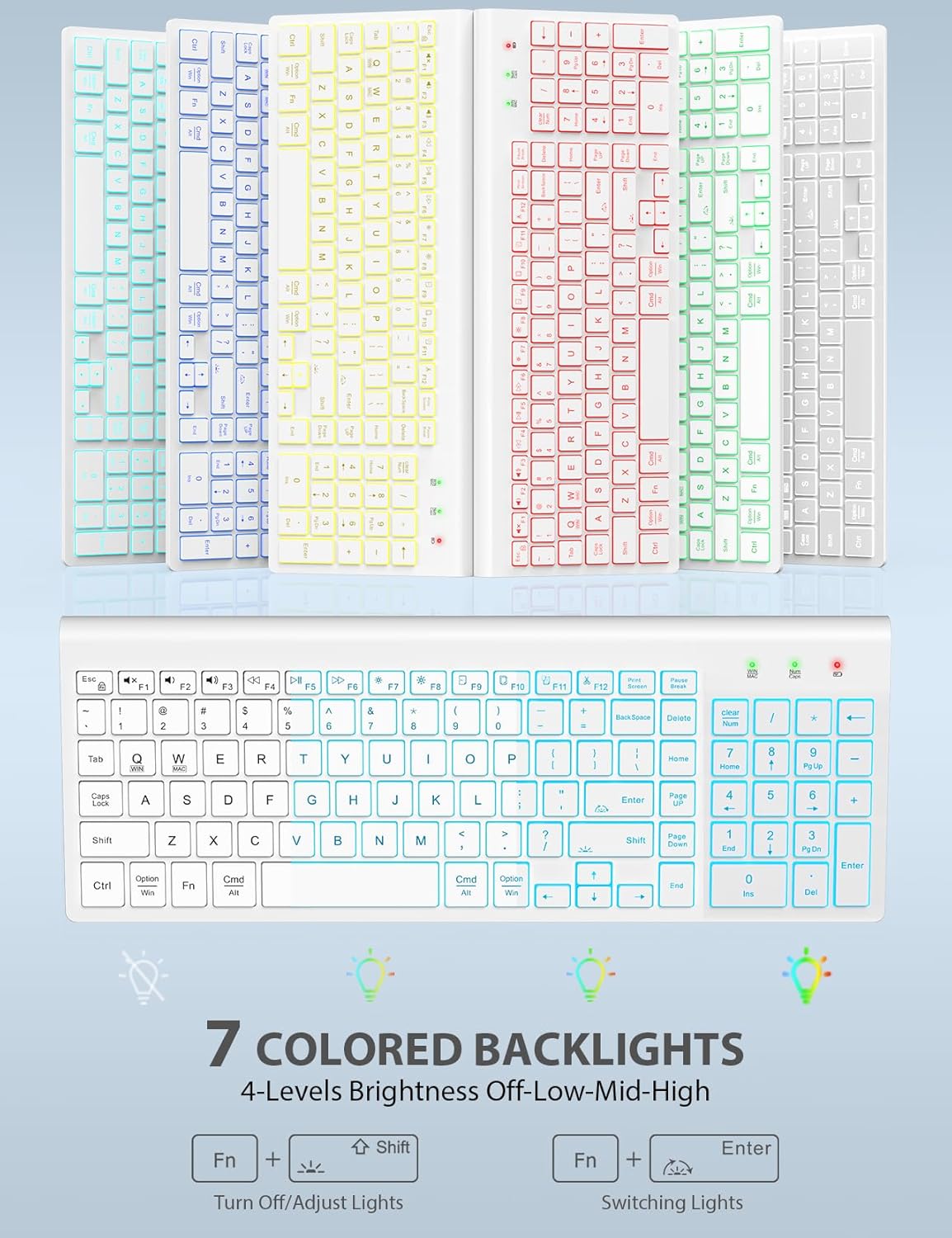
Image: The keyboard displaying various backlight colors, illustrating the 7-color options and brightness levels.
3.2 Mouse RGB Lighting
The mouse features automatic color-changing RGB lighting.
- The RGB lighting changes colors automatically during use.
- To turn the mouse backlight on or off, use the dedicated "backlight switching" button on the mouse.

Image: The wireless mouse showcasing its RGB lighting and highlighting the tracking speed and quiet click features.
3.3 Multimedia Function Hotkeys
The keyboard includes 12 convenient multimedia shortcut keys (F1-F12).
- To enable one-key operation of the F1-F12 multimedia functions, press Fn + ESC. This will toggle the "Fn Lock" feature.

Image: Diagram illustrating the Fn + ESC key combination to enable one-key operation of multimedia functions (F1-F12).
3.4 Mouse Functions
- Tracking Speed Button: Located on the top of the mouse, this button allows you to adjust the DPI (sensitivity) for different tracking speeds.
- Forward/Backward Buttons: Located on the side of the mouse, these buttons facilitate faster web navigation.
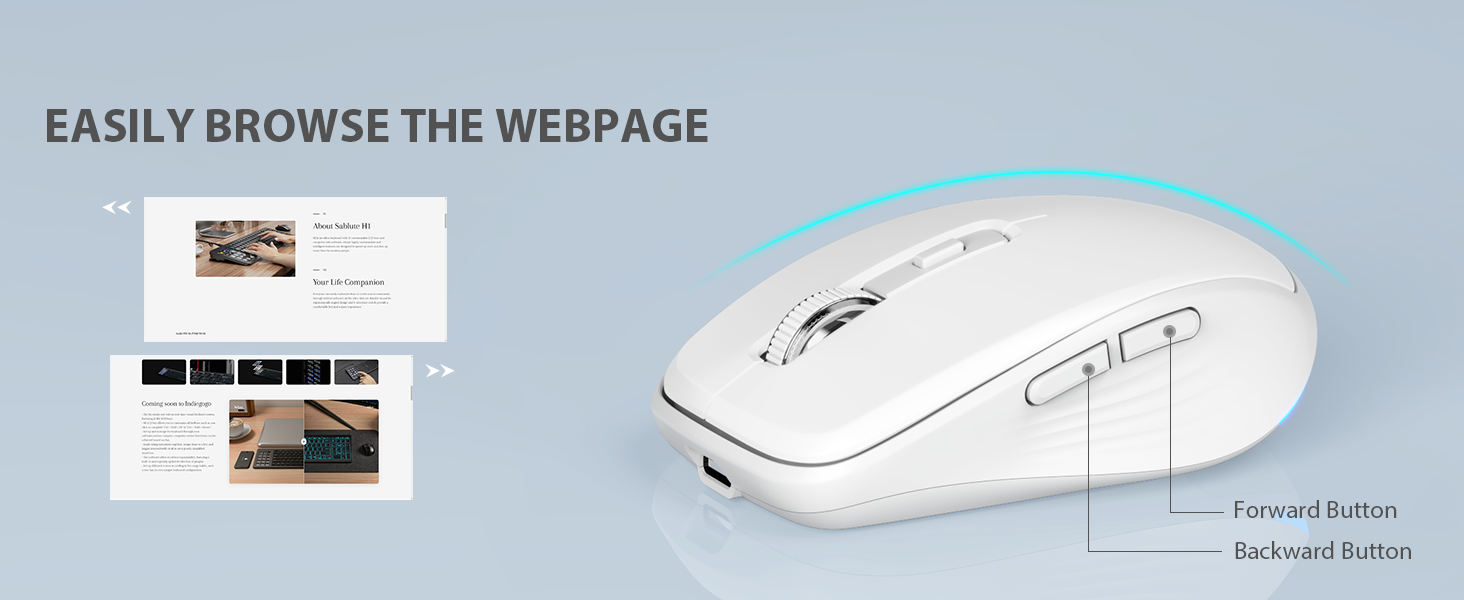
Image: Close-up of the wireless mouse, highlighting the forward and backward navigation buttons for web browsing.
3.5 Smart Sleep Mode
Both the keyboard and mouse feature an automatic sleep function to conserve battery power.
- The keyboard will enter sleep mode after 10 minutes of inactivity.
- The mouse will enter sleep mode after 15 minutes of inactivity.
- To wake up either device, simply type any key on the keyboard or click any button on the mouse.
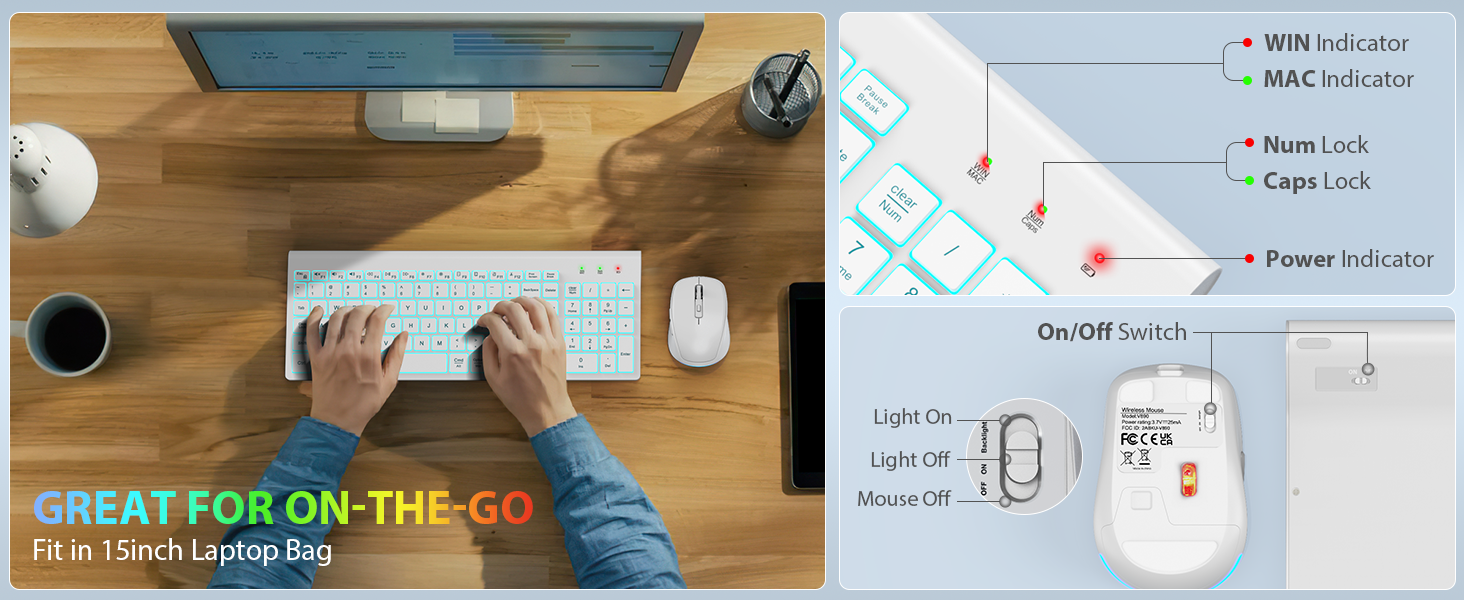
Image: Visual representation of the smart sleep mode feature, indicating idle times for both the keyboard and mouse before entering sleep.
4. Maintenance
4.1 Cleaning
- Use a soft, dry cloth to clean the surfaces of the keyboard and mouse.
- For stubborn dirt, slightly dampen the cloth with water or a mild cleaning solution. Avoid excessive moisture.
- Do not use harsh chemicals, abrasive cleaners, or solvents.
4.2 Battery Care
- Recharge the devices when the battery indicator lights show low power.
- Avoid fully depleting the battery frequently to prolong its lifespan.
- If storing the devices for an extended period, charge them to about 50% and store in a cool, dry place.
5. Troubleshooting
5.1 Connection Issues
- No connection: Ensure the USB receiver is securely plugged into a working USB port. Try a different USB port.
- Devices not responding: Check if both the keyboard and mouse are powered on. Ensure they are sufficiently charged.
- Interference: Move the devices closer to the USB receiver. Avoid placing the receiver near other wireless devices or large metal objects that might cause interference.
5.2 Backlight Not Working (Keyboard)
- Ensure the keyboard is charged.
- Press Fn + Shift to cycle through brightness levels and turn the backlight on.
5.3 Keys or Mouse Not Responding
- Recharge the devices.
- Turn the devices off and then on again.
- Remove and re-insert the USB receiver.
- Test the devices on a different computer to rule out system-specific issues.
6. Specifications
| Feature | Description |
|---|---|
| Product Dimensions | 14.8 x 5.4 x 0.78 inches |
| Item Weight | 1.52 pounds |
| Batteries | 1 Lithium Ion battery required (included) |
| Connectivity Technology | Radio Frequency (2.4GHz) |
| Special Features | Backlit, Lightweight, Portable, Rechargeable, Spill-Resistant, Quiet Operation, Smart Sleep Mode |
| Compatible Devices | Chromebook, Notebook, MacBook Pro, MacBook Air, iMac, Tablet, Television, Smartphone, Windows XP/Vista/7/8/10/X |
| Keyboard Backlight | 7 switchable colors, 4 brightness levels |
| Mouse Lighting | Automatic RGB color change |
| Keyboard Standby Time | 365 days |
| Mouse Standby Time | 270 days |
7. Warranty and Support
7.1 Warranty Information
SABLUTE provides 24 months of support for this product. If you encounter any issues, please contact our customer service team.
7.2 Customer Support
For technical assistance or warranty claims, please contact SABLUTE USA customer service:
- Phone: 1-888-905-9607 (US)
- Operating Hours: Monday - Friday, 9:00 AM - 1:00 PM PST and 2:00 PM - 6:00 PM PST

Image: A customer service representative with a headset, indicating available support.


