
Introduction
Thank you for choosing the COOLHOOD 18.5-inch Dual Portable Monitor. This device is designed to enhance your productivity by providing an extended display solution for your laptop or other compatible devices. This manual provides detailed instructions for setting up, operating, and maintaining your new portable monitor. Please read this manual thoroughly before use to ensure optimal performance and longevity of your product.
Product Features
- Wide Compatibility: Compatible with Windows and macOS systems. No drivers or applications are required for devices with a full-featured USB-C port.
- Versatile Design: Features an adjustable stand (0-120°) and a pivot angle (0-360°) between the two screens for flexible viewing and collaboration.
- VESA Mountable: Equipped with VESA holes (75mm x 75mm) for mounting on a stand, saving desk space.
- Dual Screen Functionality: The lower screen acts as the primary display, and the upper screen as the secondary. Both can operate simultaneously or independently.
- Independent Settings: Each screen has independent menu configuration functions.
- Full HD Display: Offers 1080p resolution, 100% sRGB, 16.7 million colors, 16:9 aspect ratio, 2000:1 contrast ratio, and a 60 Hz refresh rate with an IPS matte screen.
- Eye Protection: Designed to be glare-free and flicker-free for comfortable viewing.

Image: Overview of the dual portable monitor highlighting key display features.
Package Contents
Please check the package for the following items:
- COOLHOOD 18.5-inch Dual Portable Monitor
- USB-C to USB-C Cable (for power and video)
- HDMI Cable (for video)
- Power Adapter
- User Manual (this document)
- Protective Sleeve (may vary by package)
Setup Instructions
1. Unpacking and Placement
Carefully remove the monitor from its packaging. Place it on a stable, flat surface. The integrated stand allows for adjustable viewing angles from 0 to 120 degrees. The screens can also pivot 0 to 360 degrees relative to each other.

Image: The COOLHOOD dual portable monitor in an open position.
2. Connectivity Options
The monitor supports various connection methods. Identify the ports on your device and the monitor to choose the appropriate connection.

Image: Multi-device compatibility and port layout of the monitor.
- USB-C Connection (Recommended for single cable solution):
If your laptop or device has a full-featured USB-C port (supporting Thunderbolt 3/4 or USB-C 3.1/3.2 DisplayPort Alt Mode), connect a USB-C to USB-C cable from your device to the monitor's USB-C port. This single cable can provide both power and video signal.
Note: Ensure your device's USB-C port supports video output and power delivery. If not, external power may be required.
- HDMI Connection (Requires external power):
Connect an HDMI cable from your device to the monitor's Mini HDMI port. When using HDMI, you must also connect the monitor to a power source using the provided power adapter and a USB-C cable for power delivery.
- Power Supply:
For stable display, especially when using HDMI or if your USB-C port does not provide sufficient power, connect the monitor to the power adapter using a USB-C cable.
3. Driver Installation
The COOLHOOD Dual Portable Monitor is designed for plug-and-play functionality. No additional drivers or software installation is typically required for Windows or macOS systems when connected via a full-featured USB-C port.

Image: Connection scenarios for main and secondary screens, emphasizing no driver installation.
Operating Instructions
1. Powering On/Off
Press and hold the Power/Back Button located on the side of the monitor to turn it on or off.
2. Menu Navigation
Use the Pulley Button to navigate through the On-Screen Display (OSD) menu. Press the Pulley Button to enter the menu, scroll up/down to select options, and press again to confirm. The Power/Back Button can be used to go back to the previous menu or exit the OSD.
Each of the two screens has its own independent menu for configuration, allowing for separate adjustments of brightness, contrast, color settings, and more.
3. Display Modes
The monitor supports various display modes to suit your workflow:
- Mirror Mode: Both screens display the same content as your primary device.
- Extend Mode: Each screen displays different content, extending your desktop workspace.
- Link Mode: The two portable screens can be combined to act as one larger, continuous display.
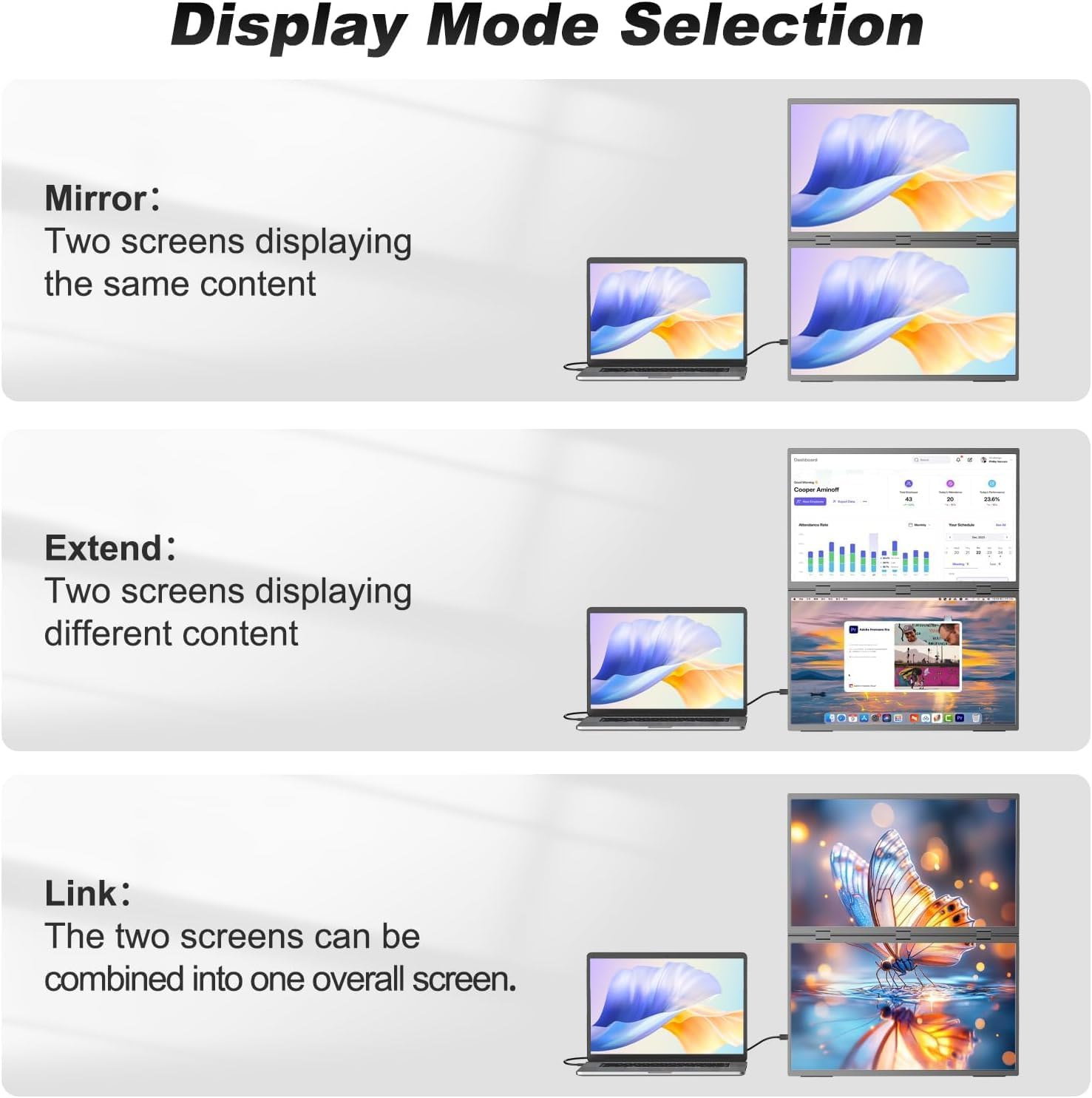
Image: Visual representation of Mirror, Extend, and Link display modes.
You can typically switch between these modes through your operating system's display settings (e.g., Windows Display Settings or macOS System Preferences > Displays).
VESA Mounting
The COOLHOOD Dual Portable Monitor features VESA mounting holes (75mm x 75mm) on the back of each screen. This allows you to mount the monitor on compatible VESA arms or stands, providing more flexibility for your workspace setup and saving desk space.

Image: The monitor's built-in stand and VESA mounting capability.
To mount the monitor:
- Ensure the monitor is powered off and disconnected from all cables.
- Carefully align the VESA mounting holes on the back of each screen with the mounting plate of your VESA arm/stand.
- Secure the monitor to the arm/stand using appropriate screws (typically M4 screws, not included with the monitor). Do not overtighten.
- Once securely mounted, reconnect the necessary cables.
Maintenance
Cleaning the Monitor
- Always power off the monitor and disconnect it from the power source before cleaning.
- Use a soft, lint-free cloth lightly dampened with water or a non-abrasive screen cleaner.
- Do not spray cleaner directly onto the screen.
- Avoid using alcohol, ammonia, or abrasive cleaners, as these can damage the screen surface.
- Wipe the screen gently to remove dust and smudges.
Storage
When not in use, store the monitor in a cool, dry place, away from direct sunlight and extreme temperatures. Use the protective sleeve (if included) to prevent scratches.
Troubleshooting
| Problem | Possible Cause | Solution |
|---|---|---|
| No display / Black screen |
|
|
| Only one screen displays content |
|
|
| Image flickering or unstable display |
|
|
| Cannot access OSD menu |
|
|
Specifications
| Brand | COOLHOOD |
| Model Number | daul-185 (GS185KS1) |
| Screen Size | 18.5 Inches |
| Resolution | FHD 1080p (1920 x 1080) |
| Aspect Ratio | 16:9 |
| Contrast Ratio | 2000:1 |
| Refresh Rate | 60 Hz |
| Response Time | 2 milliseconds |
| Panel Type | IPS, Matte Surface |
| Connections | USB Type-C, Mini HDMI |
| Power Consumption | 45 Watt |
| Special Features | High Efficiency, Eye Protection, Sharp Image Quality, VESA Mountable |
| Compatible Devices | Gaming Consoles (Switch/Xbox/PS5), Computers, Laptops, Mobile Phones (Android with USB-C 3.1+, iPhone 15/16 series directly via Type-C, other iPhone series with additional Lightning to HDMI adapter) |
Warranty and Support
For warranty information and customer support, please refer to the documentation provided at the time of purchase or contact your retailer. Specific details regarding spare parts availability and software updates are not available at this time. For technical assistance or inquiries, please reach out to COOLHOOD customer service through their official channels.
