1. Introduction
This manual provides instructions for the installation, operation, and maintenance of your Real HD 4K 8MP Mini PTZ Dome PoE IP Camera. This camera is designed for outdoor surveillance, offering high-resolution video, pan-tilt-zoom capabilities, and Power over Ethernet connectivity. Please read this manual thoroughly before using the product to ensure proper setup and functionality.
2. Package Contents
Verify that all items are present in your package:
- 1 x 4K 8MP Mini PTZ IP Camera
- 1 x User Manual
3. Product Overview and Features
The Real HD 4K 8MP Mini PTZ Dome PoE IP Camera is a robust surveillance solution. It features a compact dome design, high-resolution imaging, and flexible control options.
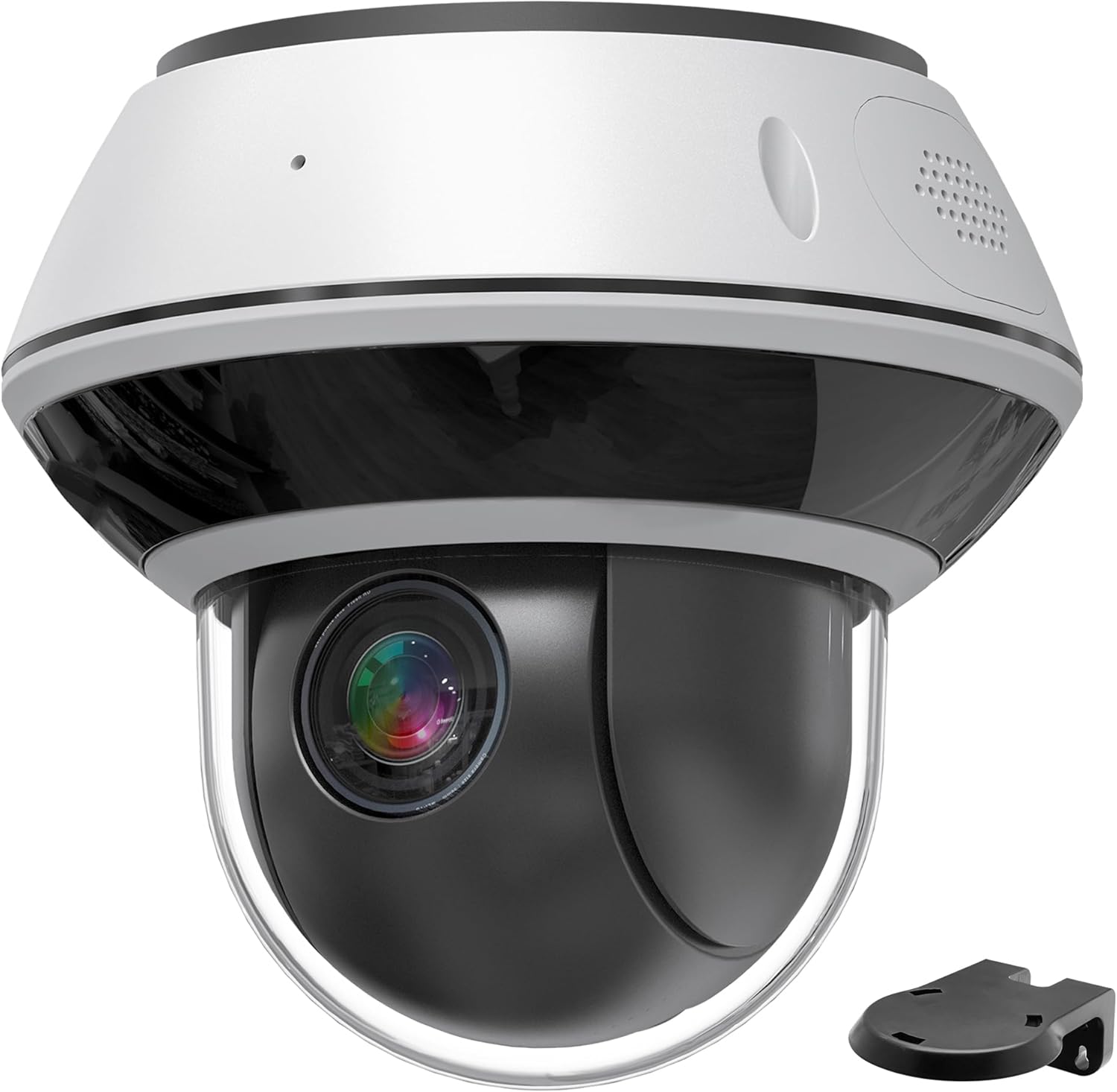
Front view of the Real HD 4K 8MP Mini PTZ Dome PoE IP Camera, showcasing its compact dome design and lens.
3.1 Key Features
- HD 4K 8MP Resolution: Captures video at 3840x2160 resolution at 20 frames-per-second (FPS), providing clear and detailed images.
- Pan, Tilt, and 5X Optical Zoom: Offers a pan range of 0° to 350° and a tilt range of 0° to 90°. The 2.7-13.5mm motorized autofocus lens provides 5X optical zoom for detailed viewing of distant objects.

Diagram illustrating the 350-degree pan and 90-degree tilt range of the camera, showing its wide coverage area.
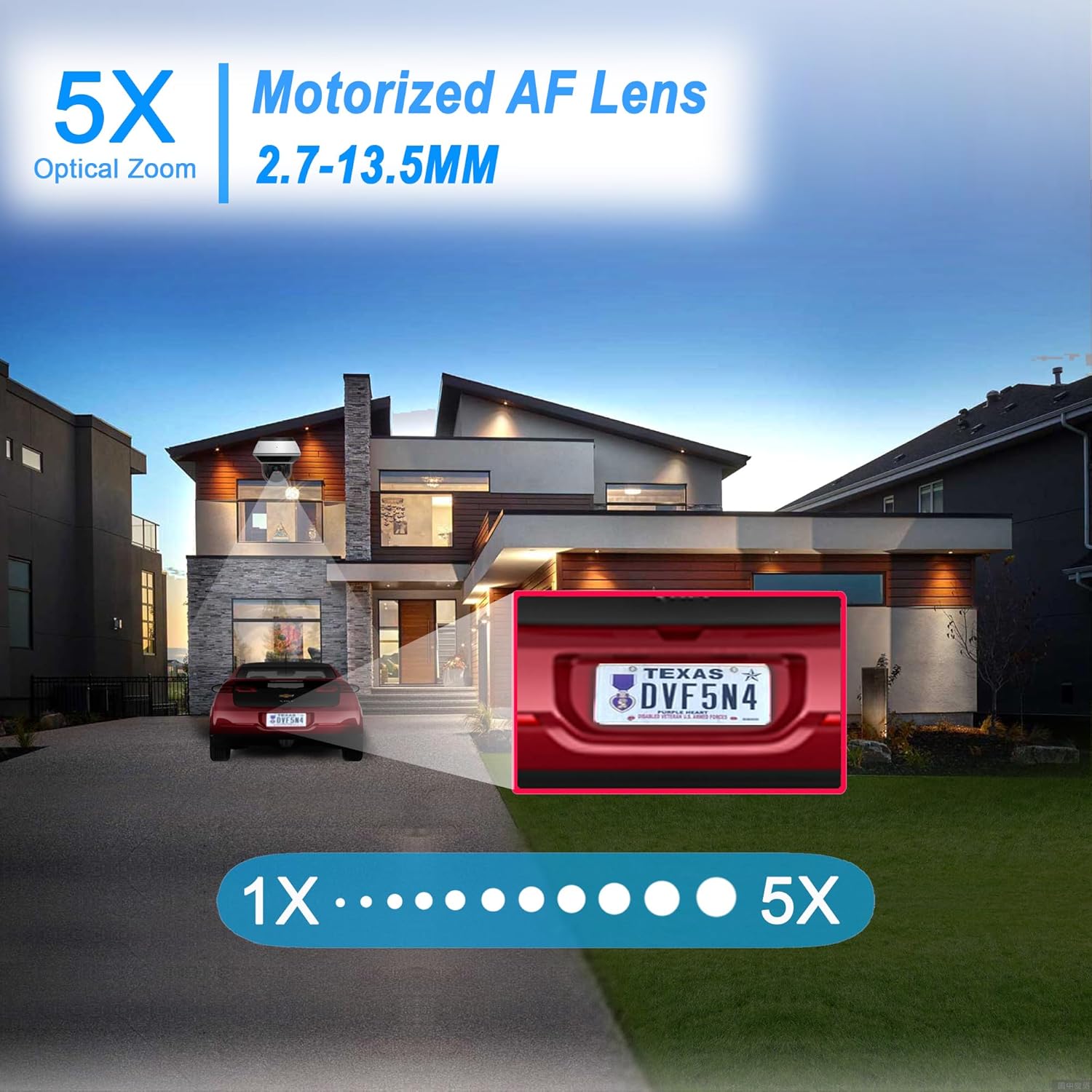
Image demonstrating the 5X optical zoom capability, showing a clear view of a distant object (license plate) at maximum zoom.
- Infrared Night Vision: Equipped with IR illumination for night vision up to 98 feet (30 meters), ensuring surveillance in low-light or dark conditions.
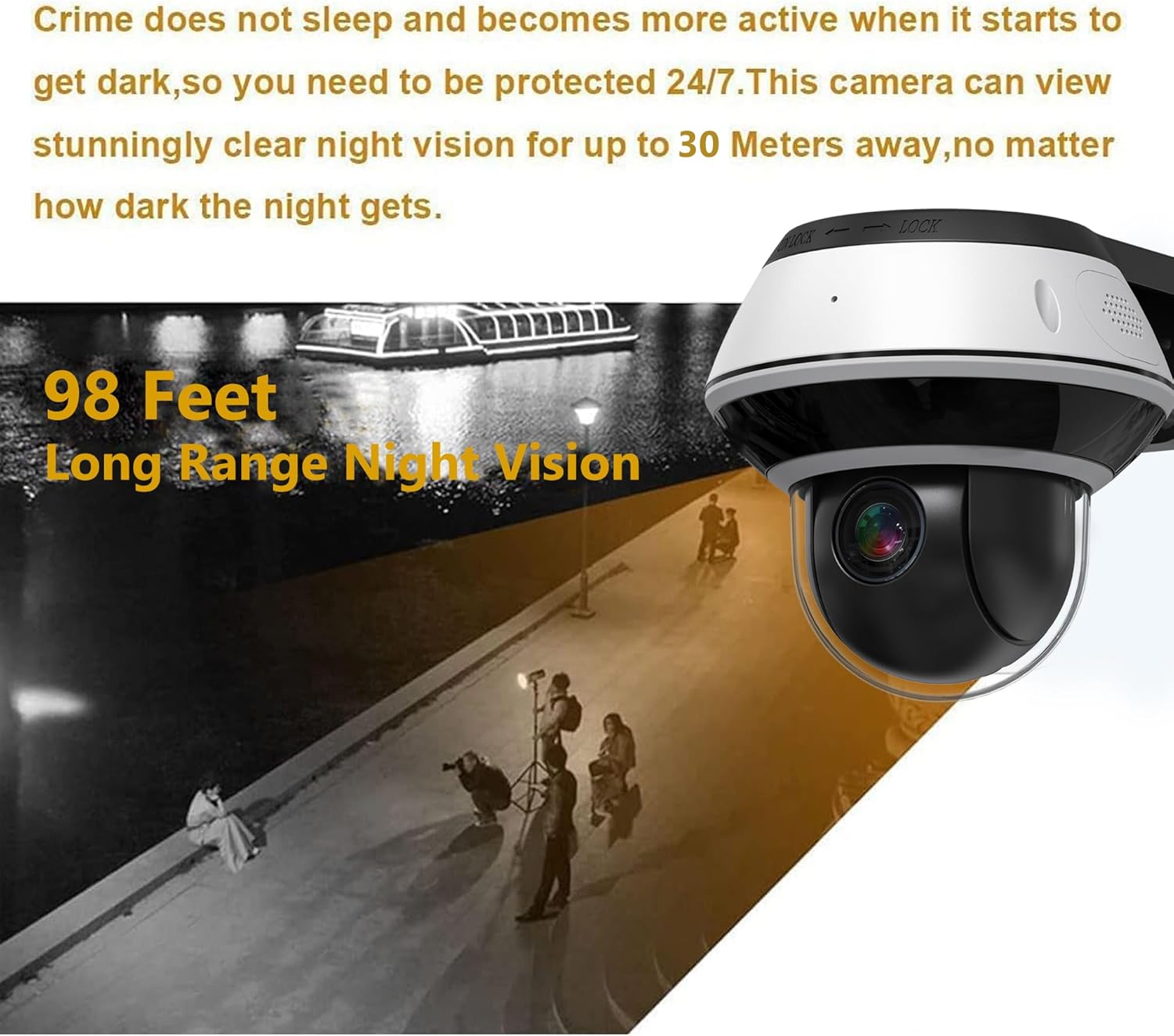
Illustration depicting the camera's night vision capability, showing clear visibility up to 98 feet in low-light conditions.
- IP67 Weatherproof Rating: Designed for both indoor and outdoor applications, with an IP67 rating ensuring protection against dust and water ingress.

Close-up view of the camera with water droplets, symbolizing its IP67 weatherproof rating for outdoor durability.
- Dual H.265/H.264 Compression: Utilizes advanced video compression to reduce file sizes and storage requirements without compromising video quality.
- Power over Ethernet (PoE): Simplifies installation by allowing the camera to receive both power and data over a single Ethernet cable.
- Versatile Mounting: Features built-in brackets for both ceiling and wall installations.

Examples of the camera mounted on a wall and a ceiling, demonstrating its versatile installation options.
- NVR Compatibility: Compatible with Uniview Standalone NVRs and certain other specific NVR systems. Note: Not compatible with Reolink, Lorex, or Amcrest NVRs.
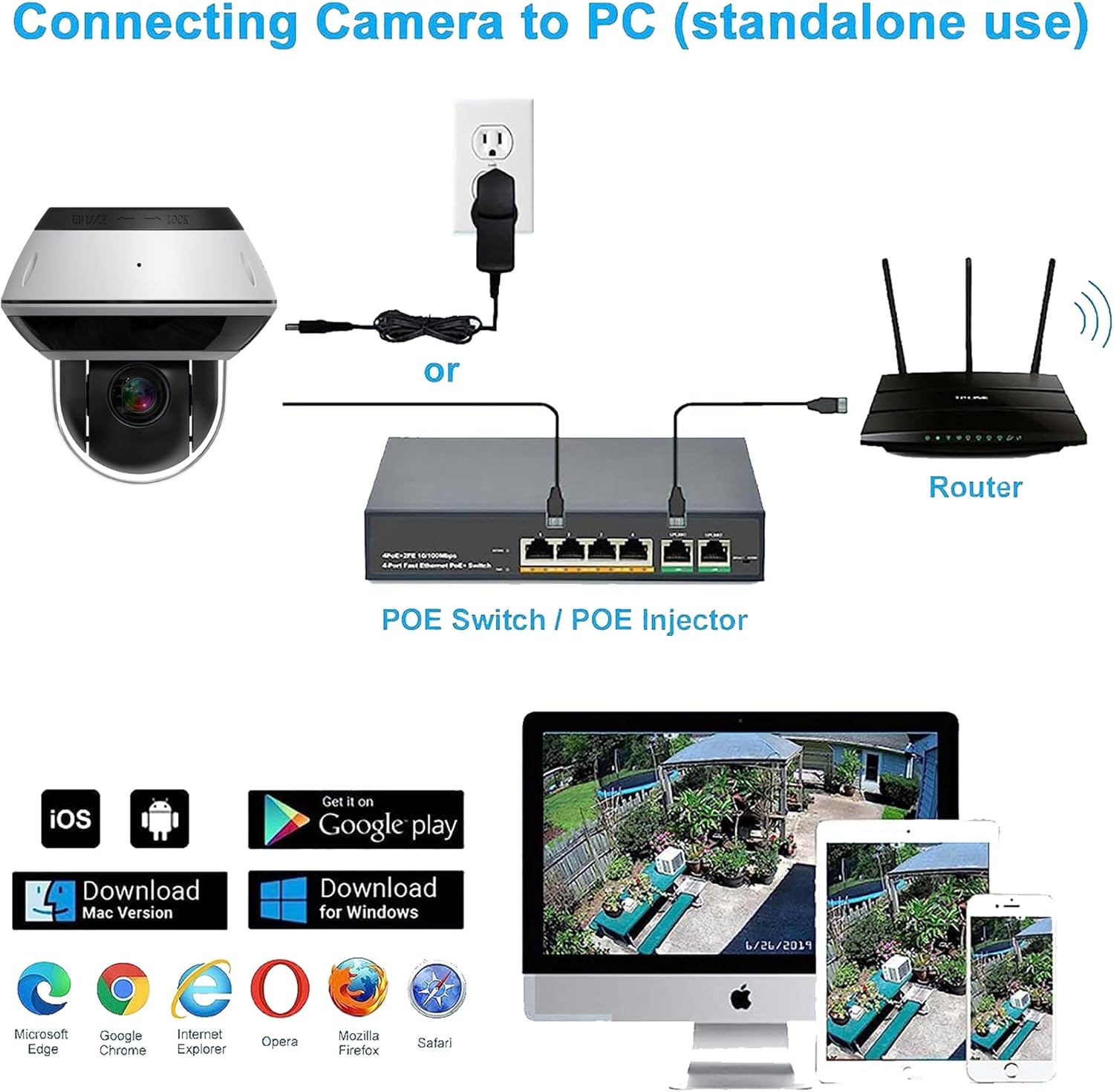
Diagram showing how to connect the camera using a PoE switch/injector to a router, and accessing it via PC or mobile devices.

Collage showing the camera's suitability for both indoor and outdoor environments, along with a display of its mobile application interface.
4. Setup and Installation
4.1 Mounting the Camera
- Choose a suitable location for installation, considering the desired viewing area and network cable access.
- Use the provided mounting brackets to securely attach the camera to a wall or ceiling. Ensure the mounting surface is strong enough to support the camera's weight.
- Adjust the camera's orientation as needed before final tightening.
4.2 Power and Network Connection
- Connect an Ethernet cable from a PoE switch or PoE injector to the camera's Ethernet port. This single cable will provide both power and data connectivity.
- Connect the PoE switch/injector to your network router.
- Ensure your network is configured to assign an IP address to the camera.
4.3 Initial Configuration
- Access the camera through a compatible NVR or PC software. Refer to your NVR's or software's manual for adding IP cameras.
- Follow the on-screen prompts to set up network parameters, user accounts, and initial video settings.
- It is recommended to change the default password for security purposes.
5. Operating the Camera
5.1 Pan, Tilt, and Zoom Control
Control the camera's pan (horizontal), tilt (vertical), and zoom (magnification) functions through your connected NVR or surveillance software interface. Use the directional controls to adjust the viewing angle and the zoom controls to adjust the focal length.
5.2 Live View and Recording
Access the live video feed from the camera via your NVR or monitoring software. Configure recording schedules, motion detection, and other surveillance features through the NVR or software settings.
5.3 Night Vision
The camera automatically switches to infrared night vision mode in low-light conditions, providing clear black and white video. Ensure no obstructions block the IR illuminators for optimal performance.
6. Maintenance
6.1 Cleaning
Periodically clean the camera lens and housing with a soft, damp cloth. Avoid using harsh chemicals or abrasive materials that could damage the lens or finish.
6.2 Firmware Updates
Check the manufacturer's website regularly for available firmware updates. Keeping your camera's firmware updated ensures optimal performance, security, and access to new features.
7. Troubleshooting
- No Power/Video: Verify that the Ethernet cable is securely connected to both the camera and the PoE switch/injector. Ensure the PoE device is powered on and functioning correctly.
- Poor Image Quality: Check if the camera lens is clean and free from obstructions. Ensure the resolution settings in your NVR or software are set to 4K (8MP). Adjust focus if necessary (for motorized lenses, this is typically automatic or controlled via software).
- PTZ Not Responding: Confirm network connectivity and power supply. Check the camera's settings in your NVR or software to ensure PTZ controls are enabled and configured correctly.
- NVR Compatibility Issues: This camera is compatible with Uniview Standalone NVRs and some other specific NVRs. It is not compatible with Reolink, Lorex, or Amcrest NVRs. If you are experiencing issues, verify your NVR's compatibility.
- Night Vision Issues: Ensure there are no strong light sources directly facing the camera at night, which can interfere with IR performance.
8. Specifications
| Feature | Detail |
|---|---|
| Model Number | IPC-YPTZ-8MP5Z-B |
| Video Capture Resolution | 4K (8MP) |
| Lens | 2.7-13.5mm Motorized Varifocal Lens |
| Optical Zoom | 5X |
| Pan Range | 0° ~ 350° |
| Tilt Range | 0° ~ 90° |
| Night Vision Range | Up to 98 feet (30 meters) |
| Video Compression | H.265/H.264 |
| Connectivity Technology | Wired Ethernet (PoE) |
| Power Source | Corded Electric (via PoE) |
| Indoor/Outdoor Usage | Outdoor |
| Mounting Type | Wall Mount, Ceiling Mount |
| Compatible Devices | NVR (Uniview Standalone and specific others) |
| Product Dimensions | 4 x 4.8 x 5 inches |
| Item Weight | 2.05 pounds (0.93 Kilograms) |
| Included Components | 1 x 4K 8MP Mini PTZ IP Camera, 1 x User Manual |
9. Warranty and Support
9.1 Warranty Information
For detailed warranty information, please contact Real HD directly or refer to the product's purchase documentation. Warranty terms may vary.
9.2 Technical Support
Real HD offers US local technical support. Support hours are 9 am to 5 pm CST. For assistance with installation, configuration, or troubleshooting, please contact the seller or manufacturer's support team.


