
CAIWEI A10R
CAIWEI A10R 4K Ultra HD Projector User Manual
Model: A10R
1. Introduction
Thank you for purchasing the CAIWEI A10R 4K Ultra HD Projector. This manual provides essential information for setting up, operating, maintaining, and troubleshooting your projector. Please read this manual thoroughly before using the product to ensure proper operation and to extend its lifespan. The CAIWEI A10R is designed to deliver an immersive visual experience with its 4K Ultra HD resolution, high brightness, and smart Android 9.0 operating system.
2. Safety Information
To ensure safe operation and prevent damage, please observe the following safety precautions:
- Power Supply: Use only the specified power adapter. Ensure the power outlet matches the projector's voltage requirements.
- Ventilation: Do not block ventilation openings. Ensure adequate airflow around the projector to prevent overheating.
- Heat: The projector lamp becomes very hot during operation. Do not touch the lens or ventilation areas immediately after use.
- Liquid Exposure: Do not expose the projector to rain, moisture, or any liquids. Do not place objects filled with liquids, such as vases, on the projector.
- Cleaning: Disconnect the power cord before cleaning. Use a soft, dry cloth. Do not use liquid or aerosol cleaners.
- Light Source: Do not look directly into the projector lens when the lamp is on, as the intense light can cause eye damage.
- Disassembly: Do not attempt to disassemble or repair the projector yourself. Refer all servicing to qualified service personnel.
- Placement: Place the projector on a stable, flat surface. Avoid placing it in direct sunlight or near heat sources.
3. Package Contents
Please check that all items are present and in good condition:
- CAIWEI A10R Projector
- Power Adapter
- HDMI Cable
- Remote Control
- User Manual
4. Product Overview
Familiarize yourself with the physical components and key features of your CAIWEI A10R projector.
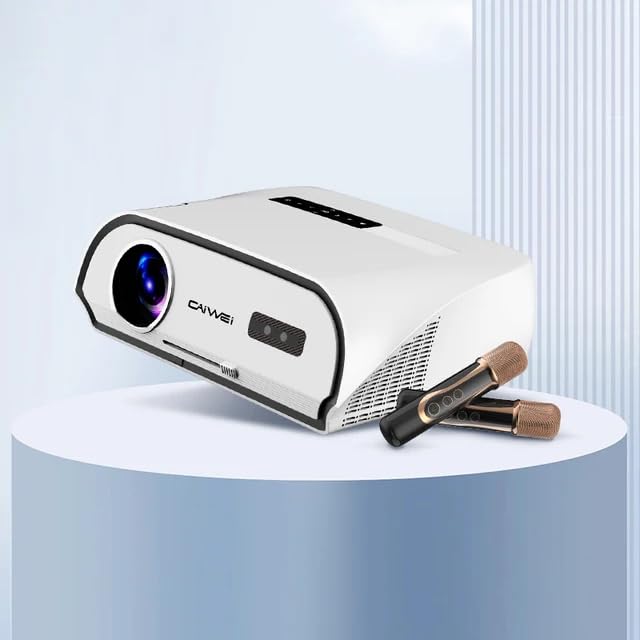
Figure 4.1: CAIWEI A10R Projector, showcasing its sleek design and compatibility with external audio devices like microphones for karaoke.
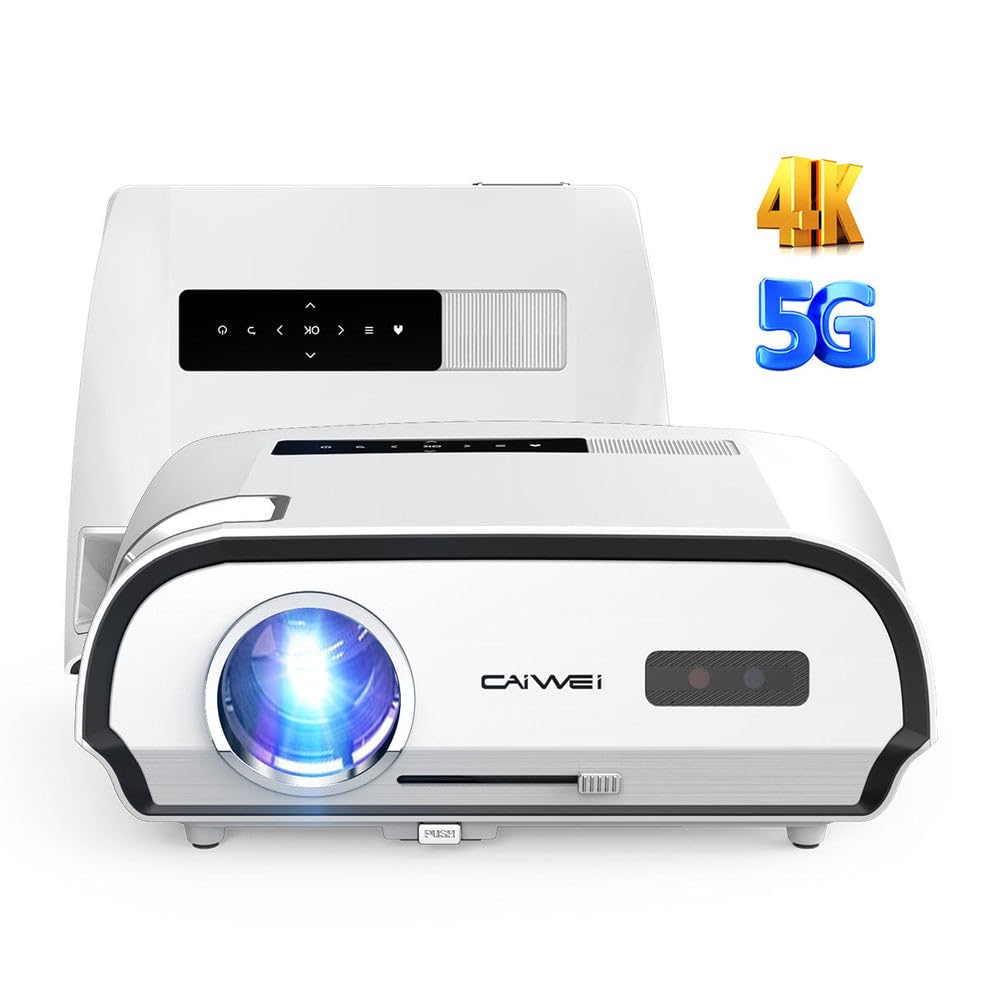
Figure 4.2: Front view of the CAIWEI A10R Projector, highlighting its 4K resolution support and 5G WiFi capabilities.

Figure 4.3: Infographic detailing key features such as 4K support, 5G/2.4G WiFi, 20W Subwoofer, 1080P Native resolution, 2GB RAM + 32GB ROM, Daylight Visible projection, and 4D/4P Keystone Correction.
4.1. Interfaces and Controls
The projector is equipped with a rich variety of interfaces to connect to various devices. These include LAN, HDMI, USB, VGA, and AV ports, along with an Audio output. Controls are typically located on the top panel or accessible via the remote control.
5. Setup
Follow these steps for initial setup of your projector:
- Placement: Place the projector on a stable, flat surface. For optimal viewing, position it directly in front of the projection screen or wall. The projector supports up to a 300-inch ultra-large display screen.
- Power Connection: Connect the power adapter to the projector's power input and then plug it into a power outlet.
- Power On: Press the power button on the projector or the remote control to turn on the device.
- Focus Adjustment: Rotate the focus ring (usually located near the lens) until the projected image is clear and sharp.
- Keystone Correction: If the projected image appears trapezoidal, use the 6P/6D keystone correction function to adjust it into a perfect rectangular shape. This can typically be done through the projector's settings menu or dedicated buttons on the remote.

Figure 5.1: Comparison illustrating the larger-than-life visuals offered by the CAIWEI A10R projector compared to a traditional TV.
6. Operating Instructions
The CAIWEI A10R runs on a customized Android 9.0 operating system, providing a smart and user-friendly experience.
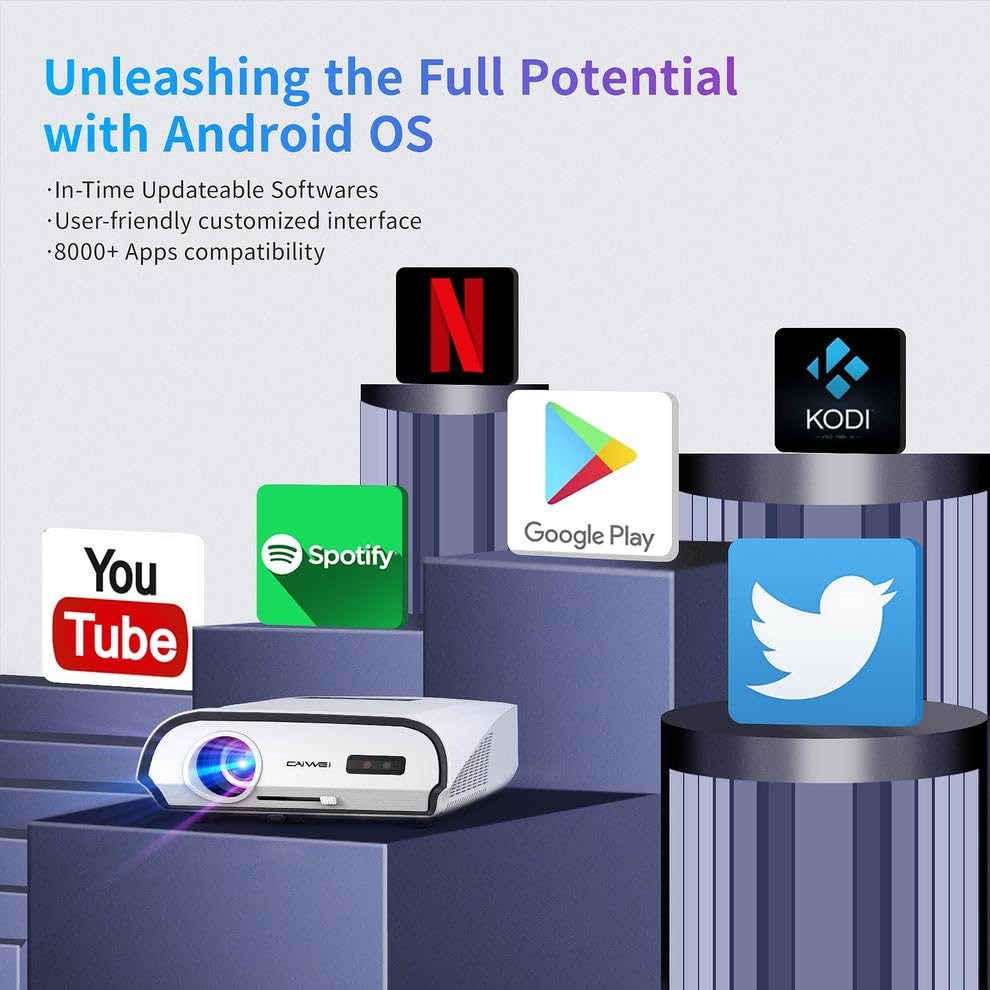
Figure 6.1: The Android OS interface, showing compatibility with various popular applications like YouTube, Spotify, Google Play, Netflix, and Kodi.
6.1. Basic Operation
- Navigation: Use the remote control's directional buttons to navigate through the Android interface. The 'OK' button selects items.
- Input Source Selection: To switch between different input sources (HDMI, USB, AV, etc.), access the input source menu from the home screen or by pressing a dedicated 'Source' button on the remote.
- App Installation: The pre-installed APP store allows you to download and install over 8,000 applications, including entertainment and office software.
- System Settings: Access the settings menu to configure network connections, display options, audio settings, and other system preferences.
6.2. Audio
The projector features a built-in 3D surround sound system for an immersive auditory experience. You can also connect external audio devices.
7. Connectivity
The CAIWEI A10R offers versatile connectivity options:
7.1. Wireless Connectivity
- Wi-Fi 6: Equipped with the latest WiFi 6 technology (2.4G+5GWiFi), it provides faster and more stable wireless network connections for streaming and online activities.
- Bluetooth 5.0 (Two-way): The built-in two-way Bluetooth 5.0 function allows you to transmit audio to Bluetooth speakers or connect with Bluetooth headphones, mobile phones, and other devices.
- Wireless Screen Cast: Supports speedy and seamless wireless screen casting from iPhones, Android phones, Macbooks, and Windows Laptops.
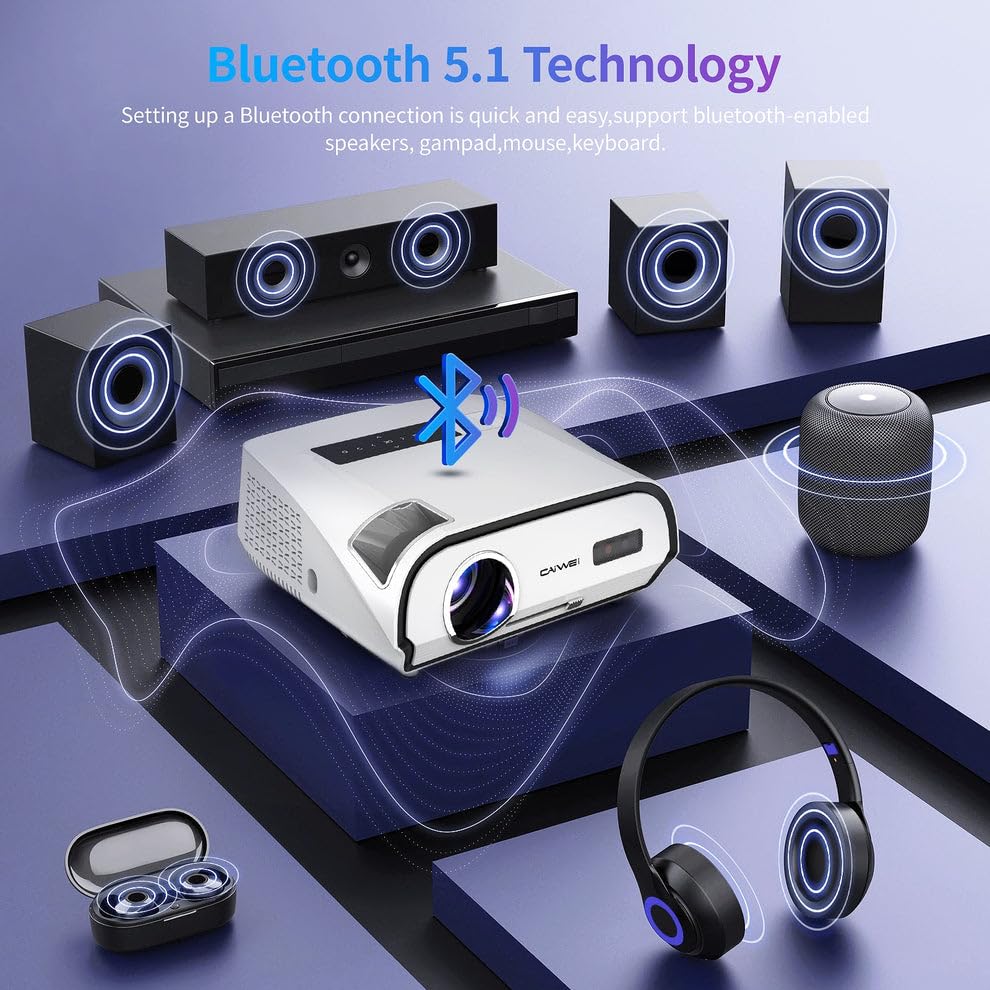
Figure 7.1: Diagram illustrating Bluetooth 5.1 technology, enabling quick and easy connection to Bluetooth-enabled speakers, gamepads, mice, and keyboards.
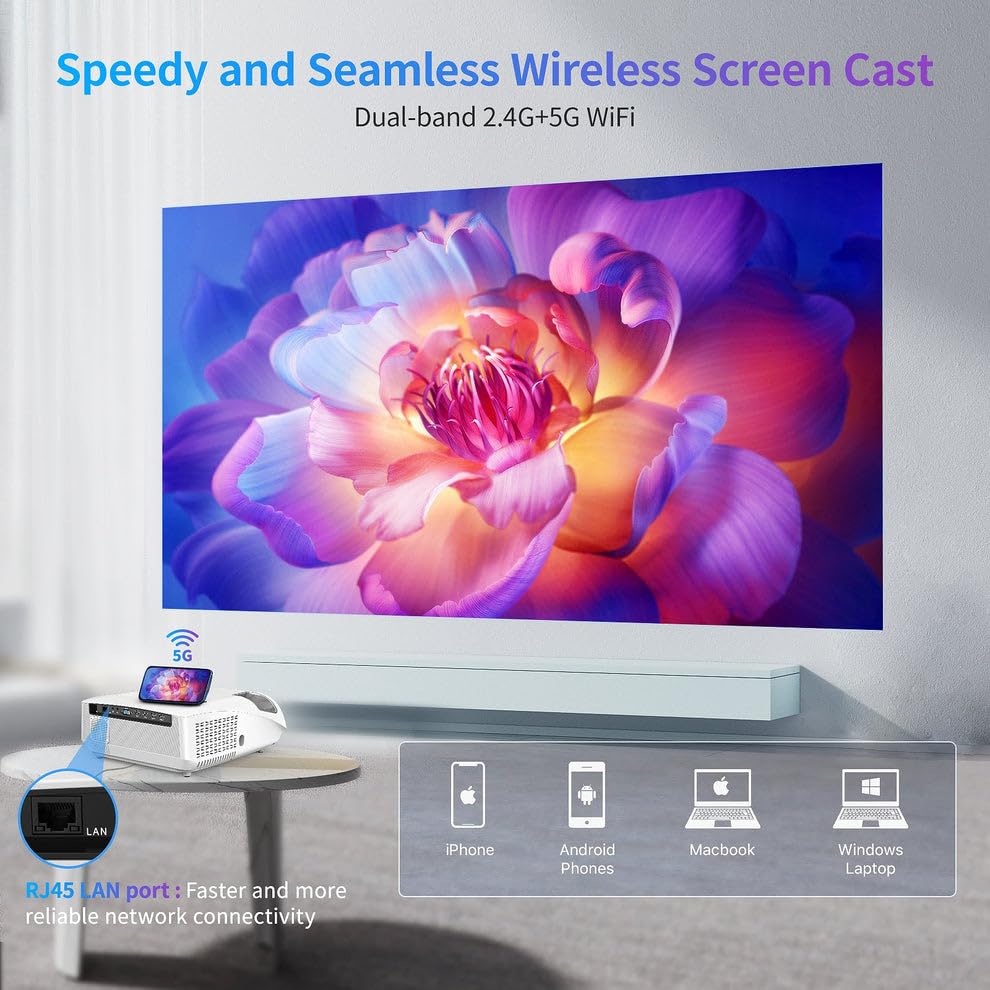
Figure 7.2: Visual representation of the Speedy and Seamless Wireless Screen Cast feature with dual-band 2.4G+5G WiFi, alongside the RJ45 LAN port for reliable network connectivity.
7.2. Wired Connectivity
The projector offers a comprehensive set of wired ports:
- HDMI: Connect to laptops, game consoles, Blu-ray players, and other HDMI-enabled devices.
- USB: For connecting USB drives to play media files directly.
- VGA: For connecting older computers or laptops.
- AV: For connecting legacy video devices.
- LAN (RJ45): For a stable wired internet connection.
- Audio Out: For connecting external speakers or sound systems via a 3.5mm audio jack.
8. Maintenance
Proper maintenance ensures the longevity and optimal performance of your projector:
- Lens Cleaning: Use a soft, lint-free cloth specifically designed for optical lenses. Do not use abrasive cleaners.
- Dust Removal: Regularly clean the projector's exterior with a soft, dry cloth. Use a small brush or compressed air to gently clear dust from ventilation openings.
- Storage: When not in use for extended periods, store the projector in a cool, dry place, away from direct sunlight and extreme temperatures. Use the original packaging or a protective case.
- Power Off Properly: Always power off the projector using the designated power button and allow it to cool down before unplugging or moving.
9. Troubleshooting
If you encounter issues with your projector, refer to the following common problems and solutions:
| Problem | Possible Cause | Solution |
|---|---|---|
| No image projected | Power not connected; Input source incorrect; Lens cap on. | Check power cable; Select correct input source; Remove lens cap. |
| Image is blurry | Focus not adjusted; Projector too far/close. | Adjust focus ring; Reposition projector. |
| Image is trapezoidal | Projector not perpendicular to screen. | Use keystone correction (6P/6D) in settings. |
| No sound | Volume too low; Muted; External audio device not connected. | Increase volume; Unmute; Check audio cable/Bluetooth connection. |
| Remote control not working | Batteries low/dead; Obstruction; Not pointed at IR receiver. | Replace batteries; Remove obstructions; Point directly at projector's IR receiver. |
| Wi-Fi connection unstable | Distance from router; Interference; Router issues. | Move closer to router; Reduce interference; Restart router. |
If the problem persists after trying these solutions, please contact customer support.
10. Specifications
Detailed technical specifications for the CAIWEI A10R Projector:
| Feature | Specification |
|---|---|
| Brand | CAIWEI |
| Model | A10R |
| Manufacturer | Caiwei |
| Product Dimensions | 23.7 x 31.5 x 13.5 cm |
| Item Weight | 2.48 kg |
| Operating System | Android 9.0 |
| RAM | 2GB |
| ROM | 32GB |
| Display Technology | LED |
| Native Resolution | 1920P (Full HD) |
| Supported Resolution | 4K Ultra HD (3840 x 2160, 4096 x 2160) |
| Brightness | 1950 ANSI Lumens |
| Aspect Ratio | 16:10 |
| Max Projection Size | 300 inches |
| Keystone Correction | 6P/6D Keystone Correction |
| Wi-Fi | Wi-Fi 6 (2.4G+5G) |
| Bluetooth | Two-way Bluetooth 5.0 |
| Audio | Built-in 3D Surround Sound System |
| Hardware Interface | HDMI, USB, VGA, AV, Audio, LAN (RJ45) |
| Compatible Devices | Laptops, Gaming Consoles, Media Players, Smartphones |
| Special Features | Built-In Speaker, Built-In Wi-Fi, NFC Screencast, HDR Daylight |
| Mounting Type | Tabletop Mount |
| Country of Origin | China |
11. Warranty and Support
For warranty information and technical support, please refer to the warranty card included with your product or contact CAIWEI customer service directly. Keep your purchase receipt as proof of purchase.
Customer Support:
- Please visit the official CAIWEI website for the latest support information, FAQs, and contact details.
- For specific inquiries, you may reach out to the seller 'S B Retails' through the Amazon platform.
Note: No official seller videos were provided in the product data for embedding.
Related documentsA10R


Ask a question about this manual
Ask about setup, troubleshooting, compatibility, parts, safety, or missing instructions. Manuals+ will review the question and use this page’s manual context to help answer it.