1. Introduction
Thank you for choosing the MSRXUP Vigil Starwin Dash Cam. This manual provides detailed instructions for the installation, operation, and maintenance of your new dash camera system. Please read this manual thoroughly before use to ensure proper functionality and to maximize your user experience. Keep this manual for future reference.
2. Product Overview
The MSRXUP Vigil Starwin Dash Cam is a comprehensive car driving recorder system designed to capture events on the road and within your vehicle. It features dual cameras, 1080p Full HD recording, night vision capabilities, and smart functions like G-sensor and loop recording.
2.1 Key Features
- Dual Dash Cam: Front and rear cameras for comprehensive road and interior monitoring.
- 1080p FHD Video Recording: Captures clear, high-definition video footage.
- Night Vision: Enhanced clarity in low-light conditions.
- G-Sensor: Automatically locks video upon detecting a collision or shock.
- Loop Recording: Overwrites older, unlocked files to ensure continuous recording.
- Parking Monitor: Provides 24-hour protection (requires hardwire kit, not included).
- Wi-Fi Connectivity: Seamless wireless access to recordings via a mobile device.
- 3.16-inch IPS Screen: For real-time viewing and playback.
2.2 Package Contents
Verify that all items are present in your package:
- MSRXUP Vigil Starwin Dash Cam (Main Unit)
- Rear Camera
- Suction Cup Mount
- Power Cable
- User Manual
Note: A memory card is not included and must be purchased separately.

Image 2.2.1: The dash cam main unit, rear camera, suction cup mount, power cable, and user manual.
3. Setup
3.1 Installing the Memory Card
- Ensure the dash cam is powered off.
- Locate the memory card slot on the side of the main dash cam unit.
- Insert a compatible microSD card (Class 10 or higher, up to 64GB recommended) into the slot until it clicks into place.
- To remove, gently push the card in until it clicks, then release to eject.
3.2 Mounting the Dash Cam
- Clean the windshield area where you intend to mount the dash cam. Ensure it is free of dust and grease.
- Attach the suction cup mount to the main dash cam unit.
- Press the suction cup firmly against the windshield and flip the lever to secure it. Position the camera to ensure a clear view of the road without obstructing your driving vision.
- Adjust the angle of the dash cam lens as needed.
3.3 Installing the Rear Camera
- Connect the rear camera cable to the main dash cam unit.
- Route the cable neatly along the vehicle's headliner and trim to the rear of the vehicle.
- Mount the rear camera on the rear windshield using its adhesive or screws, ensuring it has a clear view.
3.4 Power Connection
- Connect the power cable to the dash cam's power input port.
- Plug the other end of the power cable into your vehicle's 12V power outlet (cigarette lighter socket).
- Route the power cable discreetly to avoid interference with driving controls.

Image 3.4.1: Example of the dash cam mounted on a vehicle's windshield.
4. Operating Instructions
4.1 Powering On/Off
- Automatic: The dash cam will automatically power on and begin recording when your vehicle's ignition is turned on (if connected to a switched power source).
- Manual: Press and hold the power button to manually turn the dash cam on or off.
4.2 Recording Modes
- Continuous Loop Recording: The dash cam records video in segments (e.g., 1, 3, or 5 minutes). When the memory card is full, the oldest unlocked files are automatically overwritten to make space for new recordings. This ensures continuous recording without manual intervention.

Image 4.2.1: Loop recording automatically manages memory space by overwriting older, unlocked videos.
- G-Sensor (Emergency Recording): The built-in G-sensor detects sudden impacts or collisions. When triggered, the current video segment is automatically locked and saved to a protected folder, preventing it from being overwritten by loop recording.

Image 4.2.2: The G-sensor locks video files upon detecting a shock or collision.
4.3 Night Vision
The dash cam is equipped with night vision technology to enhance video clarity in low-light conditions, ensuring important details are captured even at night.
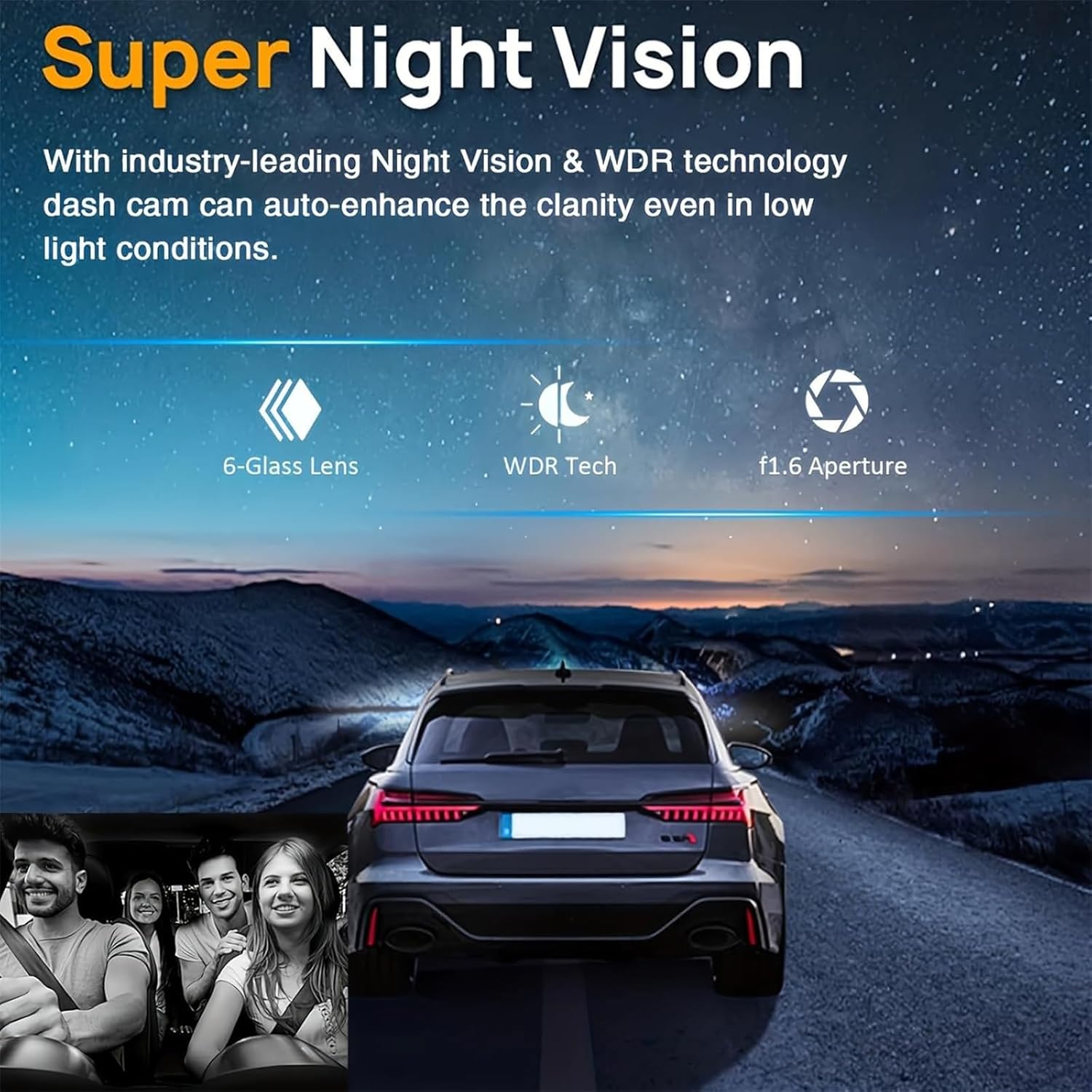
Image 4.3.1: Night Vision technology improves video clarity in dark environments.
4.4 Parking Monitor
When enabled and properly hardwired (hardwire kit sold separately), the parking monitor function allows the dash cam to automatically switch to parking mode and record if it detects motion or impact while your vehicle is parked. This provides 24-hour surveillance.

Image 4.4.1: The Parking Monitor provides 24-hour protection for your vehicle (requires hardwire kit).
4.5 Wi-Fi Connectivity
The dash cam features Wi-Fi connectivity, allowing you to connect your smartphone or tablet to the dash cam via a dedicated app. This enables you to view live footage, download recorded videos, and adjust settings wirelessly.
- Download the specified dash cam app from your device's app store.
- Turn on Wi-Fi on your dash cam (refer to on-screen menu).
- Connect your mobile device to the dash cam's Wi-Fi network (SSID and password usually displayed on the dash cam screen).
- Open the app to access features.
5. Maintenance
5.1 General Care
- Keep the dash cam lenses clean using a soft, lint-free cloth. Avoid abrasive materials.
- Do not expose the dash cam to extreme temperatures for extended periods.
- Avoid dropping or subjecting the device to strong impacts.
5.2 Memory Card Management
- Regularly format the memory card (e.g., once a month) within the dash cam's settings to maintain optimal performance and prevent data corruption.
- Back up important video files to another storage device before formatting.
- Replace the memory card if you notice frequent errors or degraded performance.
6. Troubleshooting
If you encounter issues with your dash cam, refer to the following common problems and solutions:
| Problem | Possible Cause | Solution |
|---|---|---|
| Dash cam does not power on. | No power, faulty cable, or vehicle power outlet issue. | Check power cable connection. Test power outlet with another device. Ensure vehicle ignition is on. |
| Recording stops or freezes. | Memory card full, slow card speed, or card error. | Format the memory card. Use a Class 10 or higher microSD card. Replace the memory card if issues persist. |
| Poor video quality. | Dirty lens, protective film still on, or incorrect resolution setting. | Clean the camera lens. Remove any protective film. Check video resolution settings in the menu. |
| Wi-Fi connection issues. | Incorrect password, app issue, or distance from dash cam. | Ensure correct Wi-Fi password. Restart both dash cam and mobile device. Ensure you are within close range of the dash cam. |
7. Specifications
Detailed technical specifications for the MSRXUP Vigil Starwin Dash Cam (Front+Rear+Wifi model):
| Feature | Specification |
|---|---|
| Model Name | Vigil Starwin Dash Cam Front+Rear+Wifi |
| Screen Size | 3.16-inch IPS Screen |
| Video Resolution | 1080p Full HD |
| Viewing Angle | 150 degrees (Front), 140 degrees (Cabin/Rear) |
| Special Features | Night Vision, G-Sensor, Loop Recording, Parking Monitor (requires hardwire kit) |
| Connectivity | Wi-Fi |
| Mounting Type | Windshield Mount (Suction Cup) |
| Control Method | Touch |
| Battery | 150MAH |
| Dimensions (Main Unit) | Approx. 8.6cm (3.3in) x 3.6cm (1.4in) x 3.2cm (1.2in) |
| Weight | 220g |

Image 7.1.1: Main unit dimensions for the MSRXUP Vigil Starwin Dash Cam.
8. Warranty and Support
For warranty information and customer support, please refer to the documentation provided with your purchase or contact the retailer directly. Specific warranty terms and conditions may vary.


