
ZYWELL ZM04WD
ZYWELL ZM04WD Thermal Printer User Manual
Model: ZM04WD | Brand: ZYWELL
1. Introduction
This manual provides comprehensive instructions for the operation and maintenance of your ZYWELL ZM04WD Thermal Printer. Please read this manual thoroughly before using the device to ensure proper functionality and longevity.
The ZM04WD is a versatile thermal printer designed for both receipt and label printing. It supports linerless printing, offering an efficient and environmentally friendly solution for various business needs.
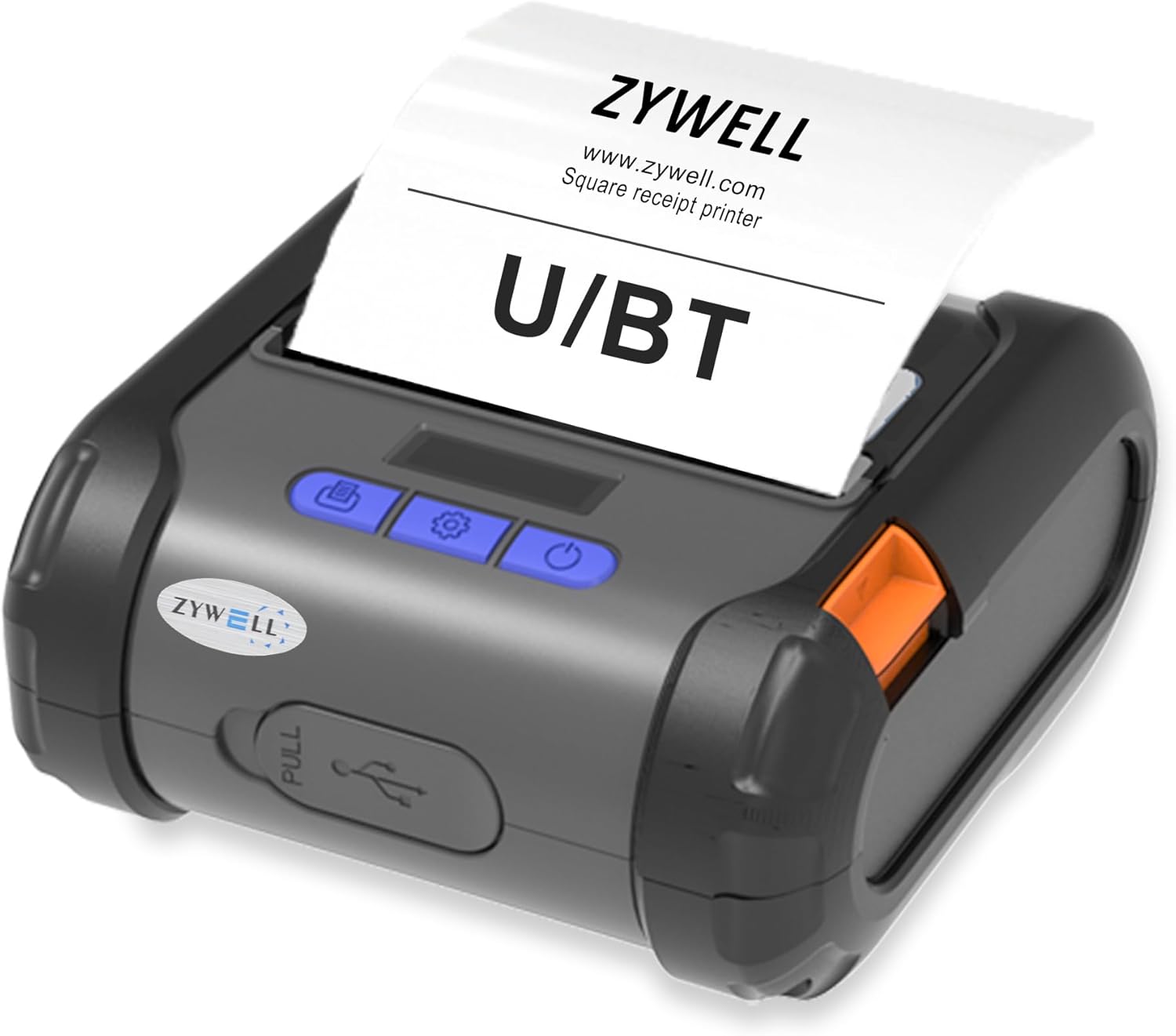
Figure 1: ZYWELL ZM04WD Thermal Printer overview.
2. Setup and Initial Use
2.1. Unpacking and Components
Before starting, ensure all components are present:
- ZYWELL ZM04WD Printer Unit
- USB Cable
- Power Adapter
- Thermal Paper Roll (Labels)
- User Manual (this document)
2.2. Loading Paper
Follow these steps to load the thermal paper roll:
- Press the orange "Open" key on the side of the printer to open the cover.
- Push the orange paper separators in the cabin to the sides.
- Place the ends of the paper roll against the center tab of the separator. Ensure the paper feeds smoothly from the top.
- Pull a small length of paper out past the print head.
- Close the cover firmly until it clicks into place.
Video 1: Demonstrates the paper loading process for the ZM04WD printer (0:00-0:22 in the source video). This video shows how to open the printer cover, adjust paper separators, insert the thermal paper roll, and close the cover, ensuring the paper is correctly positioned for printing.

Figure 2: ZM04WD printer with linerless paper, highlighting its ability to eliminate liner waste.

Figure 3: The ZM04WD printer in use, demonstrating the immediate print and apply feature with a coffee cup label.
2.3. Powering On and Connectivity
To power on the printer, press and hold the power button until you hear a "deep" sound. The printer supports both Bluetooth and USB connectivity.
- Bluetooth Connectivity: For iOS devices, download the "EMLABEL" software to connect via Bluetooth. USB connection is not supported for iPad and iPhone.
- USB Connectivity: Compatible with Android, ChromeOS, Linux, Windows, and Mac operating systems.

Figure 4: Illustrates the Bluetooth and USB connectivity options for the ZM04WD printer, showing compatibility with various operating systems.

Figure 5: Step-by-step guide for connecting the ZM04WD printer via Bluetooth using the EMLABEL application on a mobile device.
3. Operating Instructions
3.1. Mode Selection
The ZM04WD supports different command modes for various printing tasks:
- Receipt Mode: "ESC" command mode.
- Label Mode: "TSPL" command mode.
- Face Sheet Mode: "CPCL" command mode.
To select the command mode:
- Press the "Set" key once to enter the Set page.
- Navigate through the options using the "Set" key until "Command Mode" is displayed.
- Press the "Feed" button to enter the detailed page for Command Mode.
- Use the "Set" key to cycle through "ESC", "CPCL", and "TSPL".
- Press the "Feed" button to confirm your selection. The printer will automatically exit the selection page after two seconds.
Important: Selecting the wrong command mode will prevent printing.
Video 2: Guide on how to select the appropriate print mode (ESC, TSPL, CPCL) on the ZM04WD printer's display panel (0:23-0:43 in the source video).
3.2. Paper Type and Width Selection
The ZM04WD can be configured for different paper types and widths, especially for receipt printing.
- From the Set page, navigate to "LabelPaperType".
- Press the "Feed" button to enter the detailed page.
- Use the "Set" key to select the desired label paper type (e.g., "NoBottom Paper" for linerless).
- Press the "Feed" button to confirm.
- For receipt paper, select "Paper 58mm" or "Paper 80mm" as needed.
- Then, press the "Set" button to select "NO/YES" for the paper width setting.
- Press the "Feed" button to confirm the selection.
Video 3: Instructions on how to select the paper type (e.g., linerless) and paper roll width (58mm/80mm) for receipt printing on the ZM04WD printer (0:44-1:06 in the source video).

Figure 6: Detailed view of the ZM04 printer, showing its dimensions and key features like battery capacity, printing speed, and paper width.

Figure 7: Labeled diagram of the ZM04WD printer's control panel, indicating the Open key, Screen, Power button, Set key, and Feed button/OK key.
4. Maintenance
Regular maintenance ensures optimal performance and extends the life of your ZM04WD printer.
4.1. Cleaning the Print Head
The print head should be cleaned regularly to prevent print quality issues. Use a lint-free cloth lightly dampened with isopropyl alcohol. Gently wipe the print head surface. Allow to dry completely before use.
4.2. Battery Care
The printer is equipped with a Lithium Ion battery. To maximize battery life:
- Avoid fully discharging the battery frequently.
- Store the printer in a cool, dry place when not in use for extended periods.
- Charge the battery regularly, even if not in constant use.
5. Troubleshooting
| Problem | Possible Cause | Solution |
|---|---|---|
| Printer not printing | Incorrect command mode selected. | Ensure the correct command mode (ESC, TSPL, CPCL) is selected for your printing task. Refer to Section 3.1. |
| No paper feed | Paper not loaded correctly or out of paper. | Reload paper according to Section 2.2. Ensure the paper is pulled out smoothly. |
| Poor print quality | Dirty print head or low battery. | Clean the print head (Section 4.1). Charge the printer battery. |
| Cannot connect via Bluetooth (iOS) | EMLABEL software not used or USB connection attempted. | For iOS, Bluetooth connection requires the EMLABEL software. USB is not supported for iOS devices. Refer to Section 2.3. |
6. Product Specifications
- Model: ZM04WD
- Brand: ZYWELL
- Connectivity Technology: Bluetooth, USB
- Printing Technology: Thermal
- Printer Output: Monochrome
- Maximum Print Speed: 30 ppm (Monochrome)
- Maximum Black and White Print Resolution: 203 dpi
- Supported Media Sizes: 58mm/80mm width, max diameter 40mm
- Product Dimensions: 4.6 x 4.8 x 2.3 inches
- Item Weight: 1.1 pounds
- Battery: 1 Lithium Ion battery (included)
- Special Feature: Portable, Linerless Printing
7. Warranty and Support
The ZYWELL ZM04WD Thermal Printer comes with a limited warranty. For detailed warranty information and support, please refer to the warranty card included with your product or visit the official ZYWELL website.
For technical assistance or inquiries, please contact ZYWELL customer support.
Note: Product specifications are subject to change without prior notice.
Ask a question about this manual
Ask about setup, troubleshooting, compatibility, parts, safety, or missing instructions. Manuals+ will review the question and use this page’s manual context to help answer it.