
1. Introduction
Thank you for choosing the FMOUSE Dual Mode Wireless Mouse M101. This mouse offers versatile connectivity options, a comfortable ergonomic design, and quiet operation, making it ideal for various computing environments. This manual provides detailed instructions for setup, operation, and maintenance to ensure optimal performance.
2. Key Features
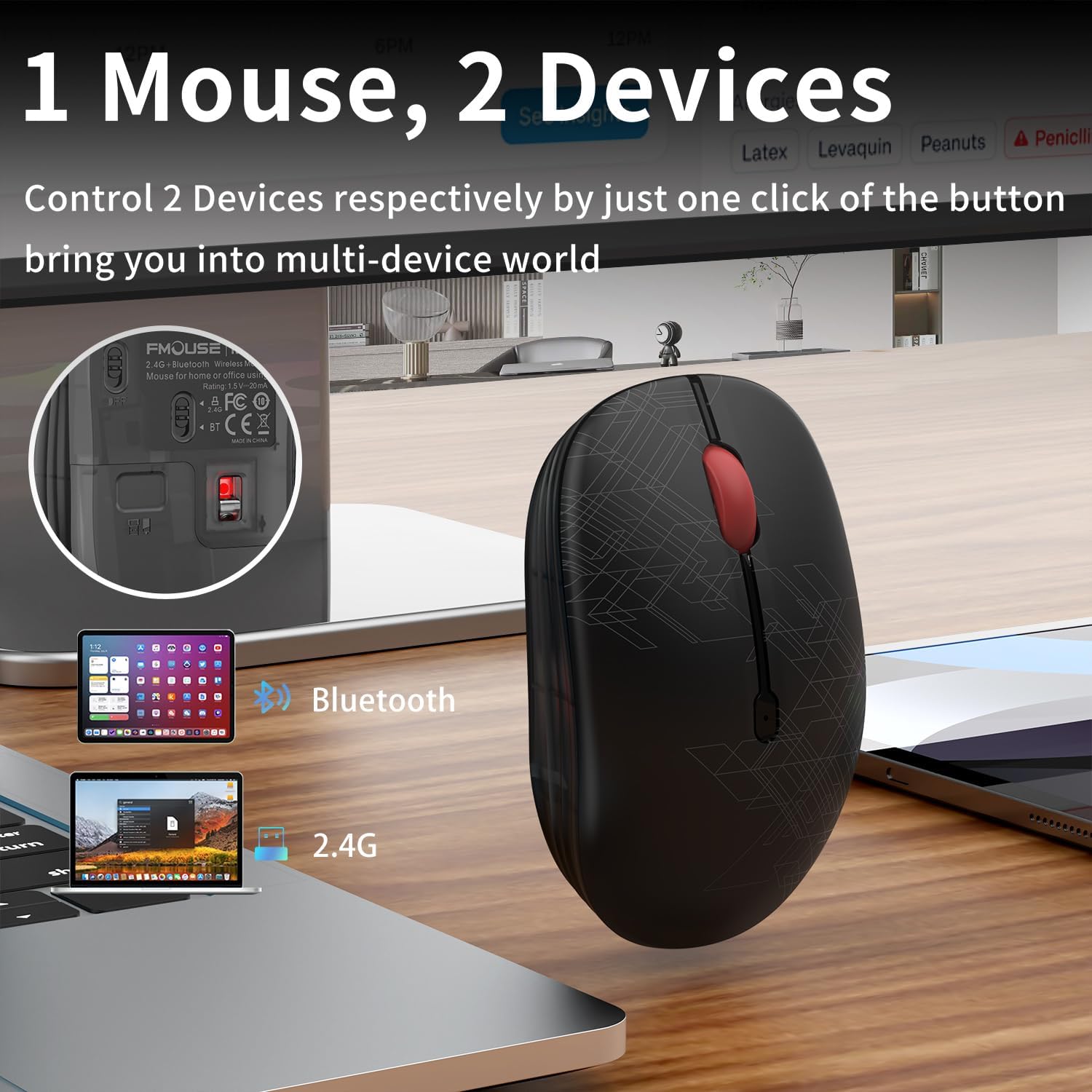
- Dual Mode Connectivity: Seamlessly switch between 2.4GHz USB receiver and Bluetooth connections for use with two different devices.
- Silent Click Design: Specially engineered buttons provide quiet clicks, minimizing disturbance in shared environments.
- Ergonomic Comfort: Designed for a comfortable grip, suitable for extended use by students and business professionals.
- Energy Efficient: Features an intelligent power-saving mode that activates after 10 minutes of inactivity, extending battery life.
- Universal Compatibility: Connects easily with MacBook, iPad, Laptops, and Desktop devices across Windows, MacOS, iPadOS, and Android systems.
- Portable Design: Compact and lightweight for easy transport.
3. Package Contents
Please ensure all items are present in your package:
- FMOUSE Dual Mode Wireless Mouse M101
- 2.4GHz USB Receiver
- User Manual (this document)
Note: 1 AA battery is required and not included in the package.
4. Setup Guide
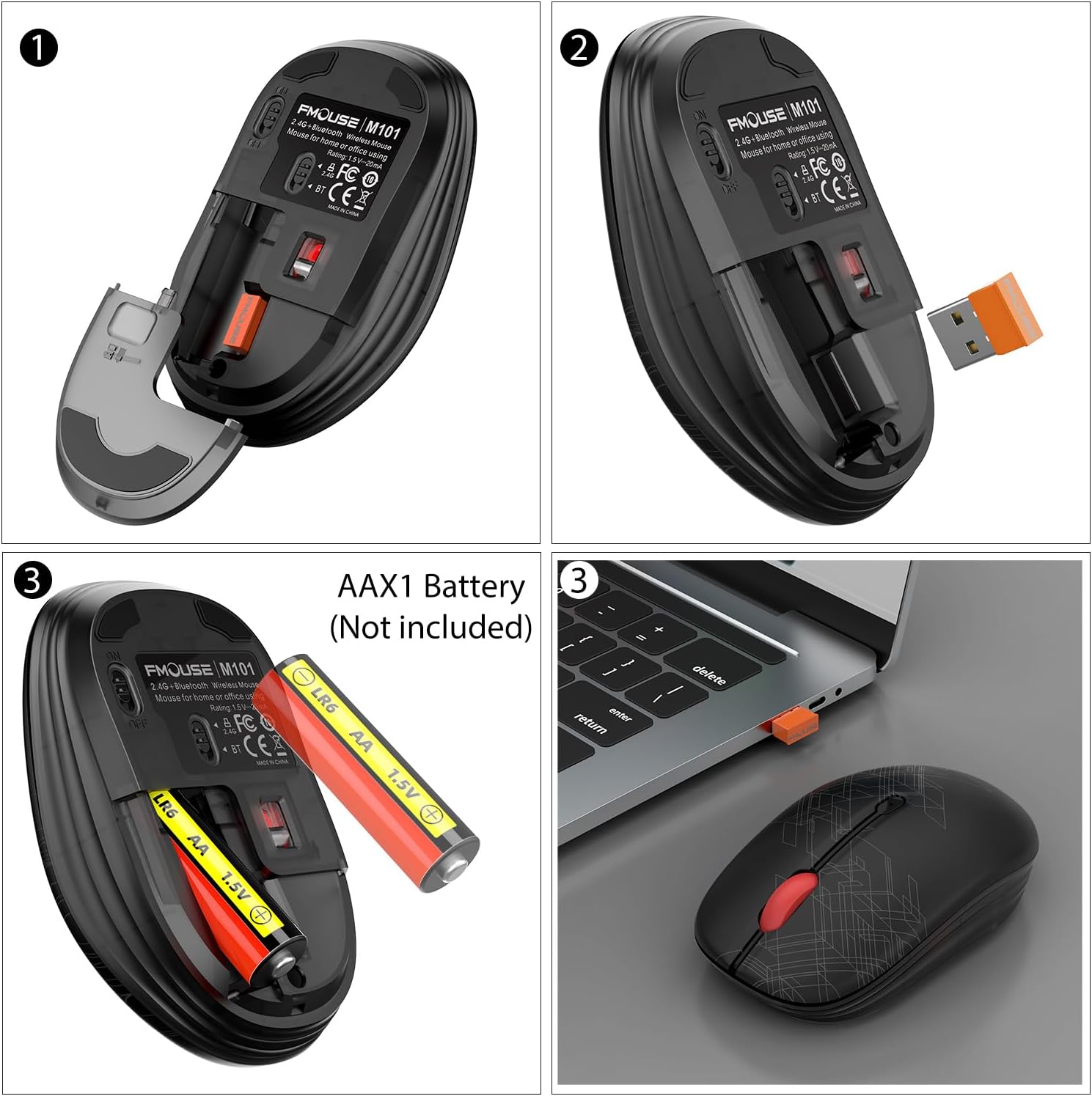
4.1. Battery Installation
- Gently lift the top cover of the mouse from the rear to reveal the battery compartment.
- Insert one AA battery into the compartment, ensuring correct polarity (+/-).
- Replace the top cover, ensuring it snaps securely into place.
4.2. Connecting via 2.4GHz USB Receiver
- Locate the 2.4GHz USB receiver stored inside the mouse's battery compartment.
- Plug the USB receiver into an available USB port on your computer.
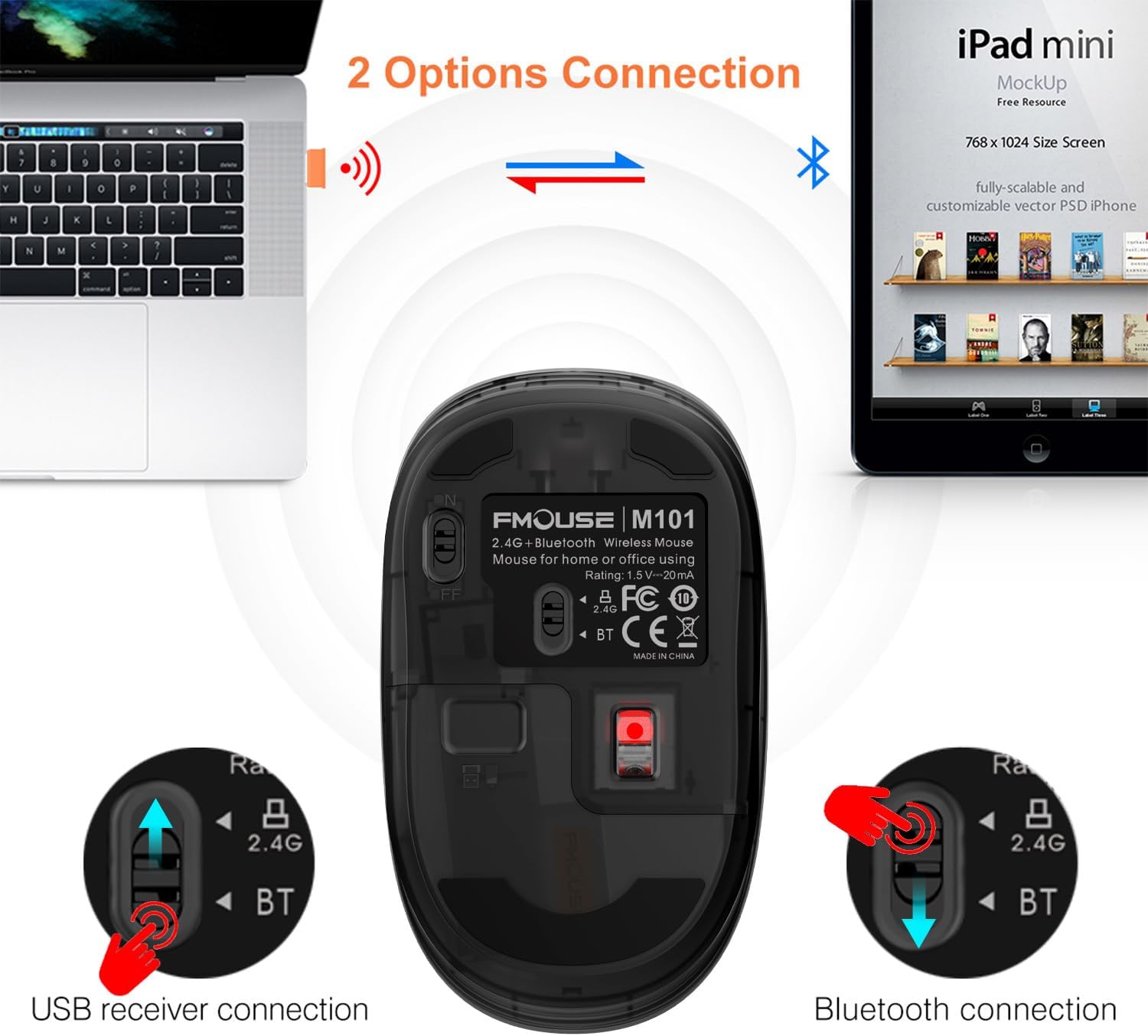
- Slide the switch on the bottom of the mouse to the '2.4G' position. The indicator light will flash green.
- The mouse should automatically connect to your computer.
4.3. Connecting via Bluetooth
- Slide the switch on the bottom of the mouse to the 'BT' (Bluetooth) position. The indicator light will flash blue.
- On your device (laptop, tablet, etc.), go to Bluetooth settings and enable Bluetooth.
- Search for available devices and select 'FMOUSE M101' from the list.
- Follow any on-screen prompts to complete the pairing process.

5. Operating Instructions
5.1. Dual Mode Switching
The FMOUSE M101 allows you to switch between two connected devices using the mode switch on the bottom of the mouse. Simply slide the switch to the desired connection type (2.4G or BT) to instantly connect to the corresponding device.
5.2. Silent Click Operation
The mouse features silent click buttons, ensuring a quiet working environment. This is particularly beneficial in libraries, offices, or during late-night use to avoid disturbing others.

6. Power Management
The FMOUSE M101 is designed for energy efficiency. It enters a sleep mode after 10 minutes of inactivity to conserve battery life. To wake the mouse, simply click any button.
The mouse is powered by one AA battery. When the battery is low, the scroll wheel will flash red as an alert.
7. Compatibility
The FMOUSE M101 is compatible with a wide range of operating systems and devices, including:
- Windows
- MacOS
- iPadOS
- Android
- MacBook, iPad, Laptops, Desktop devices
8. Specifications
| Feature | Detail |
|---|---|
| Model Number | M101 |
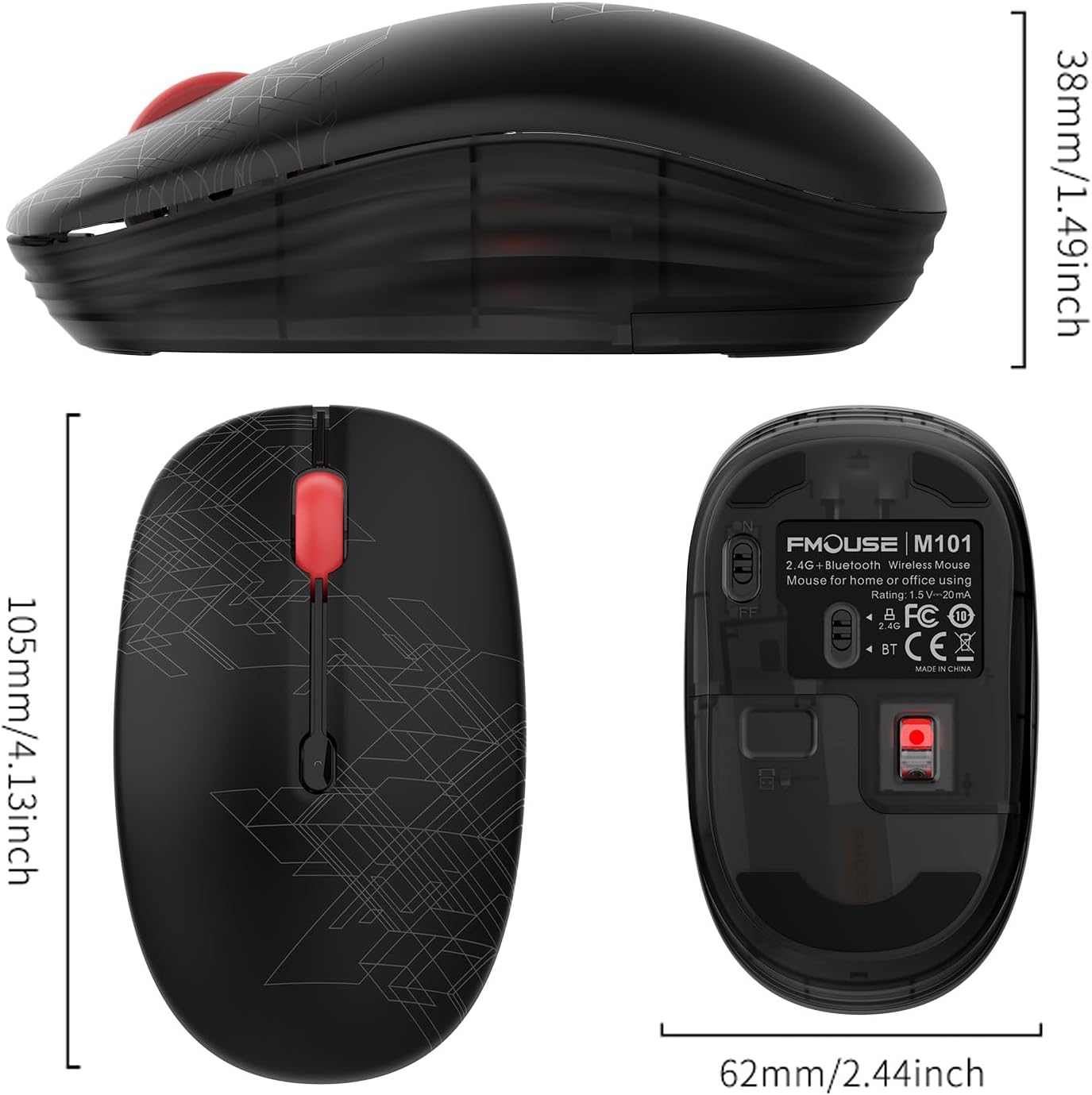
| Product Dimensions | 4.13 x 2.44 x 0.1 inches |
| Item Weight | 2.05 ounces |
| Batteries | 1 AA battery required (not included) |
| Connectivity Technology | Bluetooth, 2.4GHz USB |
| Movement Detection Technology | Optical |
| Special Feature | Soundless (Silent Click) |
9. Troubleshooting
9.1. Mouse Not Responding
- Check Battery: Ensure the AA battery is correctly installed and has sufficient charge. Replace if necessary.
- Power Switch: Verify the ON/OFF switch on the bottom of the mouse is in the 'ON' position.
- Mode Selection: Confirm the mode switch (2.4G or BT) matches your intended connection method.
9.2. 2.4GHz Connection Issues
- USB Receiver: Ensure the USB receiver is securely plugged into a working USB port on your computer. Try a different USB port.
- Interference: Move the mouse closer to the USB receiver to rule out signal interference.
9.3. Bluetooth Connection Issues
- Bluetooth Enabled: Ensure Bluetooth is enabled on your device and the mouse is in 'BT' mode.
- Re-pair Device: If the mouse was previously paired, try removing it from your device's Bluetooth list and re-pairing it.
- Device Compatibility: Confirm your device supports Bluetooth connectivity.
10. Warranty and Support
FMOUSE products come with a standard manufacturer's warranty. For detailed warranty information, technical support, or customer service inquiries, please refer to the contact information provided on the product packaging or visit the official FMOUSE website.


