
Introduction
This manual provides instructions for the operation and maintenance of your Luqeeg 72MP 5K Digital Camera. This compact camera features a 72-megapixel image resolution, 5K video recording capabilities, a 2.8-inch HD screen, and dual front/rear cameras. It supports special effects filters, slow motion, and timelapse photography, and offers wireless connectivity for remote control and sharing.
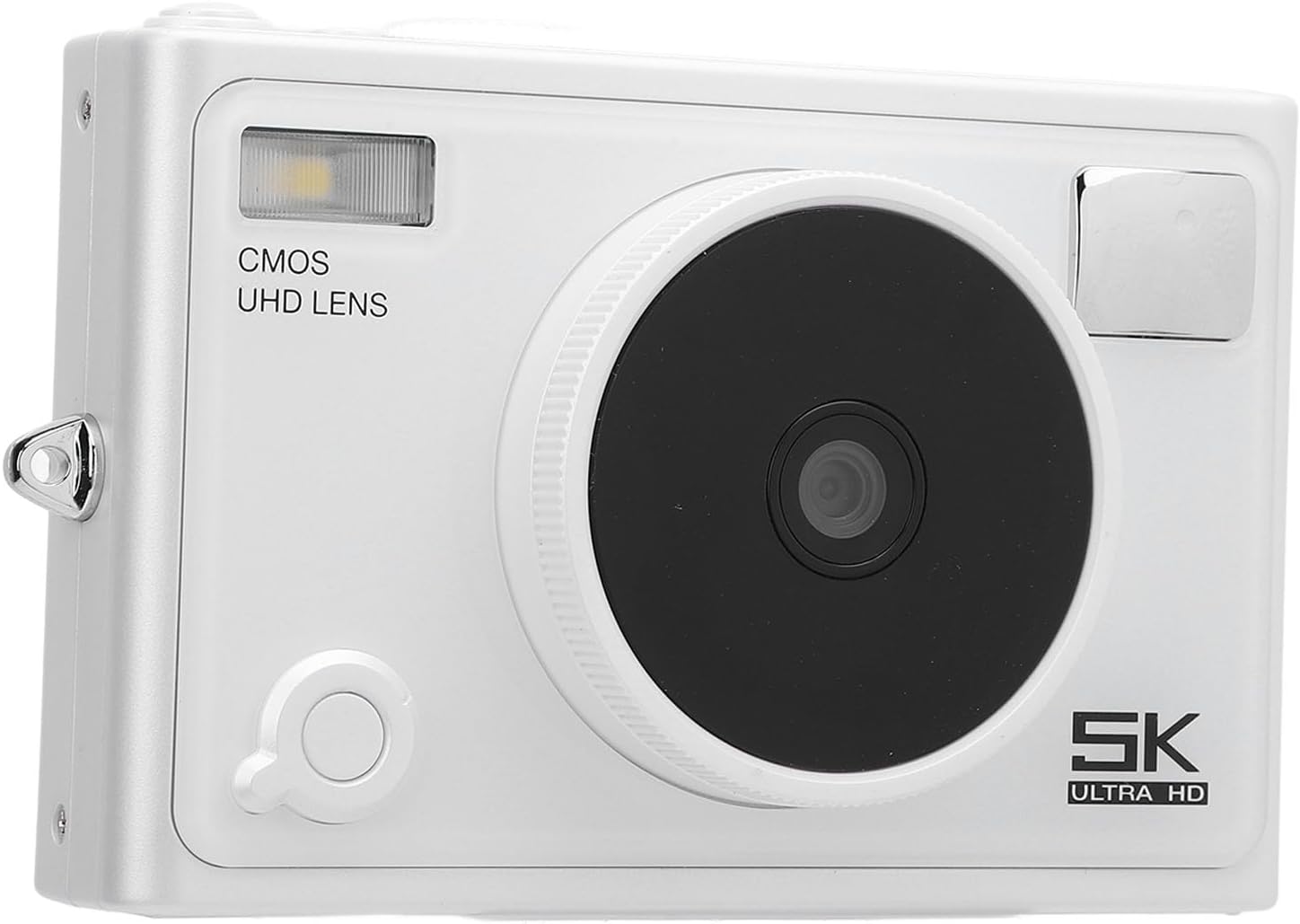
Image: Front view of the Luqeeg 72MP 5K Digital Camera, showcasing its lens, flash, and "5K ULTRA HD" branding. The camera is white.

Image: A visual summary of the camera's features, including a 2.8-inch IPS HD screen displaying a butterfly, a 1300mAh high-capacity battery icon, an image representing slow motion and timelapse photography with a surfer, and a graphic illustrating the camera's portable and lightweight design.
Package Contents
Please verify that all items listed below are included in your package:
- 1 x 5K Digital Camera
- 1 x Camera Strap
- 1 x USB Cable
- 1 x User Manual
- 1 x Camera Pouch

Image: The white Luqeeg 72MP 5K Digital Camera displayed alongside its accessories: a grey "POCKET CAMERA" pouch, a beige wrist strap, and a white USB cable.
Setup
- Battery Installation:
Locate the battery compartment on the camera. Insert the provided NP-40 Lithium Ion Battery (1300mAh) according to the polarity indicators. Close the compartment securely.
- Memory Card Insertion:
The camera supports standard memory cards up to 128GB (not included). Open the memory card slot cover and insert the memory card with the contacts facing the correct direction. Close the cover firmly.
- Charging the Battery:
Connect the camera to a power source using the supplied USB cable. The charging indicator light will illuminate. Once fully charged, the indicator light will change or turn off.
- Initial Power On:
Press and hold the power button to turn on the camera. The camera is ready for use upon power on.
Operating Instructions
Basic Photography and Video Recording
- Power On/Off: Press the power button to turn the camera on or off.
- Capture Images: In photo mode, press the shutter button to take a 72MP image.
- Record Videos: In video mode, press the record button to start/stop 5K video recording.
- Digital Zoom: Use the zoom controls (often marked 'W' for Wide and 'T' for Telephoto) to adjust the 18X digital zoom.
- Front/Rear Dual Camera: Utilize the camera's dual lens system for versatile shooting perspectives. Refer to the on-screen interface for switching between cameras.

Image: Rear view of the white Luqeeg 72MP 5K Digital Camera, displaying its 2.8-inch screen, navigation buttons, and zoom controls. A USB port is visible on the side.
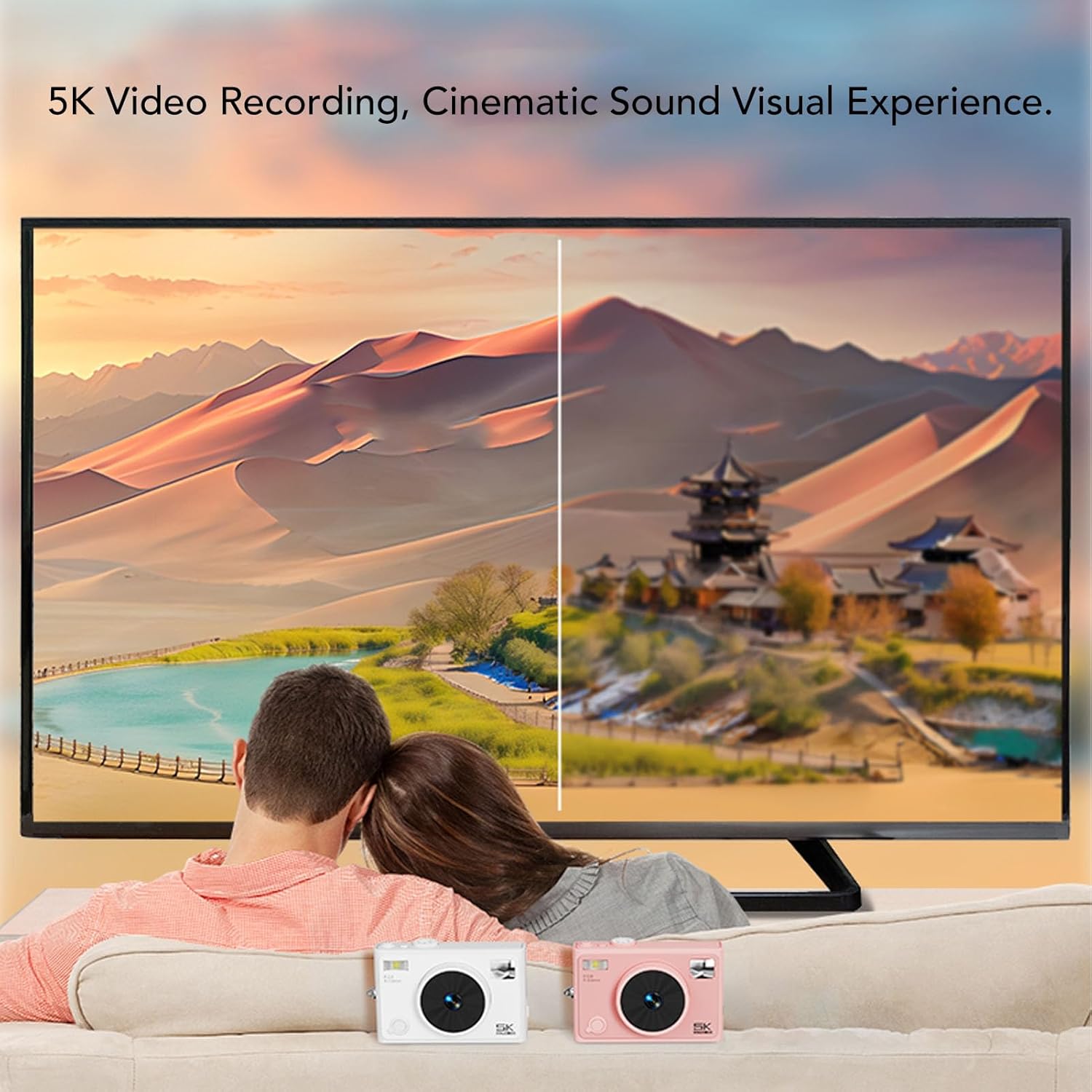
Image: A couple watching a high-definition video on a large television screen, illustrating the cinematic visual experience provided by the camera's 5K video recording capability.
Advanced Features
- Special Effects Filters: Access the camera's menu to select from various photography filters to enhance your images with unique styles.
- Slow Motion Photography: Engage slow motion mode through the camera settings to capture detailed movements at a reduced speed.
- Timelapse Photography: Set up timelapse mode to record sequences of images over time, creating accelerated video clips.

Image: A collage demonstrating various special effects filters, including color enhancements, artistic overlays, and black and white conversion, applied to different portrait and action shots.
Connectivity and Sharing
- Wireless Connection: The camera features built-in wireless functionality for easy connection with smartphones or tablets.
- Remote Control: Use a compatible mobile application to remotely control the camera for photography.
- Instant Sharing: Share high-definition photos and videos directly to your connected devices.

Image: An illustration depicting the camera's wireless capabilities, showing a smartphone screen with camera controls and icons for remote photography, wireless transmission, and viewing works, all connected to the camera via a Wi-Fi signal.
Maintenance
- Cleaning the Lens and Screen: Use a soft, lint-free cloth specifically designed for optical surfaces to gently clean the camera lens and 2.8-inch HD screen. Avoid abrasive materials or harsh chemicals.
- Battery Care: Store the battery in a cool, dry place when not in use. Avoid fully discharging the battery frequently to prolong its lifespan.
- Storage: When not in use, store the camera in its pouch or a protective case to prevent dust and scratches. Avoid extreme temperatures and high humidity.
- Firmware Updates: Check the manufacturer's website periodically for any available firmware updates to ensure optimal performance and access to new features.
Troubleshooting
- Camera does not power on:
Ensure the battery is fully charged and correctly inserted. Try charging the battery for at least 30 minutes before attempting to power on again.
- Images are blurry or unclear:
Check if the lens is clean and free from smudges. Ensure adequate lighting conditions. Verify that the camera is in the correct focus mode.
- Memory card error:
Ensure the memory card is inserted correctly and is not damaged. Try formatting the memory card (this will erase all data) or using a different compatible memory card.
- Connectivity issues:
Ensure the camera's wireless function is enabled. Check your smartphone/tablet's Wi-Fi settings. Restart both the camera and the connected device.
If you encounter issues not covered here, please refer to the support section or contact customer service.
Specifications
| Item Type | 5K Digital Camera |
| Material | ABS, Aluminum Alloy |
| Maximum Image Resolution | 72MP |
| Maximum Video Resolution | 5K |
| Battery Type | Lithium Ion Battery |
| Battery Model | NP-40 |
| Battery Capacity | 1300mAh |
| Storage Support | Up to 128GB Standard Memory Card (Not Included) |
| Screen Size | 2.8 inches HD |
| Digital Zoom | 18X |
| Item Model Number | Luqeegyhgzis73u9-11 |
| Item Weight | 14.1 ounces |
| Package Dimensions | 5.91 x 5.12 x 2.76 inches |
Warranty and Support
For warranty information and technical support, please refer to the documentation included with your purchase or visit the official Luqeeg website. Contact details for customer service can typically be found on the product packaging or the brand's support page.