Introduction
The SANWA 3-in-1 Bluetooth Finger Ring Mouse is a versatile device designed for enhanced control and comfort across various digital tasks. It functions as a traditional mini mouse, a wireless presentation clicker, a short video scroller, and an e-book page turner. Its ergonomic design aims to reduce wrist and muscle strain, making it ideal for extended use in diverse scenarios from office work to home leisure.
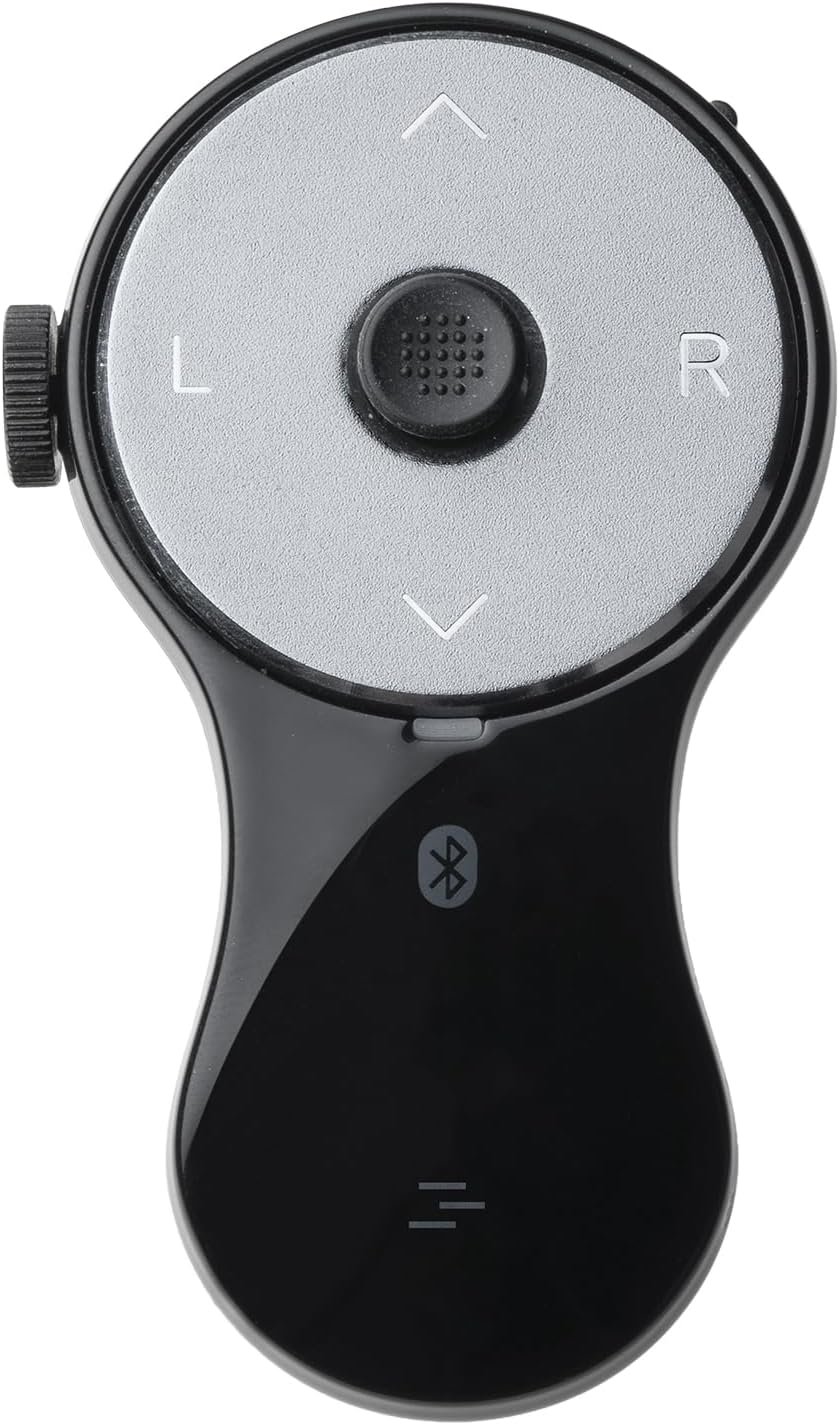
Figure 1: The SANWA 3-in-1 Bluetooth Finger Ring Mouse.

Figure 2: The wearable design of the mouse, highlighting its Bluetooth 5.0 connectivity for stable and portable control across PC, tablet, and phone.
Product Overview and Functions
The SANWA Finger Ring Mouse features intuitive controls for various modes. Understanding each component is key to maximizing its utility.

Figure 3: Detailed diagram of the Finger Ring Mouse, showing its various parts and their corresponding functions.
- Cursor Sensor: For precise cursor movement.
- Page Up / Scroll Up: Navigates content upwards.
- Page Down / Scroll Down (Video): Navigates content downwards, also used for video scrolling.
- Left Click / Left Scroll (Video): Primary click function, also used for left scrolling in video mode.
- Right Click / Right Scroll (Video): Secondary click function, also used for right scrolling in video mode.
- Side Scroll (up/down; Zoom in/out): Scroll wheel for vertical navigation and zooming.
- Charging Light: Indicates charging status.
- Power Off / Mouse Mode / Video Swipe Mode Switch: Selects the operating mode.
- Charging Port: USB Type-C port for charging.
Setup and Connection
The SANWA Finger Ring Mouse connects via Bluetooth 5.0, eliminating the need for a USB dongle. Follow these steps to pair your device:
Bluetooth Pairing

Figure 4: Step-by-step guide for connecting the mouse to Windows devices.
Windows Devices:
- Click on "Settings".
- Click on "Bluetooth and Devices" in the Device settings window. Then click on "Add Device" and ensure Bluetooth is "On".
- Enter the interface of Add Device, click "Bluetooth".
- When "GMABT156BK3" appears, click on it.
- The following screen will be displayed to indicate that pairing has been completed. Click "Done".
- Make sure "GMABT156BK3" is displayed as connected.

Figure 5: Step-by-step guide for connecting the mouse to Mac devices.
Mac Devices:
- Click "System Settings" in the Apple menu, and then click the "Bluetooth" icon. (If Bluetooth is turned off, please turn it on).
- When "GMABT156BK3" appears on the screen, click "Connect".
- Pairing is complete when "Connected" appears in "Pairing/Connect".
- Make mouse settings in "System Preferences".

Figure 6: Step-by-step guide for connecting the mouse to Chrome devices.
Chrome Devices:
- Click "settings".
- Click Bluetooth in Settings and turn it on.
- When "GMABT156BK3" appears, click on it.
- The following screen appears to indicate that pairing is complete. Click "Done".

Figure 7: Connection methods for Android and iPadOS/iOS devices.
Android:
- Set the power switch of the Ring Mouse to "1" to enter the pairing mode (press the L button and R button at the same time). Please use the mouse or touchpad you are currently using for operation before pairing (connection) is completed.
- Open the Bluetooth settings on the Android device side.
- When Bluetooth detection starts and "GMABT156BK3" is detected on the Android device, select and connect.
iPadOS/iOS:
- Set the power button to "1". Turn on the pairing mode (simultaneous pressing of the L and R buttons).
- Get connected with this ring mouse and open the "assistivetouch".
- For detailed method, please check SANWA user manual and follow the instruction.
Operating Modes
The SANWA Finger Ring Mouse offers multiple operating modes to suit various applications.

Figure 8: Overview of the two primary operating modes: Mouse Mode and Video Swipe Mode.
1. Mouse Mode
In Mouse Mode, the device functions as a traditional mouse, allowing for cursor control, clicking, and scrolling.
Video 1: Demonstration of Mouse Mode functionalities, including cursor movement, left/right clicks, page up/down, scrolling, and drag & drop.
- Cursor Movement: Move your finger over the central sensor to control the cursor.
- Left/Right Click: Use the 'L' and 'R' buttons for left and right clicks respectively.
- Page Up/Down: Use the dedicated page up/down buttons for web pages, documents, and spreadsheets.
- Scrolling: Utilize the side scroll wheel for vertical scrolling.
- Drag & Drop: Press and hold the touchpad for 3 seconds, then rub the touchpad to move the cursor. Release the 'L' key to drop the file.
2. Presentation Features (Mouse Mode)
The mouse mode also supports presentation controls for applications like PowerPoint, Keynote, and Google Slides.

Figure 9: The mouse supports various presentation software and features a side scroll wheel for quick page and file viewing, including zoom in/out.
- Full Screen/Black Screen: Toggle full screen or black screen during presentations.
- Previous/Next Slide: Navigate through slides using the page up/down buttons.
3. Video Swipe Mode (TikTok Mode)
Switch to Video Swipe Mode for remote control of short video applications and e-book page turning.
- Previous/Next Video: Use the page up/down buttons to navigate between videos.
- Scroll Wheel to Swipe Videos: Use the side scroll wheel to swipe through videos.
- Play/Pause: In mouse mode, the left click button can be used to play/pause videos.
- E-book Page Turner: Supports page turning for e-book applications (e.g., Kindle APP). Note: Not compatible with Kindle devices like Paperwhite and Oasis.

Figure 10: The mouse's functionality for remote video swiping and e-book page turning, ideal for apps like TikTok and Kindle.

Figure 11: The device supports page turning and scrolling for various media, including videos, comics, and e-books.
Charging
To charge your SANWA Finger Ring Mouse, use the included Type-C charging cable.

Figure 12: The rechargeable nature of the mouse, indicating 38 days standby time and 34 hours constant working time on a single charge.

Figure 13: Diagram illustrating the Type-C charging cable connection and the LED indicator behavior during charging.
- Connect the charging port of the ring mouse to a PC or other device with the included charging cable to charge the battery.
- Charging (Red light): The red light flashes during charging.
- Low Battery (Flash Green): The green light flashes when the battery is low.
- Charging Complete (Light Off): The light turns off when charging is complete. Disconnect the charging cable.
Compatibility
The SANWA Finger Ring Mouse offers wide compatibility with various devices and operating systems.
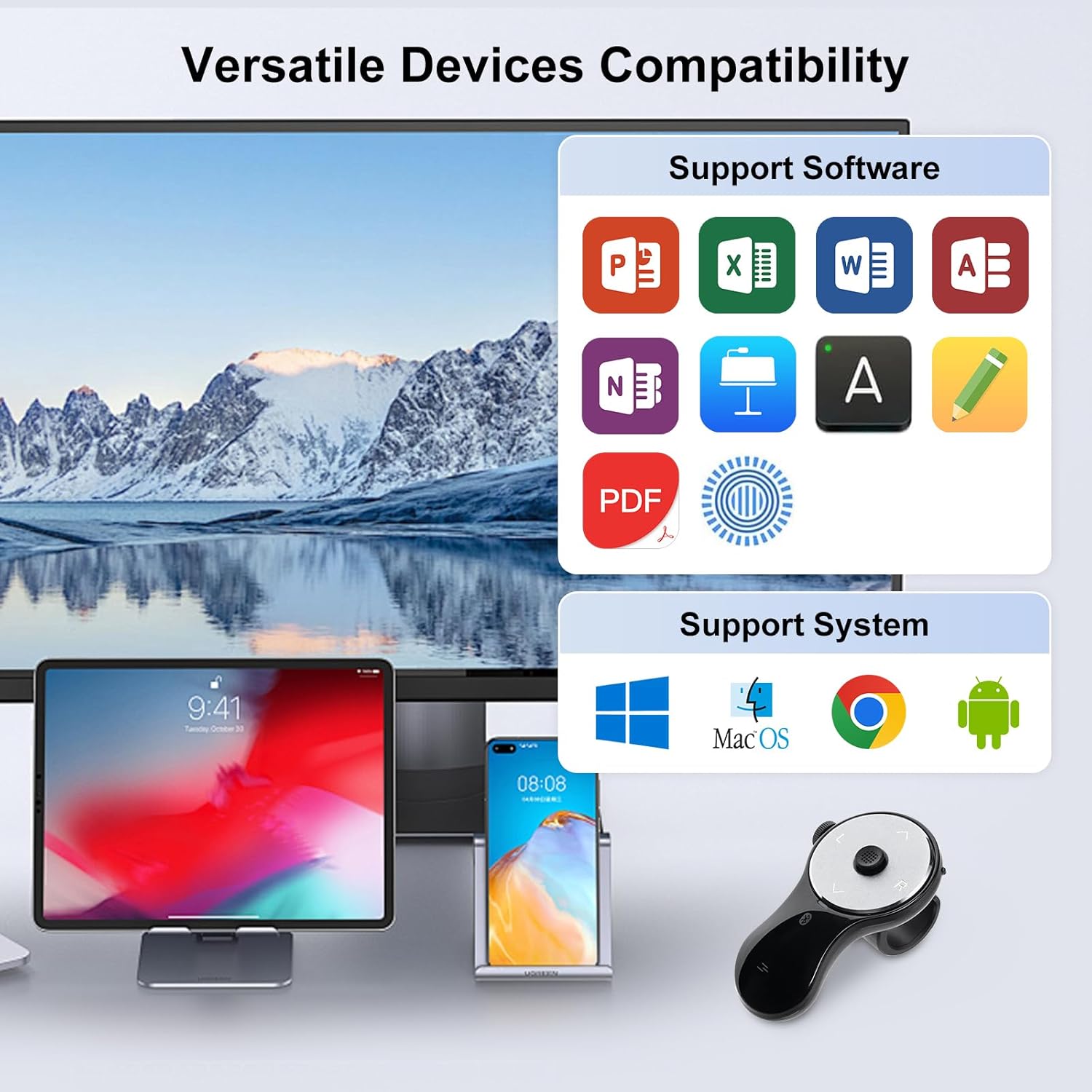
Figure 14: The mouse is compatible with a wide range of devices and software applications.

Figure 15: The mouse is suitable for laptops, PCs, phones, tablets, and systems including Windows, Mac, iOS, Android, and Chrome OS.

Figure 16: A detailed compatibility table showing supported features across different operating systems for Mouse Mode, Microsoft PPT, Google Slides, Keynote, TikTok Video Swipe, and Kindle (APP).
Ergonomics and Usage Scenarios
The ergonomic design of the SANWA Finger Ring Mouse helps alleviate common issues associated with traditional mouse use.

Figure 17: Comparison illustrating how the handheld mini mouse effectively reduces wrist and shoulder strain compared to a traditional mouse.
This mouse is designed to ease harm on your wrist joint and muscle, effectively reducing strain injury caused by regular mouse use. It helps to avoid Arthritis and Carpal Tunnel Syndrome (CTS) suffering. The soft silicone ring provides optimal comfort even during prolonged use and can be worn while typing without causing disruption.

Figure 18: The mouse is suitable for various occasions, including office work, meetings, home filming, and general entertainment.
Its lightweight, small, and portable design makes it an excellent travel companion. Ideal for office work, meeting presentations, classroom teaching, working from home, watching movies on the sofa or bed, and even during yoga sessions.
Specifications
| Feature | Detail |
|---|---|
| Product Dimensions | 2.83 x 1.69 x 0.1 inches |
| Item Weight | 0.739 ounces |
| Item Model Number | GMABT156BK3 |
| Batteries | 1 Lithium Ion batteries required (included) |
| Brand | SANWA |
| Special Feature | Ergonomic Design, Portable, Rechargeable, Wireless |
| Color | Black |
| Compatible Devices | Personal Computer, Smartphone, Tablet |
| Connectivity Technology | Bluetooth |
| Manufacturer | SANWA SUPPLY |
| Date First Available | October 30, 2024 |
Troubleshooting
If you encounter issues with your SANWA Finger Ring Mouse, consider the following common solutions:
- Connection Issues: Ensure the mouse is fully charged and within Bluetooth range (up to 32 feet). Re-attempt the pairing process as described in the Setup section. Verify that your device's Bluetooth is enabled and functioning correctly.
- Unresponsive Cursor: Check if the mouse is in the correct operating mode (Mouse Mode). Ensure the cursor sensor is clean and unobstructed.
- Battery Life: If the mouse is not holding a charge, ensure the charging cable is securely connected and the power source is active. The charging light should indicate charging.
- Mode Switching: Confirm the physical switch on the mouse is set to the desired mode (OFF, MA for Mouse Mode, SWP for Video Swipe Mode).
- App Compatibility: While the mouse supports many applications, some specific features (like full screen in Google Slides on Mac) may have limitations. Refer to the compatibility table for details.
Warranty and Support
For warranty information, product support, or to inquire about replacement parts, please contact SANWA customer service. Keep your purchase receipt as proof of purchase for any warranty claims.
You can visit the official SANWA store for more information and support resources: SANWA Store on Amazon