
Ftoghe LA8818X
Ftoghe 9-inch Car Stereo Radio User Manual
Model: LA8818X
For Dodge Ram 1500 2500 3500 (2003-2005)
Product Overview
This Ftoghe 9-inch car stereo radio is designed for Dodge Ram 1500, 2500, and 3500 models from 2003 to 2005. Featuring an Android 13 operating system, it offers a comprehensive in-car entertainment and navigation solution. Key functionalities include wireless Apple CarPlay and Android Auto, GPS navigation, Bluetooth connectivity, Wi-Fi support, FM radio, and a high-definition backup camera. The system is equipped with a 9-inch IPS touchscreen, 2GB RAM, and 32GB ROM for smooth operation and quick response times.

Image: Front view of the Ftoghe 9-inch car stereo unit with its integrated dashboard frame, showing the touchscreen interface with various app icons. Also includes a backup camera, external microphone, and smartphone displaying wireless Android Auto and CarPlay logos.
Package Contents
Before beginning installation, please verify that all components are present in the package:
- 9-inch Car Stereo Unit with Integrated Frame
- Rear Camera
- Microphone
- Power Cable
- Radio Adapter Cable
- Camera Input Cable
- Canbus Box
- RCA Input/Output Cables
- 2 USB Cables
- GPS Antenna
- Instruction Manual

Image: A visual representation of the product size and a detailed list of all included components in the package, such as the main stereo unit, various cables, camera, microphone, and GPS antenna.
Setup and Installation
This car stereo is designed for direct fitment in Dodge Ram 1500, 2500, and 3500 models from 2003 to 2005. Professional installation is recommended. Ensure the vehicle's battery is disconnected before starting the installation process.
Installation Steps:
- Preparation: Disconnect the negative terminal of the vehicle's battery.
- Remove Old Unit: Carefully remove the existing factory radio and dashboard trim.
- Connect Wiring Harness: Connect the provided power cable and radio adapter cable to the vehicle's wiring harness. Ensure all connections are secure.
- Connect Peripherals:
- Connect the GPS antenna and position it for optimal signal reception.
- Connect the external microphone for clear voice commands and calls.
- If installing the backup camera, route the camera cable to the rear of the vehicle and connect it to the reverse light for automatic activation.
- Connect the USB cables for external media or wired CarPlay/Android Auto.
- Connect the RCA input/output cables as needed for external amplifiers or displays.
- Integrate Canbus Box: Connect the Canbus box as per the wiring diagram to ensure proper communication with the vehicle's systems, especially for steering wheel controls.
- Mount New Unit: Securely mount the new Ftoghe car stereo into the dashboard opening.
- Test Functionality: Reconnect the vehicle's battery and power on the stereo. Test all functions including audio, touchscreen response, GPS, Bluetooth, Wi-Fi, and backup camera.
- Final Assembly: Reinstall any removed dashboard trim pieces.
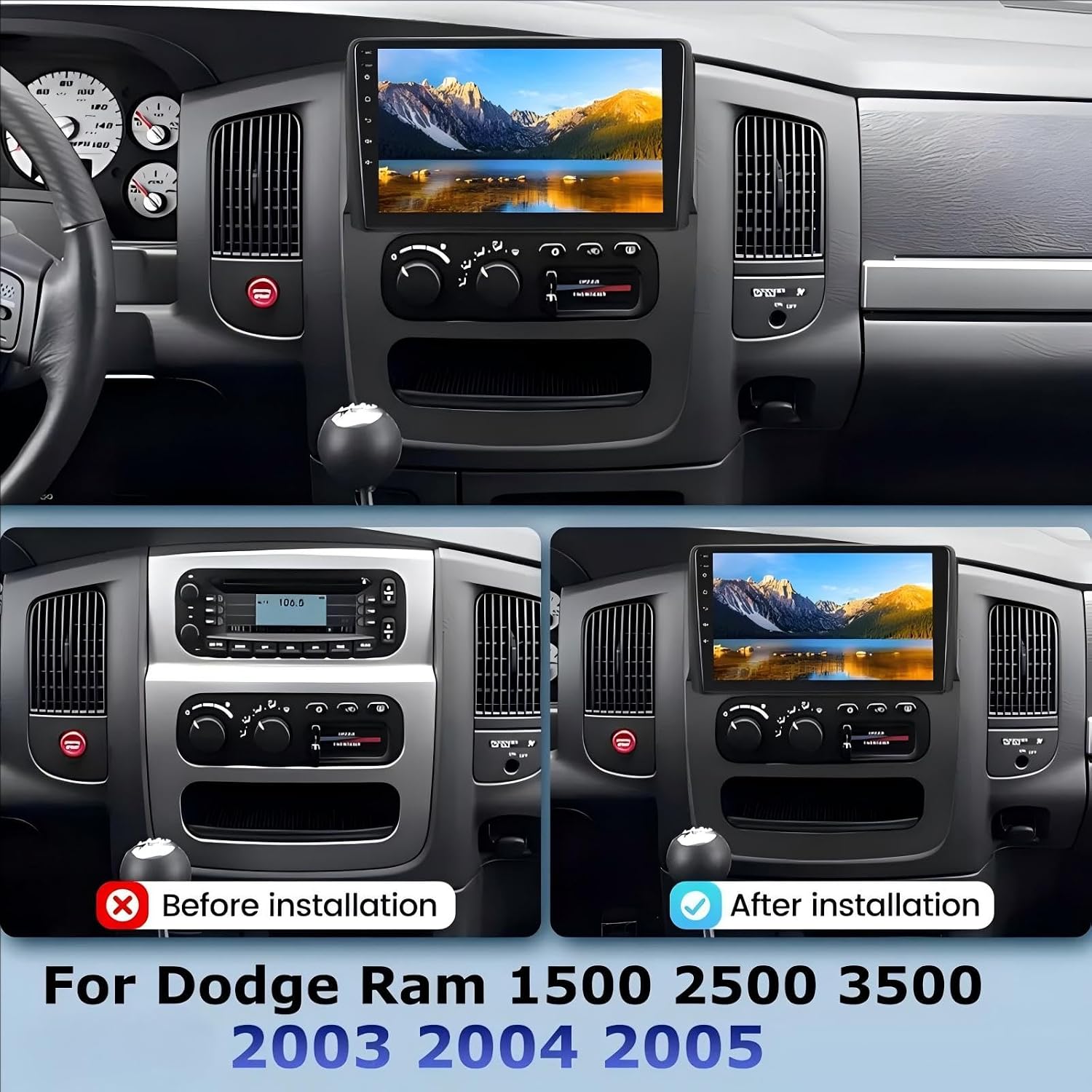
Image: A side-by-side comparison showing the original factory radio in a Dodge Ram dashboard and the new Ftoghe 9-inch car stereo installed, demonstrating the seamless integration and improved aesthetics.
Operating Instructions
Power On/Off
The unit will typically power on automatically with the vehicle's ignition. To manually power off or on, press and hold the power button on the unit's front panel.
Touchscreen Navigation
The 9-inch IPS touchscreen provides intuitive control. Tap icons to open applications, swipe to navigate menus, and use pinch-to-zoom gestures where applicable (e.g., in navigation apps).

Image: A close-up of the 9-inch IPS touchscreen displaying a vibrant landscape image, highlighting its high-definition 1024x600 resolution and mirror projection capabilities.
Wireless CarPlay & Android Auto
Connect your smartphone wirelessly via Bluetooth and Wi-Fi to access Apple CarPlay or Android Auto. This allows seamless integration of your phone's apps, navigation, music, and voice assistants directly on the stereo's screen.
- Pairing: Go to the Bluetooth settings on the stereo and your phone. Select the stereo's Bluetooth name on your phone to pair.
- Wi-Fi Connection: Ensure Wi-Fi is enabled on both devices. The stereo will prompt you to connect to its Wi-Fi hotspot for CarPlay/Android Auto functionality.
- Voice Control: Use voice commands (e.g., "Hey Siri" or "Ok Google") for hands-free operation of navigation, calls, and music playback.

Image: A visual demonstration of wireless CarPlay and Android Auto interfaces on the car stereo screen, showing various compatible apps and the USB/Bluetooth connection method for both iOS and Android devices.
Video: A demonstration of the Android Carplay Radio for Dodge Ram 1500, showcasing its features and user interface.
GPS Navigation
The unit supports online and offline GPS navigation. Connect to Wi-Fi or a mobile hotspot to download maps and receive real-time traffic updates. Pre-installed navigation apps or those downloaded from the Play Store can be used.

Image: An illustration of the car stereo screen displaying GPS navigation with voice control prompts, showing a route map and examples of voice commands like "Hey Siri, Play music" and "Google, Open Google Maps."
Bluetooth Connectivity
Pair your phone via Bluetooth for hands-free calling and audio streaming. The built-in microphone ensures clear communication, and an external microphone can be connected for enhanced audio quality.
- Pairing: Navigate to the Bluetooth menu on the stereo. Enable Bluetooth on your phone and search for available devices. Select the stereo's name (e.g., "Ftoghe Car Stereo") to pair.
- Calling: Use the touchscreen dial pad or import contacts for making calls.
- Audio Streaming: Play music from your phone through the car's speakers.
FM Radio
Access the FM radio function to tune into your favorite stations. The unit supports automatic station scanning and manual tuning.

Image: A collage showing four different audio output options: Built-in Speaker, AUX Connect, Bluetooth audio streaming, and FM Transmitter, all displayed on the car stereo screen within a vehicle dashboard context.
Media Playback
The stereo supports various media formats for music and video playback via USB or internal storage. Use the built-in music and video players to enjoy your media library.
- USB Playback: Insert a USB drive into one of the USB ports. The system will automatically detect and allow you to browse media files.
- Internal Storage: Download music or videos directly to the unit's 32GB internal storage.
Steering Wheel Controls (SWC)
If your vehicle is equipped with steering wheel controls, the unit supports learning and mapping these controls for convenient operation without taking your hands off the wheel. Refer to the "Steering Learn" option in the settings menu.

Image: A close-up of the car stereo screen showing the "Steering Learn" interface, with a blue line pointing from the screen to the volume buttons on a steering wheel, illustrating how to program steering wheel controls.
Backup Camera
The included HD backup camera automatically displays the rear view on the screen when the vehicle is shifted into reverse. This feature includes adjustable parking assistance lines for safer parking and maneuvering.

Image: The car stereo screen displaying the view from the backup camera, showing parking assistance lines and icons indicating features like reverse reference line, IP67 waterproof rating, and FHD 1080P rear camera.
Maintenance
To ensure the longevity and optimal performance of your car stereo, follow these maintenance guidelines:
- Screen Cleaning: Use a soft, lint-free cloth to gently wipe the touchscreen. For stubborn smudges, slightly dampen the cloth with water or a screen-safe cleaner. Avoid abrasive materials or harsh chemicals.
- Software Updates: Periodically check for software updates via the system settings or the manufacturer's website to ensure you have the latest features and bug fixes.
- Ventilation: Ensure the stereo's ventilation areas are not blocked to prevent overheating.
- Environmental Conditions: Avoid exposing the unit to extreme temperatures, direct sunlight for prolonged periods, or excessive moisture.
Troubleshooting
| Problem | Possible Cause | Solution |
|---|---|---|
| No Power | Loose power connection, blown fuse, vehicle battery issue. | Check power cables and fuse. Ensure battery is properly connected and charged. |
| No Sound | Volume too low, incorrect audio source, loose speaker wires, amplifier issue. | Increase volume. Select correct audio source. Check speaker connections. |
| Touchscreen Unresponsive | System freeze, temporary software glitch. | Perform a soft reset (refer to manual for specific button combination or pinhole reset). |
| GPS Signal Lost/Inaccurate | GPS antenna obstruction, poor satellite reception, outdated maps. | Ensure GPS antenna has clear sky view. Update maps if necessary. |
| Bluetooth Connection Issues | Device not in pairing mode, interference, incorrect pairing process. | Ensure both devices are in pairing mode. Delete previous pairings and re-pair. Move closer to the unit. |
| Backup Camera Not Displaying | Loose camera connection, incorrect wiring to reverse light, camera malfunction. | Check camera cable connections. Verify power supply to the camera when in reverse. |
Specifications
| Feature | Detail |
|---|---|
| Model Number | LA8818X |
| Operating System | Android 13 |
| Screen Size | 9 Inches IPS Touch Screen |
| Display Resolution | 1024*600 HD |
| RAM | 2GB |
| ROM (Internal Storage) | 32GB |
| Connectivity | Bluetooth, Wi-Fi, USB, Ethernet |
| Special Features | Wireless CarPlay & Android Auto, GPS Navigation, DSP Sound Processing, Steering Wheel Control Support, Backup Camera Input |
| Applicable Vehicle Models | Dodge Ram 1500 2500 3500 (2003-2005) |
| Item Weight | 3.91 pounds |
| Product Dimensions | 8 x 16 x 7 inches |
Warranty and Support
The Ftoghe car stereo comes with an 18-month warranty from the date of purchase. For technical support, troubleshooting assistance, or warranty claims, please contact the seller directly.
You can typically find seller contact information on the product's purchase page or within your order history on the retail platform.

Image: A visual guide demonstrating how to contact the seller for support, showing steps to navigate to the seller's store and find the "Ask a question" option.
Ask a question about this manual
Ask about setup, troubleshooting, compatibility, parts, safety, or missing instructions. Manuals+ will review the question and use this page’s manual context to help answer it.