1. Introduction
The SainSmart Genmitsu Kiosk 2.5W Laser Engraver is a compact and precise tool designed for engraving and cutting various materials. It offers high-speed performance up to 12000 mm/min and a precision of 0.01 mm, making it suitable for detailed projects. The device features smart control options via a dedicated mobile application and is compatible with popular software like LightBurn and LaserGRBL. Its design prioritizes user safety and ease of use, making it accessible for both beginners and experienced users.

Image: The Genmitsu Kiosk 2.5W Laser Engraver with its orange acrylic enclosure.
2. Safety Information
Your Genmitsu Kiosk Laser Engraver is designed with multiple safety features to ensure a secure operating environment. Always adhere to the following guidelines:
- Class 1 Laser Product: This device is a certified Class 1 laser product, meaning it is safe under all conditions of normal use.
- Acrylic Enclosure: The orange acrylic enclosure is designed to filter harmful laser light. Always ensure the lid is closed during operation.
- Lid Opening Sensor: The machine is equipped with a sensor that automatically stops operation if the lid is opened during engraving.
- Tilt Induction: An integrated tilt sensor will instantly halt operation if the machine is tilted beyond a safe angle.
- Eye Protection: Although the enclosure provides protection, it is recommended to wear additional laser safety glasses when observing the engraving process closely.
- Ventilation: Ensure adequate ventilation in your workspace to dissipate any fumes or odors produced during engraving.

Image: Visual representation of the lid opening sensor and tilt induction safety features.
3. Package Contents
Upon unpacking your Genmitsu Kiosk Laser Engraver, please verify that all components listed below are present and in good condition:
- Genmitsu Kiosk Main Unit (Pre-assembled Frame)
- 2.5W Laser Module
- Power Adapter
- USB-C Cable
- Laser Safety Glasses
- Sample Engraving Materials (e.g., wood pieces)
- Tool Accessory Kit (e.g., paintbrush, marker, USB drive with software)
- User Manual (this document)

Image: The Genmitsu Kiosk unit as it appears when unboxed, highlighting the pre-assembled frame and laser module.
4. Setup
The Genmitsu Kiosk is designed for quick and easy setup. Follow these steps to get your engraver ready for its first use:
- Unpacking: Carefully remove all components from the packaging.
- Laser Module Installation: Insert the laser module into its designated slot on the main unit. Secure it using the locking lever.
- Connect Power: Plug the power adapter into the machine and then into a power outlet.
- Connect to Computer/App:
- USB Connection: Connect the machine to your computer using the provided USB-C cable.
- Wi-Fi Connection (Genmitsu App): Download the Genmitsu App on your mobile device. Follow the in-app instructions to connect the engraver to your Wi-Fi network.
- Software Installation: Install the necessary software (LightBurn, LaserGRBL, or Genmitsu App) from the provided USB drive or by downloading the latest version from the official SainSmart website.

Image: Screenshot illustrating the Wi-Fi connection process within the Genmitsu App.
5. Operating Instructions
5.1 Software Options
The Genmitsu Kiosk supports multiple software platforms for design and control:
- Genmitsu App: For effortless remote control via mobile devices (iOS/Android). Features include photo tracing, multi-language support, and custom fonts.
- LightBurn: A popular third-party laser engraving software known for its advanced features and compatibility.
- LaserGRBL: A free, open-source software for controlling GRBL-based laser engravers.

Image: Diagram showing multi-platform support (Windows, Mac, iOS, Linux, Android) and offline engraving via TF card.
5.2 Engraving Process
- Material Placement: Place your material securely on the engraving bed. For larger objects, the removable base plate allows for working on taller items.
- Focus Adjustment: Adjust the laser focus according to your material and desired engraving depth.
- Design Import: Import your design into your chosen software (Genmitsu App, LightBurn, or LaserGRBL). The Genmitsu App allows direct photo uploads and tracing.
- Parameter Settings: Adjust engraving parameters such as speed, power, and passes based on the material type and desired effect. Recommended settings for common materials are available in the detailed manual.
- Preview and Position: Use the software's preview function to confirm the engraving area and position. The machine also features one-touch control for previewing.
- Start Engraving: Initiate the engraving process. The one-touch repeat engraving function is useful for batch production.

Image: Illustration of the one-touch control buttons for preview, start, pause, and stop engraving.

Image: Depiction of the Genmitsu App interface for remote control, showing preview, position, and engrave functions.
6. Material Compatibility
The Genmitsu Kiosk 2.5W Laser Engraver is versatile and can engrave on a variety of materials. The 2.5W laser is ideal for crisp results on the following:
| Material Type | Notes |
|---|---|
| Wood | Excellent for detailed engravings and cuts. |
| Leather | Ideal for personalized text and designs. |
| Plastics | Suitable for various plastic types, test settings first. |
| Thin Fabrics | Good for delicate patterns and labels. |
| Card Paper | Precise cutting and engraving for crafts. |
| Coated Metal | Engraves through coatings to reveal the metal underneath. |
| Stainless Steel | Can achieve marking effects on stainless steel. |
| Glass | Can achieve etching effects on glass. |
Always perform a small test engraving on a scrap piece of the material to determine optimal settings before starting your main project.
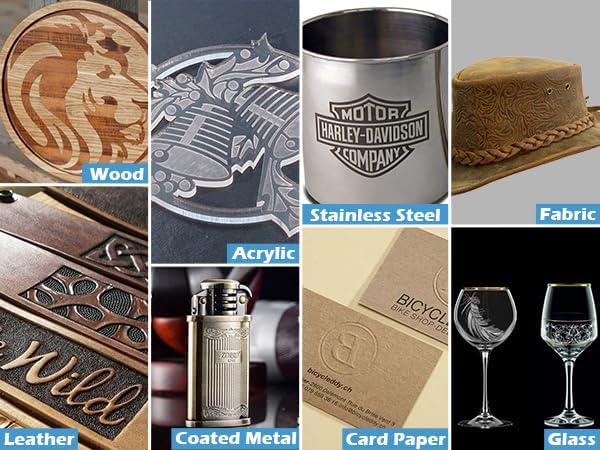
Image: A grid displaying various materials such as wood, stainless steel, fabric, leather, coated metal, card paper, and glass, with engraved designs.
7. Maintenance
Regular maintenance ensures the longevity and optimal performance of your Genmitsu Kiosk Laser Engraver:
- Cleaning: Regularly clean the engraving area and the laser lens to prevent residue buildup from engraved materials. Use a soft, lint-free cloth and appropriate cleaning solutions.
- Lens Care: The laser lens is crucial for engraving quality. Keep it free from dust and debris. Refer to the detailed manual for specific lens cleaning instructions.
- Ventilation System: Ensure the built-in air assist and any external ventilation systems are clear and functioning correctly to prevent smoke and debris accumulation.
- Firmware Updates: Periodically check for firmware updates on the SainSmart website to ensure your machine has the latest features and performance enhancements.
8. Troubleshooting
If you encounter issues with your Genmitsu Kiosk, consider the following common troubleshooting steps:
- Machine Not Connecting:
- Ensure the machine is powered on and the indicator light is active.
- For Wi-Fi connection, verify your mobile device and the Kiosk are on the same network. Restart the app and the machine if necessary.
- For USB connection, check the cable and port. Reinstall drivers if prompted by your operating system.
- Poor Engraving Quality:
- Check the laser focus. An improperly focused laser can lead to blurry or weak engravings.
- Adjust engraving parameters (speed, power, passes) for the specific material. Refer to recommended settings.
- Clean the laser lens and the engraving area.
- Machine Stops Unexpectedly:
- Verify the lid is fully closed. The safety sensor will stop operation if the lid is open.
- Check if the machine has been tilted. The tilt induction safety feature will activate.
- Ensure the power supply is stable.
- Software Issues: Reinstall the software or update to the latest version. Consult the software's documentation or online communities for specific issues.
If problems persist, please contact SainSmart customer support for further assistance.
9. Specifications
- Product Dimensions: 12.8 x 10.63 x 10.83 inches
- Item Model Number: KK2W5
- Laser Power: 2.5W (2500mW)
- Engraving Area: 3.9'' x 3.9'' (100x100mm)
- Engraving Speed: Up to 12000 mm/min
- Precision: 0.01 mm
- Item Weight: 8.84 pounds
- Manufacturer: Genmitsu
- Safety Class: Class 1 Laser Product
10. Warranty and Support
SainSmart provides a standard warranty for the Genmitsu Kiosk Laser Engraver. For detailed warranty terms, conditions, and duration, please refer to the official SainSmart website or contact their customer service directly.
For technical support, troubleshooting assistance, or any inquiries regarding your product, please reach out to SainSmart customer support through their official channels. They offer comprehensive support, including detailed manuals, tutorial videos, and a responsive support team to help you with your engraving projects.
You can often find additional resources, FAQs, and community forums on the SainSmart website to further assist you.


